NekoRay
NekoRay can proxy both TCP and UDP traffic in TUN mode.
Download and launch
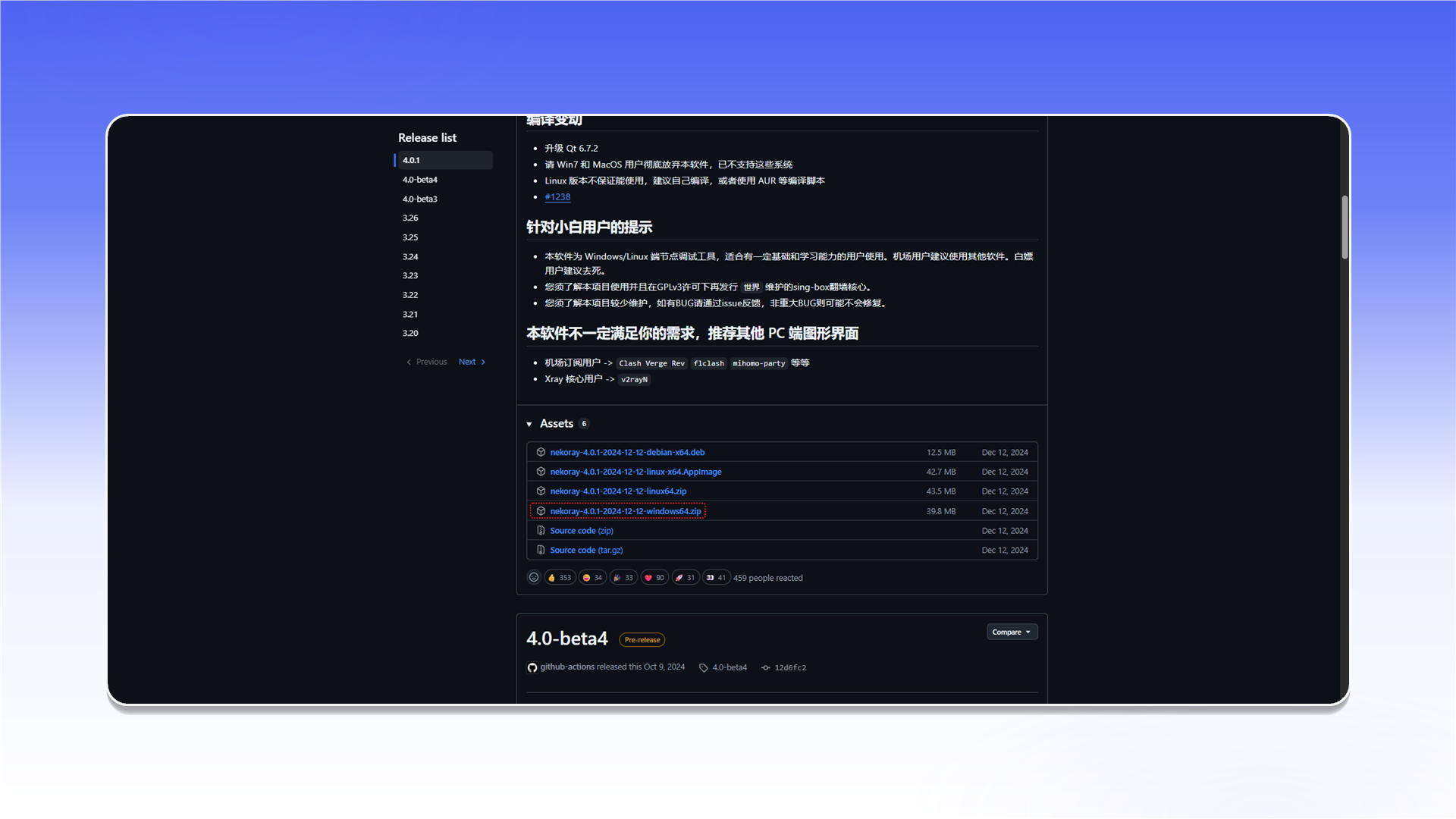
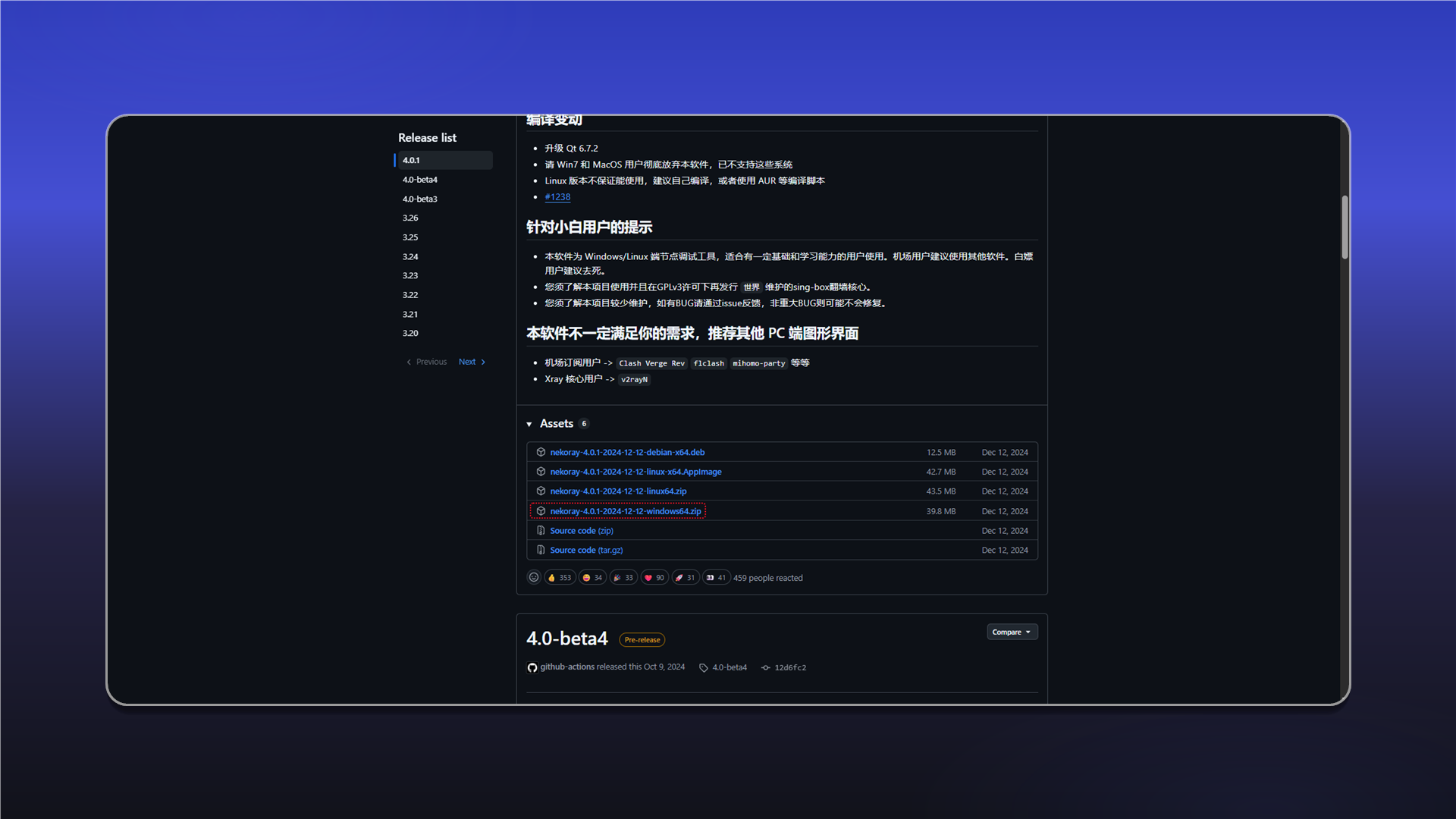
Download the Windows archive from the NekoRay releases page, extract it, and run nekoray.exe or nekobox.exe. Select the sing-box core on first launch.
Create a profile
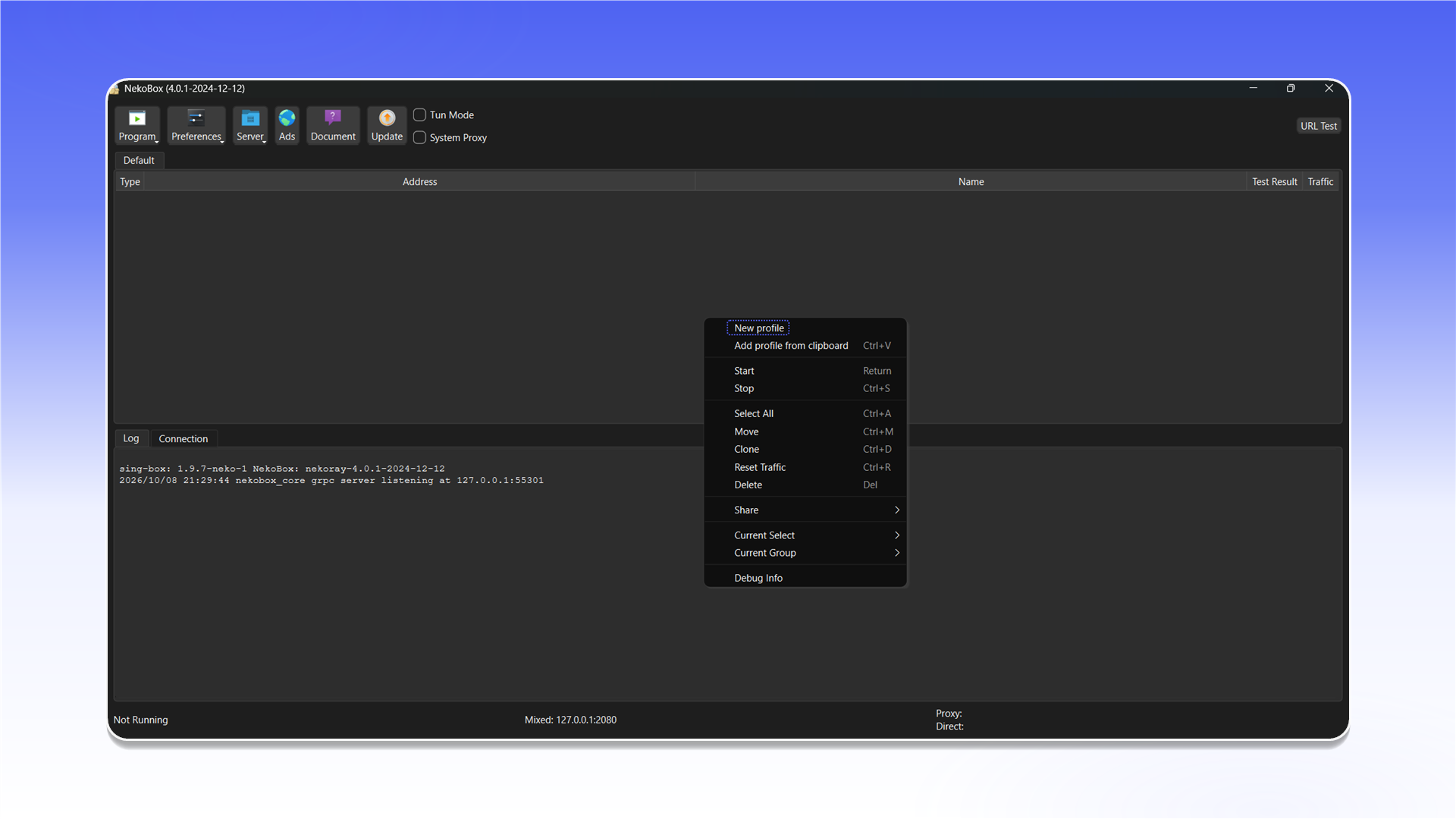
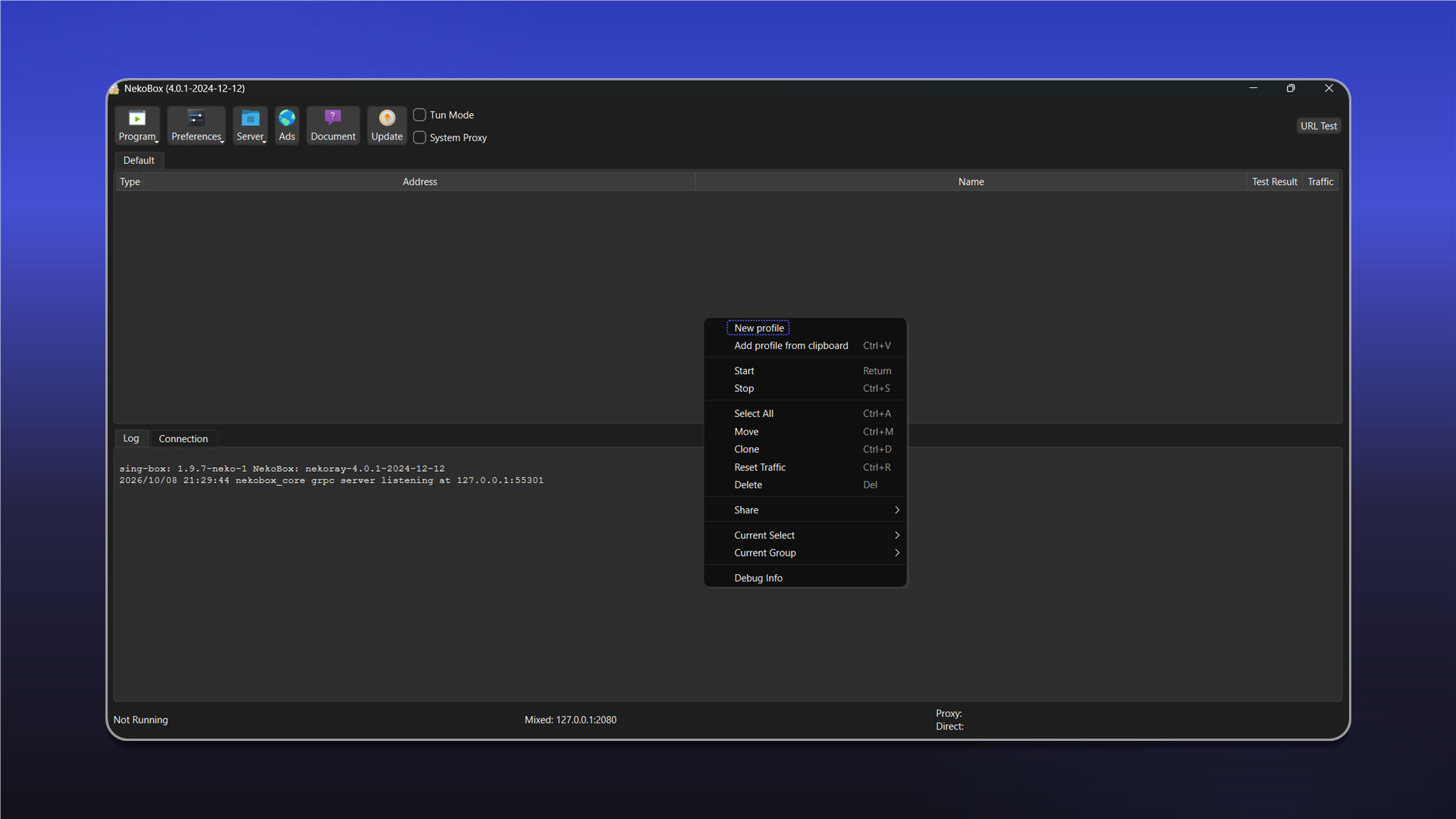
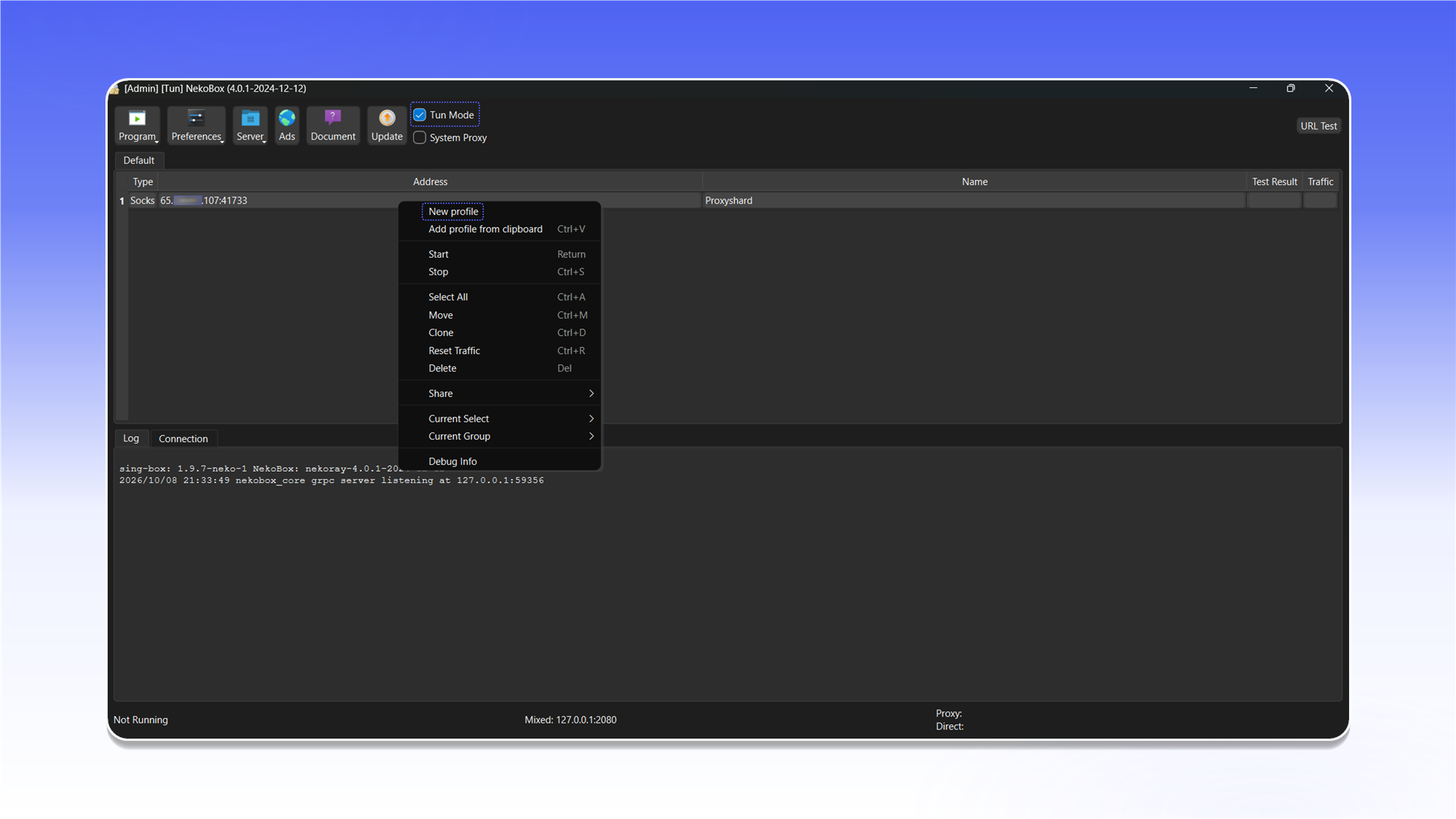
Right-click an empty area in the server list and select New profile.
Select Socks from the Type list.
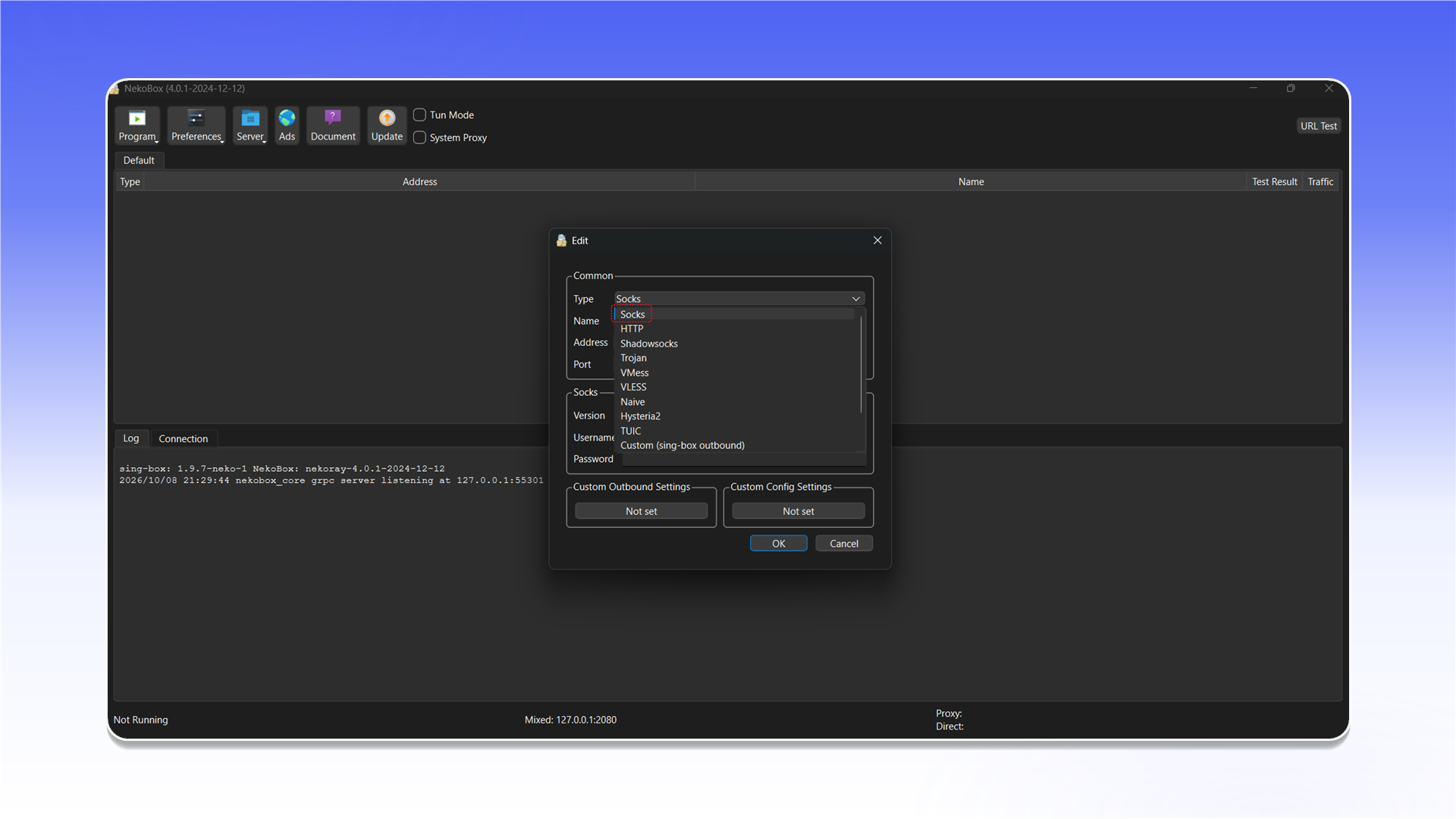
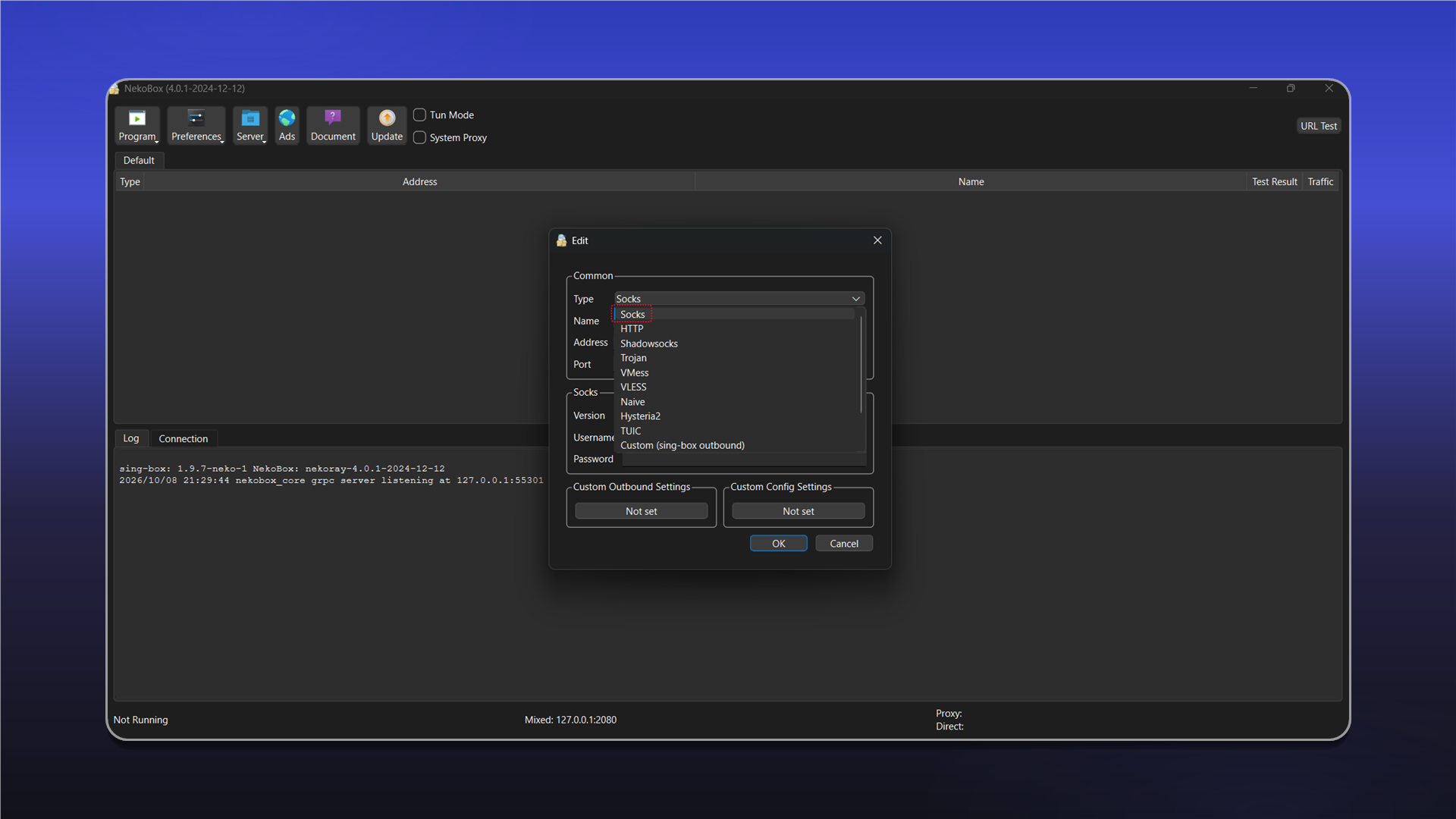
Enter the connection details:
- Enter any recognizable name in
Name. - Enter the proxy address and port in
AddressandPort. - Under
Socks, selectVersion: 5. - Enter the
UsernameandPassword. - Click
OK.
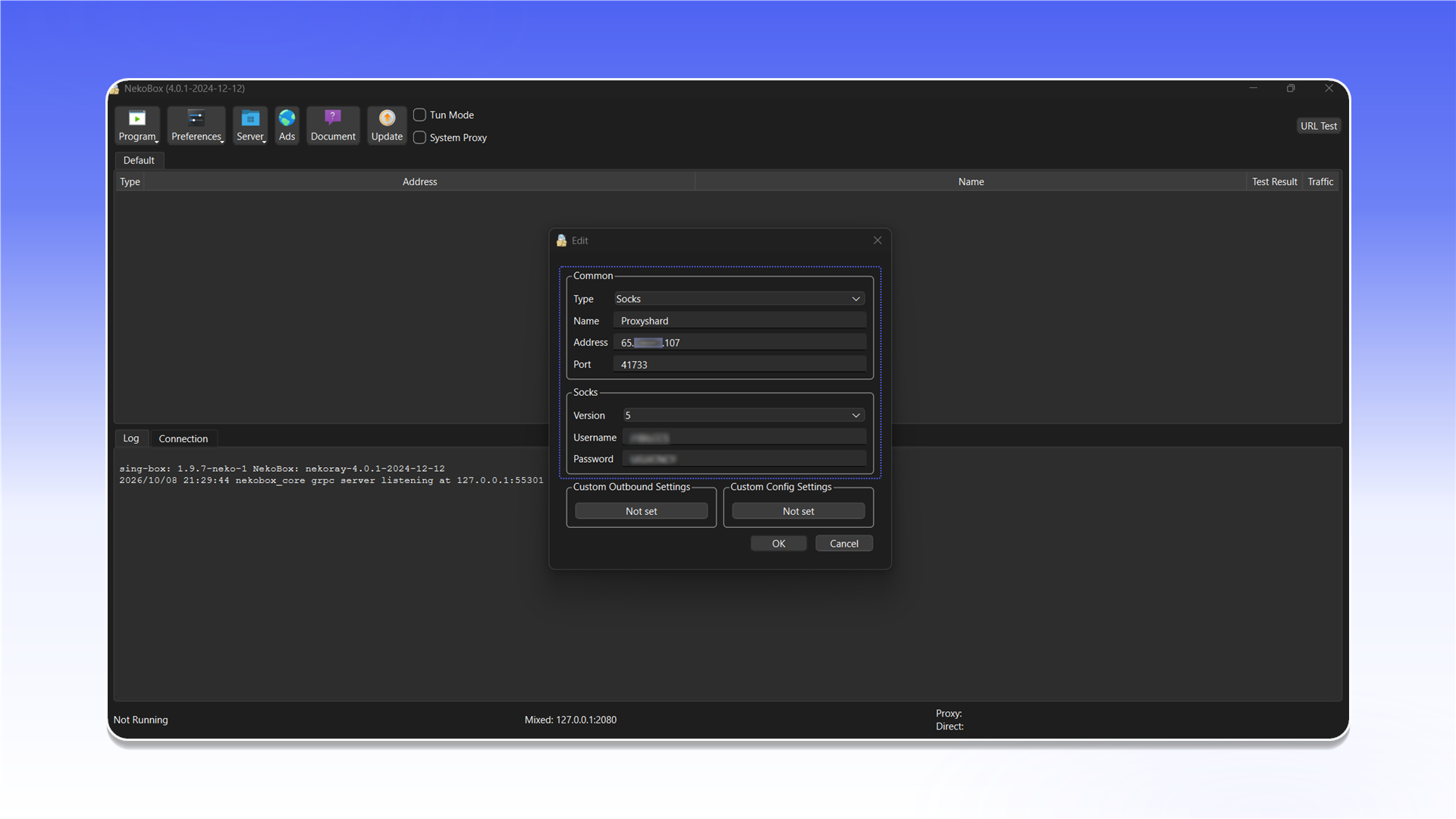
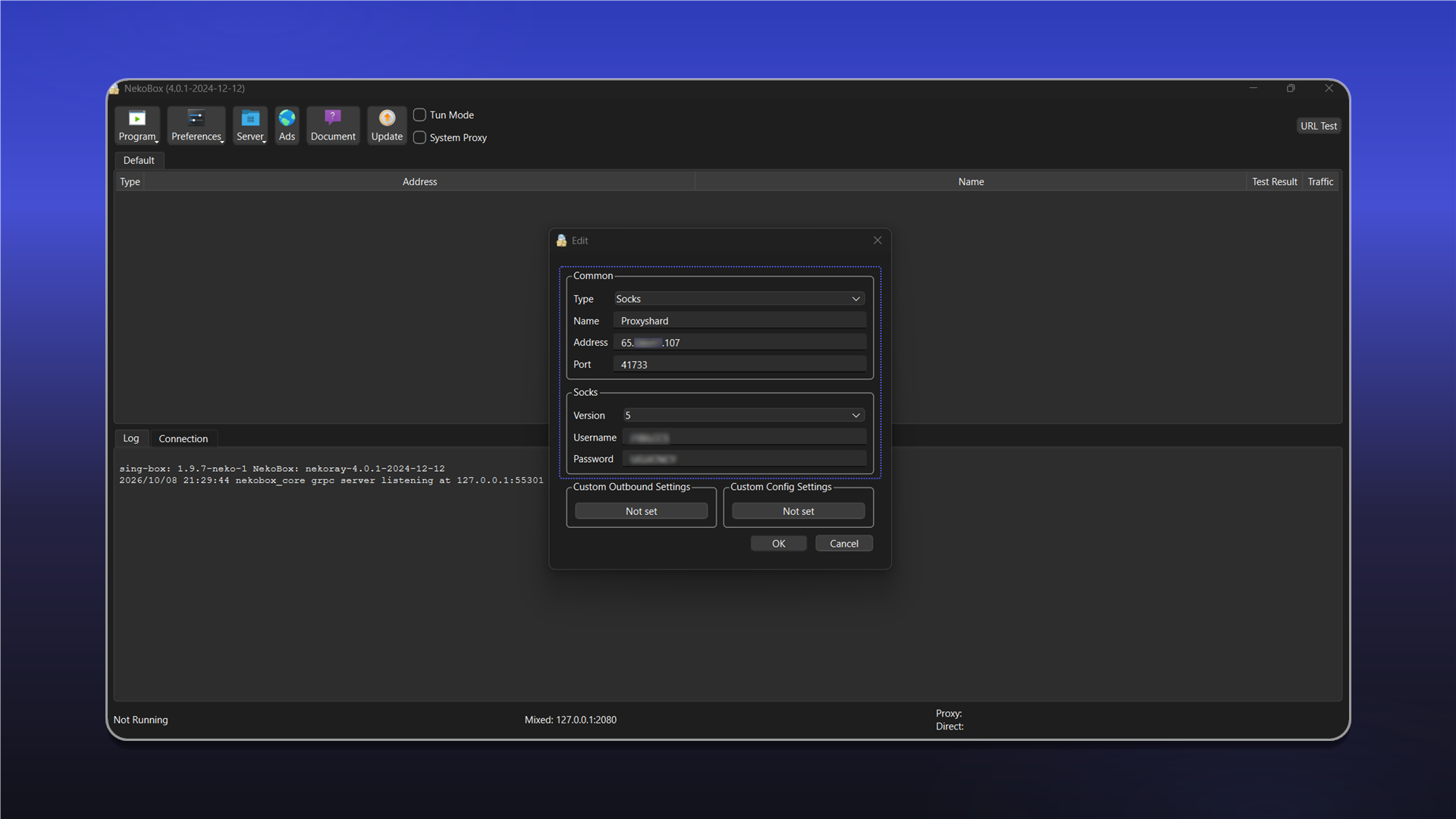
See the general setup guide for help finding the connection details.
Connect
Select the created profile and enable Tun Mode in the top bar. Once connected, system traffic will be routed through the configured proxy.
Last updated on