ShardBrowser
Installing ShardBrowser, adding a proxy and launching your first profile


ShardBrowser is a Chromium-based anti-detect browser by the ShardX team. Every profile gets its own fingerprint of a real device and its own proxy, so websites see your profiles as different computers. The program is free and provided "as is". If you run into a serious issue, please file a bug report on GitHub.
Windows system requirements
| Component | Minimum | Recommended |
|---|---|---|
| OS | Windows 10 22H2 or Windows 11, 64-bit | Windows 11 64-bit |
| Architecture | x64 / x86_64 | x64 |
| CPU | Dual-core 64-bit with SSE3 support | Quad-core or better |
| RAM | 4 GB | 8 GB (16 GB when running many profiles) |
| Disk space | 1 GB | 5 GB or more |
| Runtime | Microsoft Edge WebView2 | Latest version |
Installing on Windows
Download the latest version:
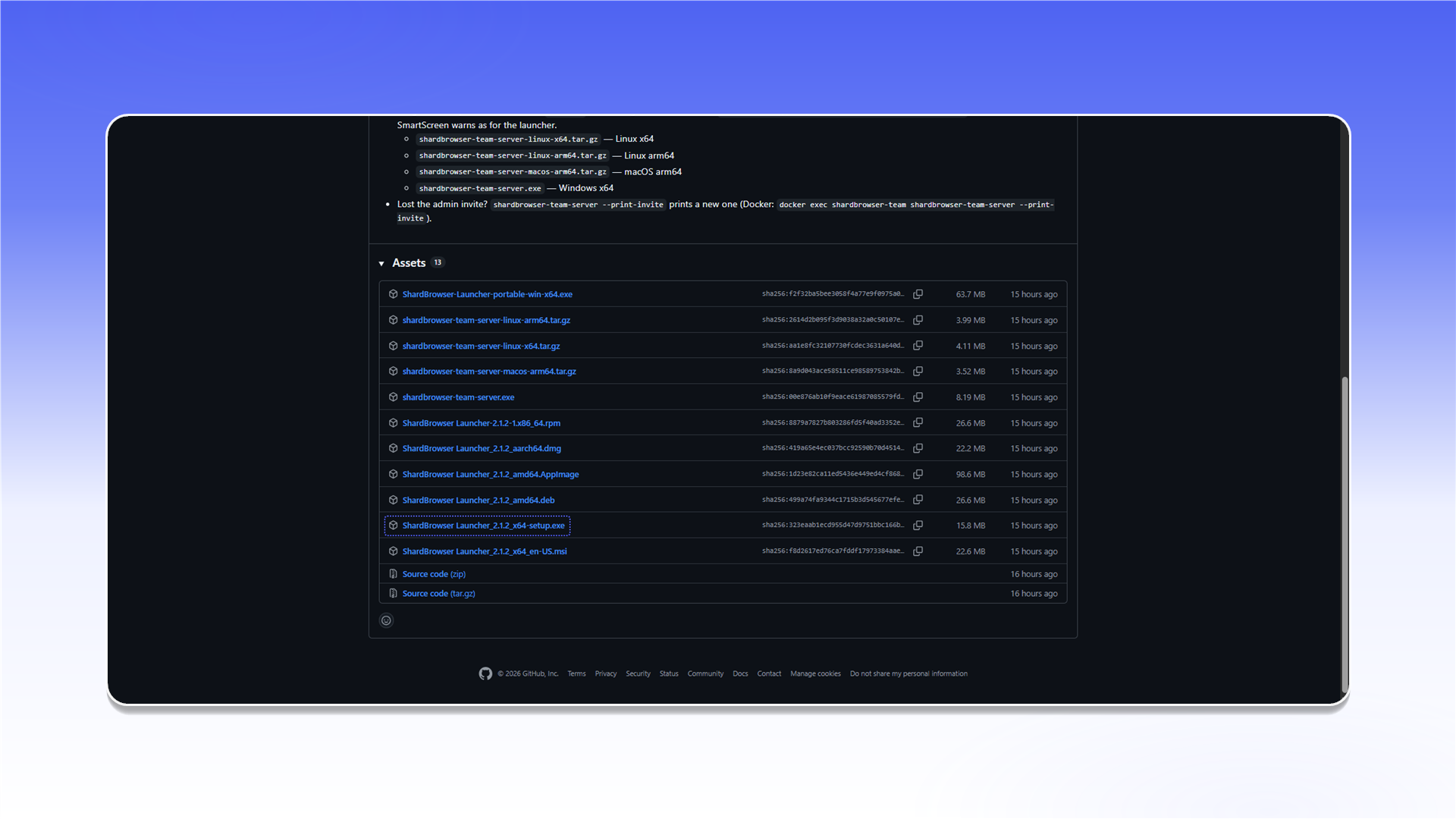
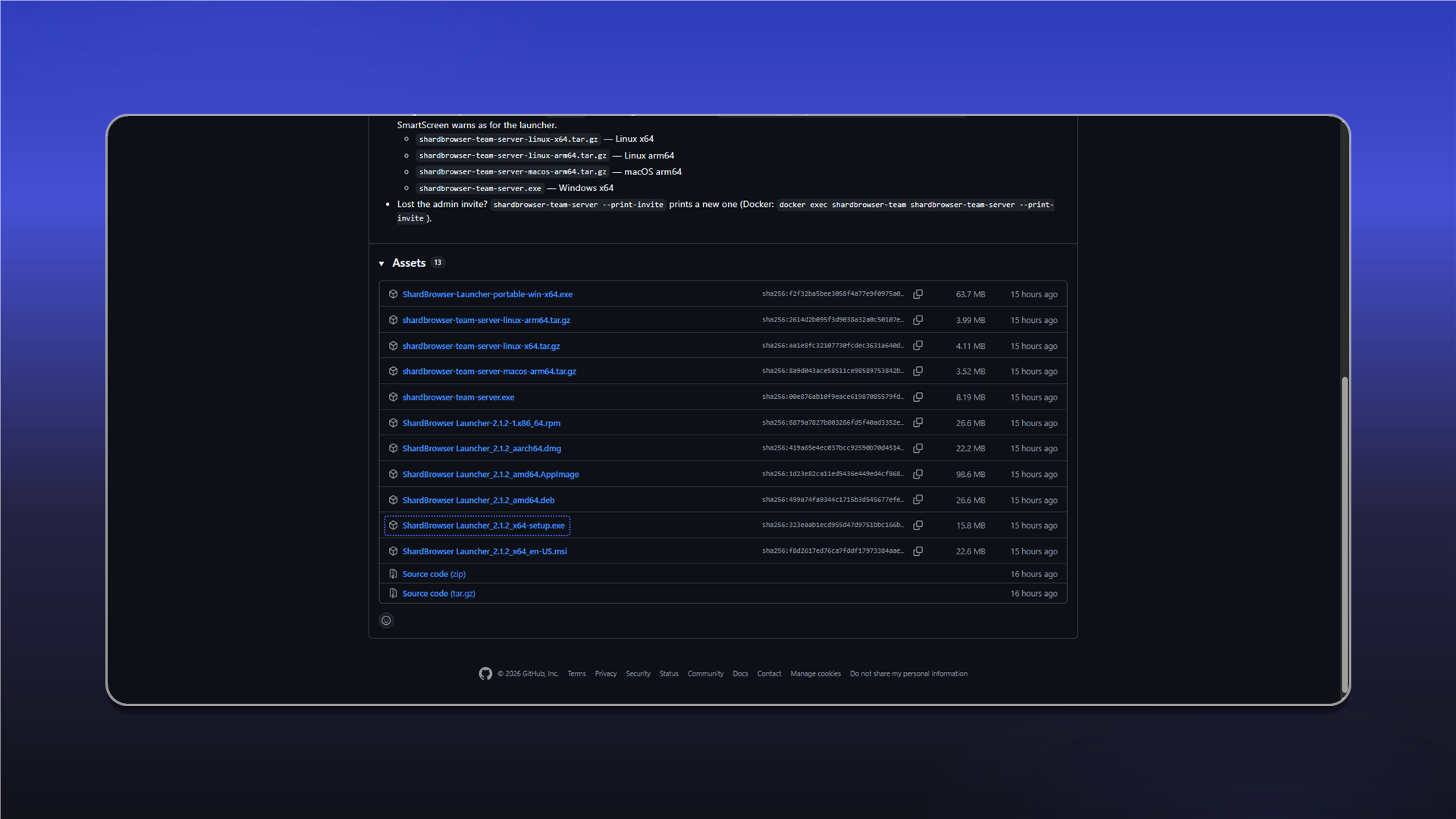
github.comhttps://github.com/ProxyShard/ShardBrowser/releases/latestUnder Assets, pick the installer ShardBrowser.Launcher_<version>_x64-setup.exe. If you need a version that runs without installation, download ShardBrowser-Launcher-portable-win-x64.exe.
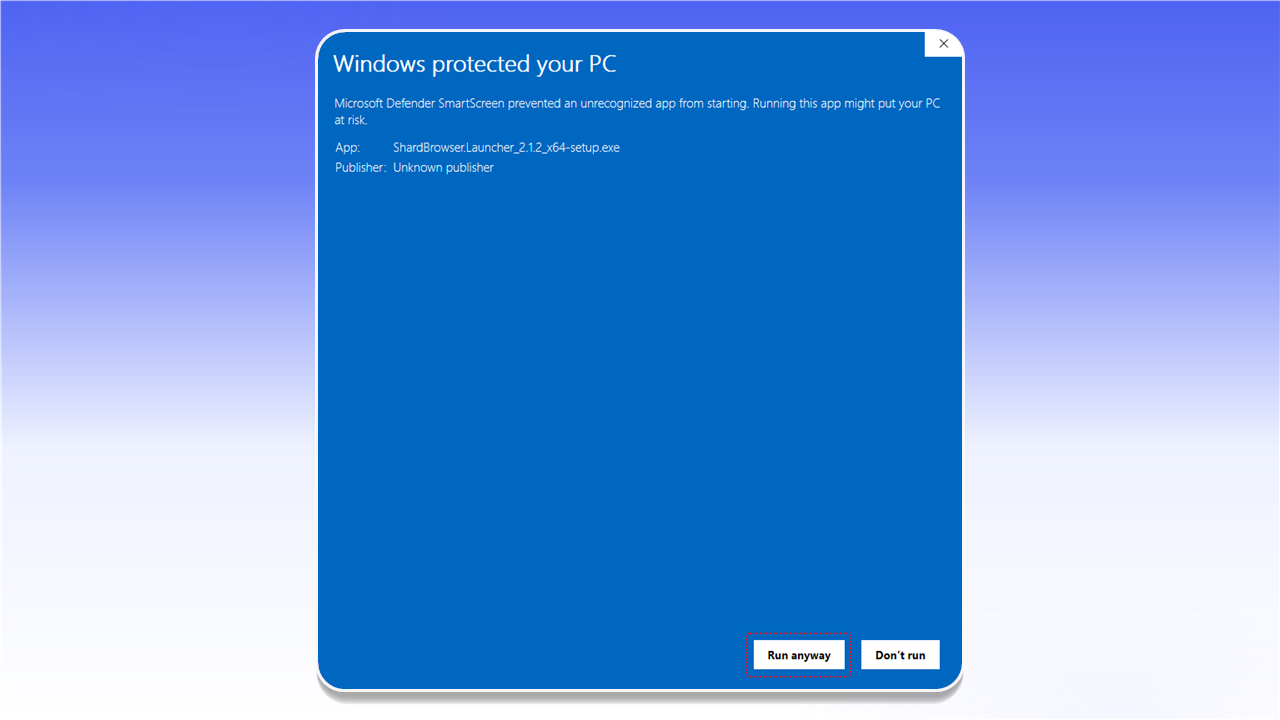
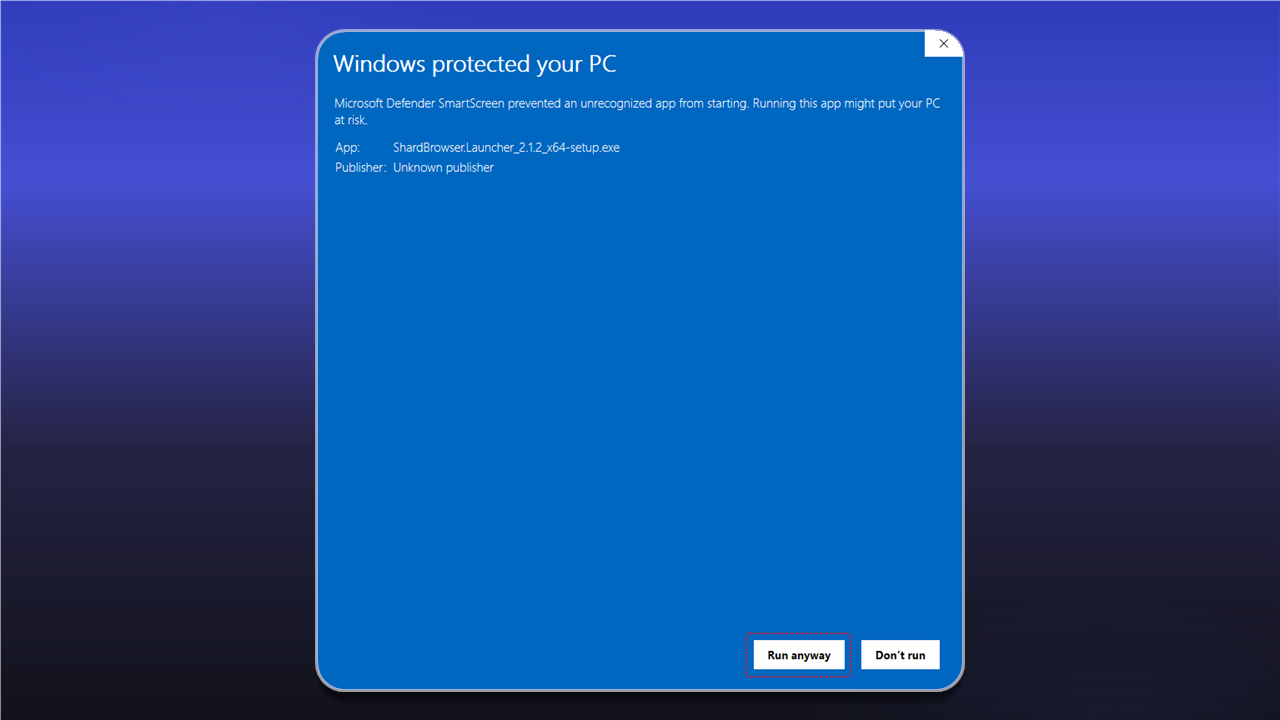
Run the downloaded file. Windows SmartScreen may show a warning. Click More info, then Run anyway.
Installing on macOS
Under Assets, download ShardBrowser.Launcher_<version>_aarch64.dmg. This build supports Macs with Apple Silicon processors.
Open the .dmg file and drag ShardBrowser Launcher to Applications. The build is not notarized, so macOS may block the first launch. Run this command in Terminal:
xattr -dr com.apple.quarantine "/Applications/ShardBrowser Launcher.app"You can also allow the app under System Settings → Privacy & Security → Open Anyway.
Installing on Linux
The Assets section provides .AppImage, .deb and .rpm builds. To run the AppImage, make it executable:
chmod +x ShardBrowser.Launcher_<version>_amd64.AppImage
./ShardBrowser.Launcher_<version>_amd64.AppImage
Install the .deb package with:
sudo apt install ./ShardBrowser.Launcher_<version>_amd64.debFirst launch
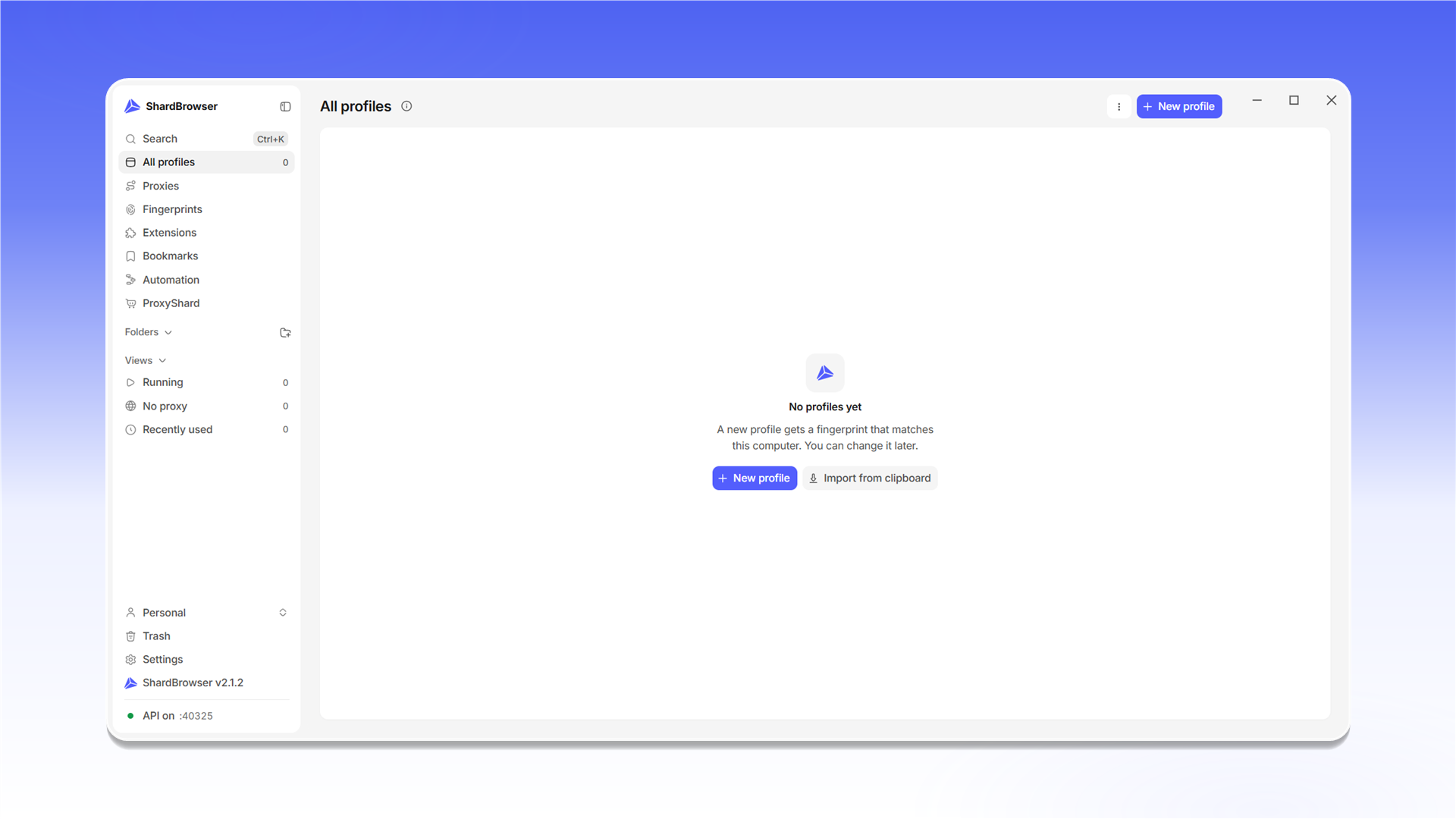
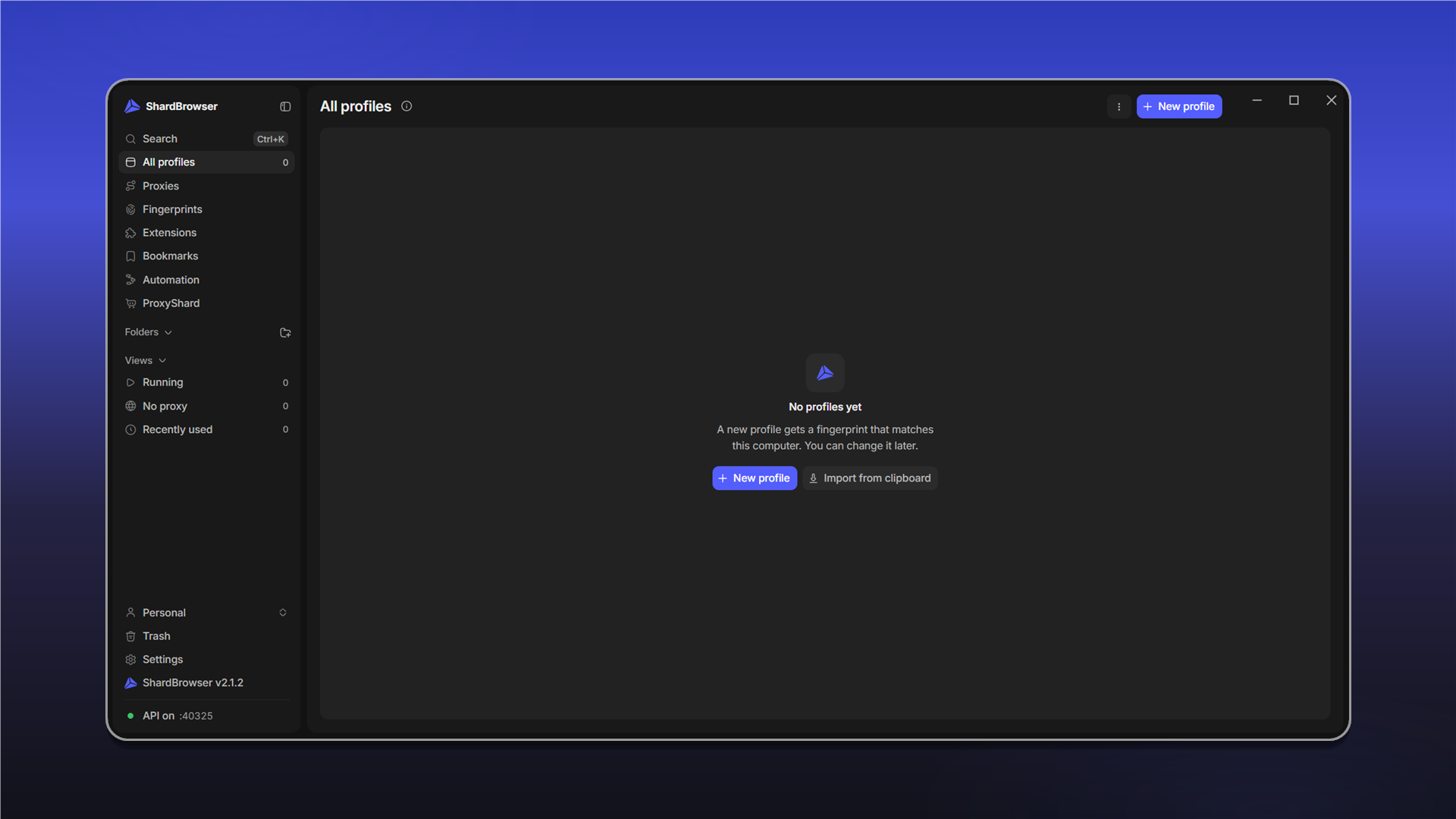
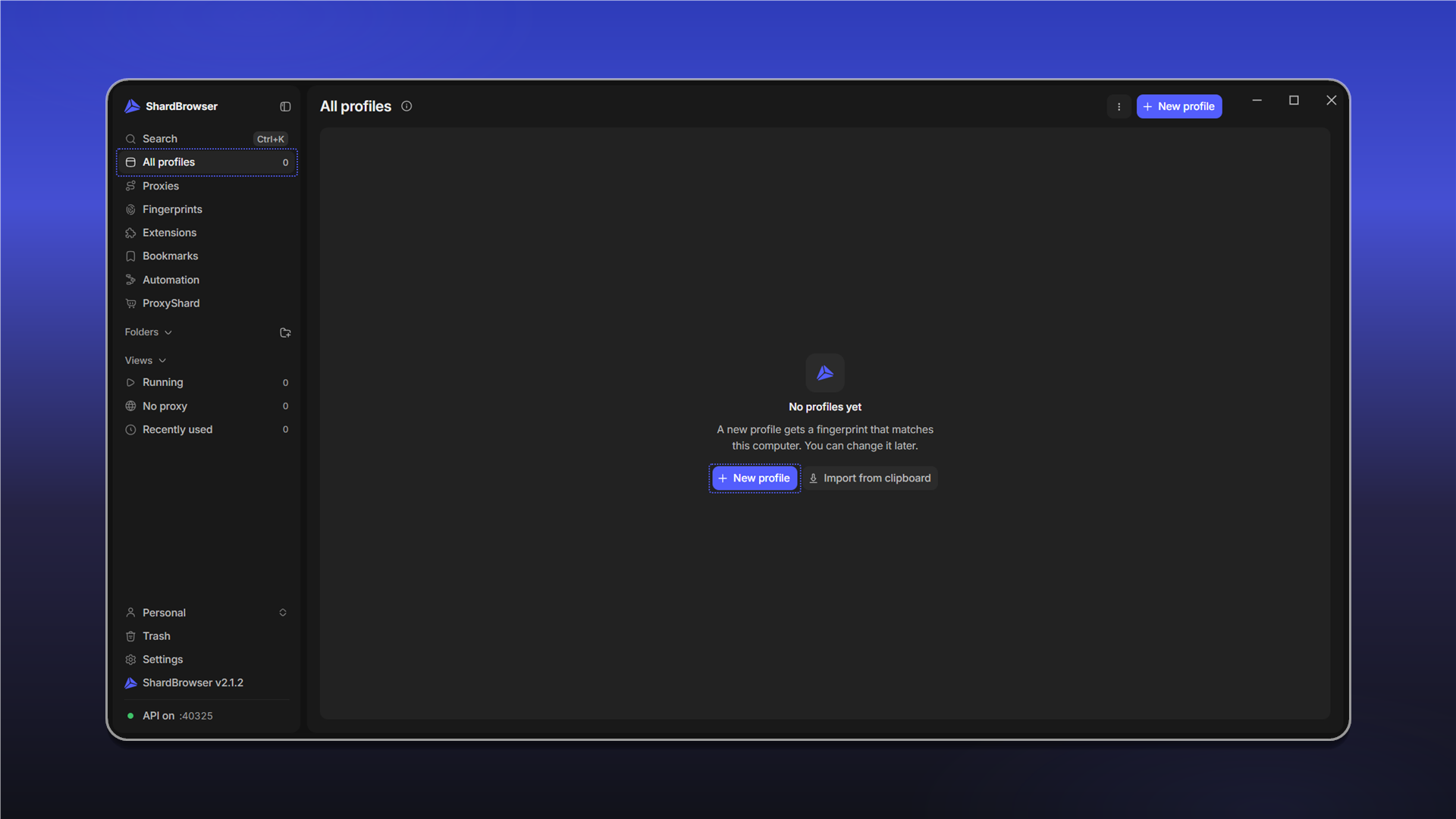
After installation and launch, the All profiles home screen opens. The section menu is on the left: profiles, proxies, fingerprints, extensions, bookmarks, automation and your ShardX account.
Adding a proxy
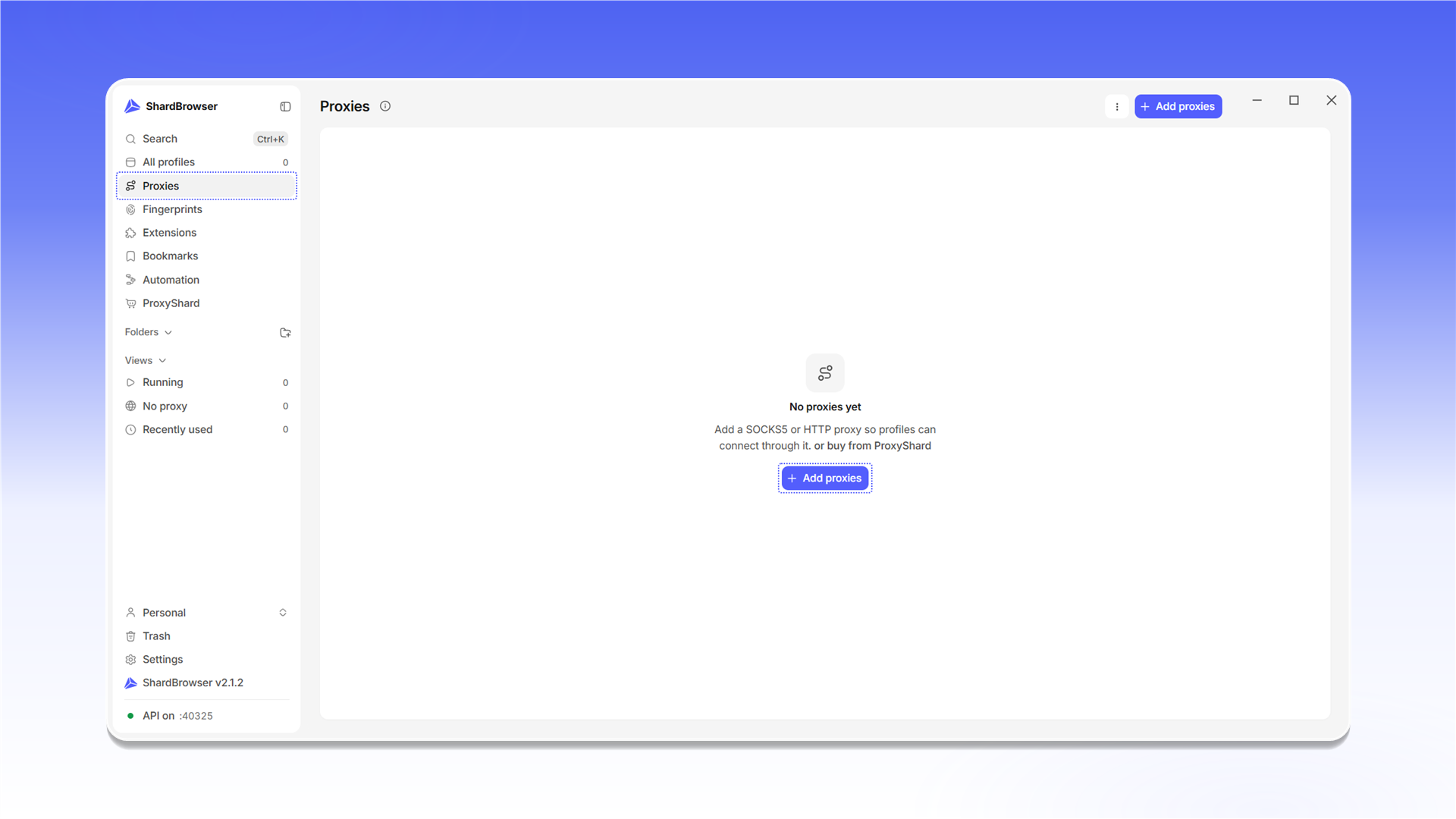
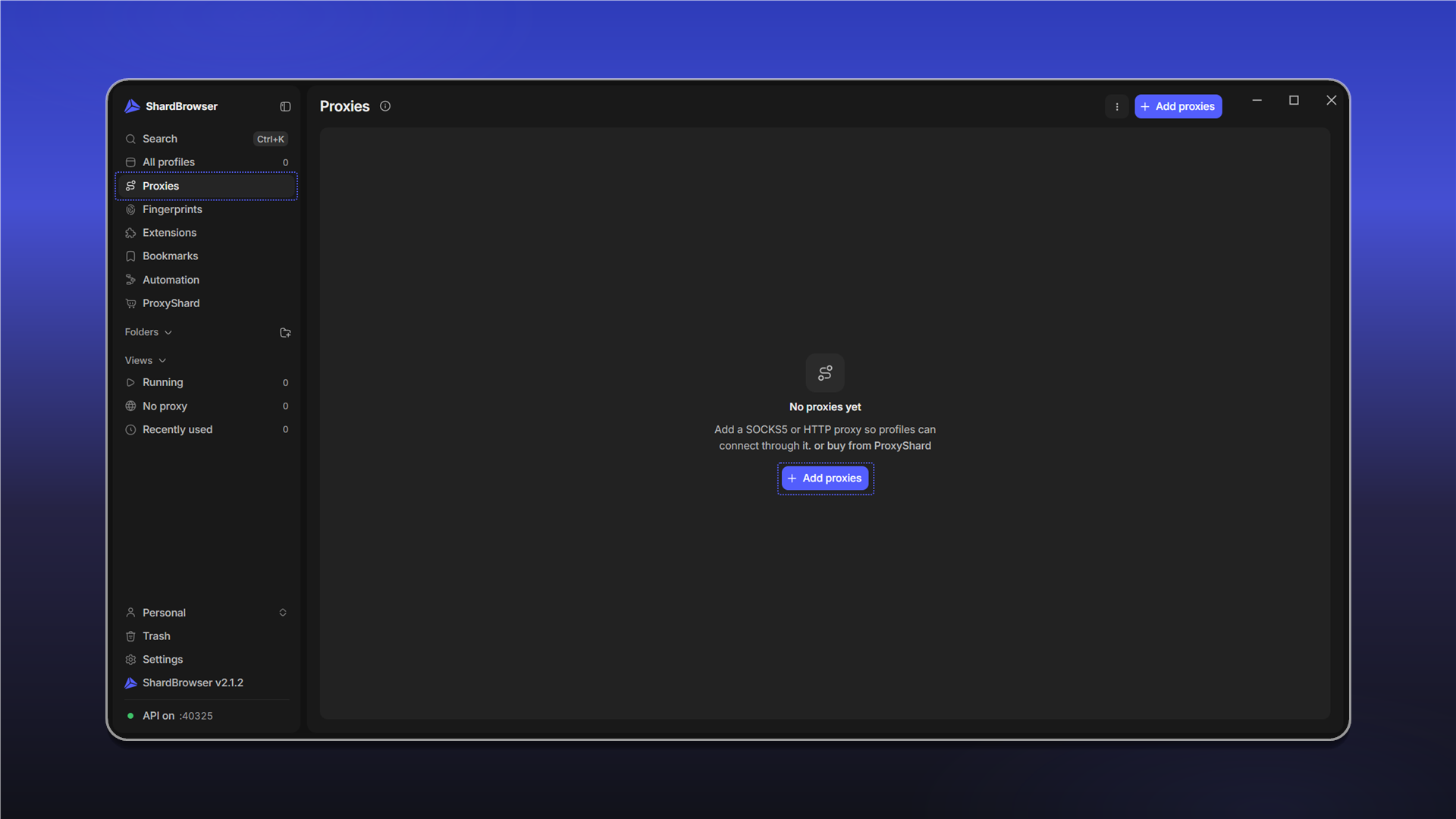
Go to Proxies and click + Add proxies.
In the Add proxies window, choose the type in Type for lines without one (SOCKS5 by default) and paste your proxies, one per line. Supported formats:
host:port
host:port:user:pass
user:pass@host:port
socks5://user:pass@host:port
Lines starting with # are ignored. Proxies you already have (same type, host, port, username and password) are skipped.
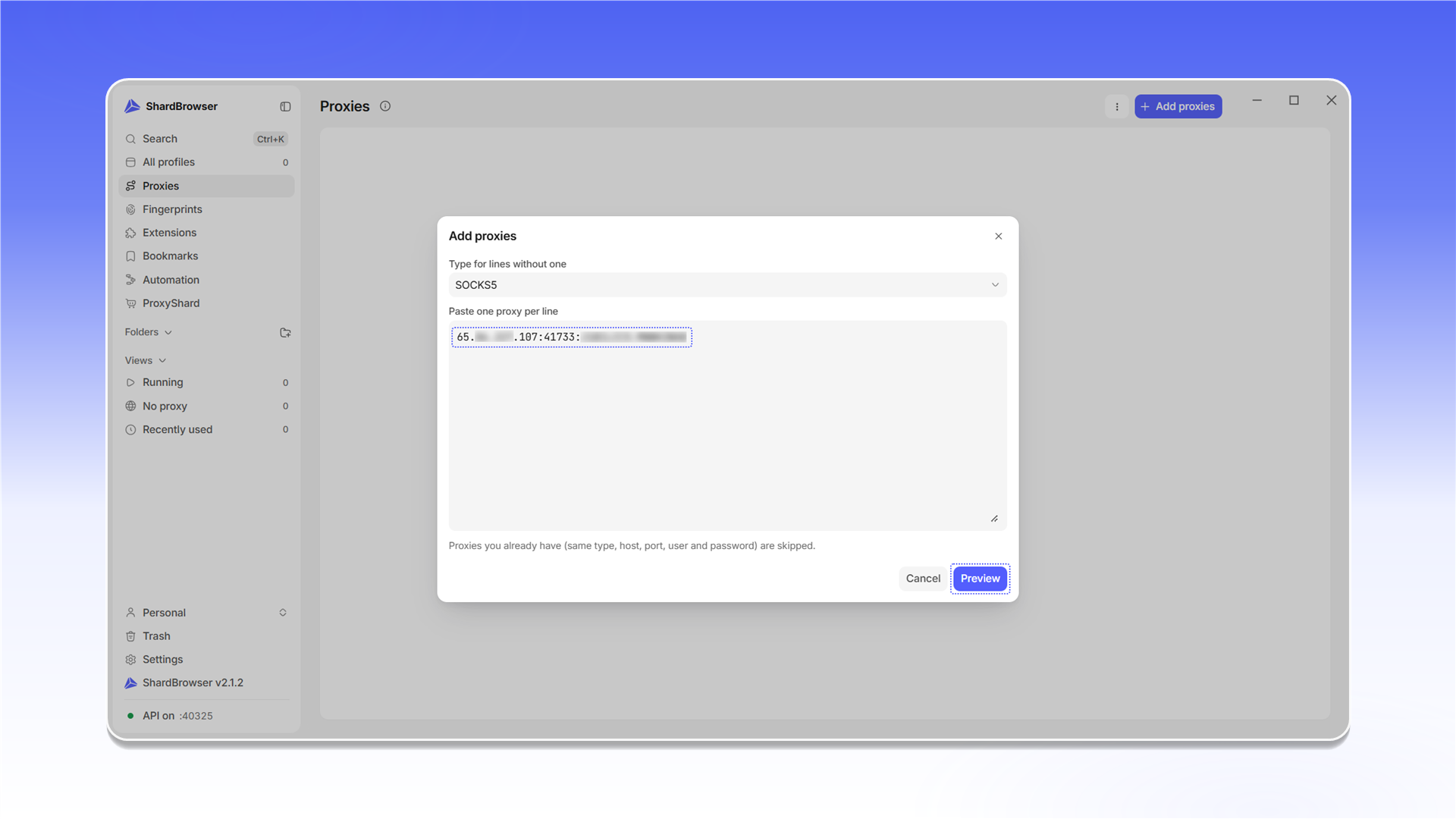
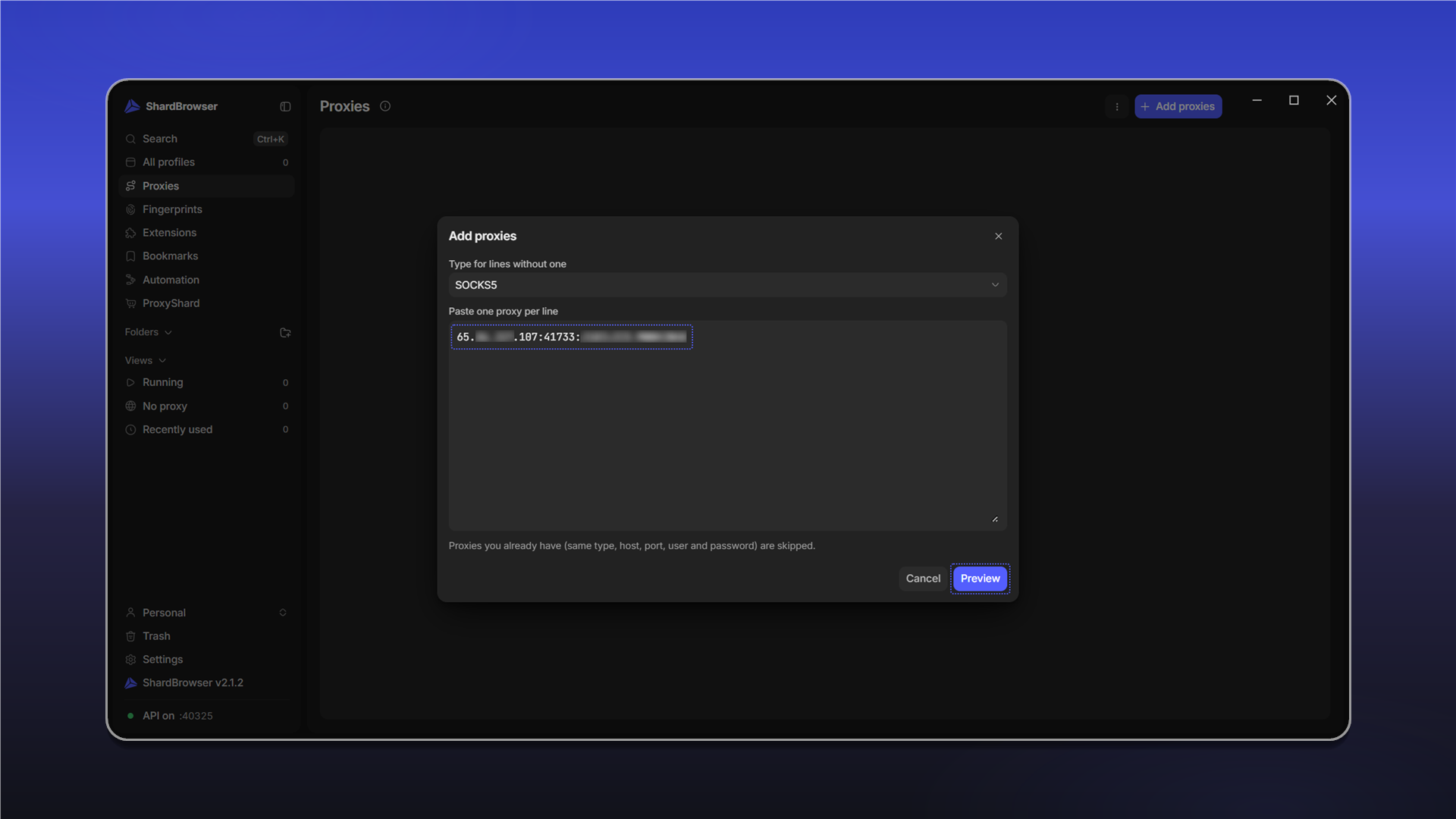
Click Preview. In the preview window, click Test all to check the proxies before adding them. After the test every proxy gets a status and a country.
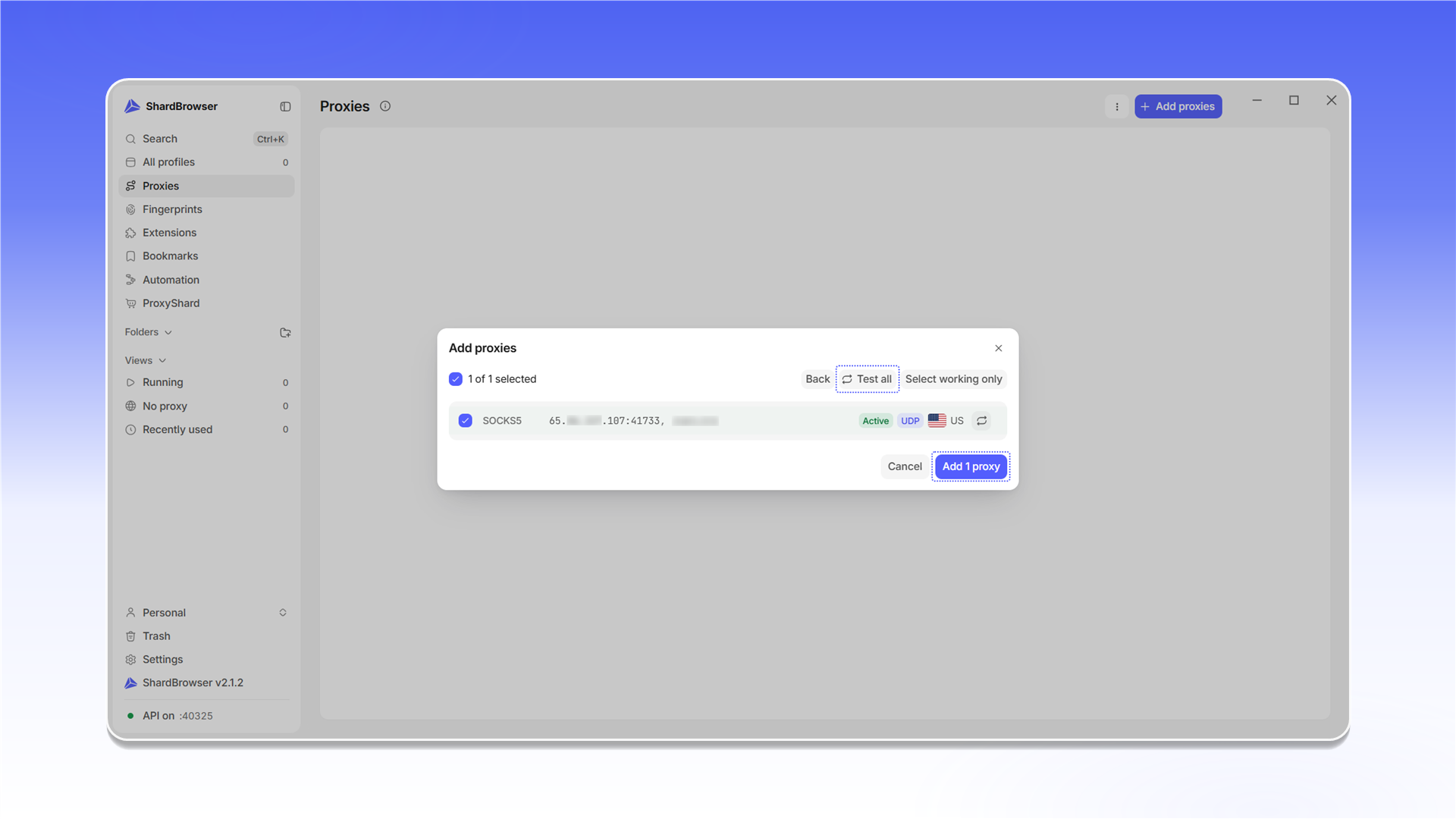
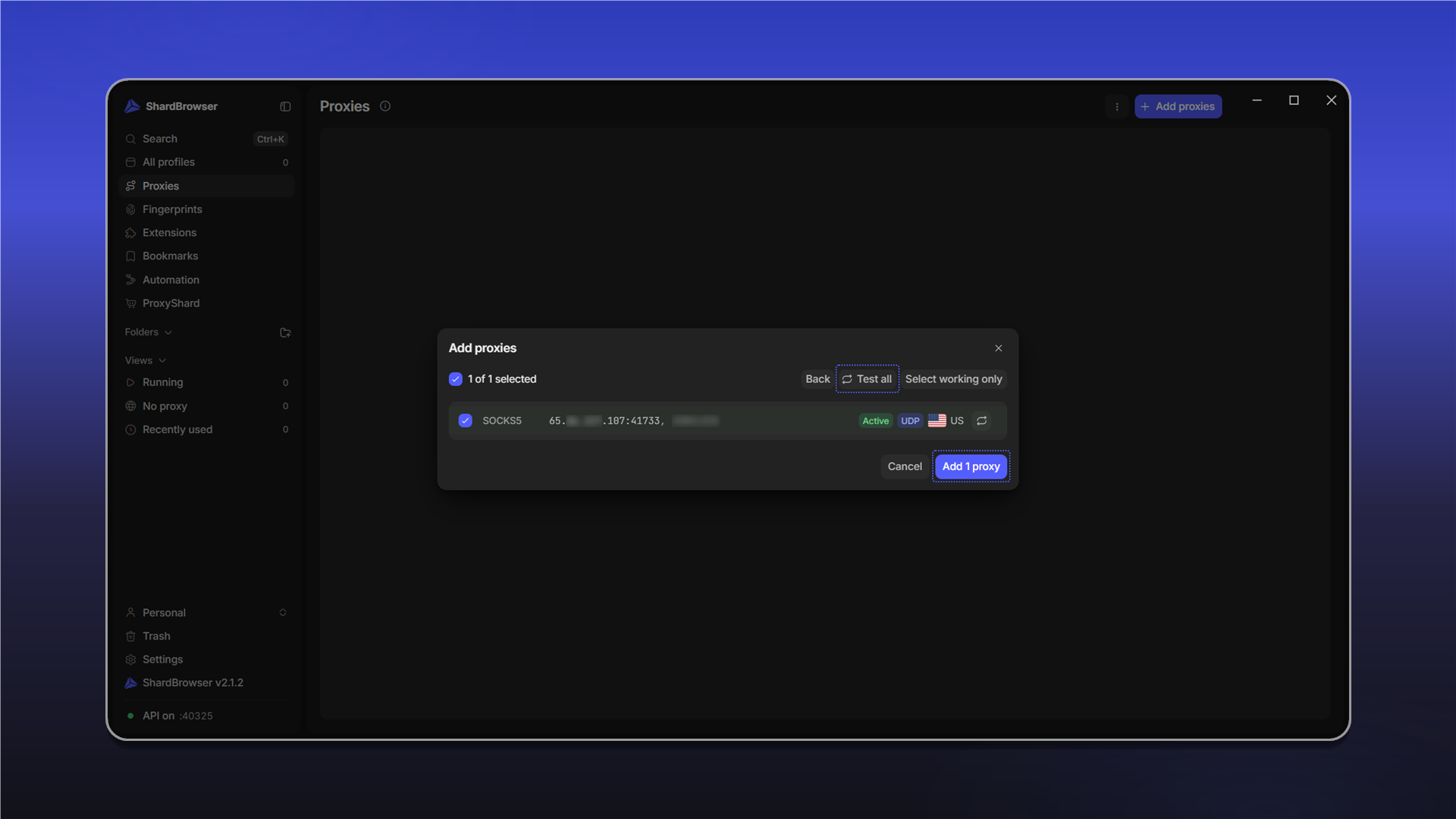
Proxies marked UDP support SOCKS5 UDP and therefore WebRTC, which matters a lot against serious anti-fraud systems. Without the UDP mark the profile switches to TCP-only mode: your IP won't leak, but the traffic may look suspicious to advanced anti-fraud systems. We strongly recommend proxies with UDP support.
Select working only keeps only the working proxies selected. Click Add 1 proxy - the proxy appears in the list.
Creating your first profile
Go to All profiles and click + New profile. You can also import a profile from the clipboard with Import from clipboard.
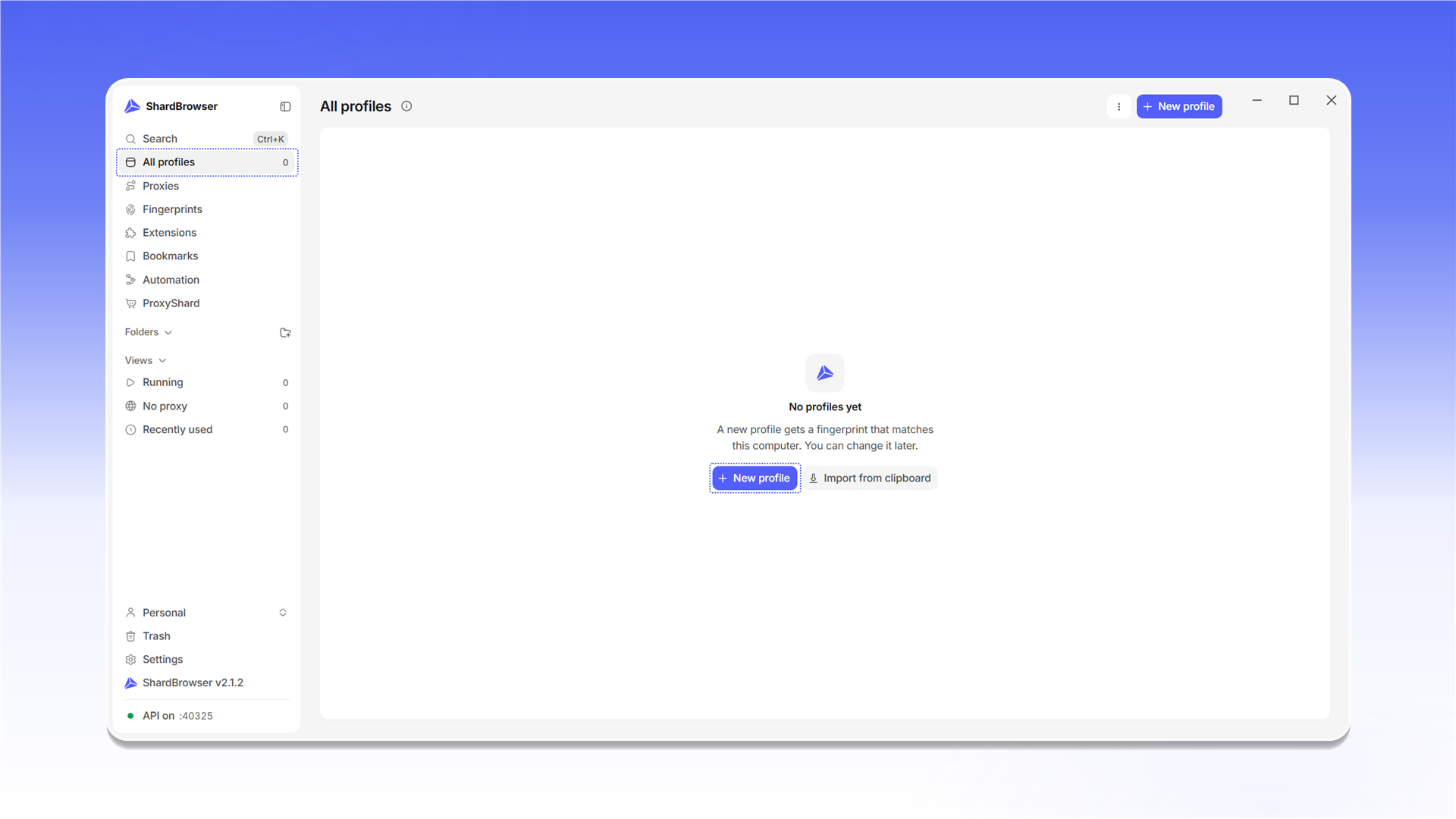
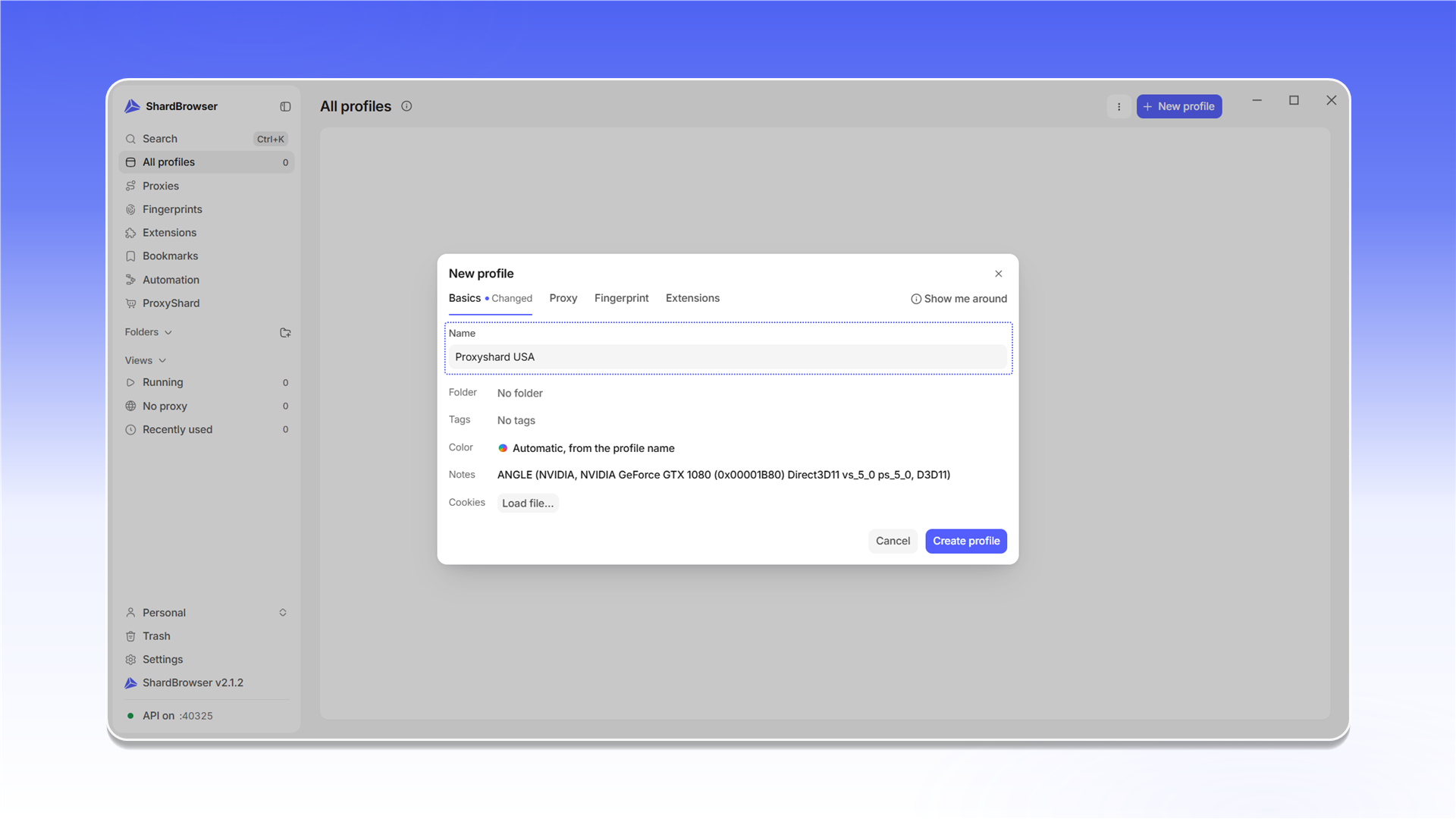
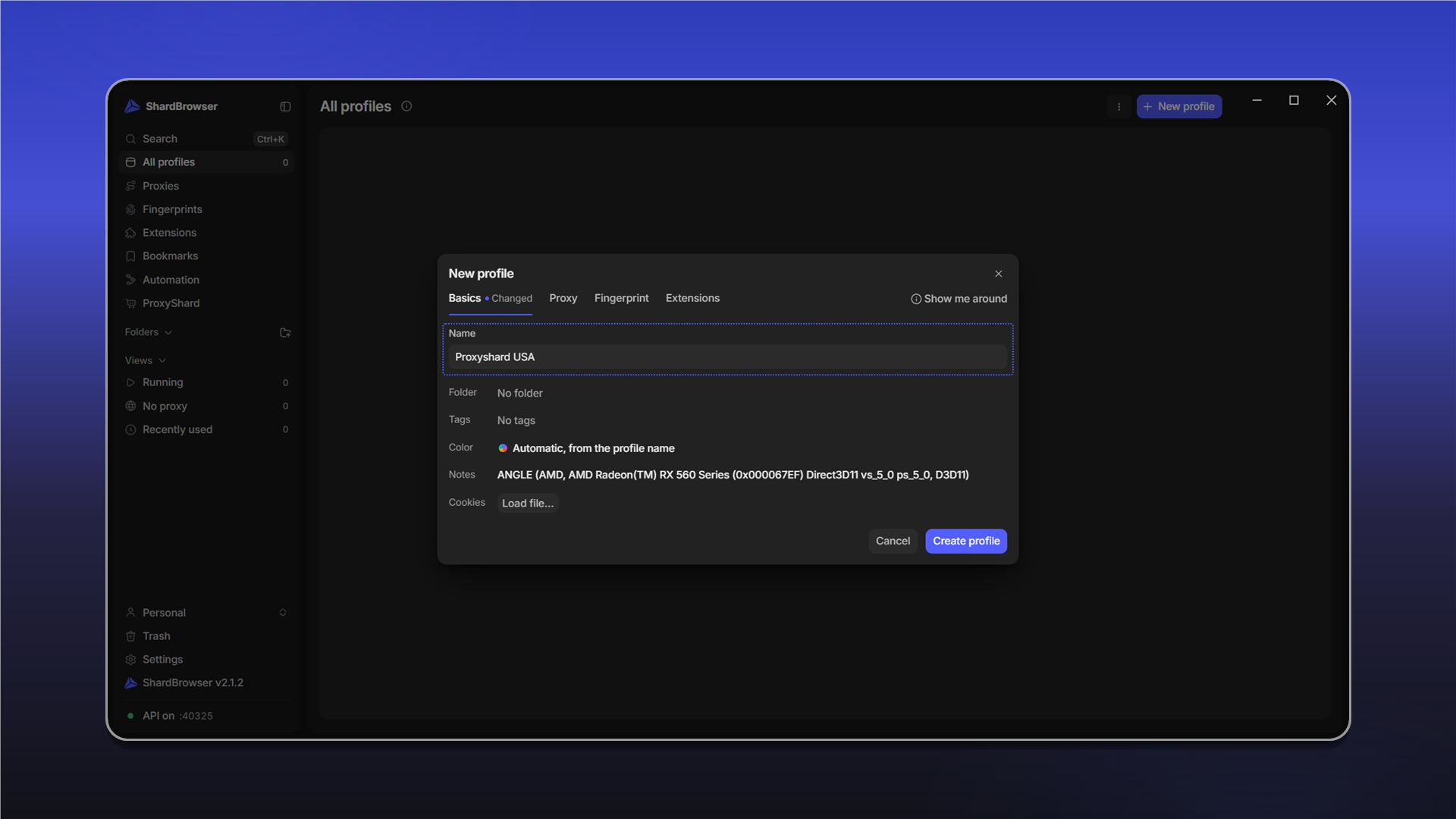
The New profile window opens with the Basics, Proxy, Fingerprint and Extensions tabs. On Basics, enter a profile name. Here you can also pick a folder, tags and a color, add a note and load a cookies file.
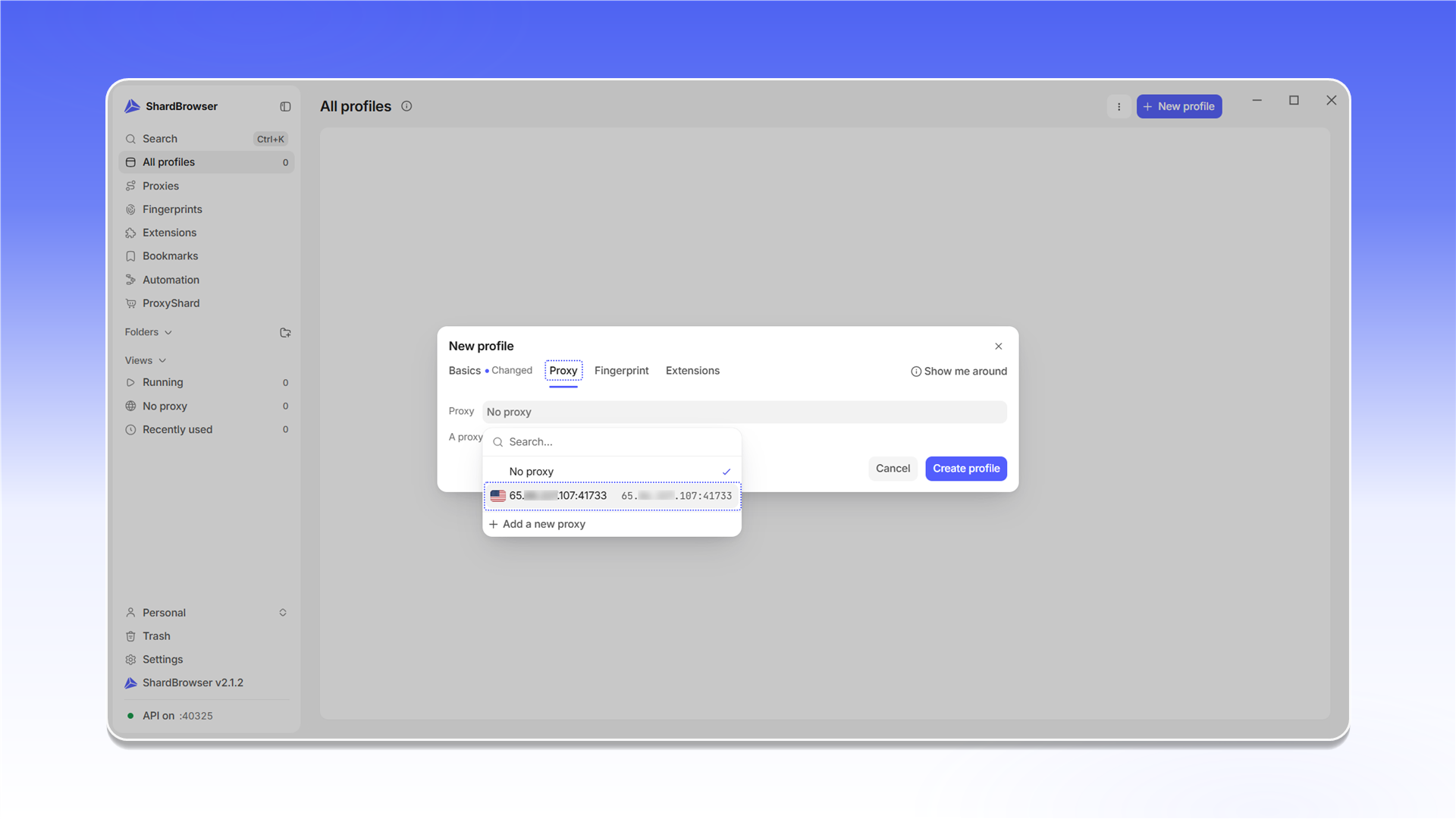
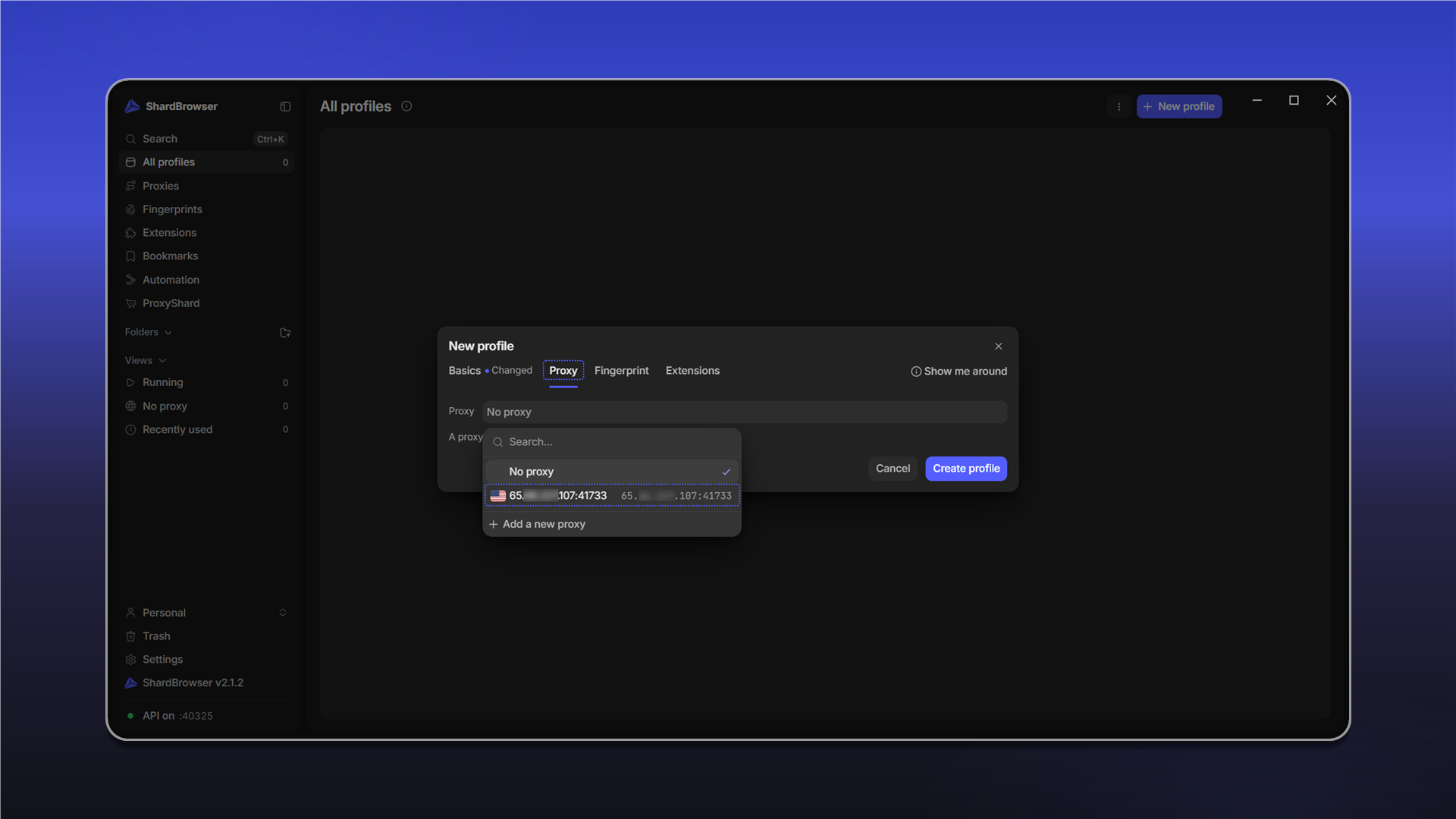
On the Proxy tab, pick a saved proxy from the list. + Add a new proxy lets you add a new one right away.
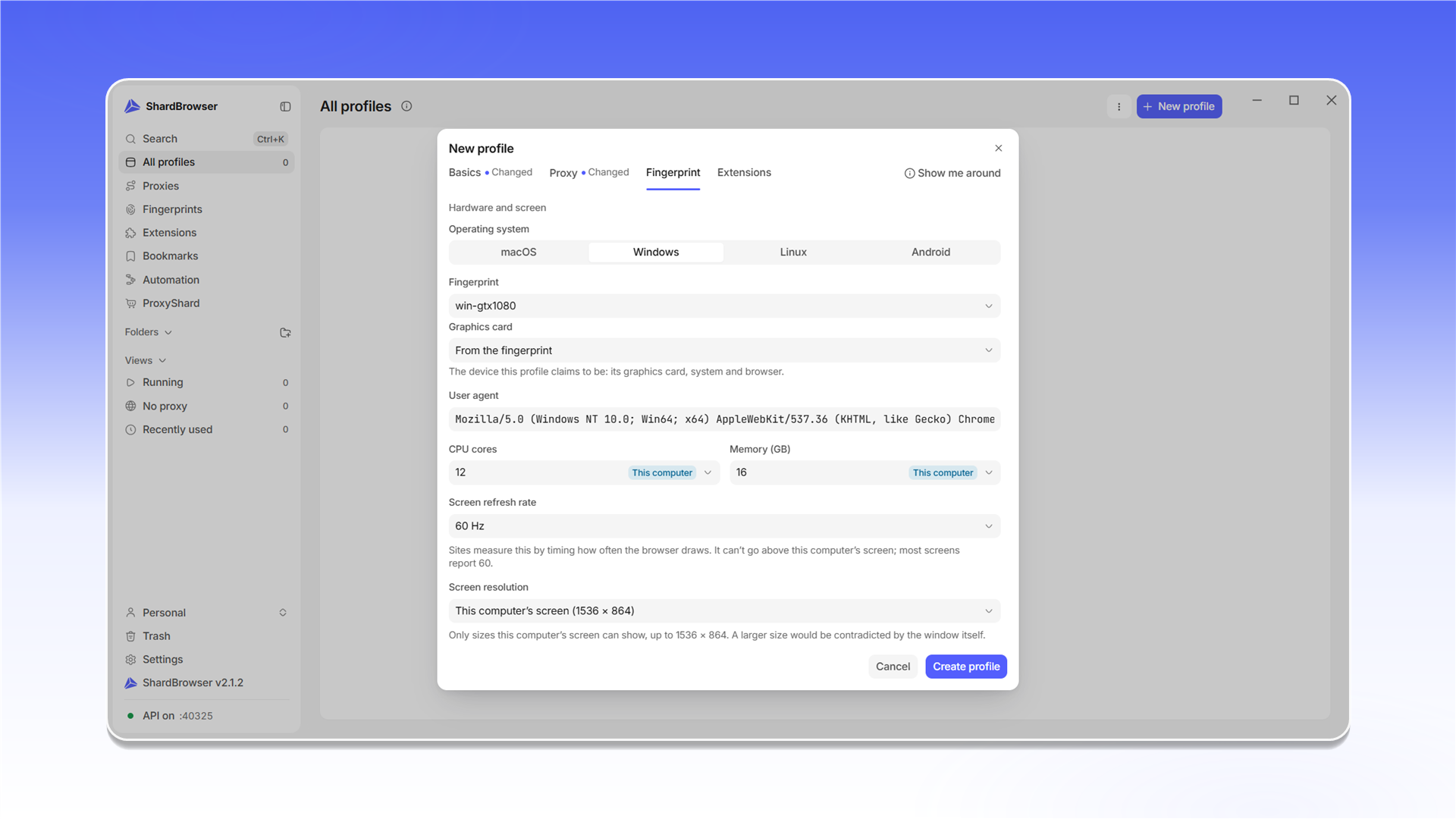
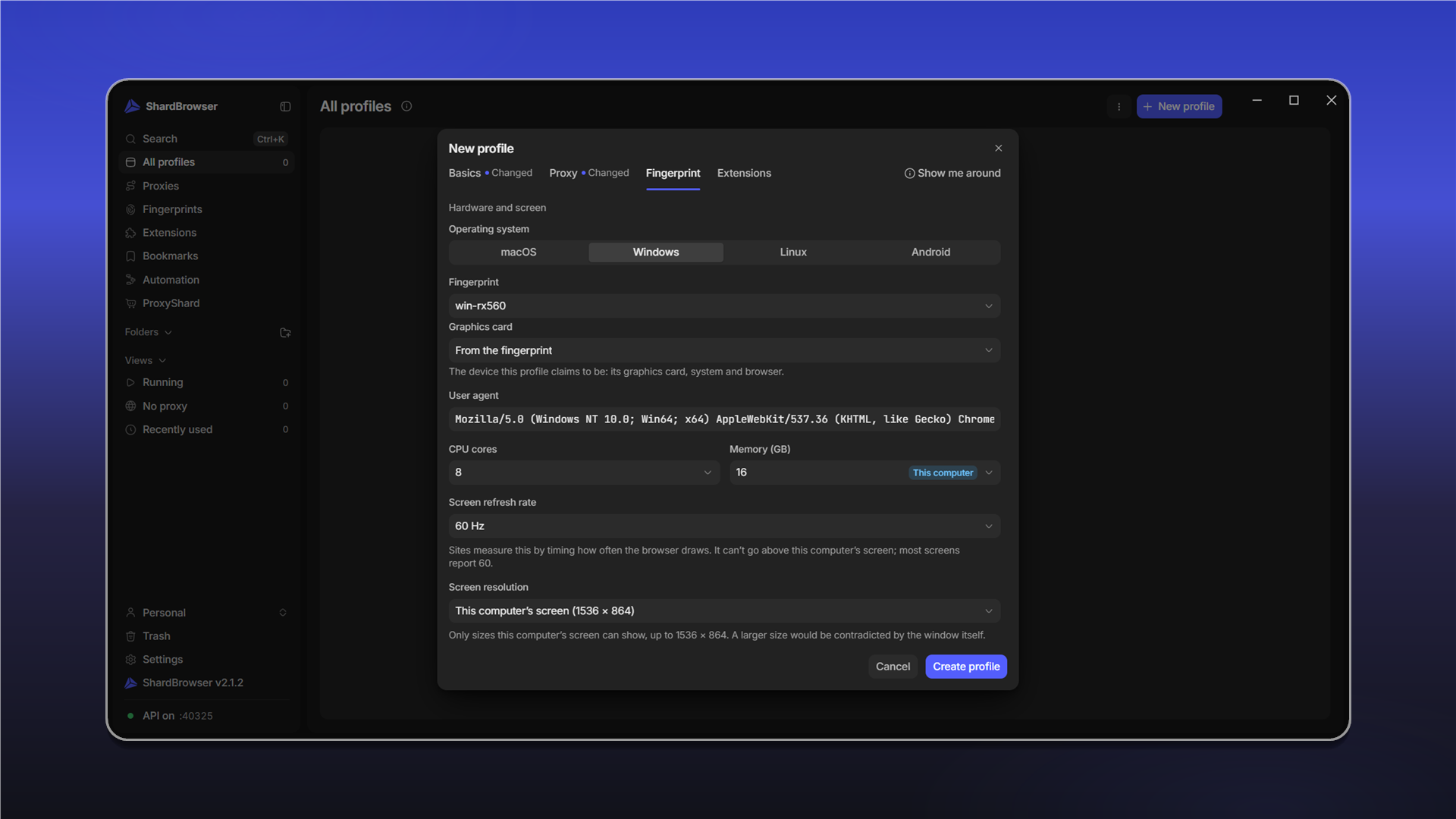
You don't have to change anything on the Fingerprint tab - ShardBrowser picks a fingerprint for the chosen OS by itself. If you want, choose the operating system (macOS, Windows, Linux, Android), a specific fingerprint, the graphics card, CPU cores, memory, refresh rate and screen resolution.
Click Create profile.
Launching a profile
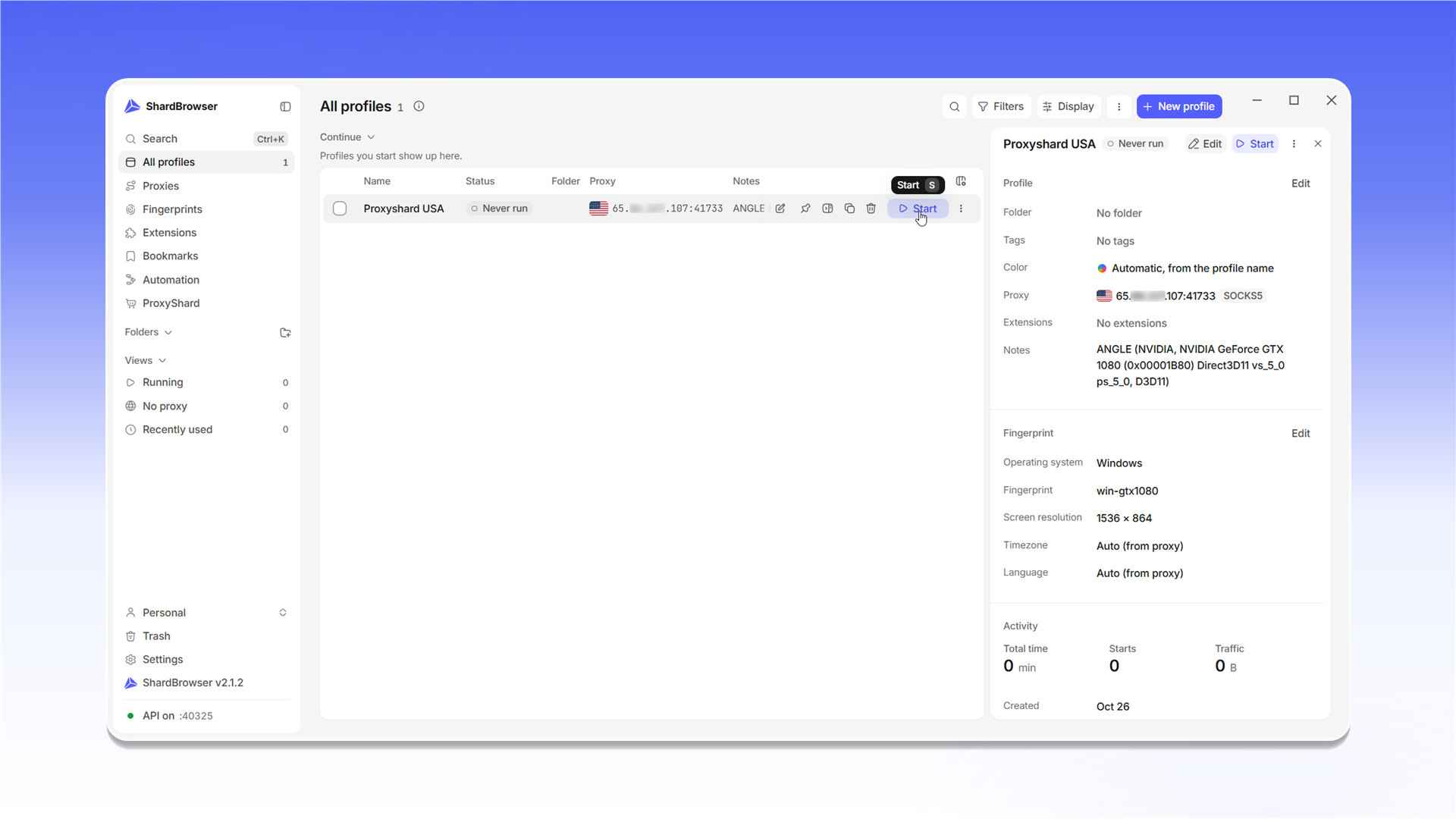
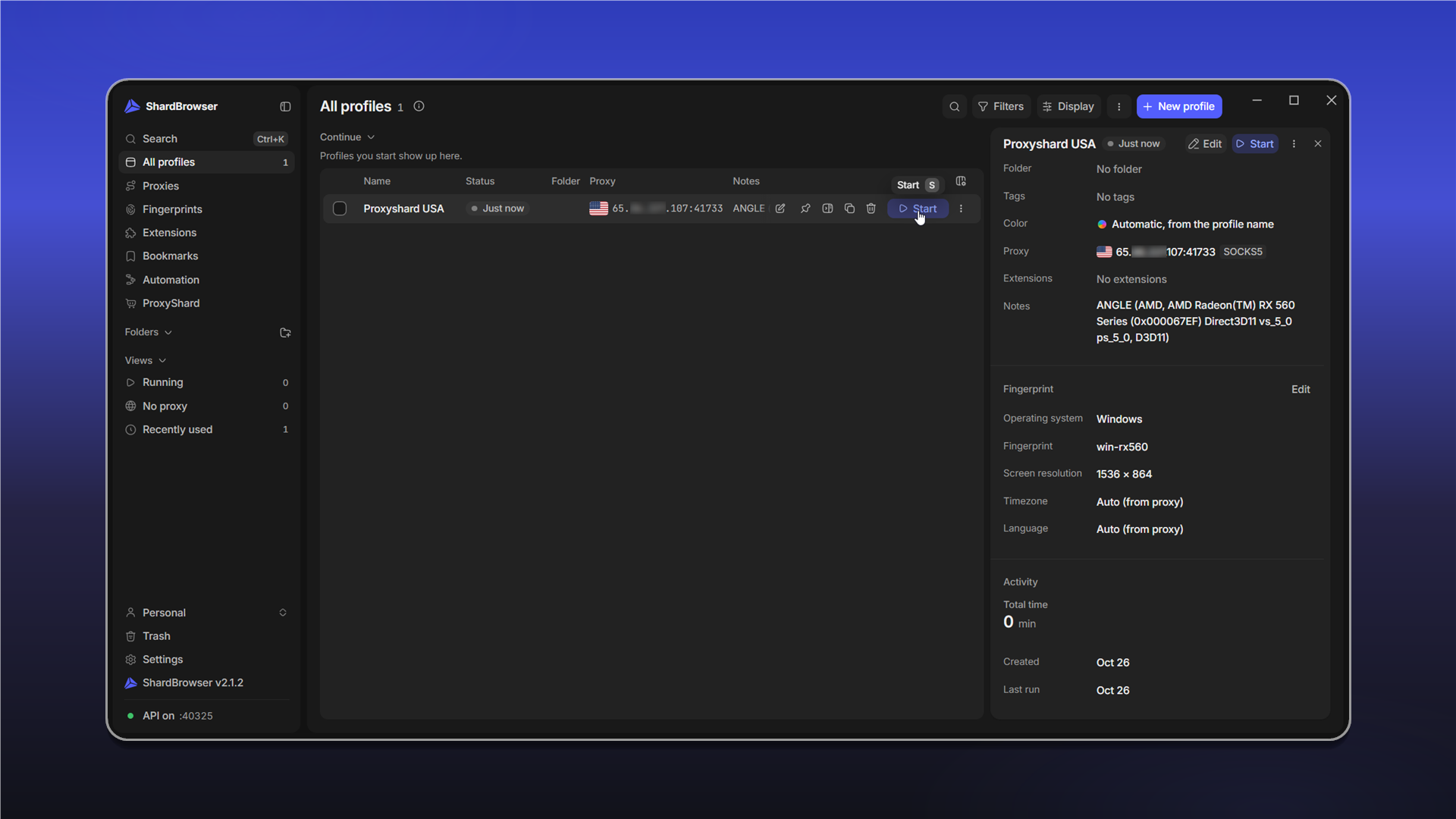
The profile appears in the list. The profile card opens on the right: proxy, extensions, notes, fingerprint settings, timezone and language (taken from the proxy by default). Click Start.
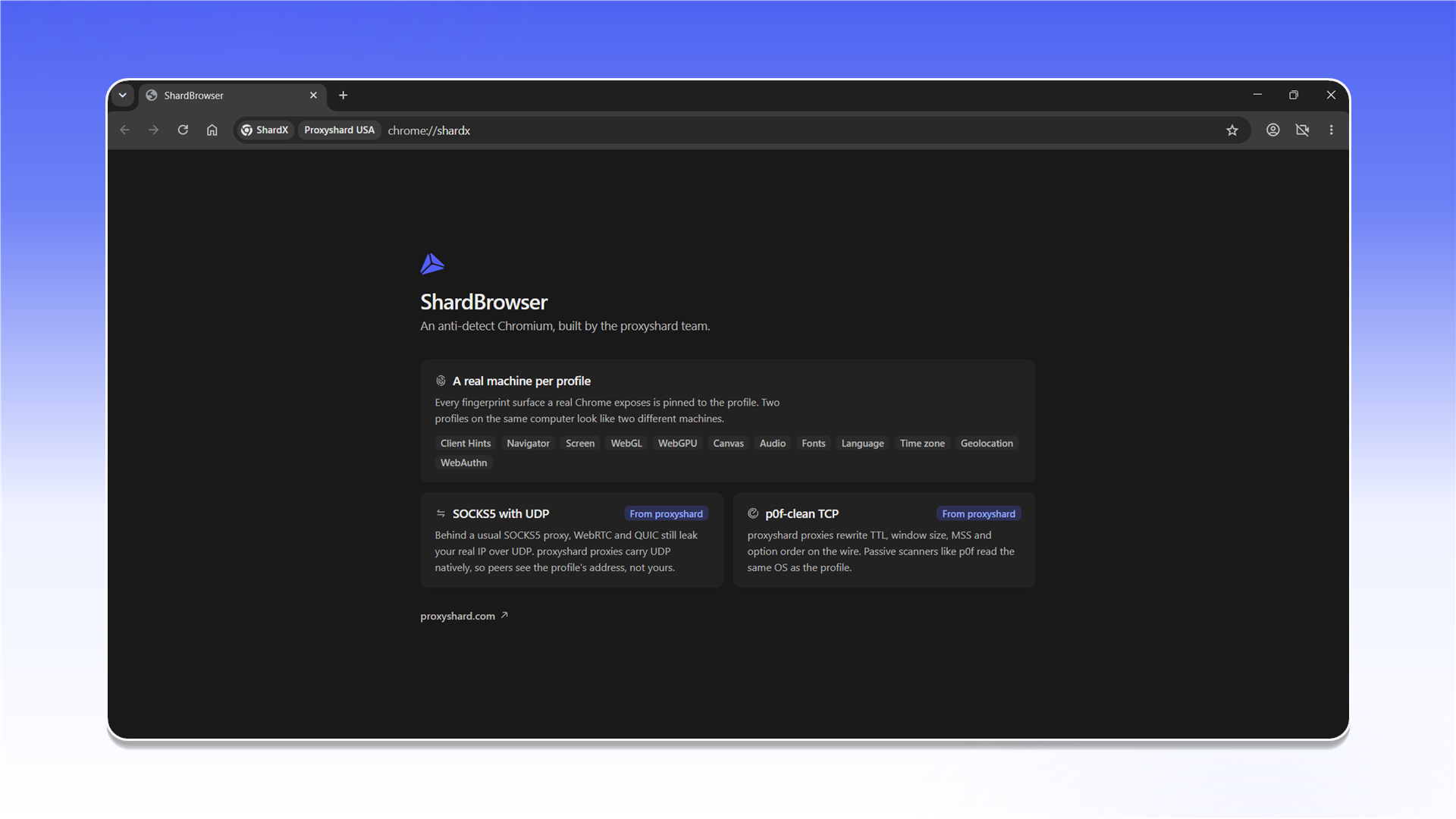
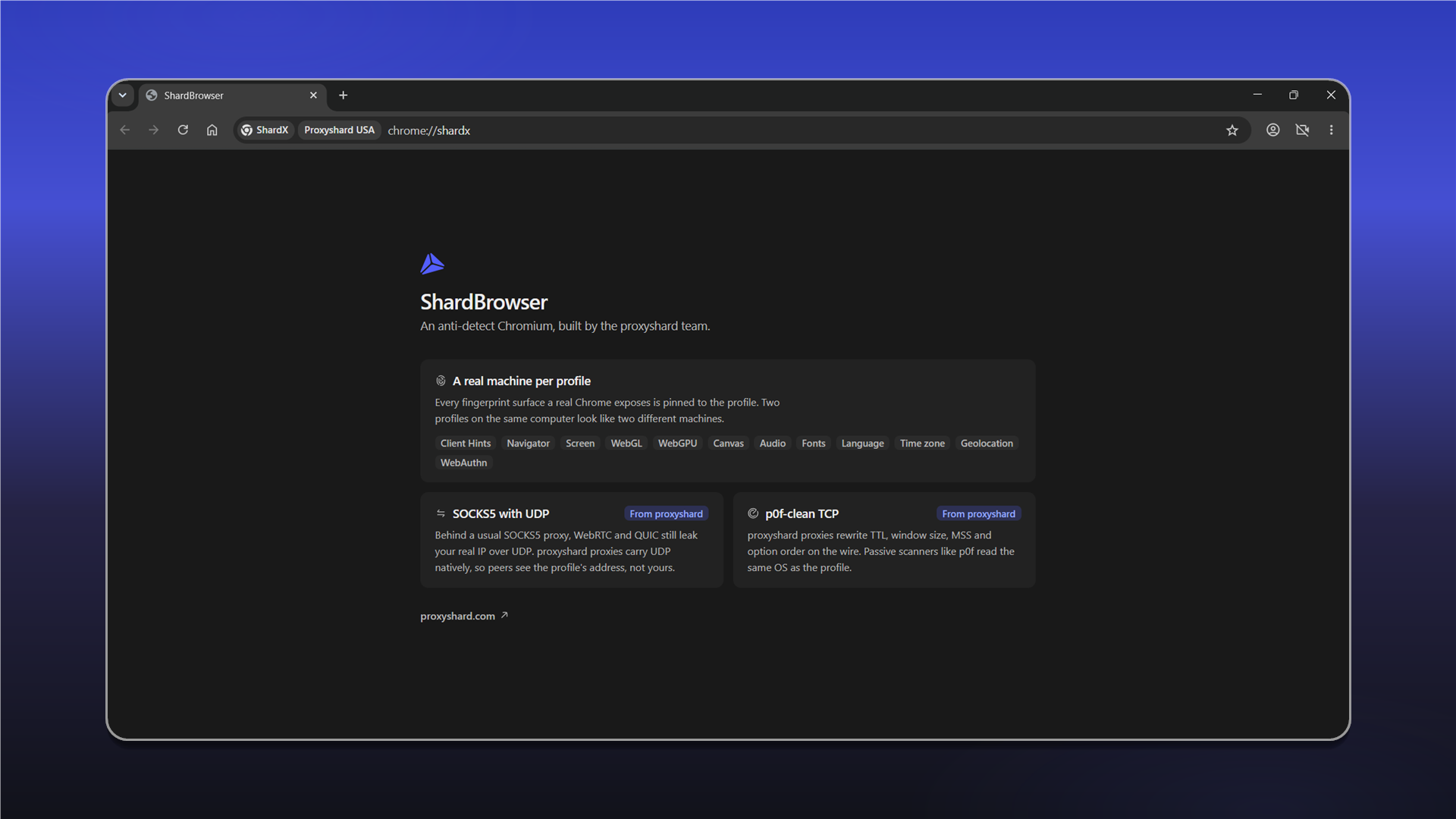
The browser starts with an isolated fingerprint and proxy. The chrome://shardx start page lists the profile's protections.
Troubleshooting
The app doesn't start
Most likely Microsoft Edge WebView2 Runtime is not installed. Download and install it:
developer.microsoft.comhttps://developer.microsoft.com/en-us/microsoft-edge/webview2/consumerOriginal Windows 10/11 images already include WebView2. Stripped-down builds may have it removed.
Last updated on