ClashX
Clash for Windows can proxy both TCP and UDP traffic in TUN mode.
Download and launch
Open the Clash for Windows releases page and download Clash.for.Windows-0.20.39-win.7z.
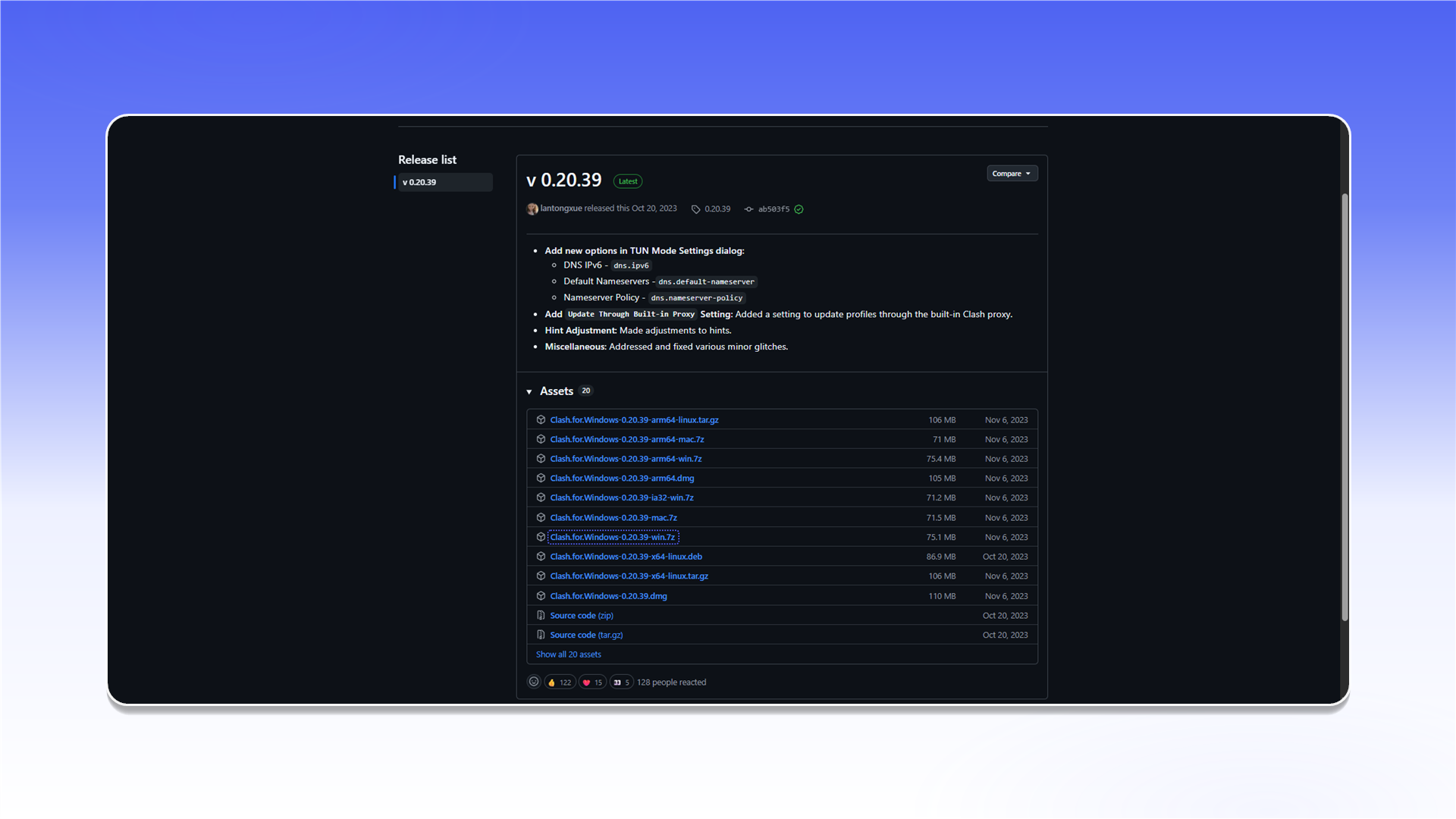
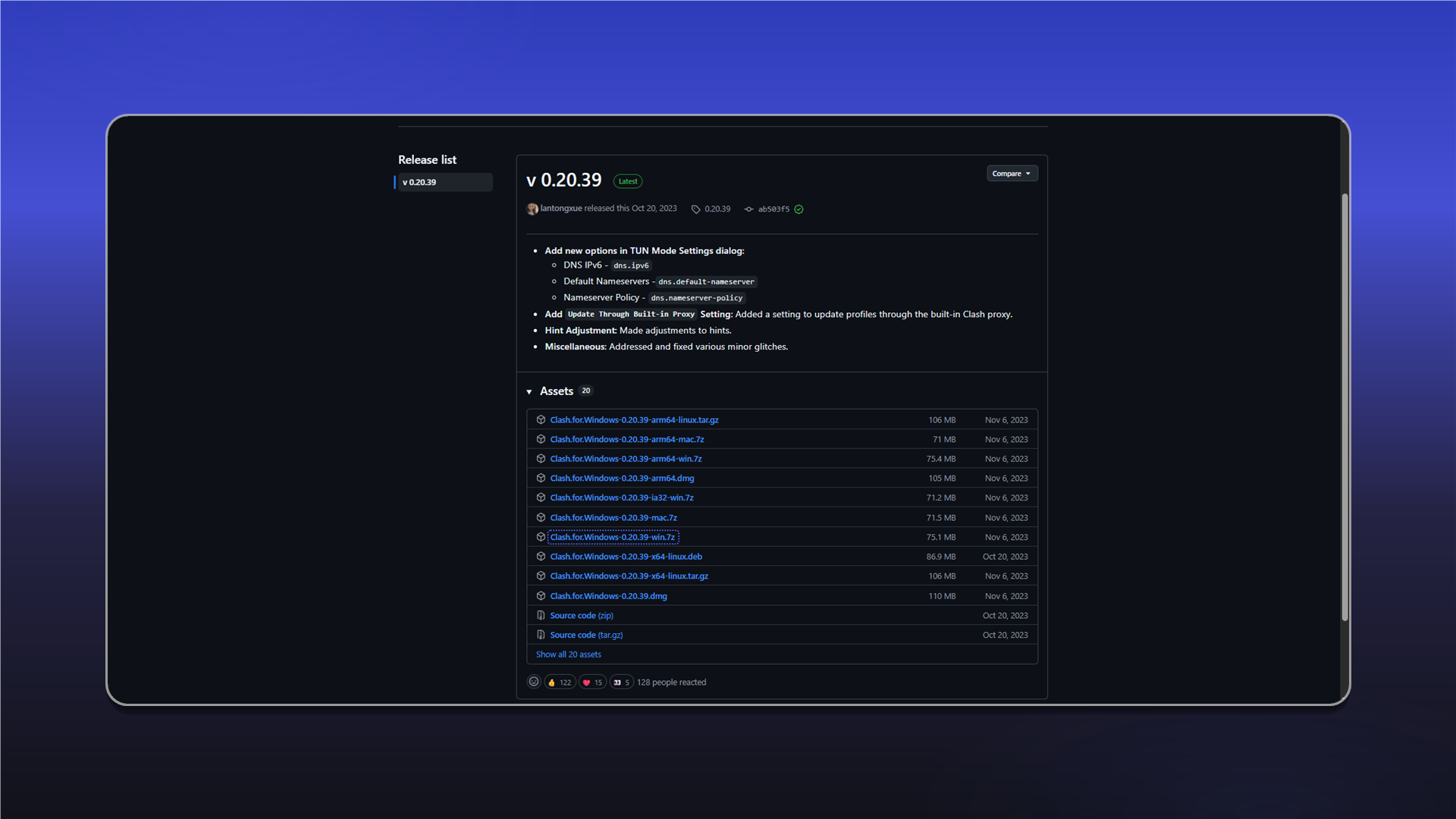
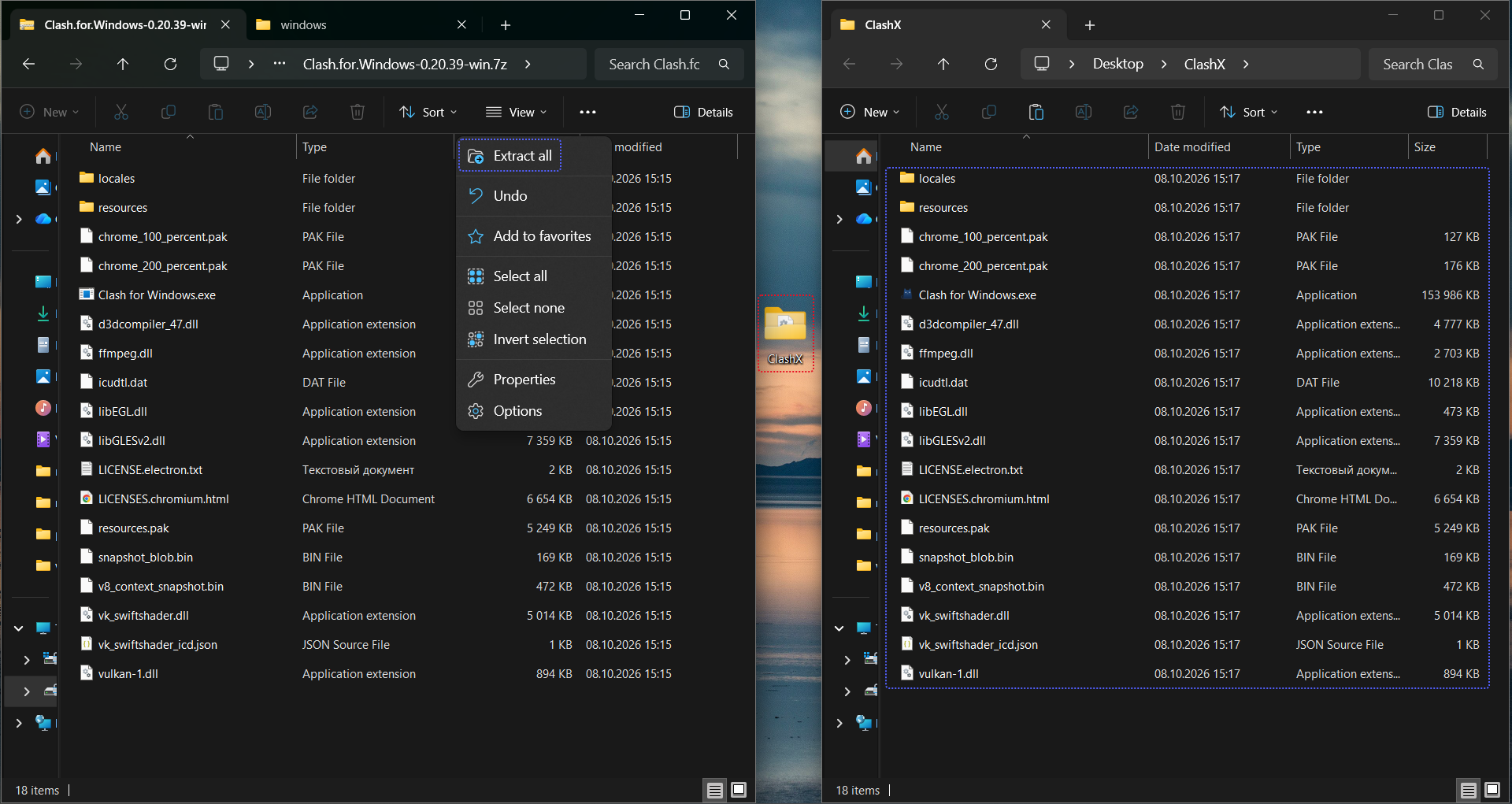
Extract the archive to a separate folder.
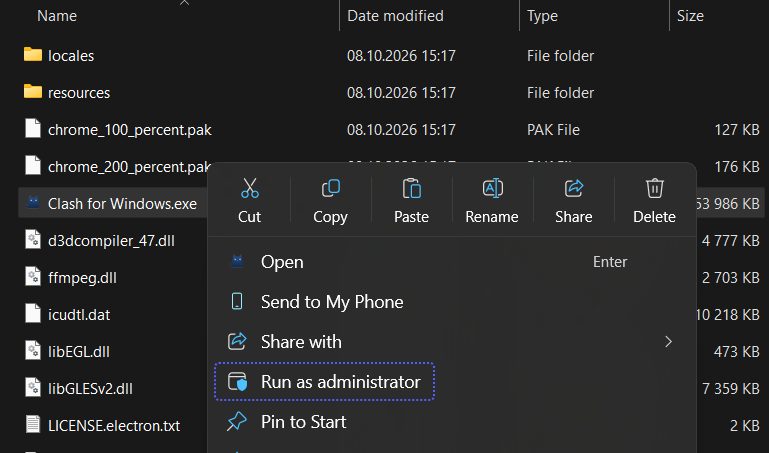
Run Clash for Windows.exe as administrator. Administrator access is required to install and operate the system network driver.
Configure the profile
- Open
Profiles. - Click the
<>icon next toconfig.yaml.
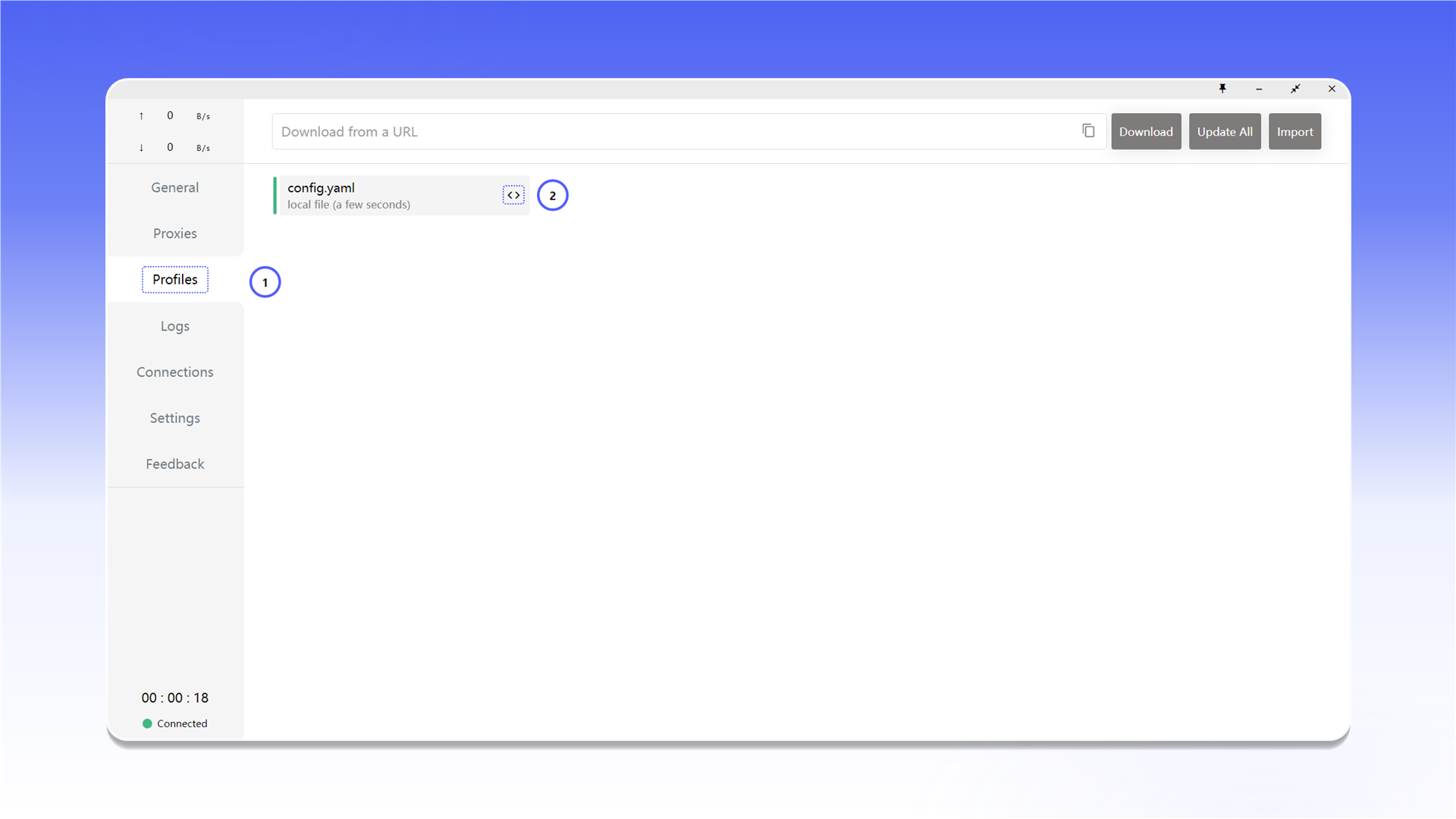
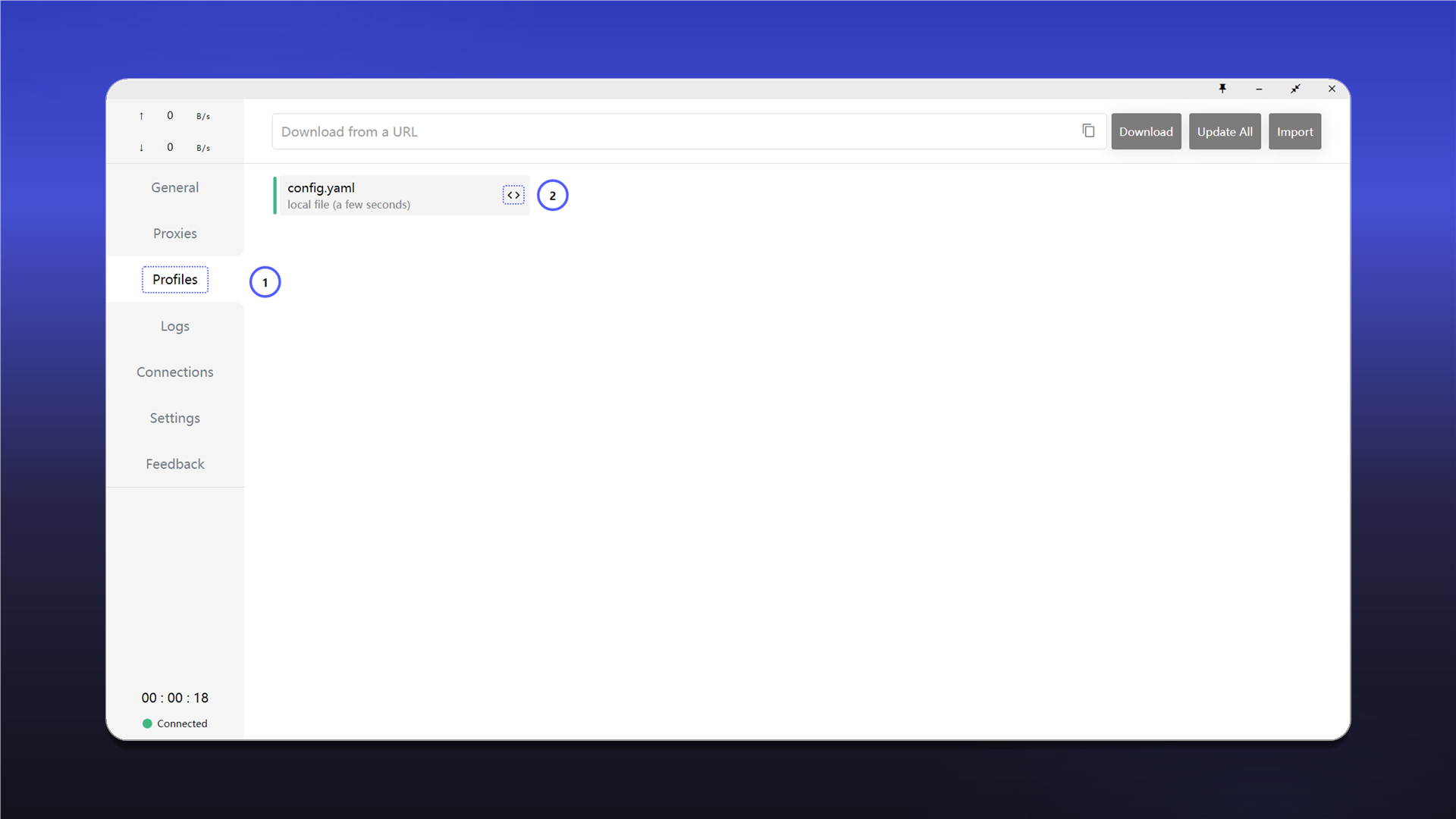
Add the proxy under proxies: and enter the details from your order. This example uses SOCKS5.
proxies:
  - name: "ShardX-Germany"
    type: socks5
    server: 123.123.123.123
    port: 41733
    username: proxy_login
    password: proxy_password
    udp: true

proxy-groups:
  - name: "ShardX"
    type: select
    proxies:
      - ShardX-Germany

rules:
  - PROCESS-NAME,chrome.exe,ShardX
  - MATCH,DIRECT
name is the connection name. Enter the proxy details in server, port, username, and password. The udp: true setting enables UDP for this server.
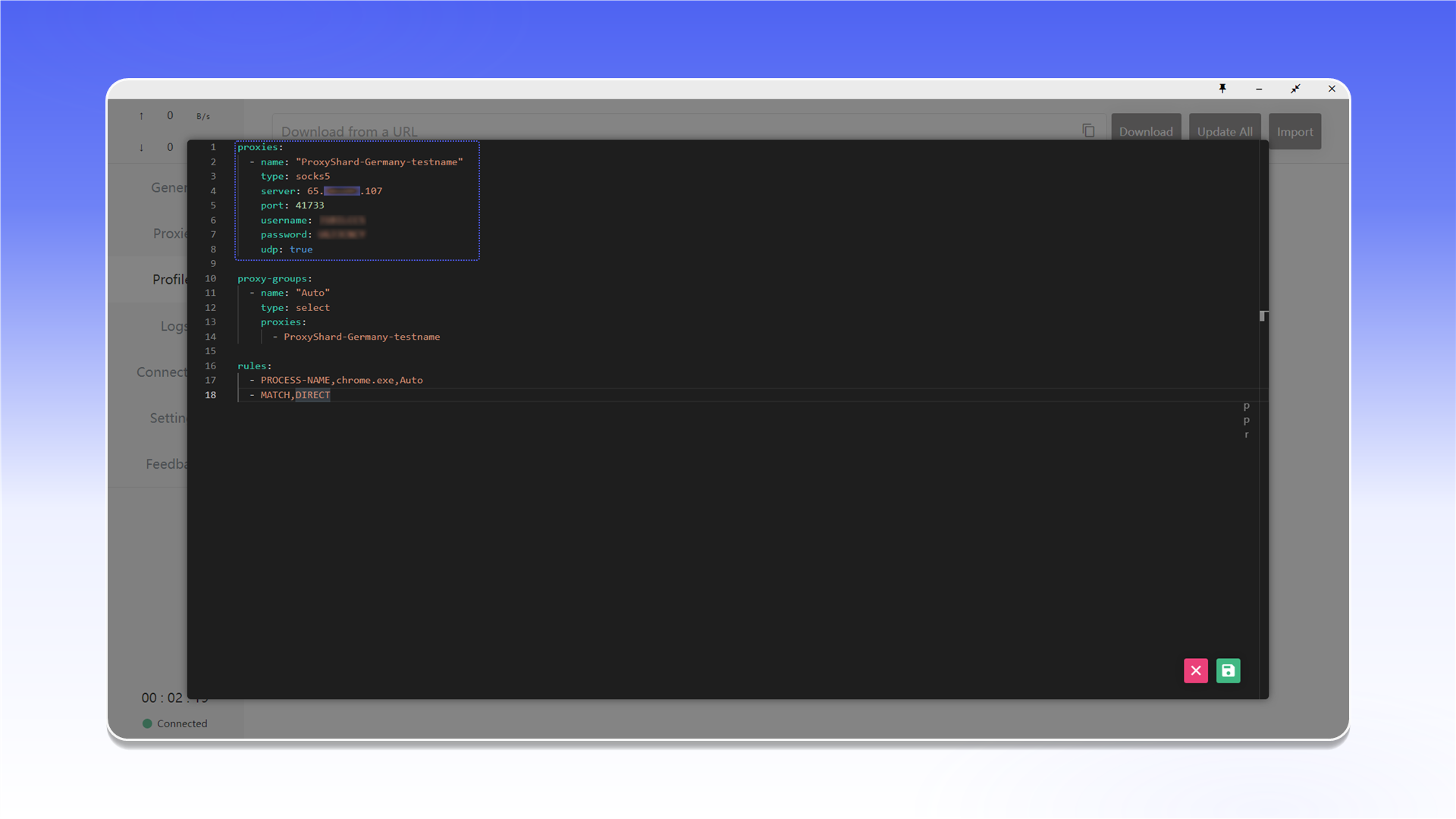
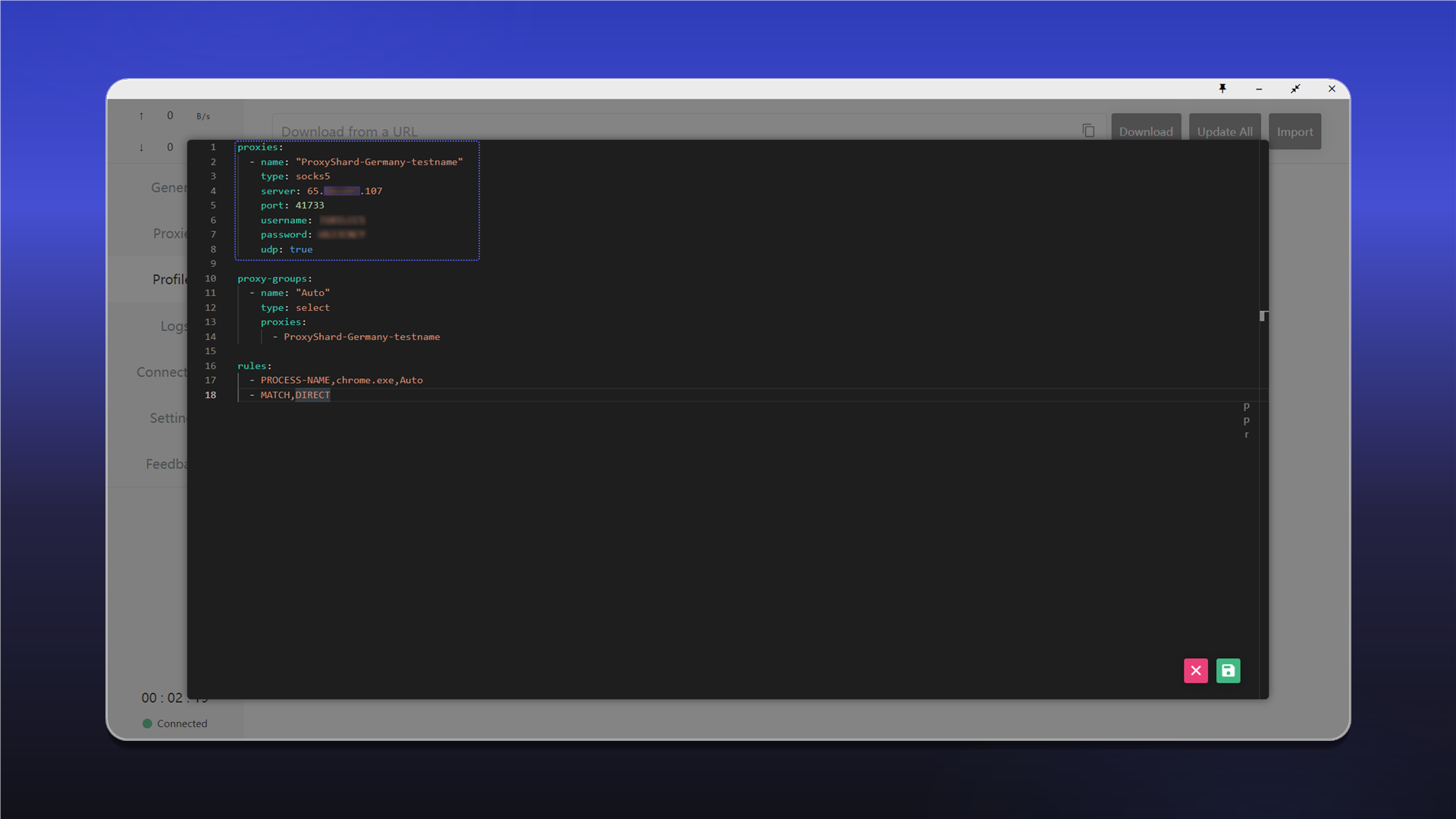
See the general setup guide for help finding the connection details.
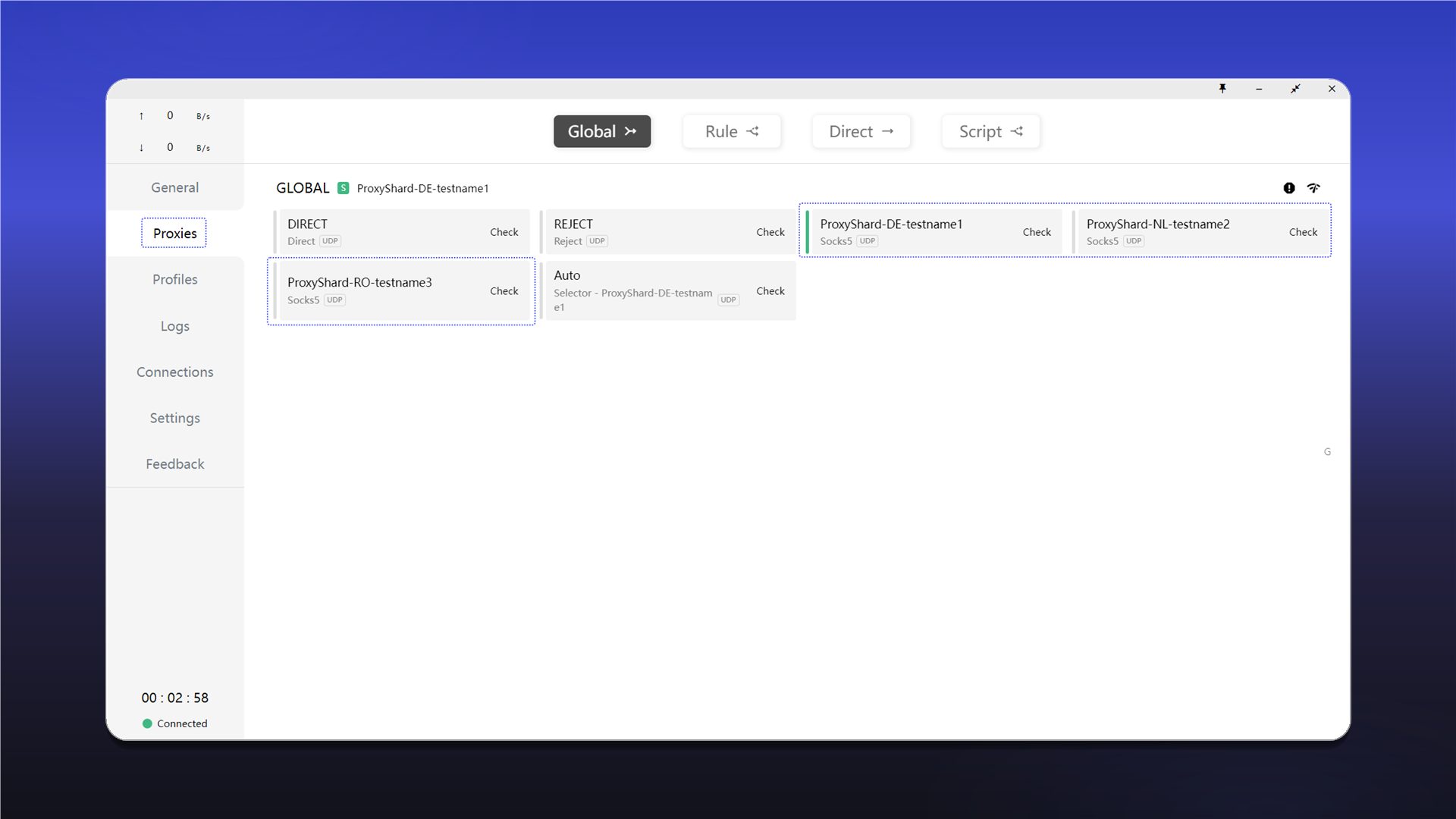
Activate and test the proxy
- Open
Proxies. - Select
Globalmode. - Click
Checknext to the ShardX server.
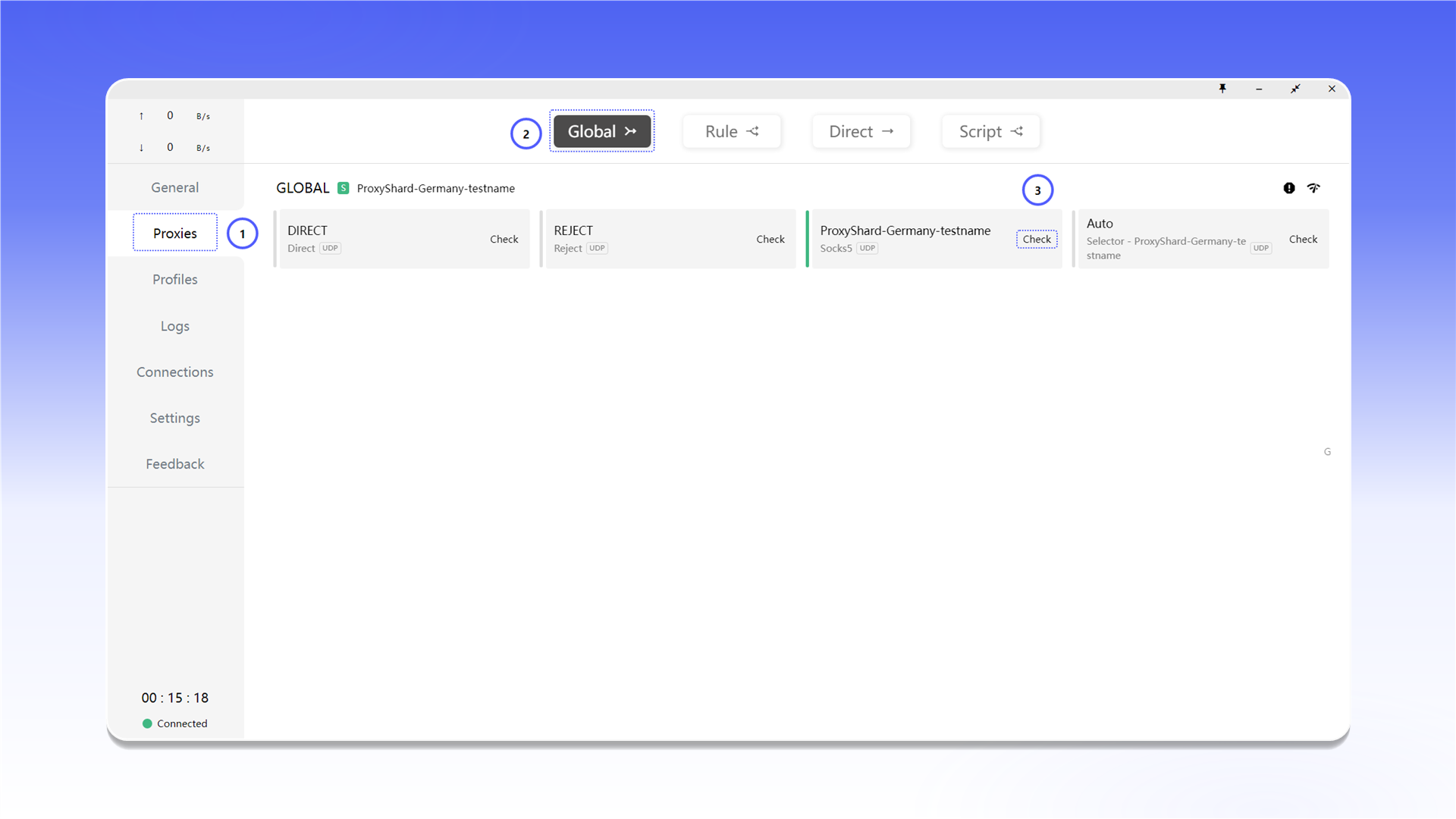
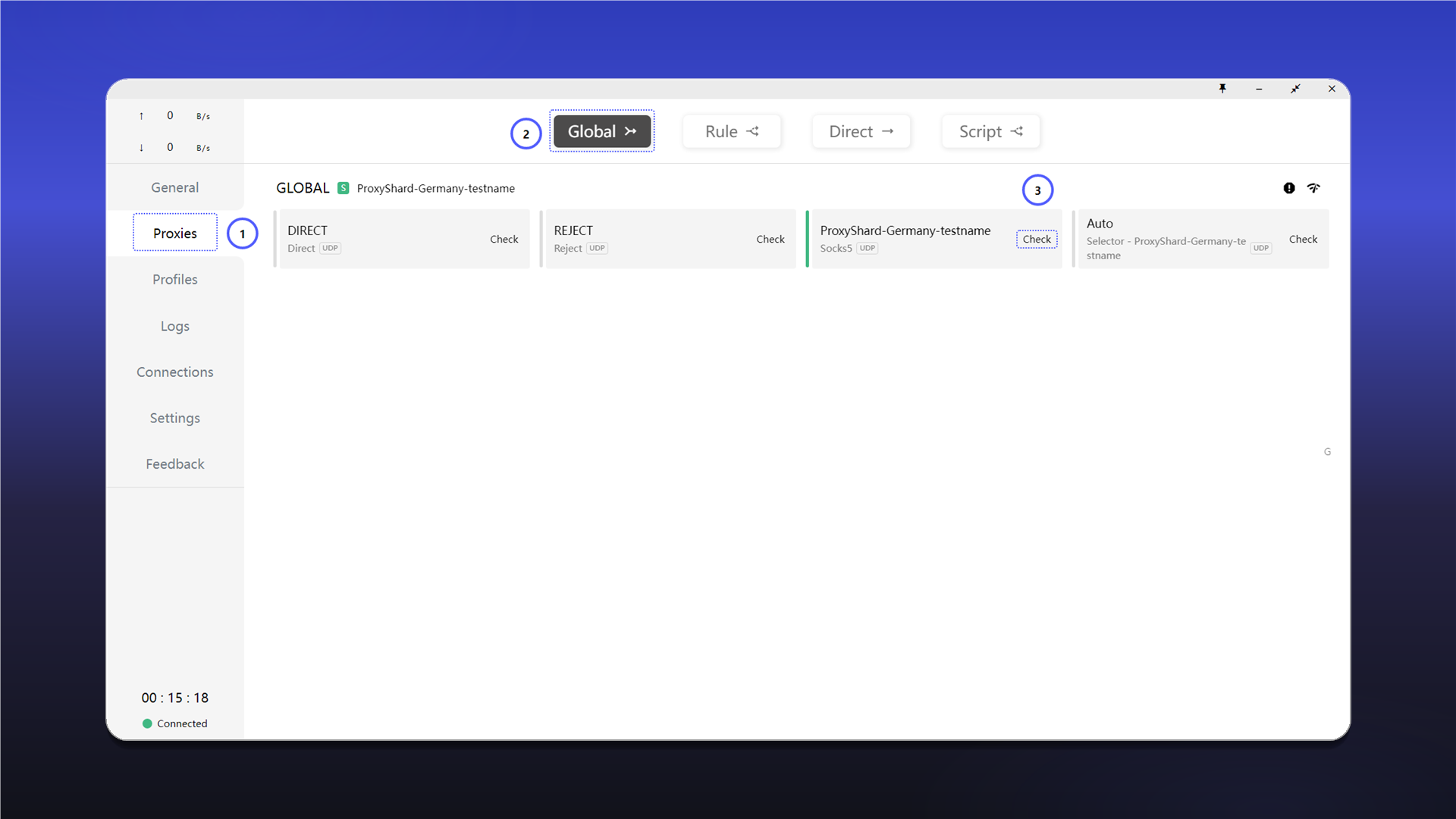
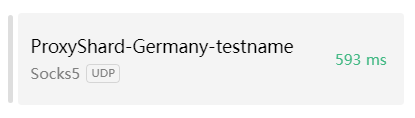
If the connection is available, the server card will show its latency.
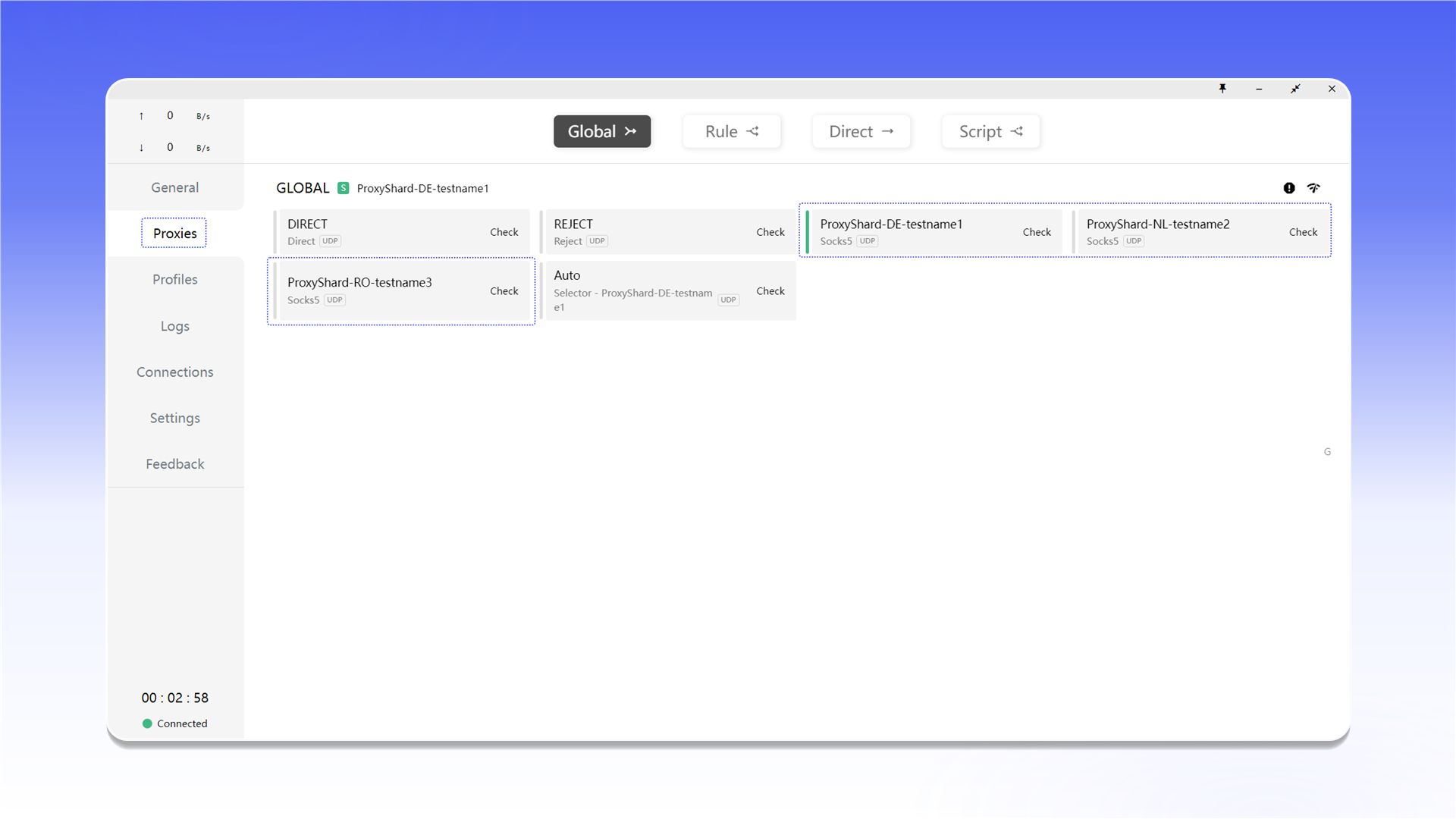
Add multiple proxies
Add each server as a separate item under proxies: and list their names in the ShardX group. After saving the configuration, the servers will appear under Proxies, where you can switch between them.
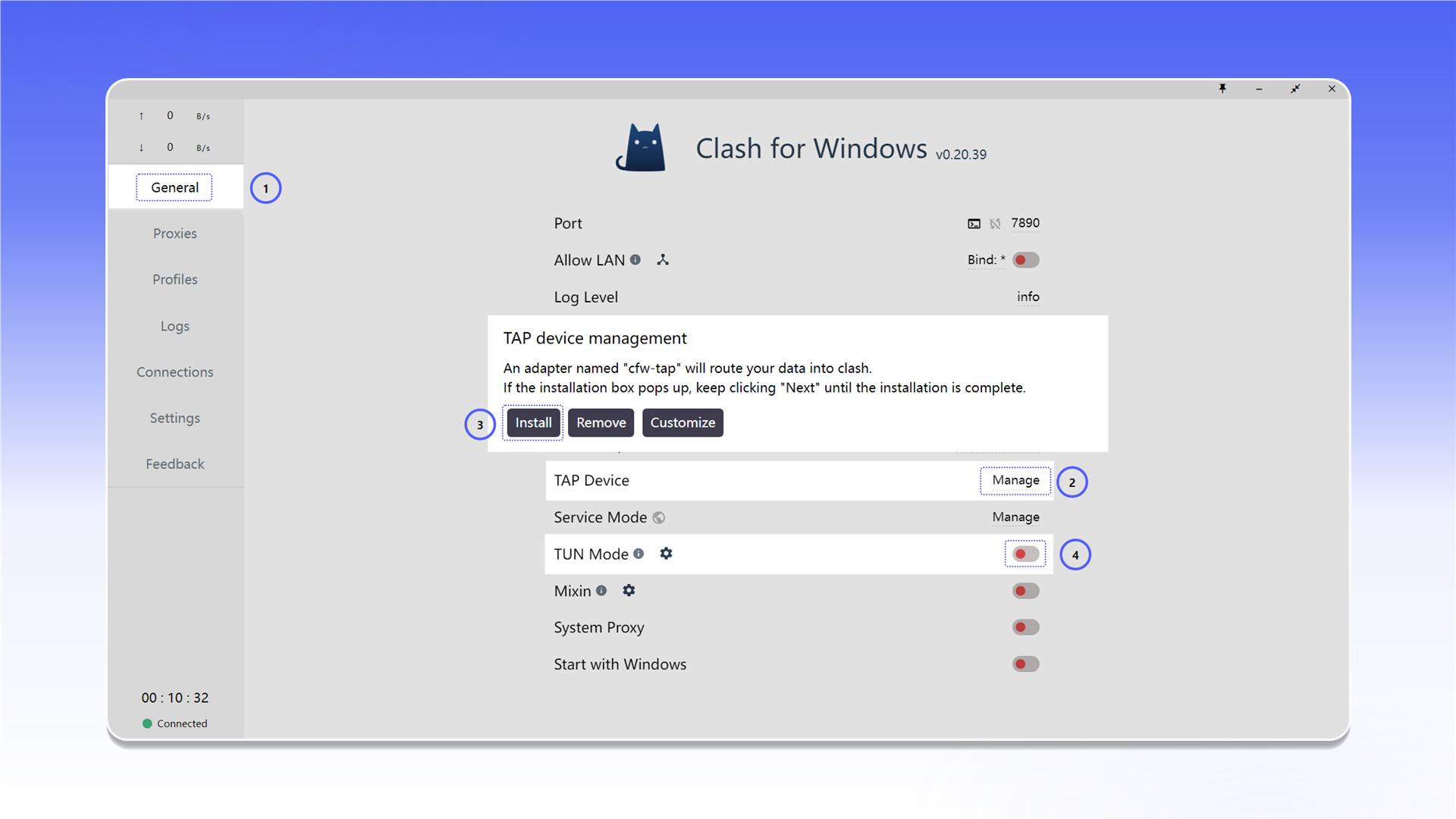
Enable TUN Mode
- Open
General. - In the
TAP Devicerow, clickManage, thenInstall. - Enable
TUN Modeto route system traffic through the selected proxy.
Verify the connection
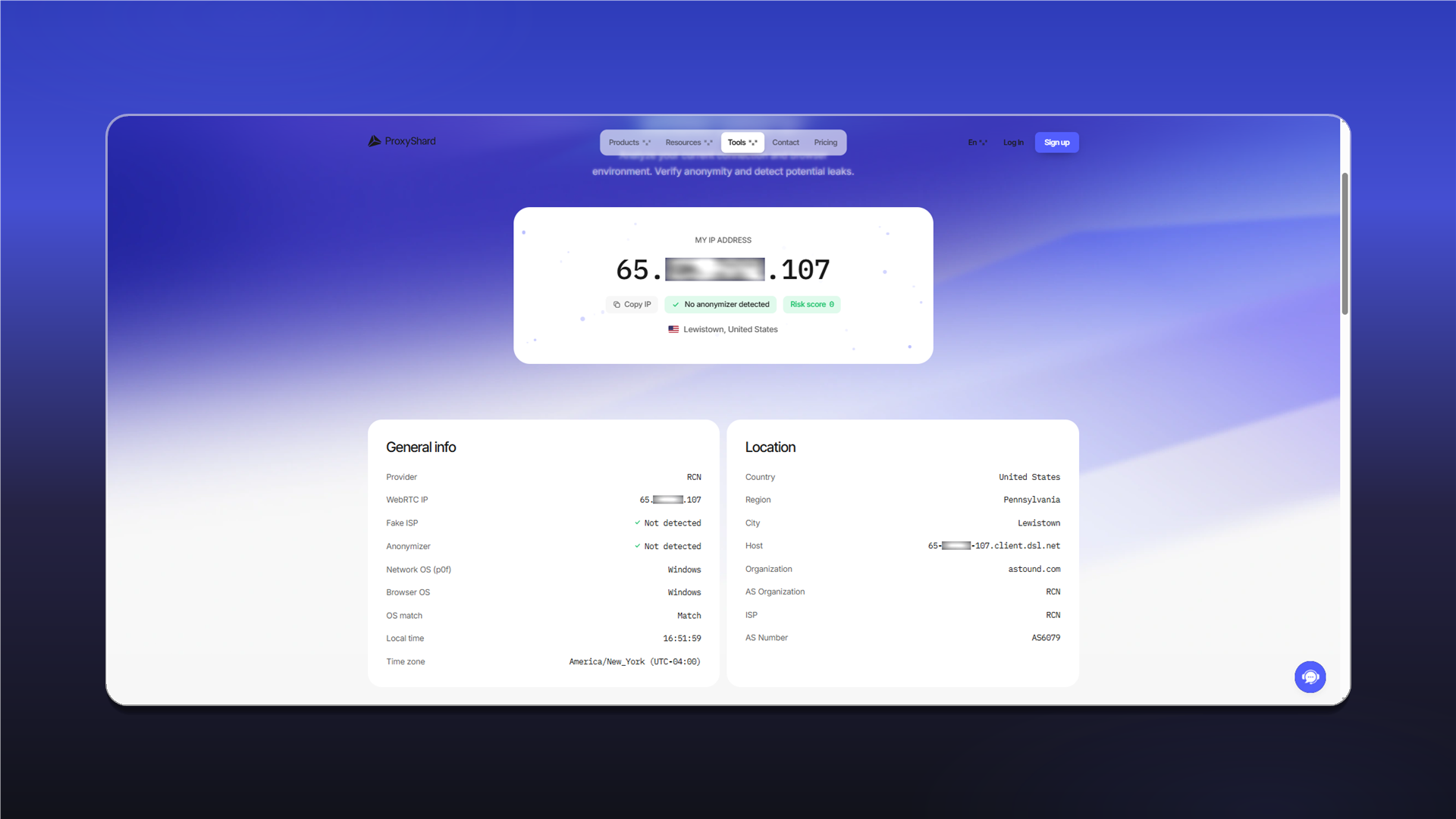
Open ShardX IP Checker and confirm that it displays the proxy IP address.
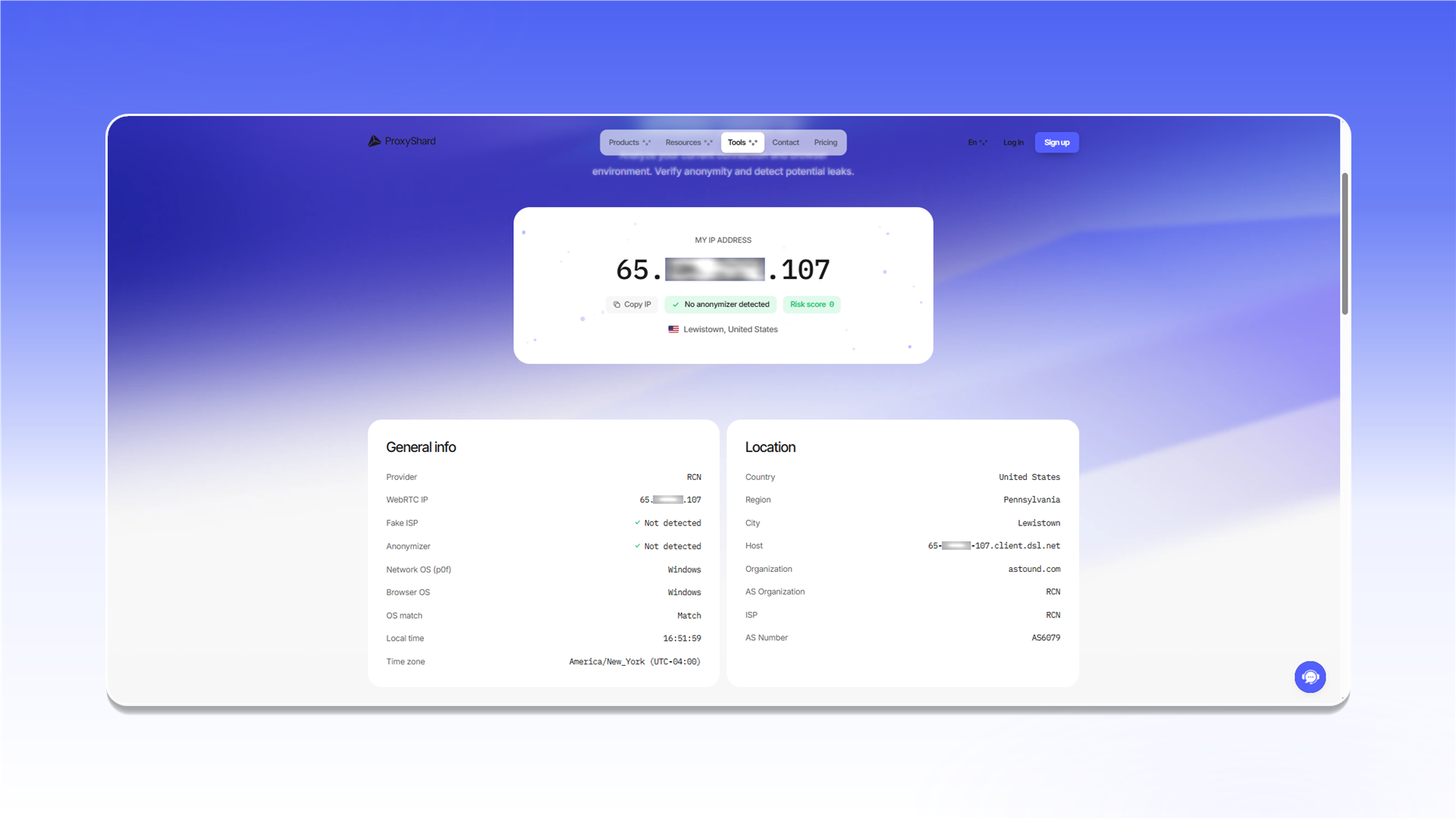
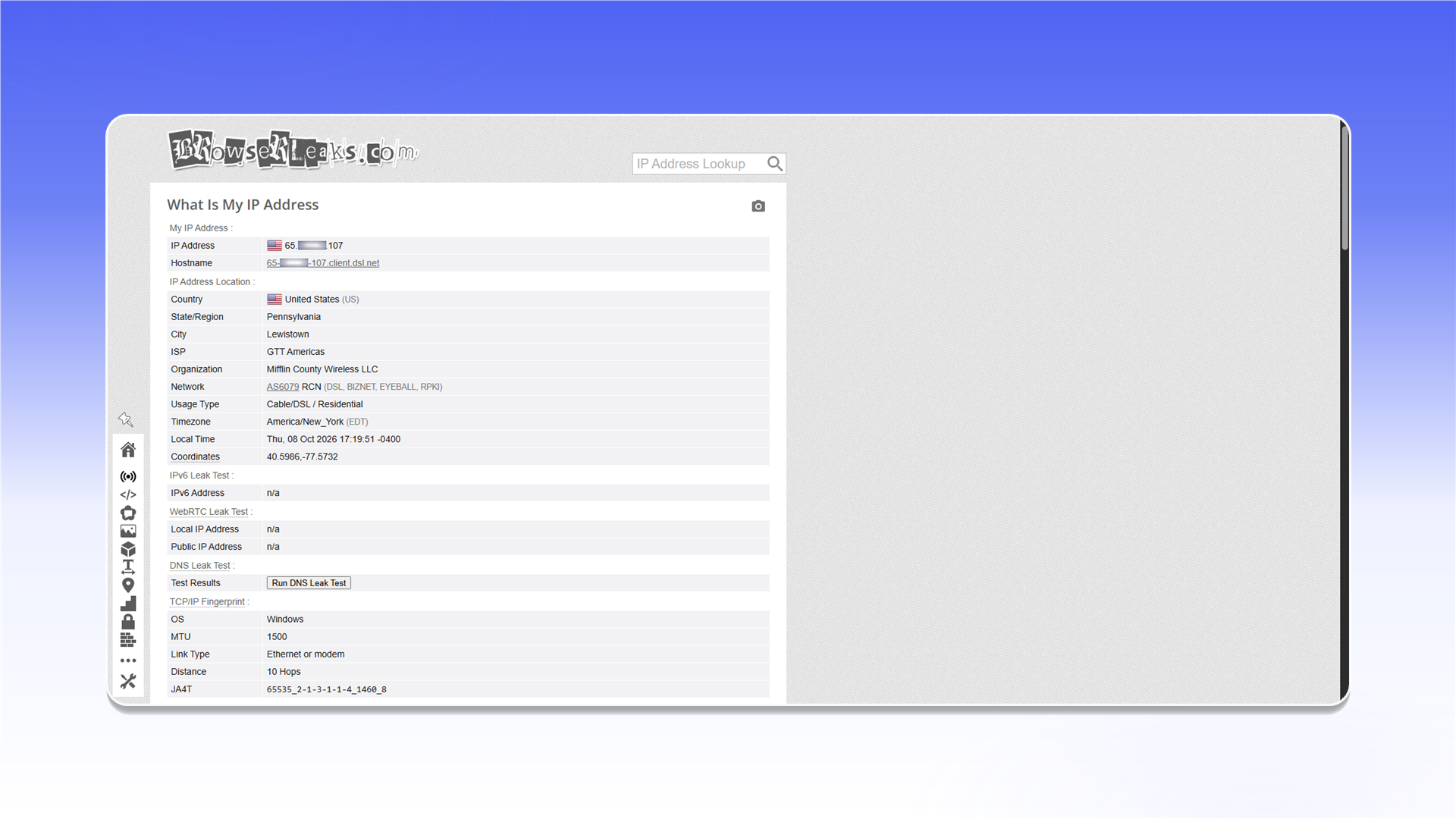
You can also check for WebRTC leaks with BrowserLeaks.
If the connection does not work, verify the values in config.yaml, restart the application as administrator, and follow the troubleshooting guide.
Last updated on