Teamspaces
Teams let you share access to proxies and orders, assign permissions, and work in a shared workspace. One account can create up to 10 teams.
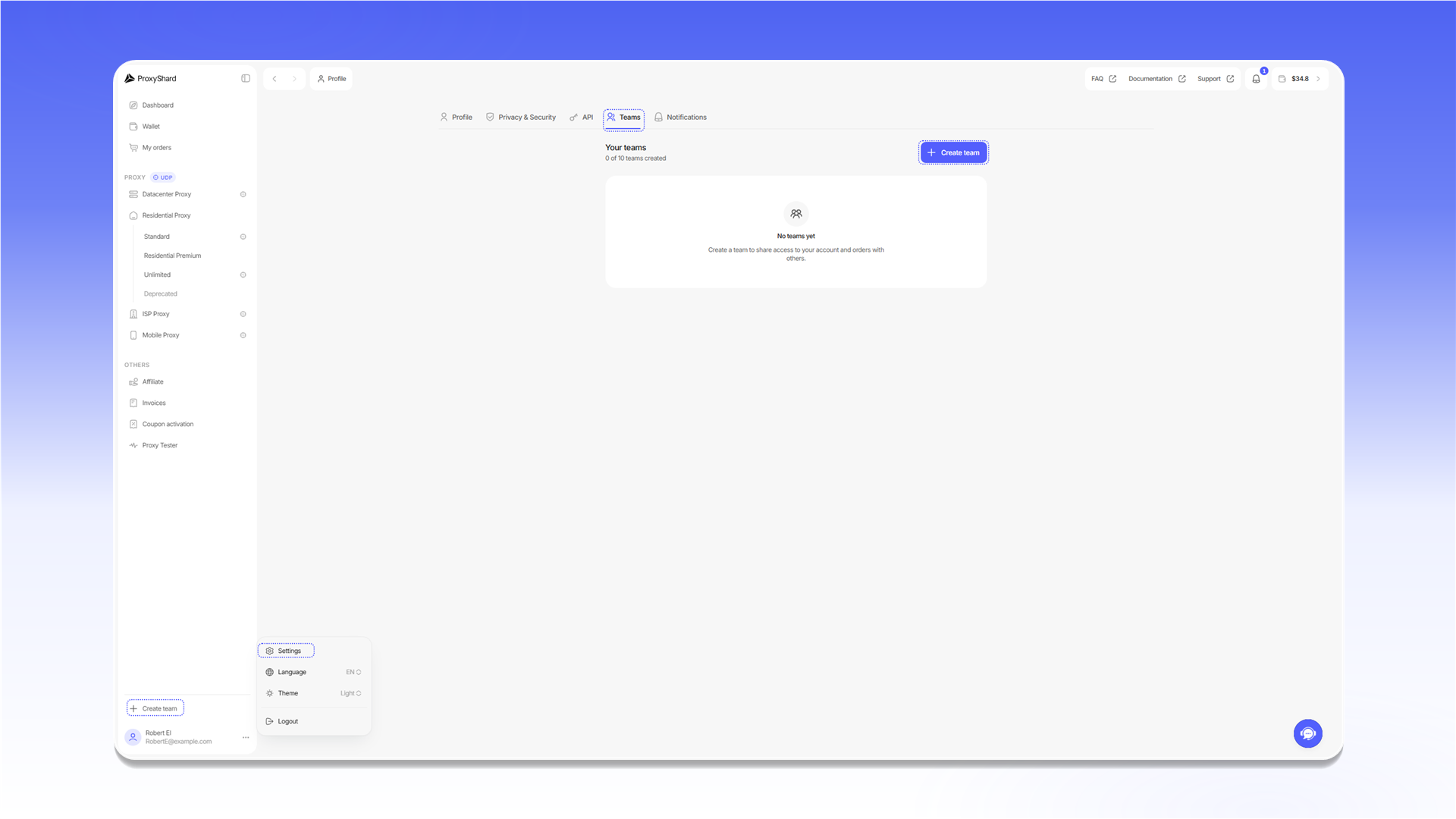
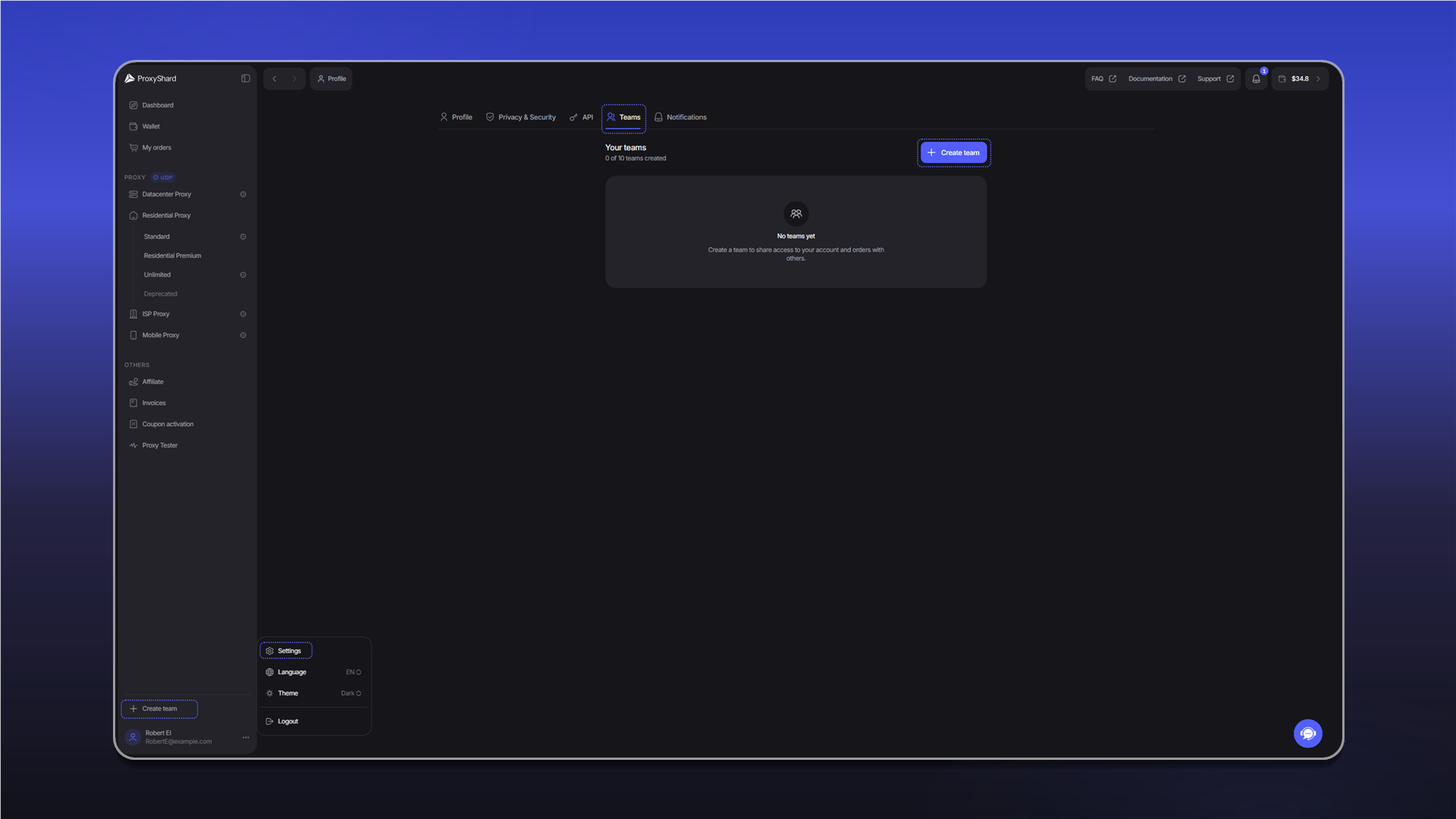
Opening Teams
- Click the profile icon in the lower-left corner.
- Select
Settings. - Open the
Teamstab.
Creating a team
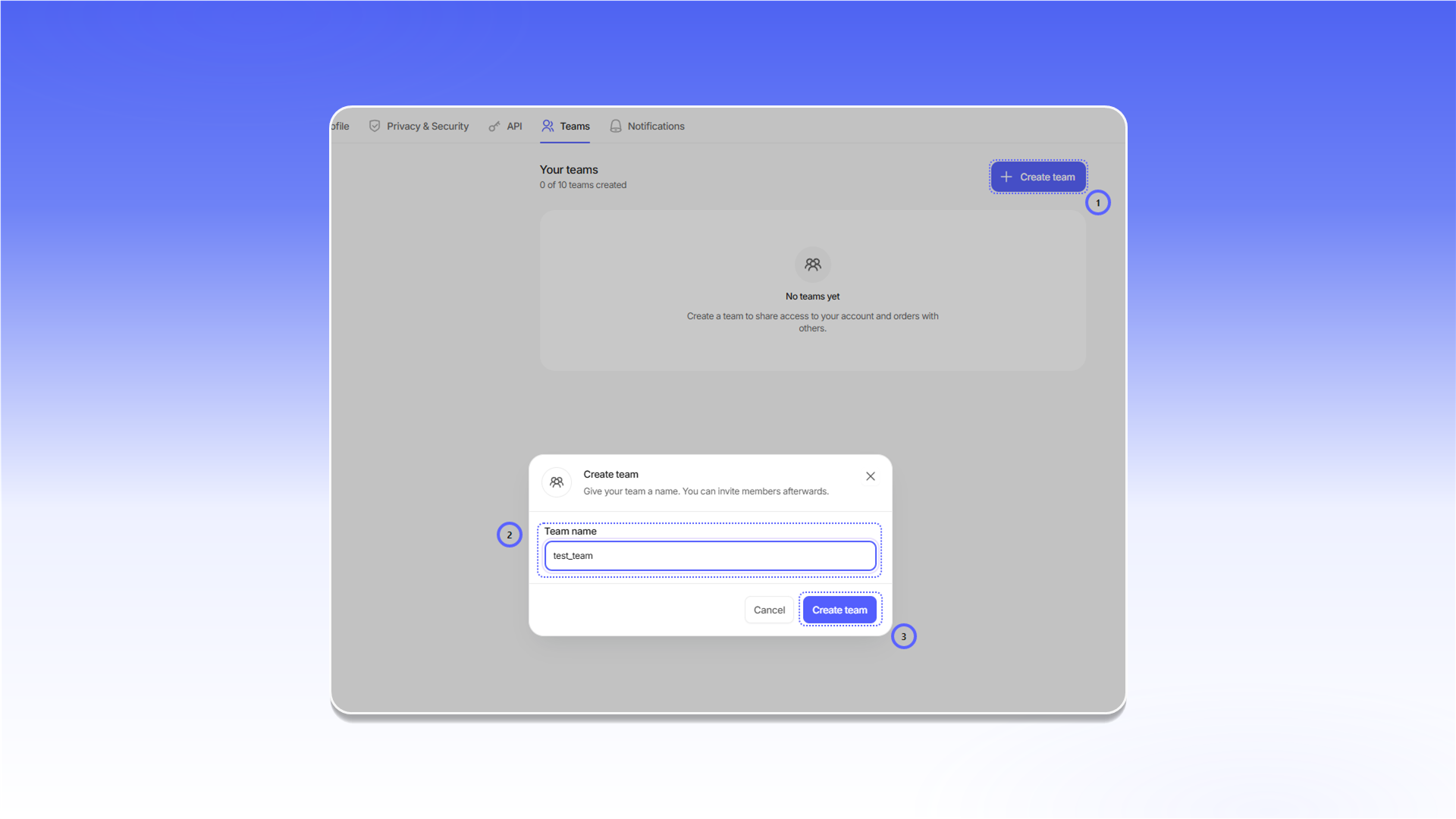
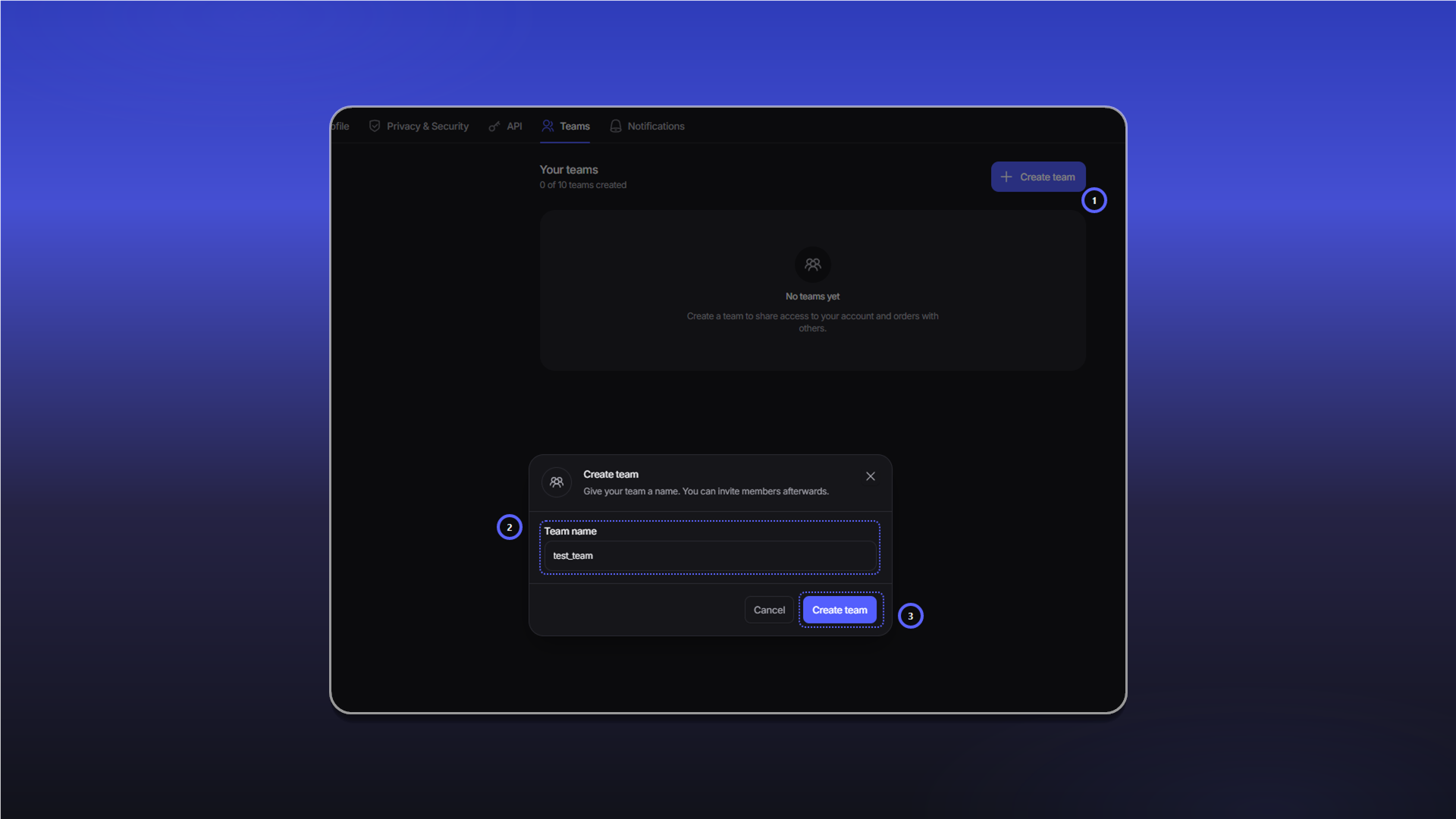
- Click
Create team. - Enter a name in
Team name. - Click
Create teamin the dialog.
Switching between teams
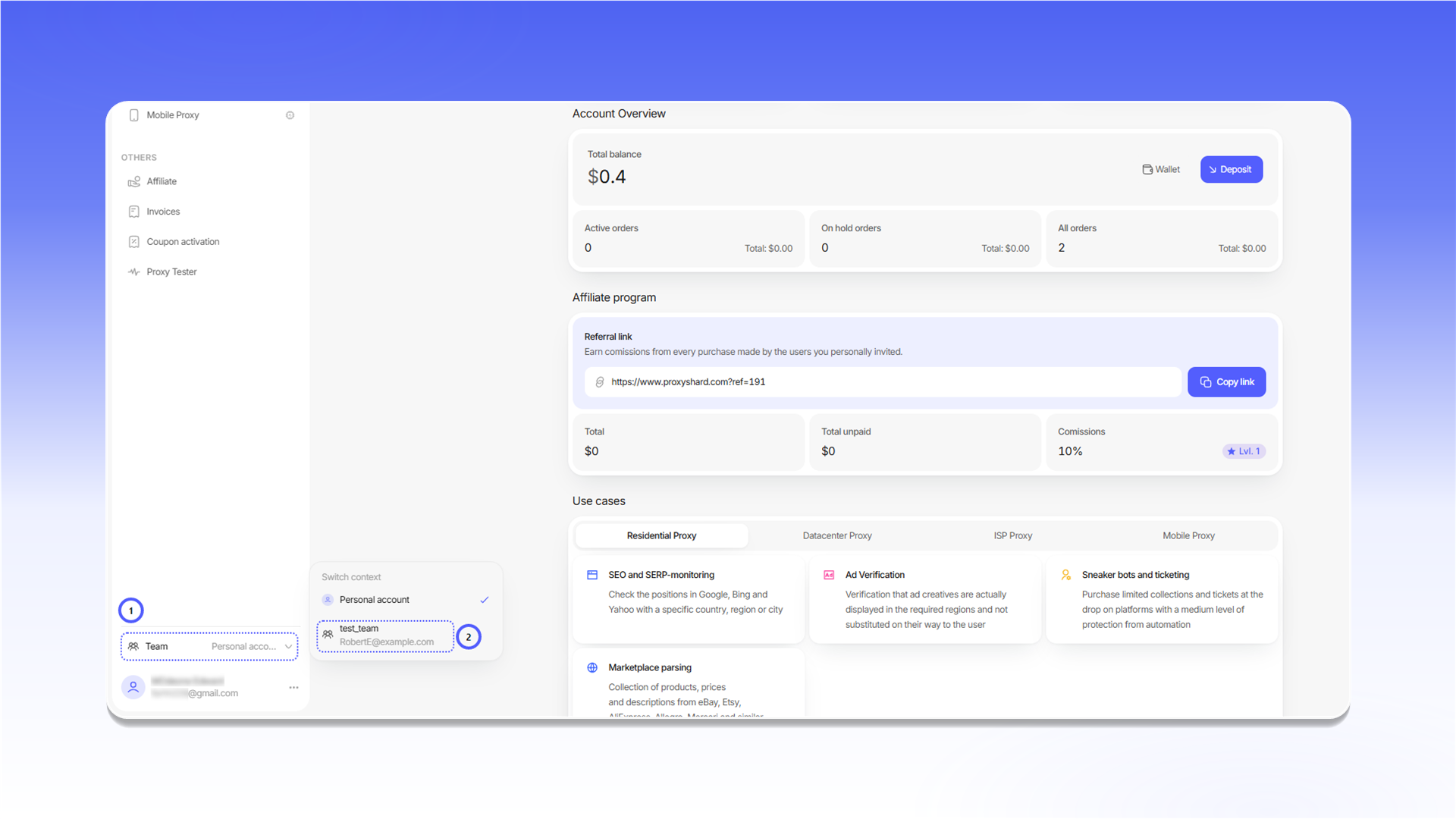
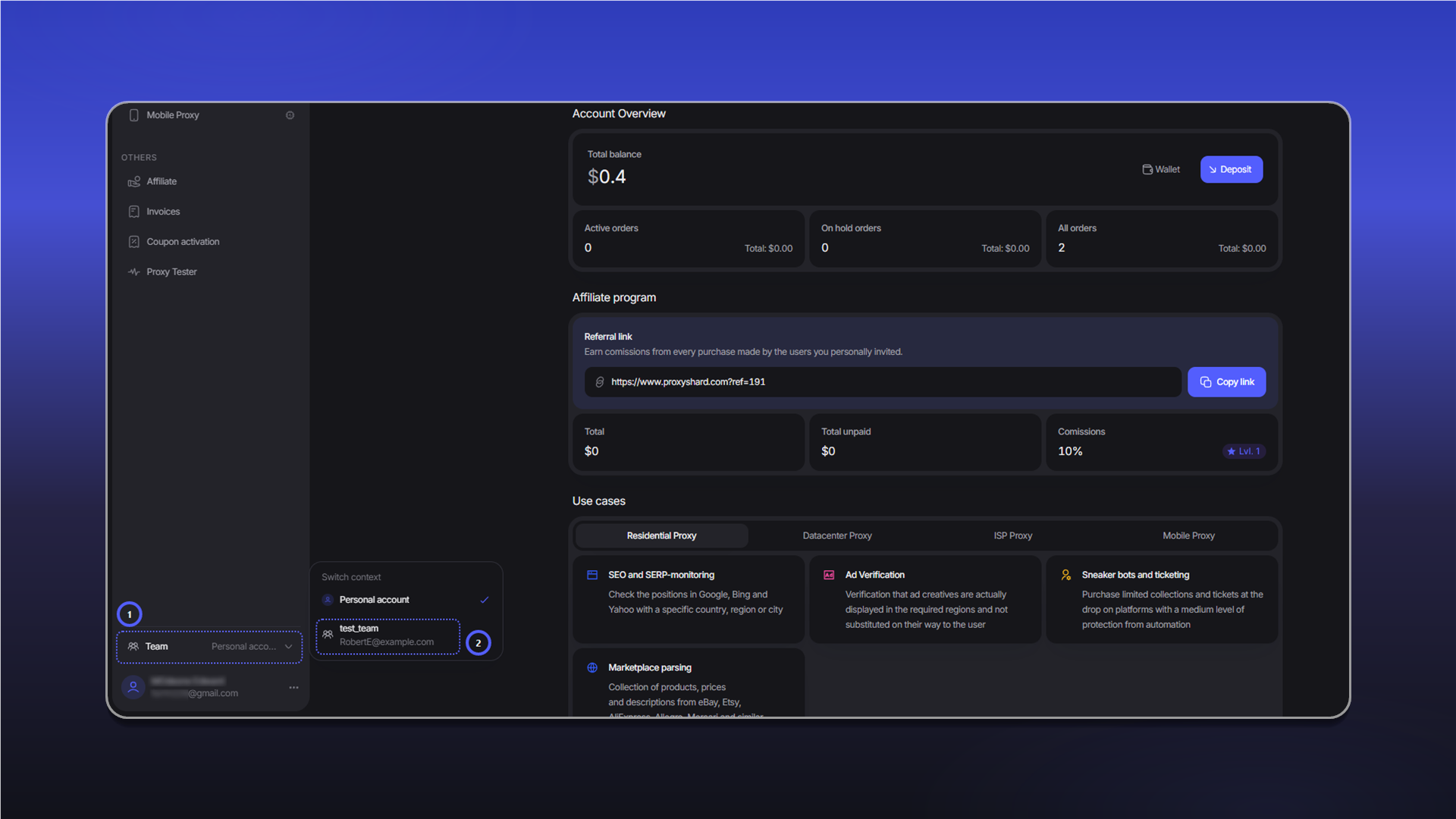
Open the account menu in the lower-left corner, select Team, then choose the required team. The interface will show the orders and features available to that team.
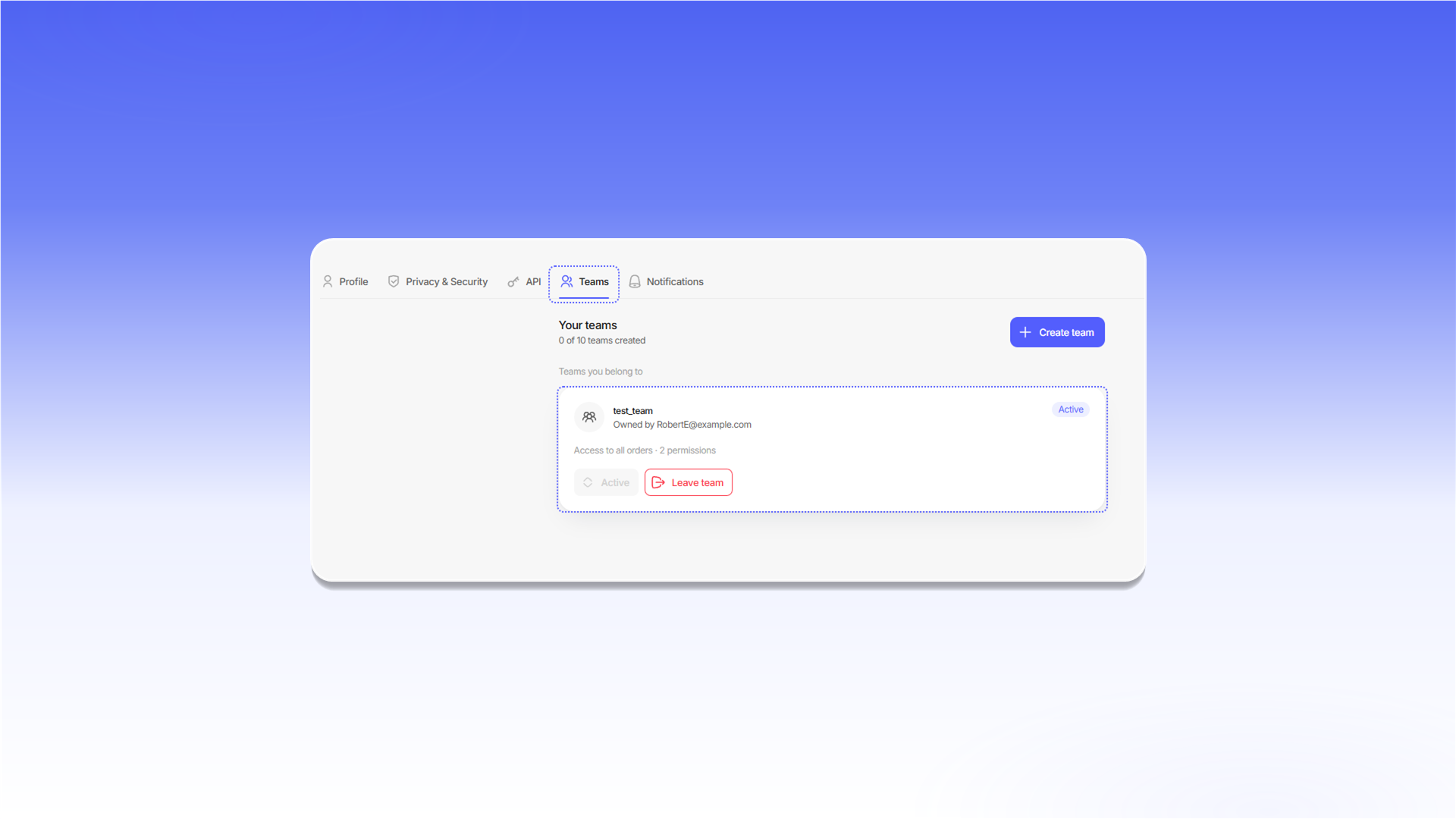
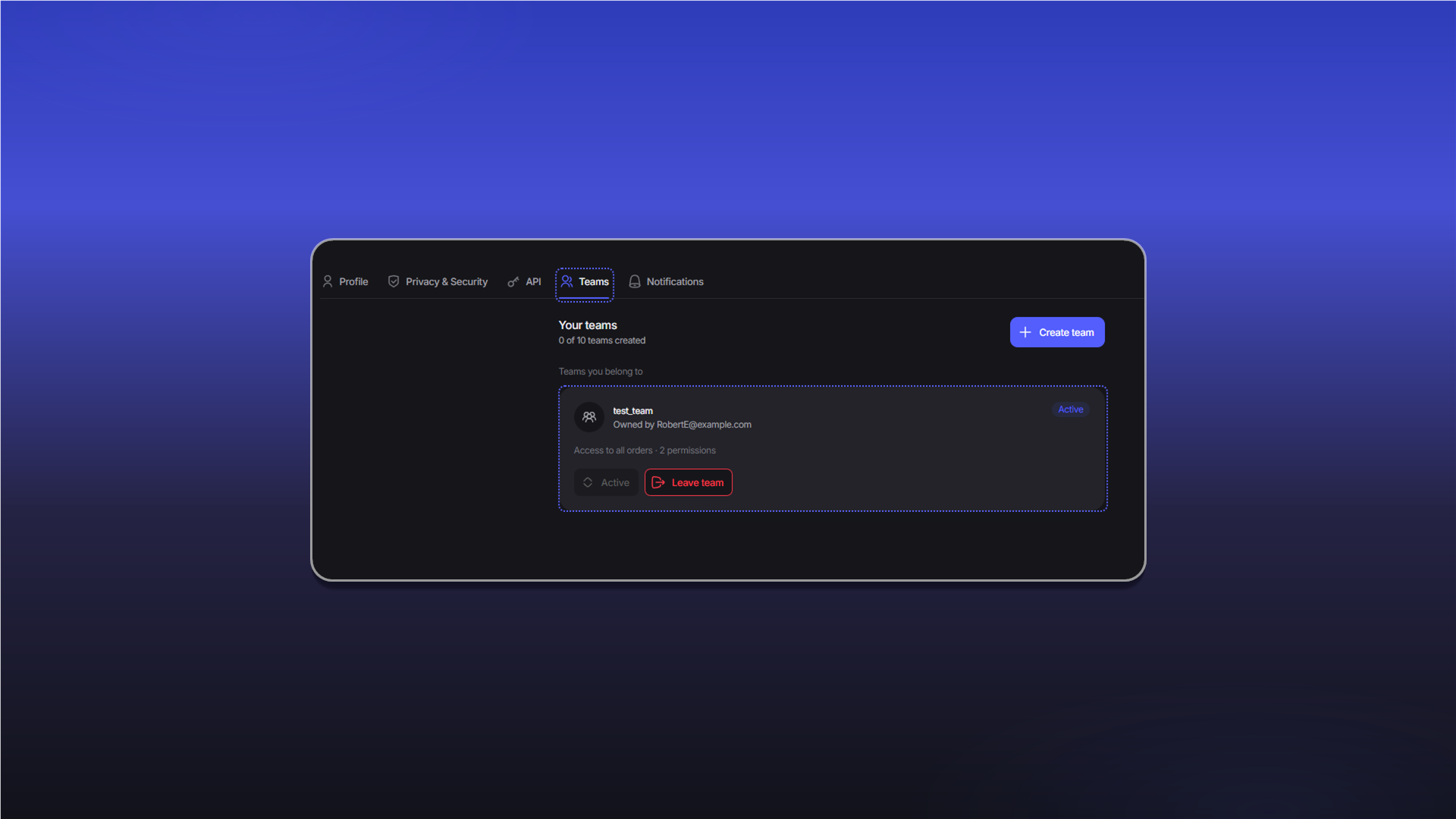
Teams you have joined appear under Teams you belong to. The current team has the Active status. Click Leave team to leave it.
Team settings
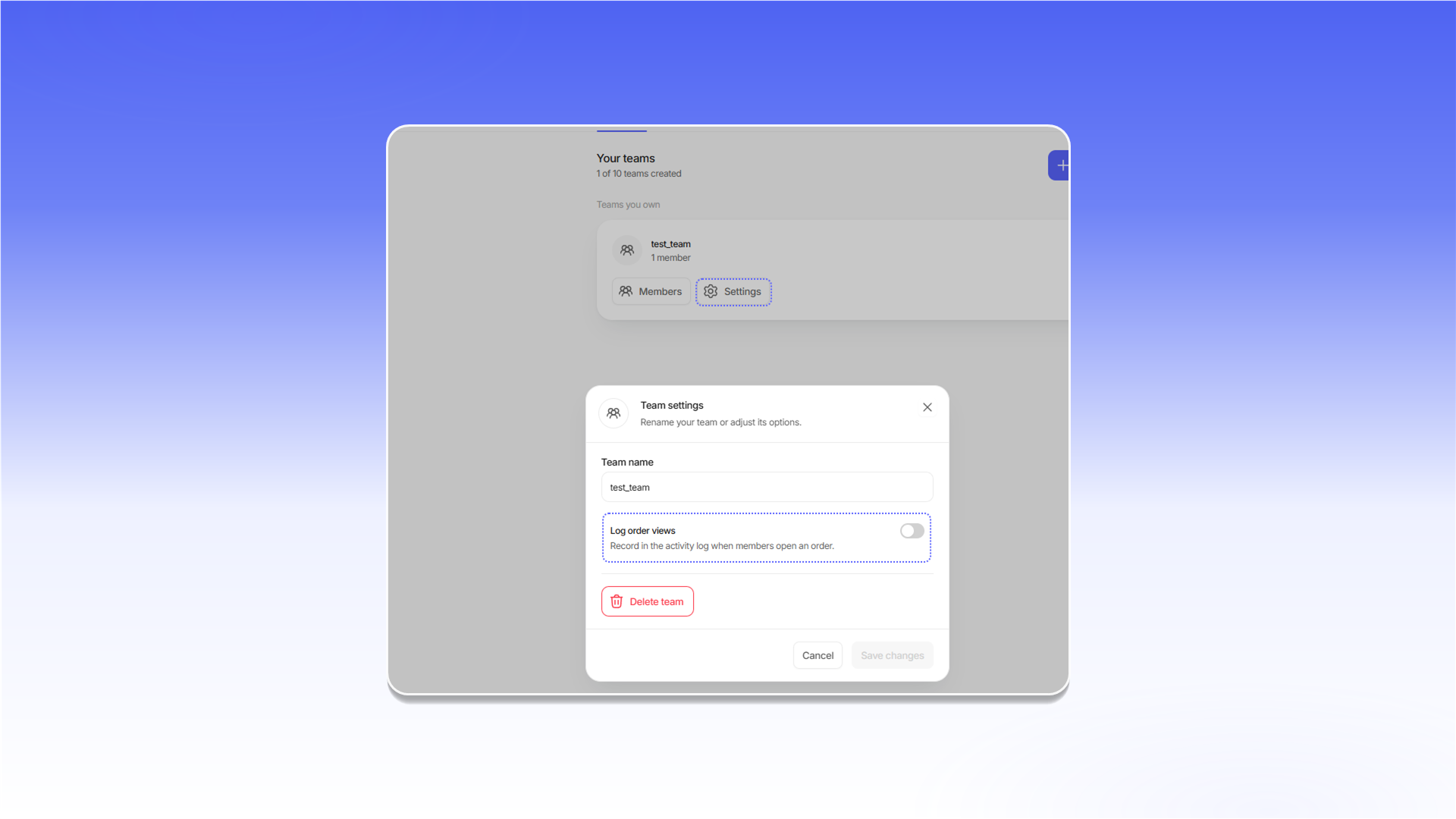
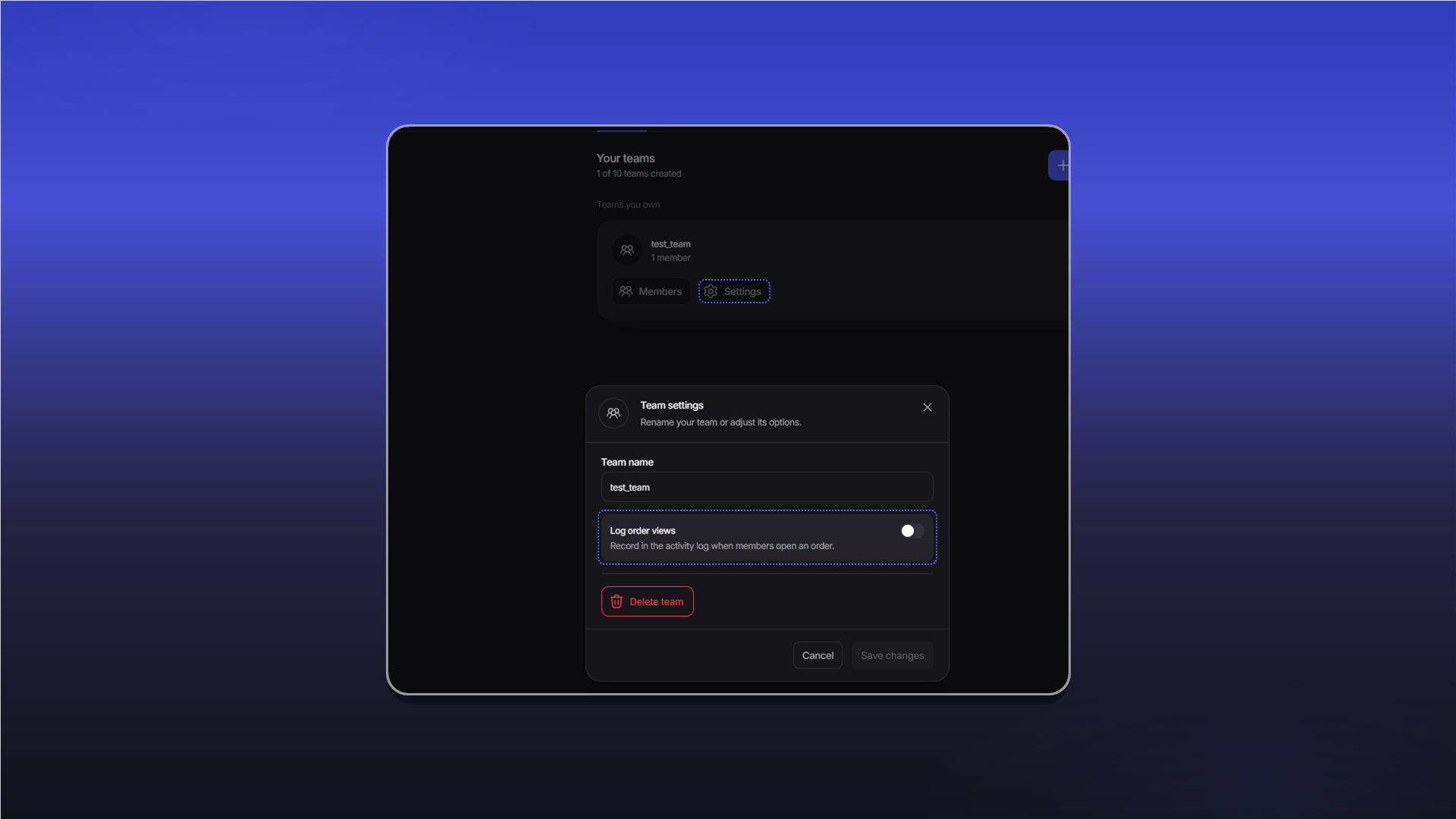
The owner can open Settings on the team card, change the Team name, enable Log order views, or delete the team. Click Save changes after changing the settings.
Adding members
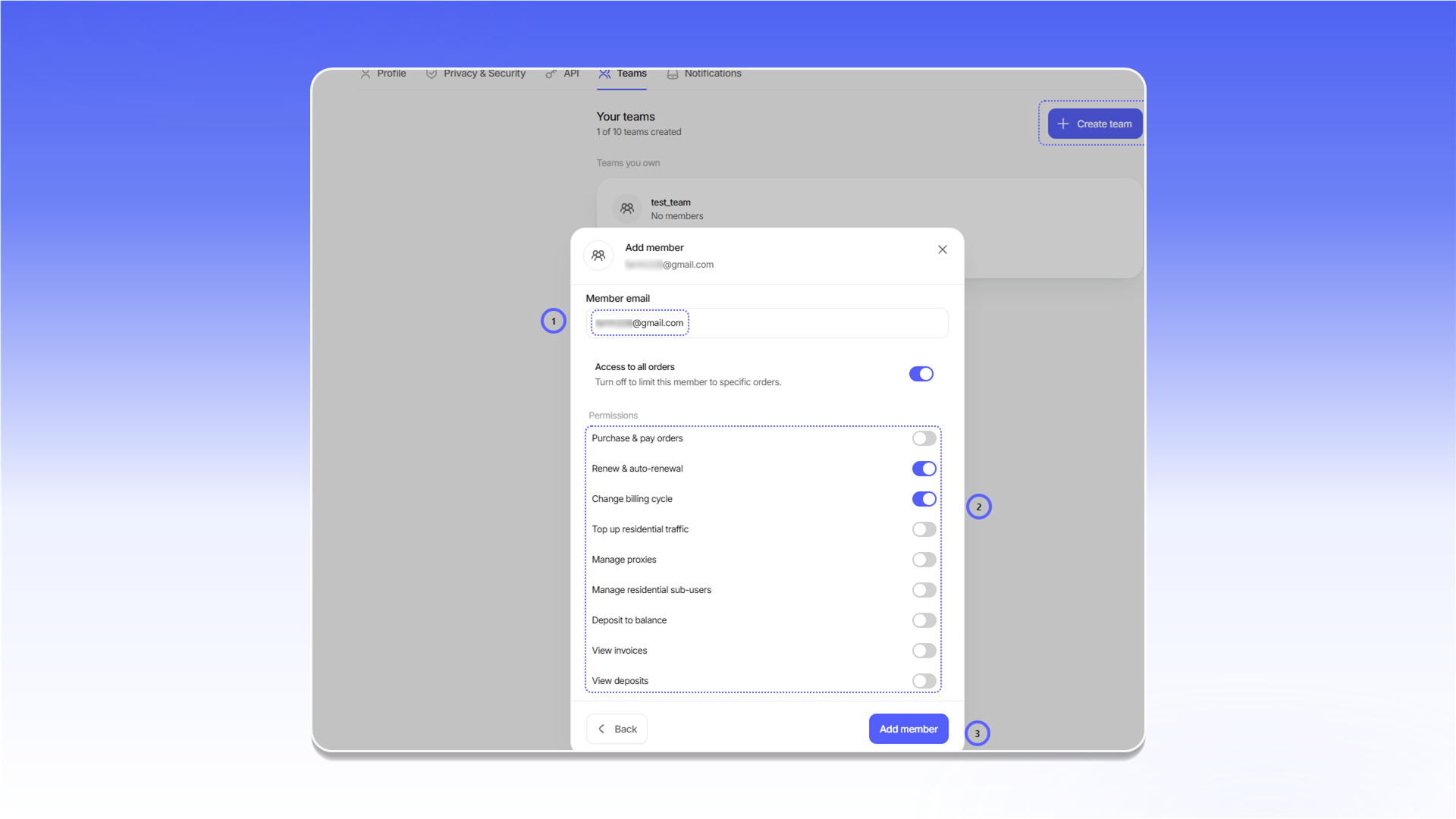
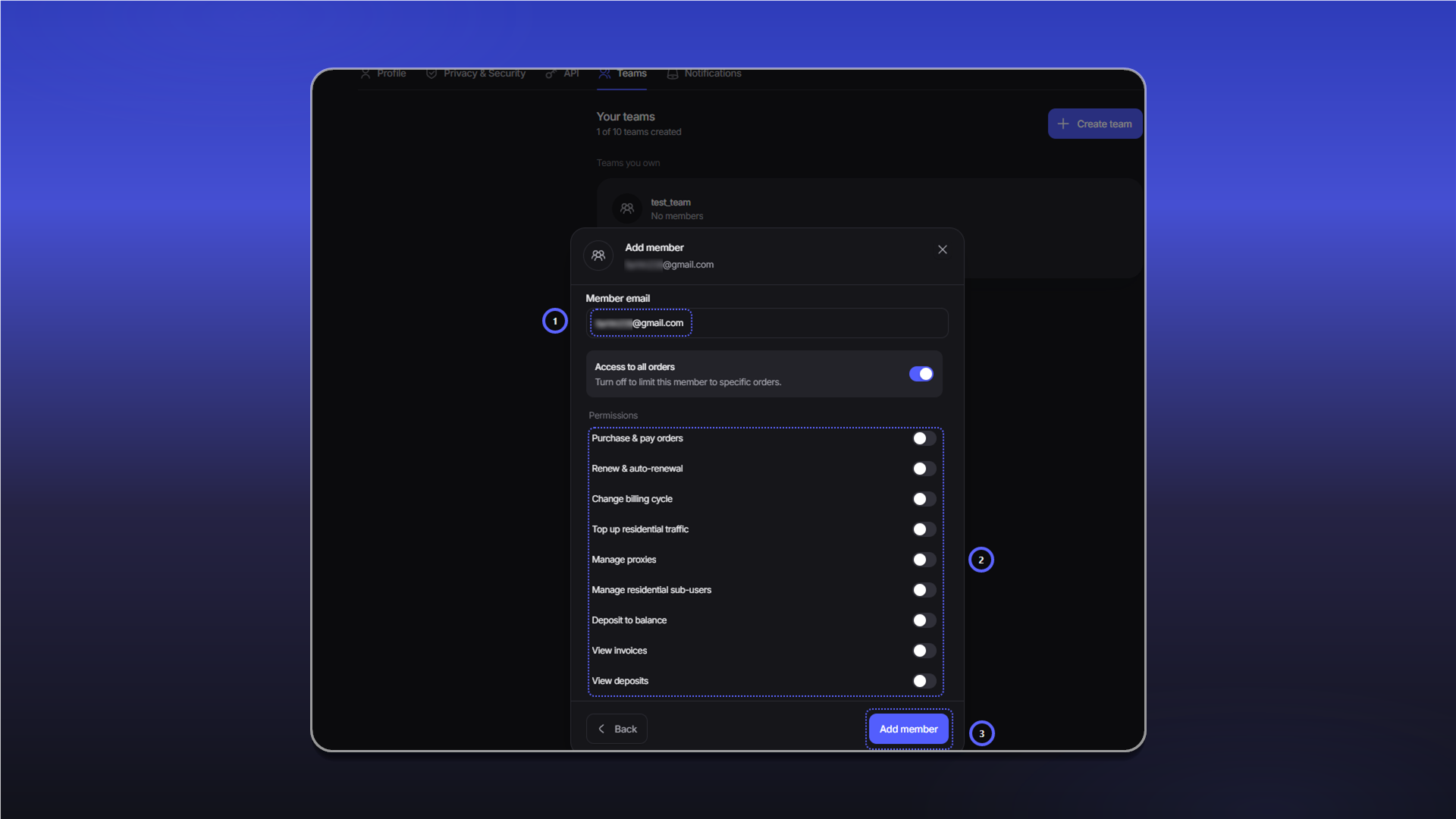
Open Members on a team you own and click Add member. Then:
- Enter an address in
Member email. - Configure access to orders and the required permissions.
- Click
Add member.
Last updated on