Telegram
Proxy setup for Telegram
Telegram Desktop
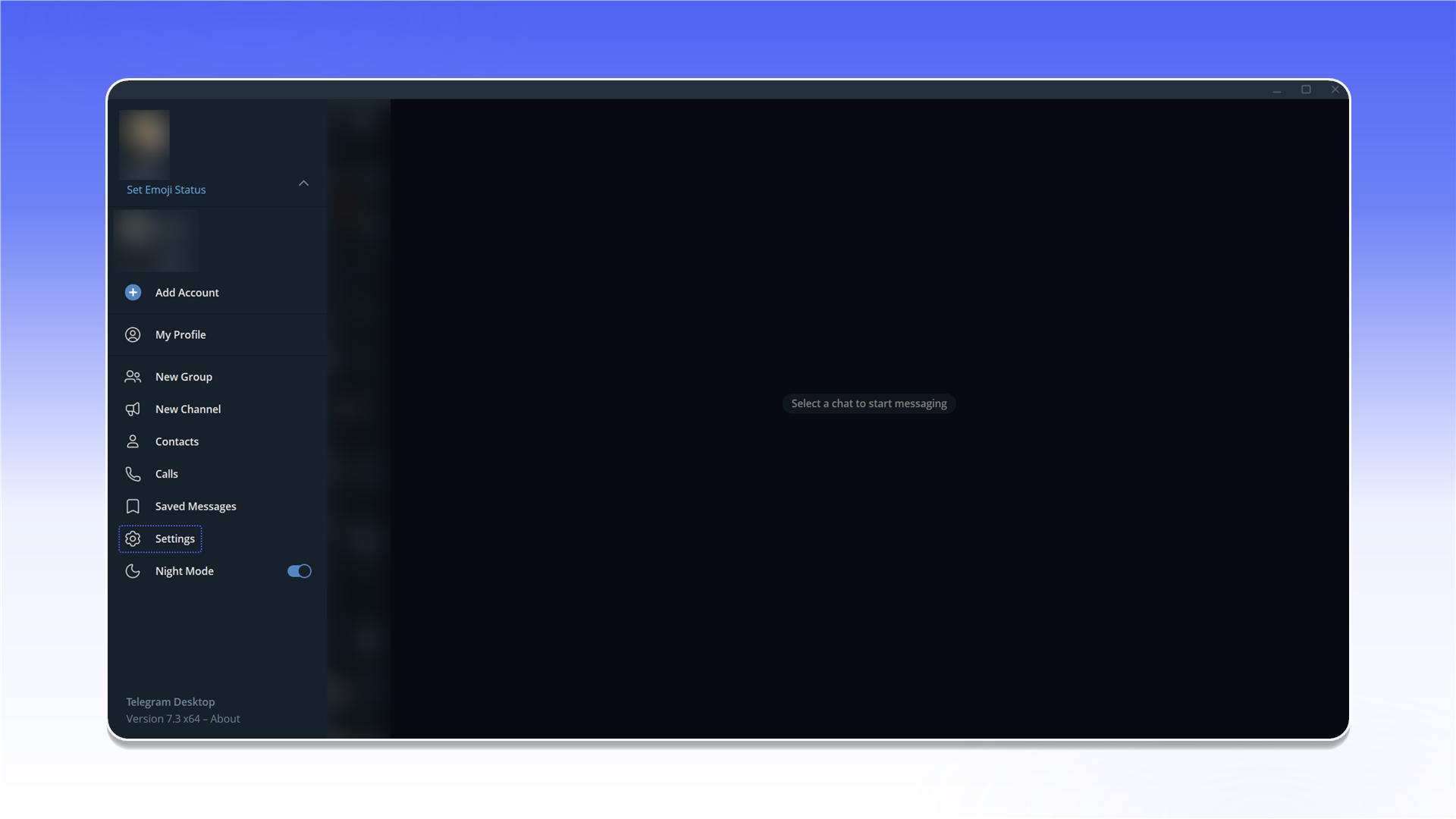
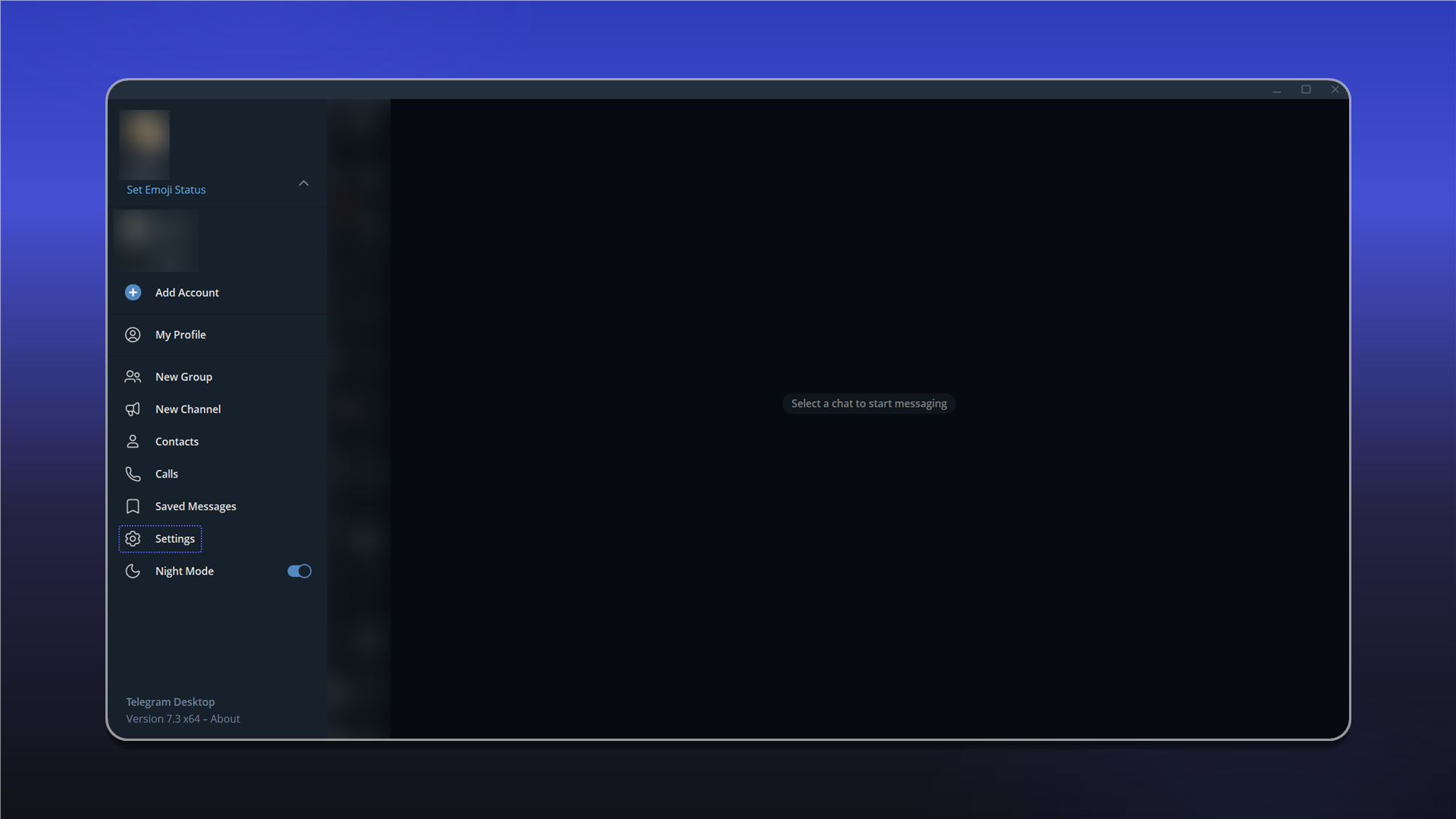
Open Settings.
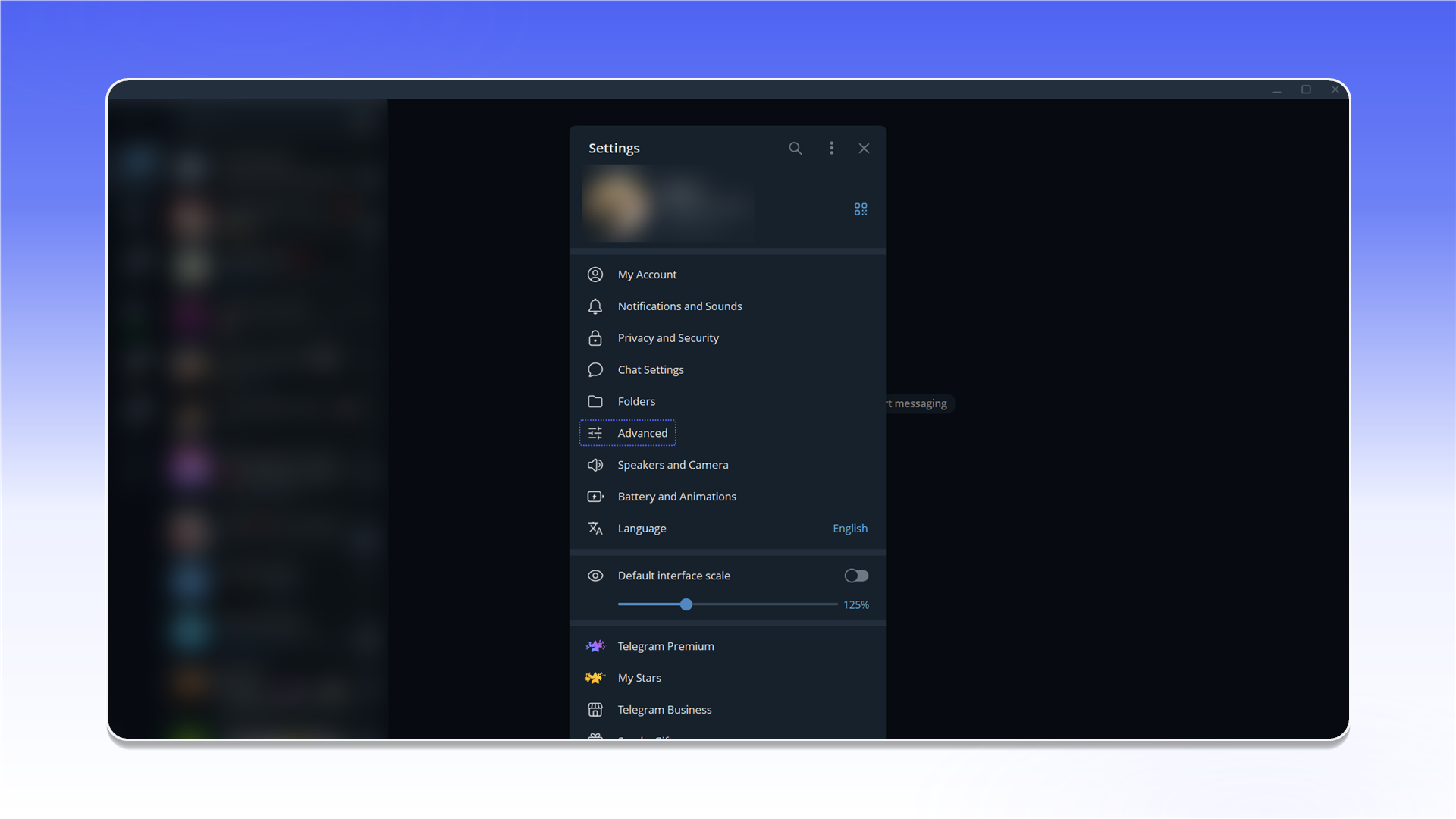
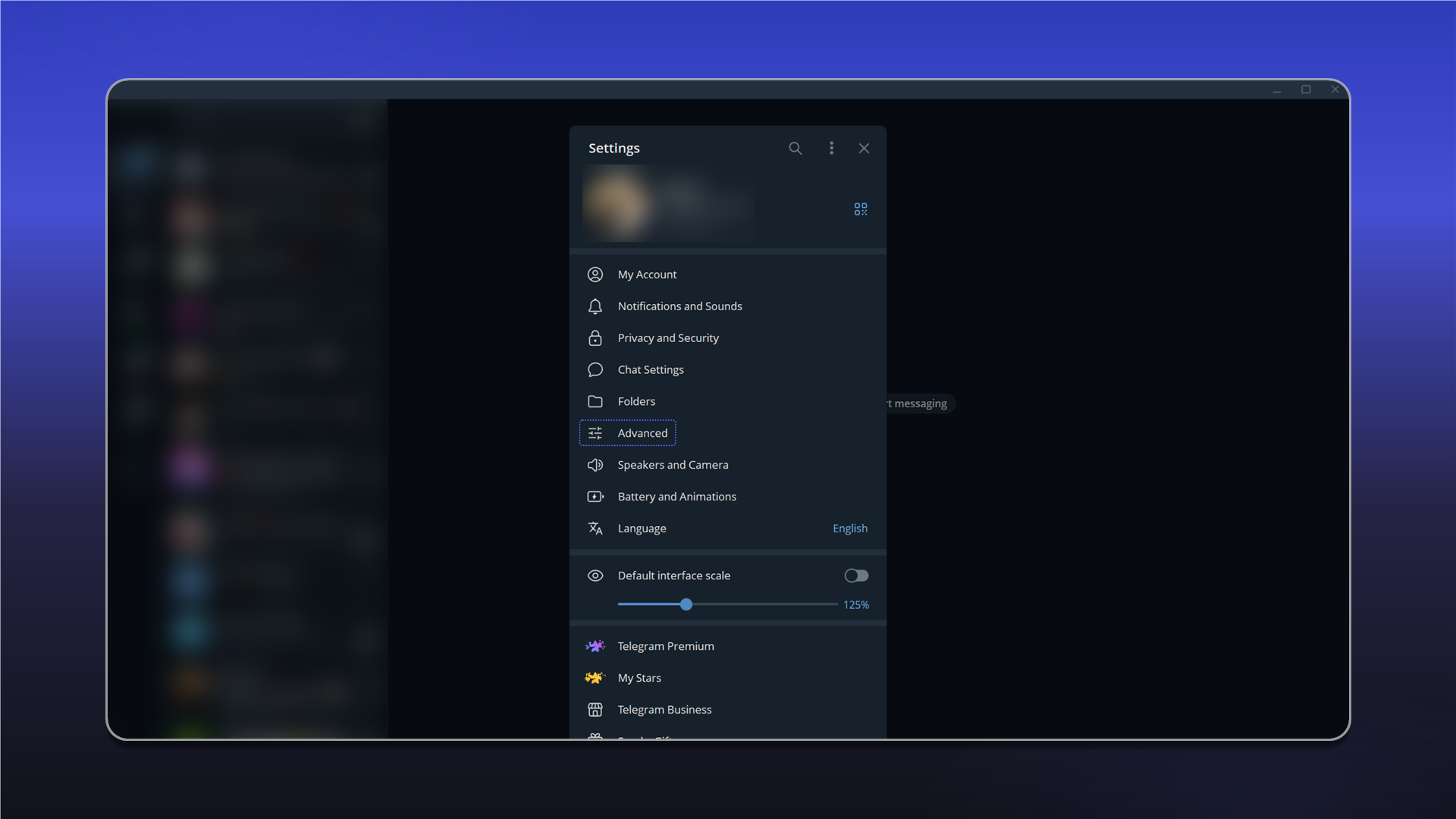
Open Advanced.
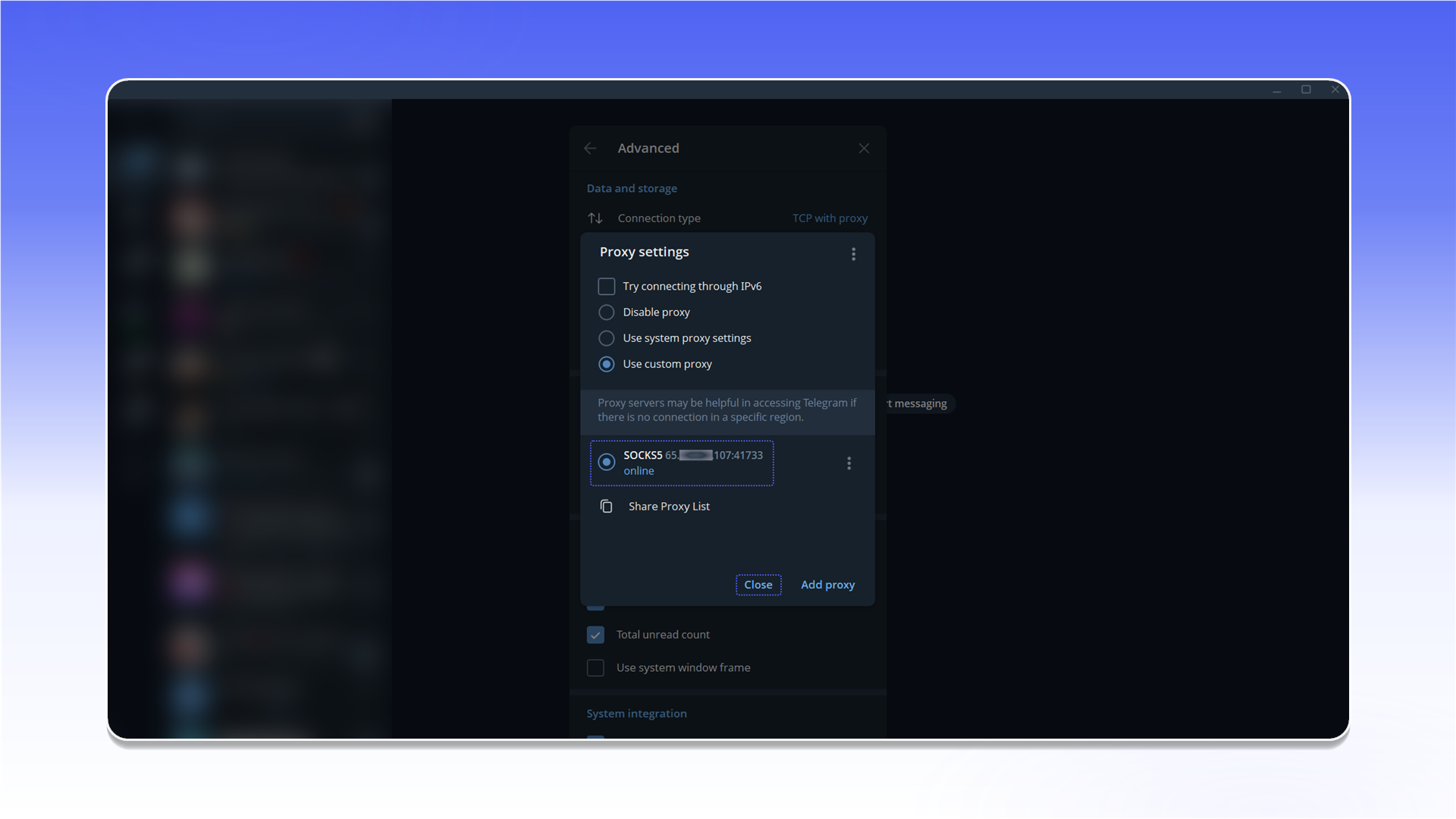
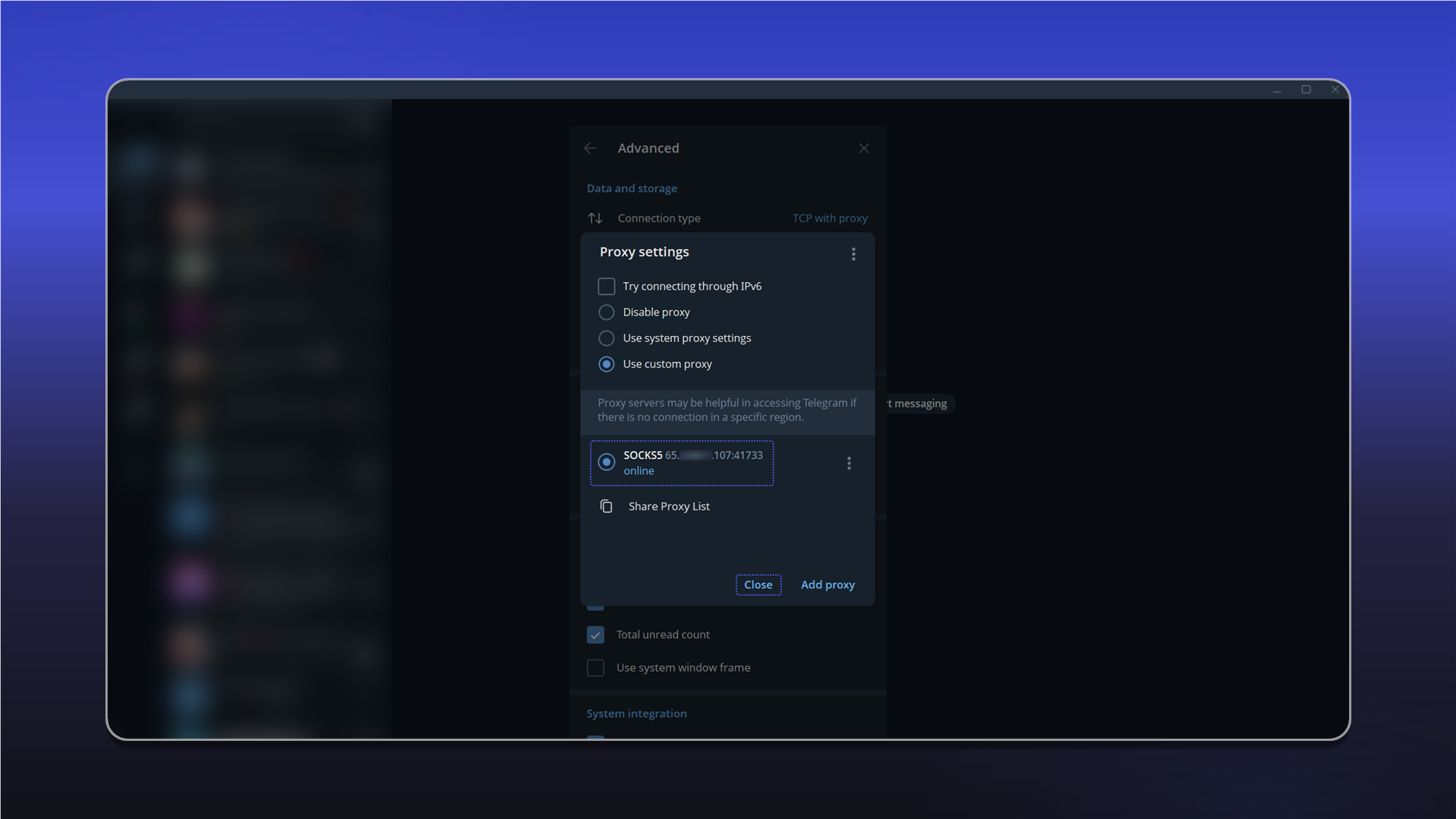
Under Network and proxy, open Connection type.
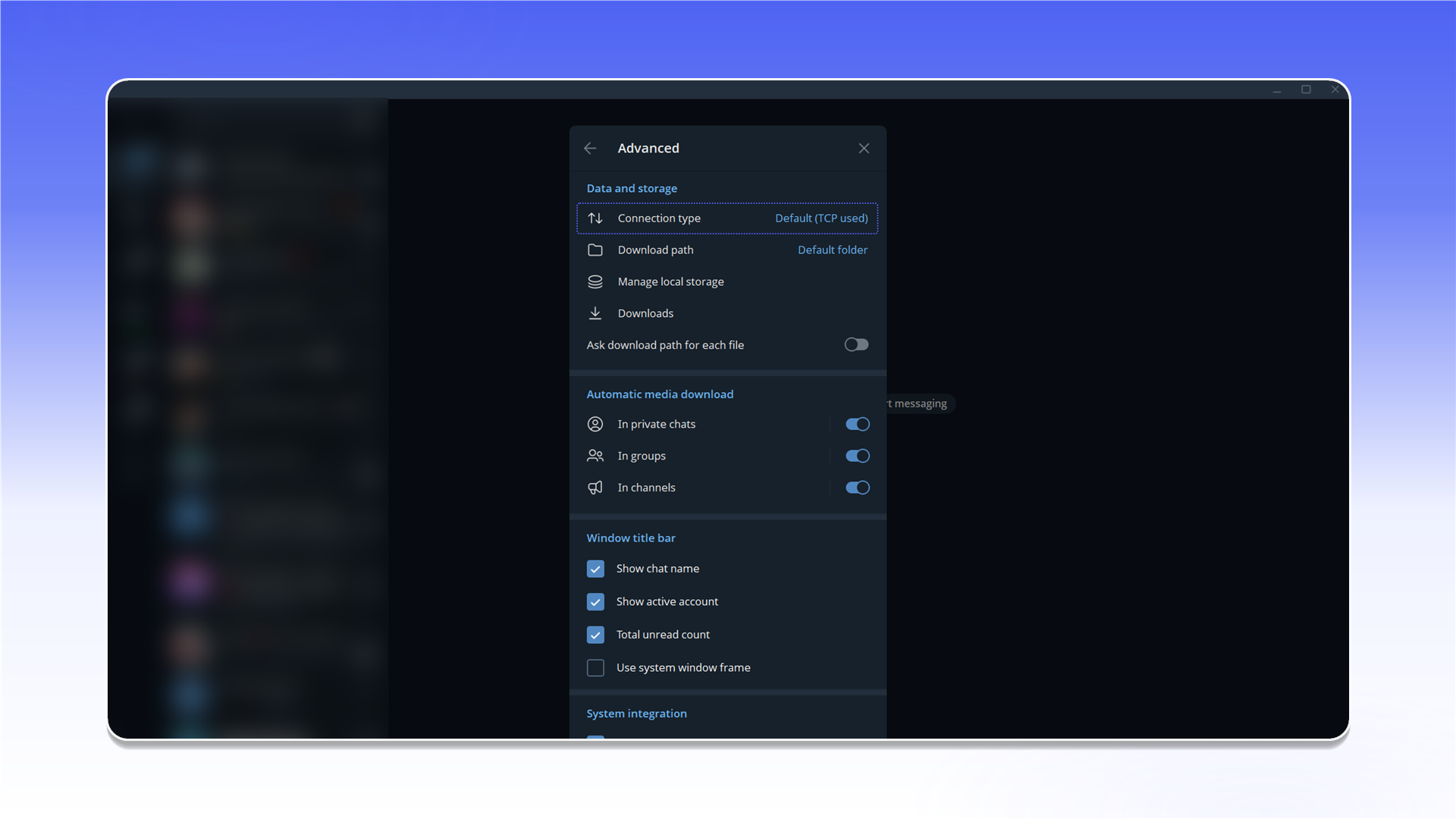
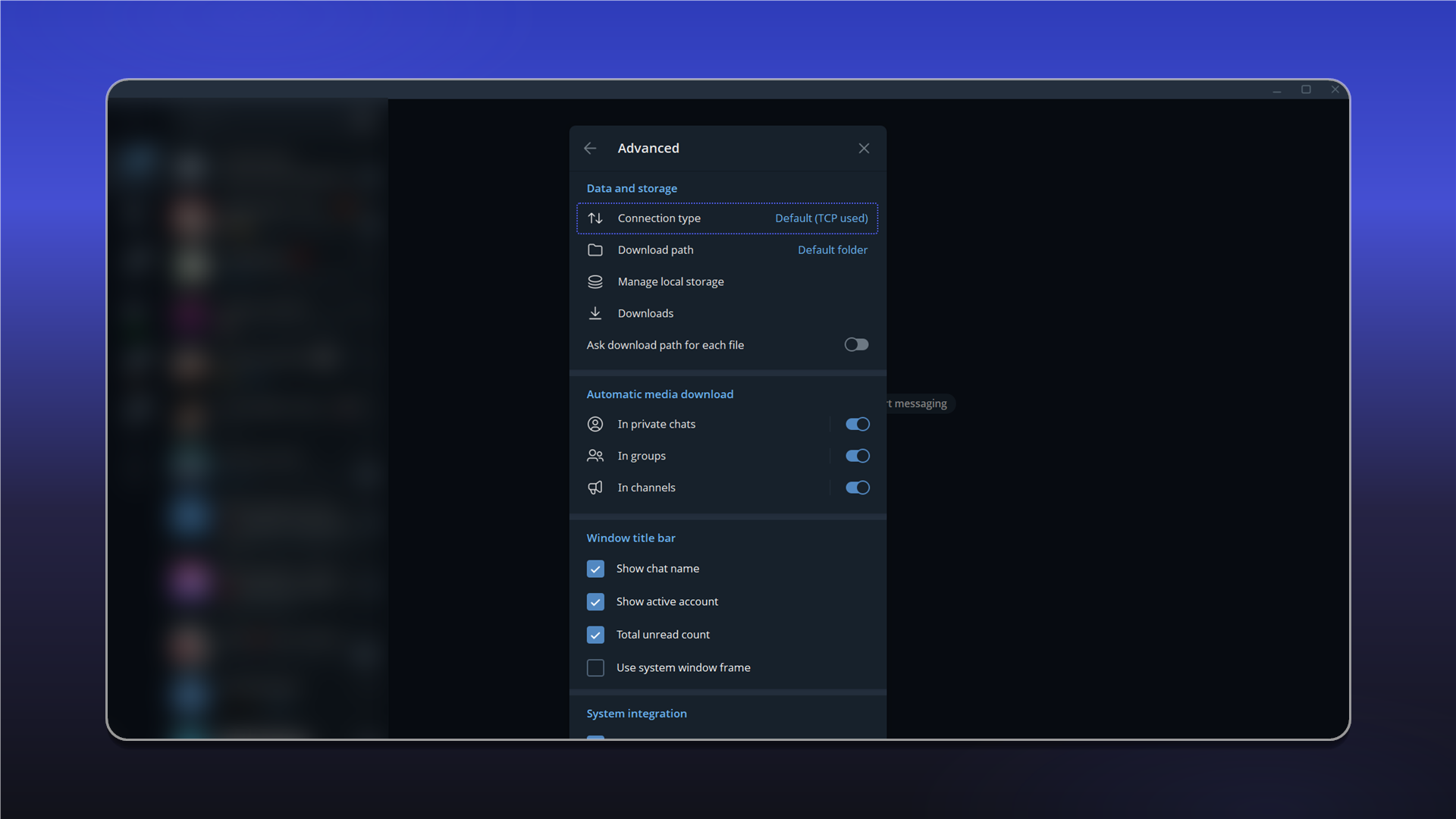
Select Use custom proxy, click Add proxy, and choose a protocol. Fill in the address, port, username, and password using the details from your order's Proxy List.
The data format and an example order are described in Getting Started.
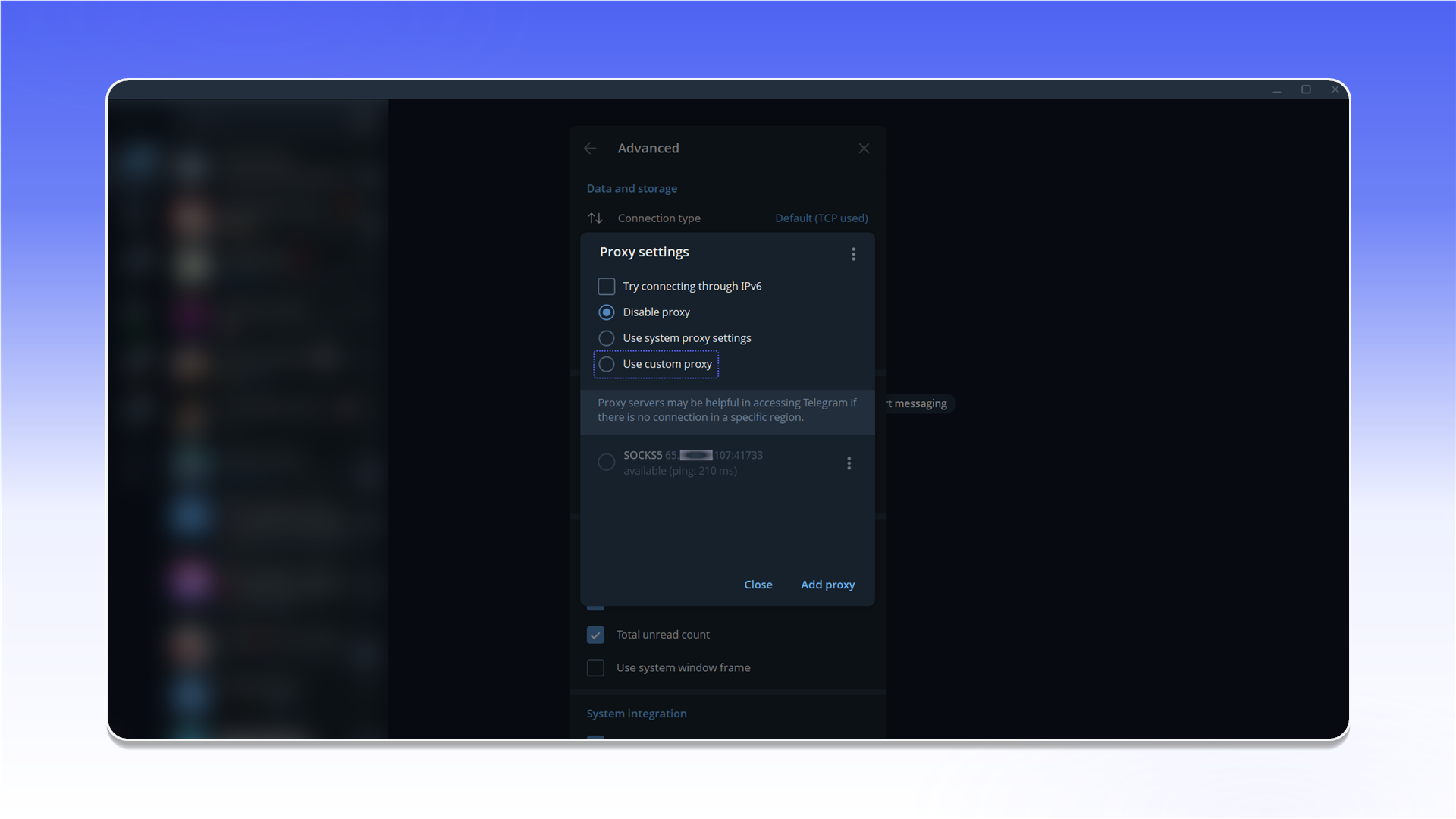
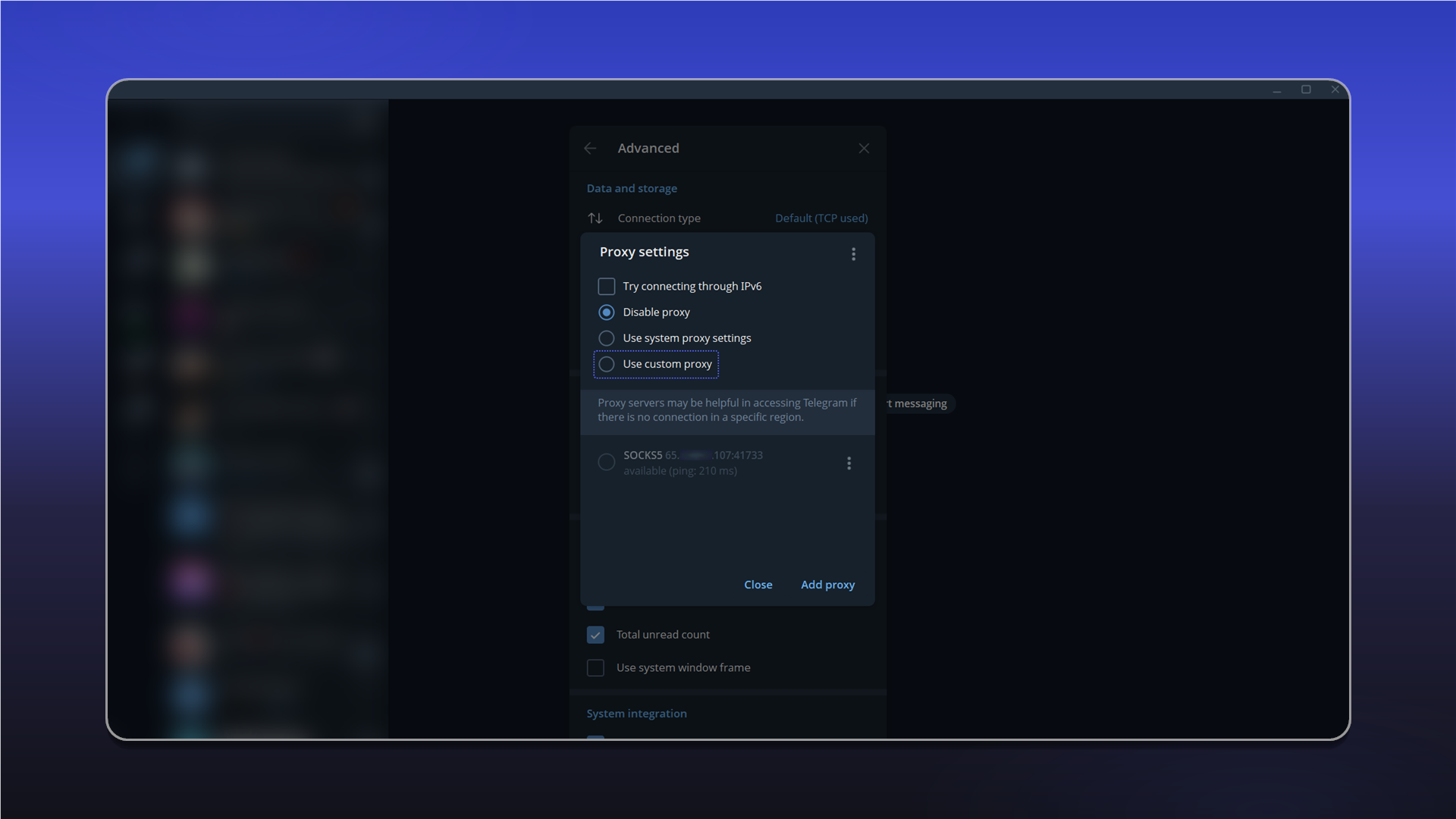
Save the settings and confirm that the proxy status is Connected.
Telegram for iOS
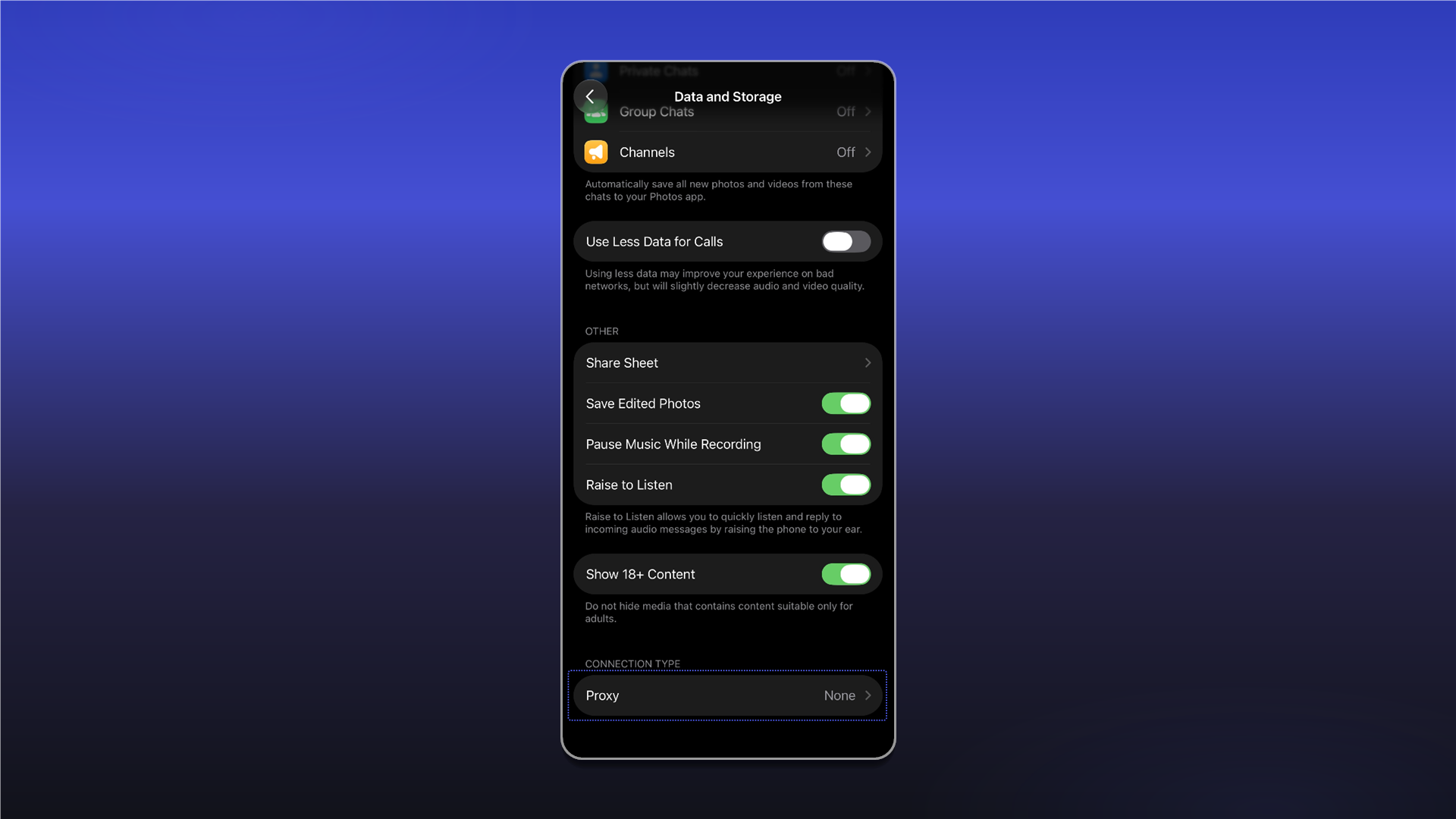
Open Settings and select Data and Storage.
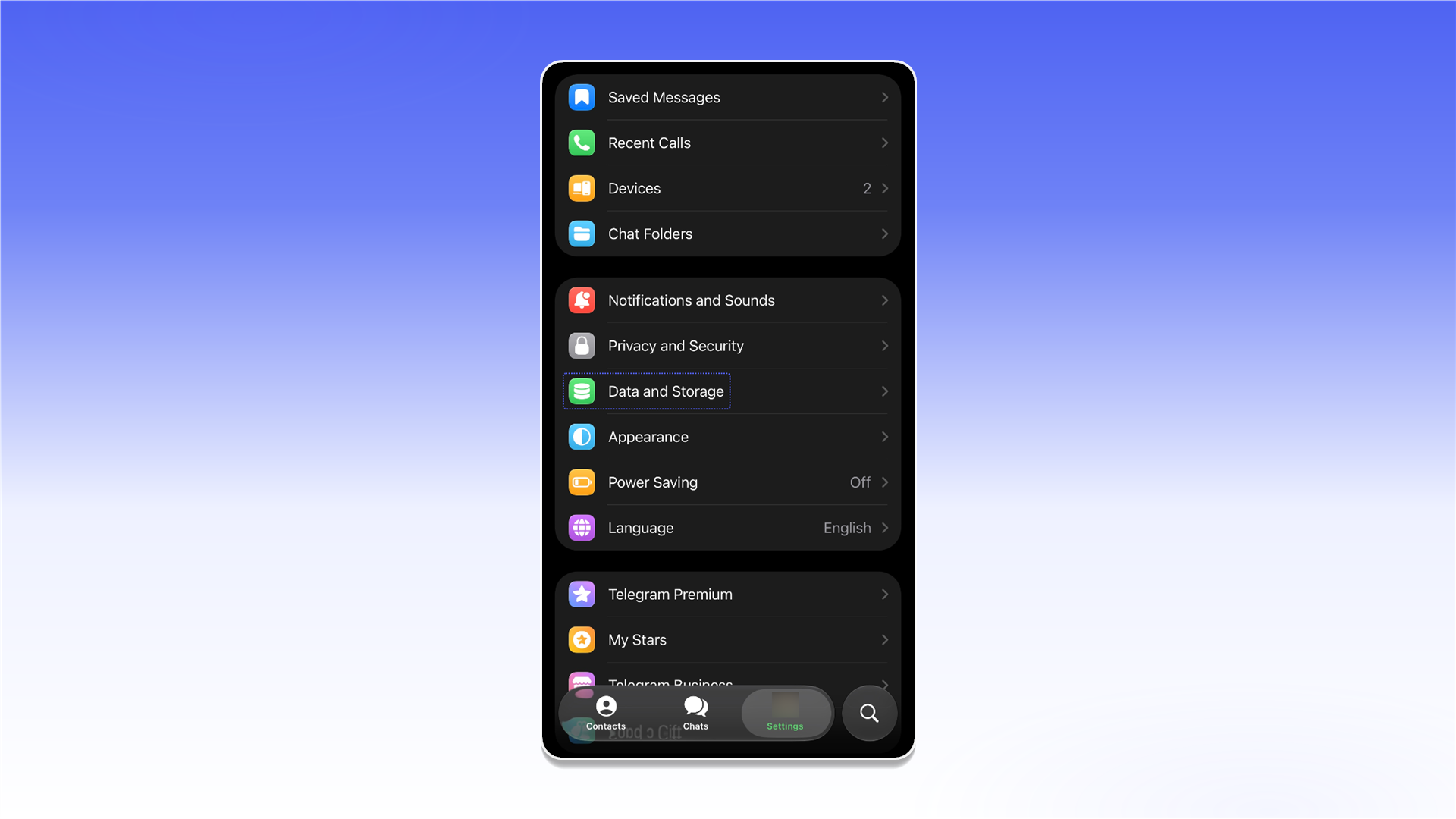
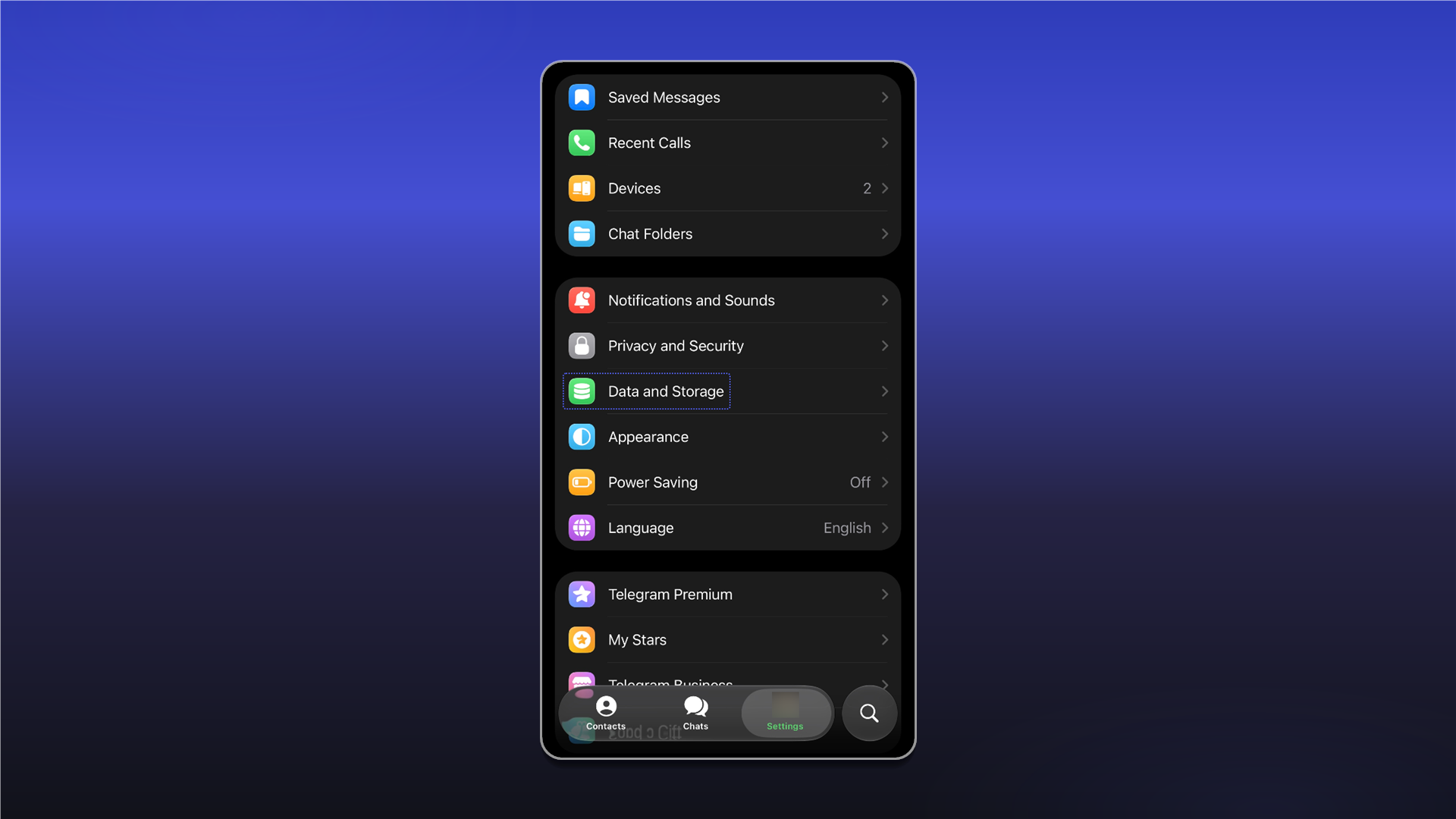
Open Proxy, then tap Add Proxy.
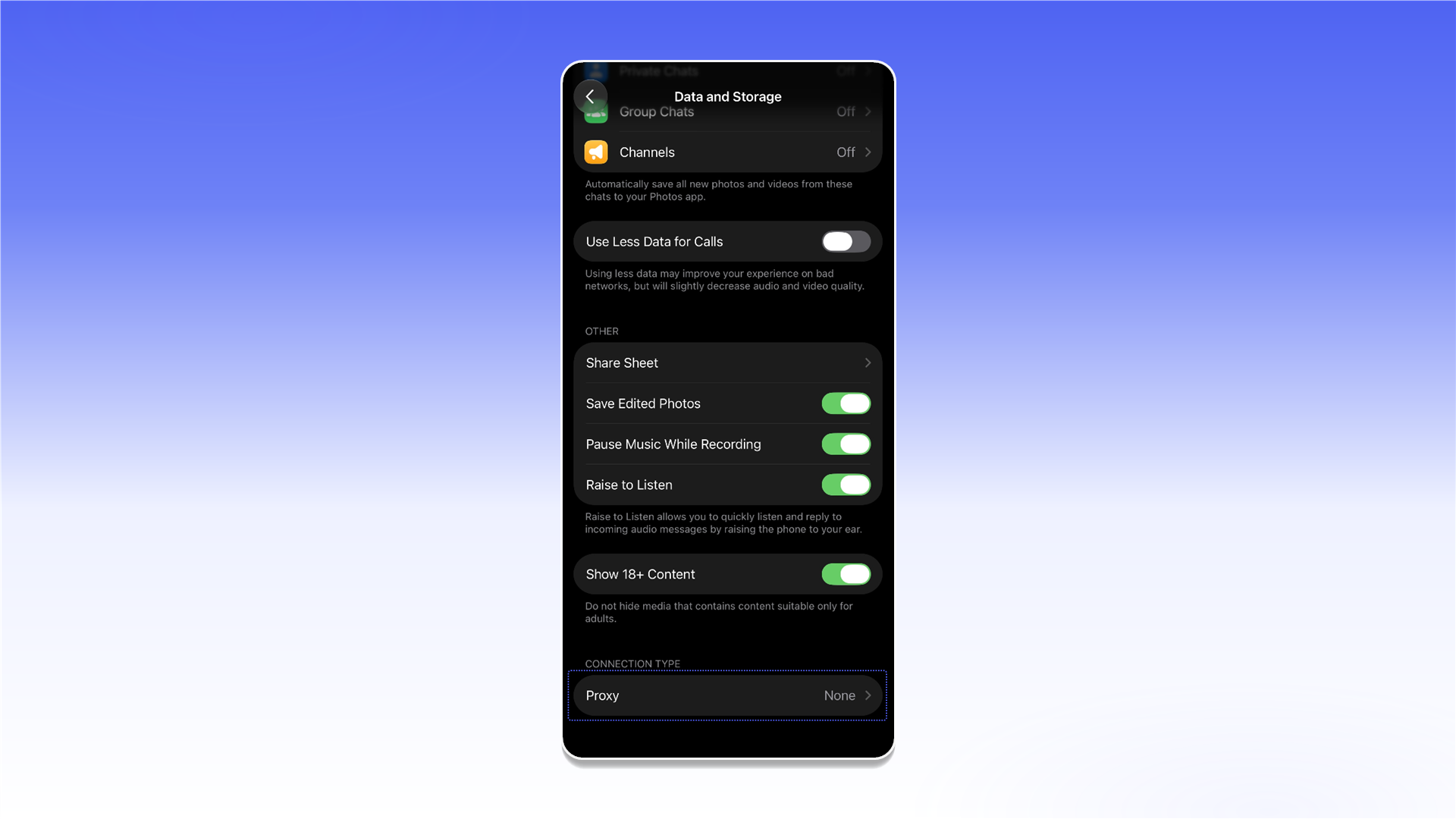
Select SOCKS5 and fill in Server, Port, Username, and Password using the details from your order's Proxy List.
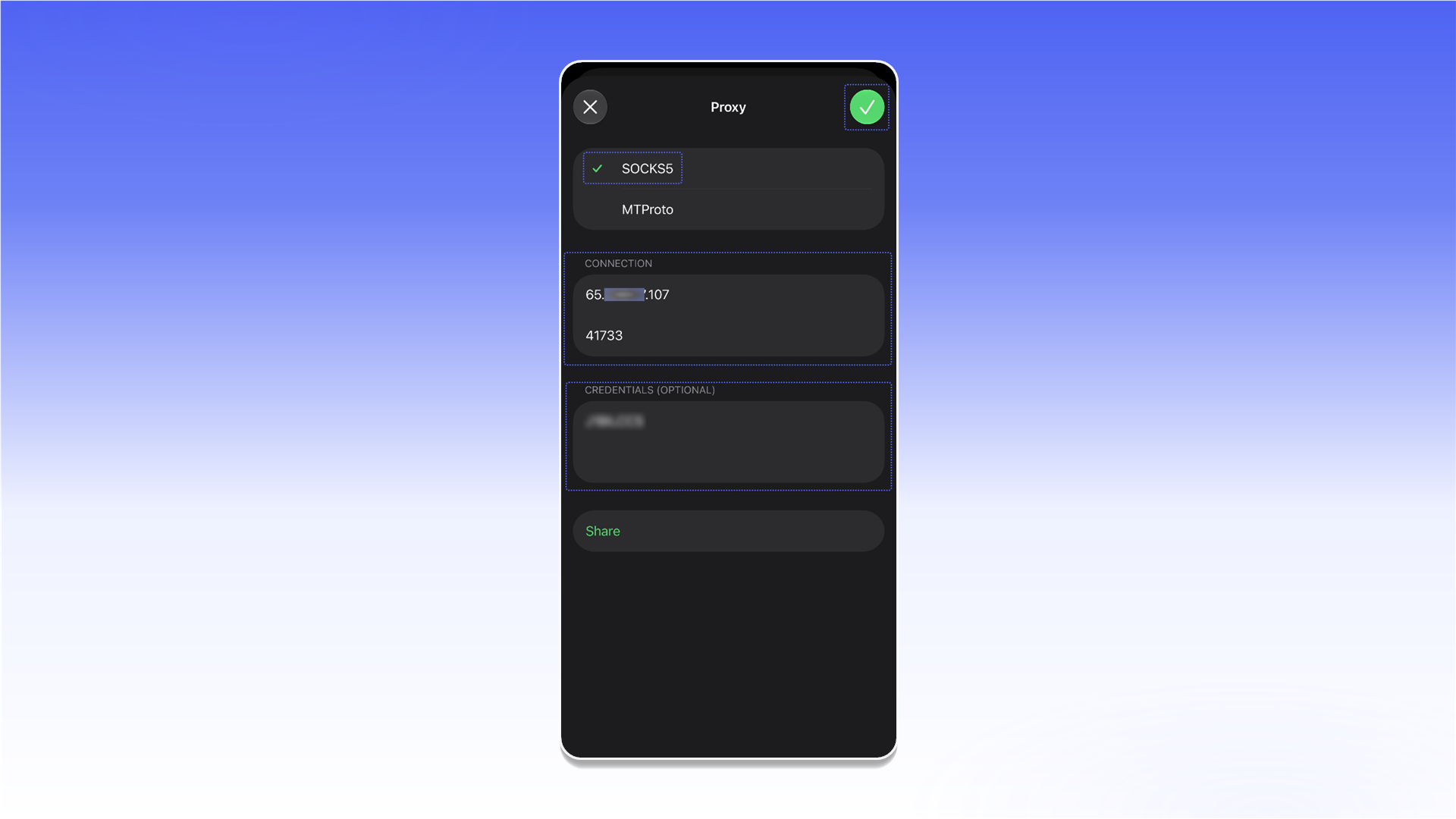
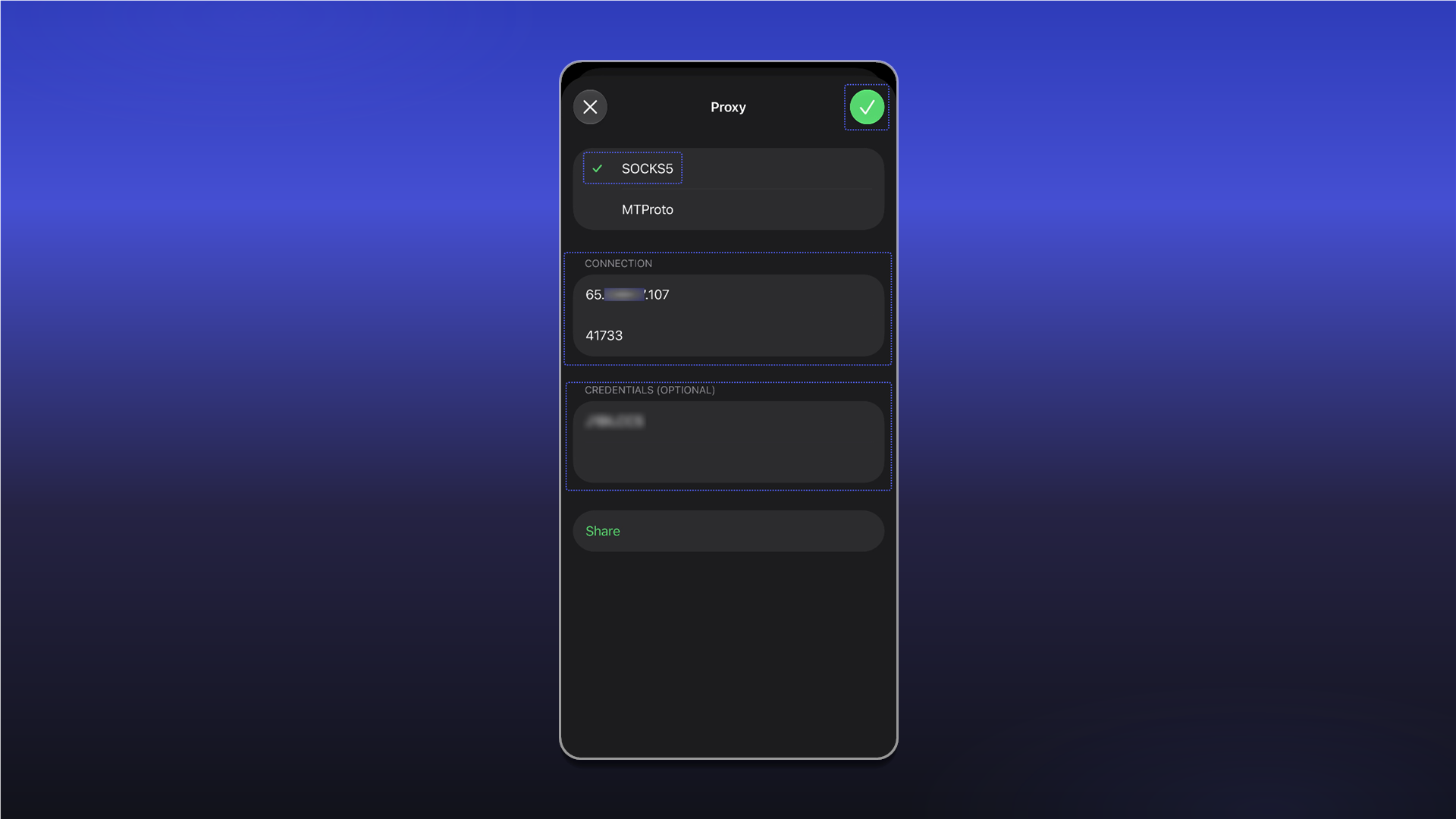
Save the settings and enable the proxy you created.
Last updated on