Residential proxies
Residential proxies are hosted on real home devices. They are ideal for working with many home-ISP IP addresses and support fine-grained targeting down to operator selection.
You can review product restrictions here.
Unused traffic does not expire at the end of the month. It remains on the order until it is fully used.
Addresses are issued on real home IPs. A session can change at any moment if the device in the pool leaves the traffic-sharing network. If you need a static IP, see Datacenter or ISP proxies.
Step-by-step purchase and payment guide: Purchasing residential proxies.
Plans
| Parameter | Standard | Unlimited | Premium |
|---|---|---|---|
| Pool size | 300k - 400k | 300k - 400k (= Standard) | 3.8M - 4.6M |
| Max connections | 35,000 | 5,000 | - |
| Max speed | Not limited | 75 Mbps | Not limited |
| UDP support | Available (except in the USA; port restrictions apply) | Available (except in the USA; port restrictions apply) | Available (except in certain cities and on macOS/iOS devices) |
| Device OS filtering | Not available | Not available | Available |
| Unlimited plan | Not available | Available | Not available |
| Billing | Per GB (Pay as you go) | Day / Week / Half-month / Month | Per GB (Pay as you go) |
| Price | $2 / GB | $30 / day · $199 / week · $399 / half-month · $699 / month | $3 / GB |
Available countries
Standard and Unlimited Residential
165 countries and the Random option for automatic country selection are available.
Premium Residential
214 countries are available.
How to purchase
- Under
Residential Proxy, selectStandard,Residential Premium, orUnlimited. - For a traffic-based plan, enter the number of gigabytes.
- If you have a promo code, enter it in
Promocodeand clickApply. - Check the total and click
Buy now.
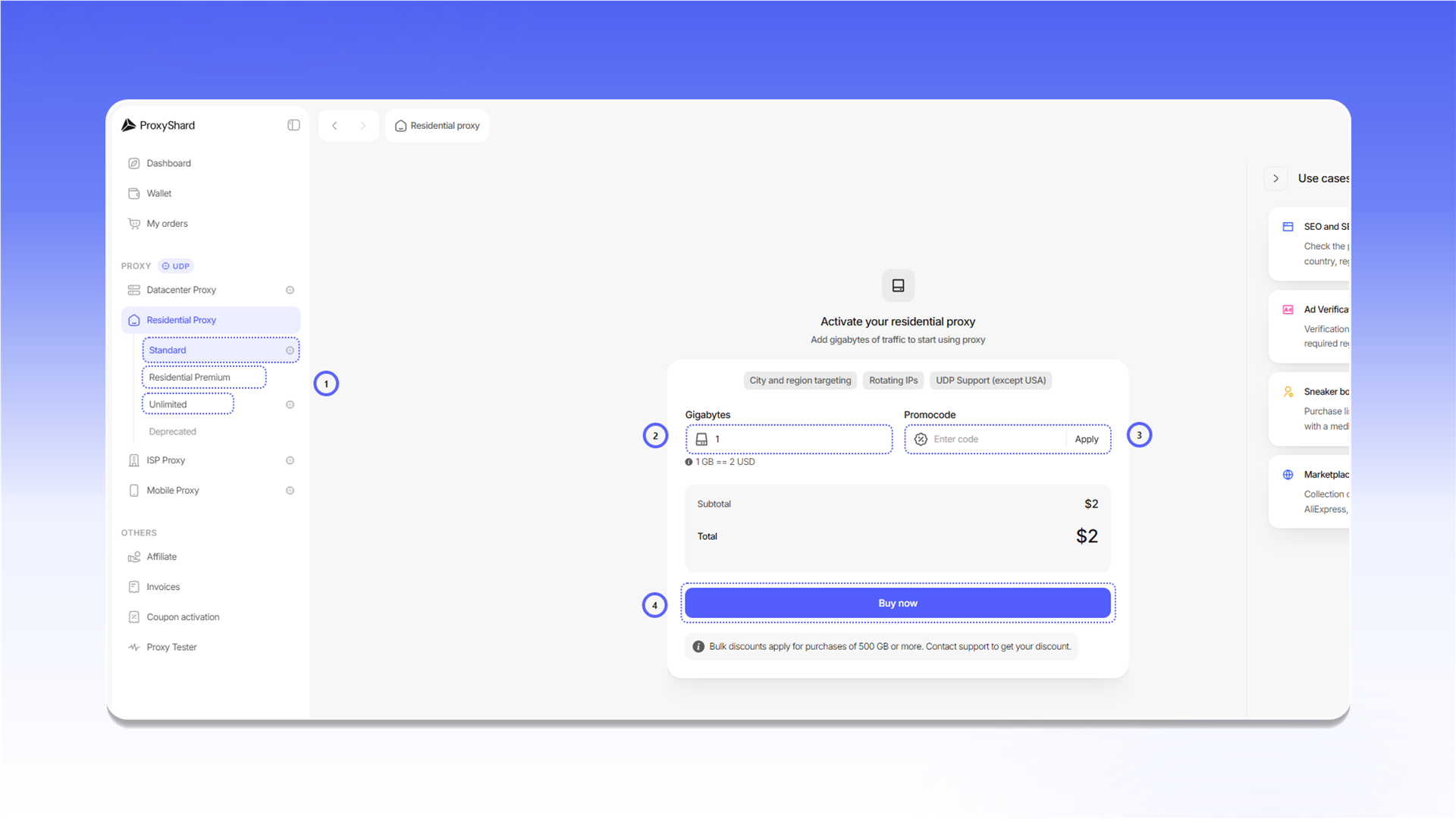
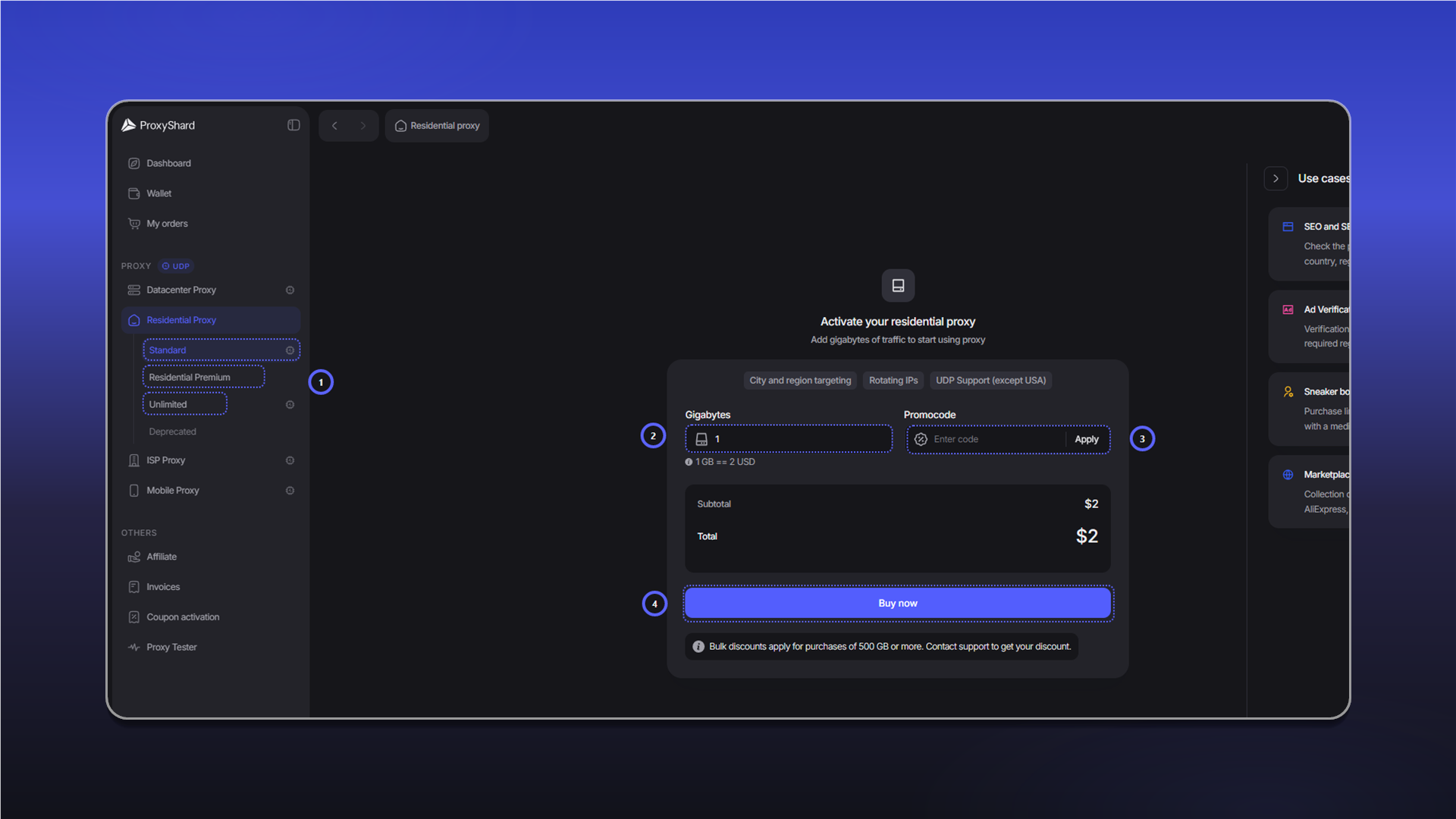
Payment and adding traffic are covered in Purchasing residential proxies.
Proxy configuration
For a basic connection, select Country and click Generate proxy. Use the other fields only when you need more precise targeting or session control.
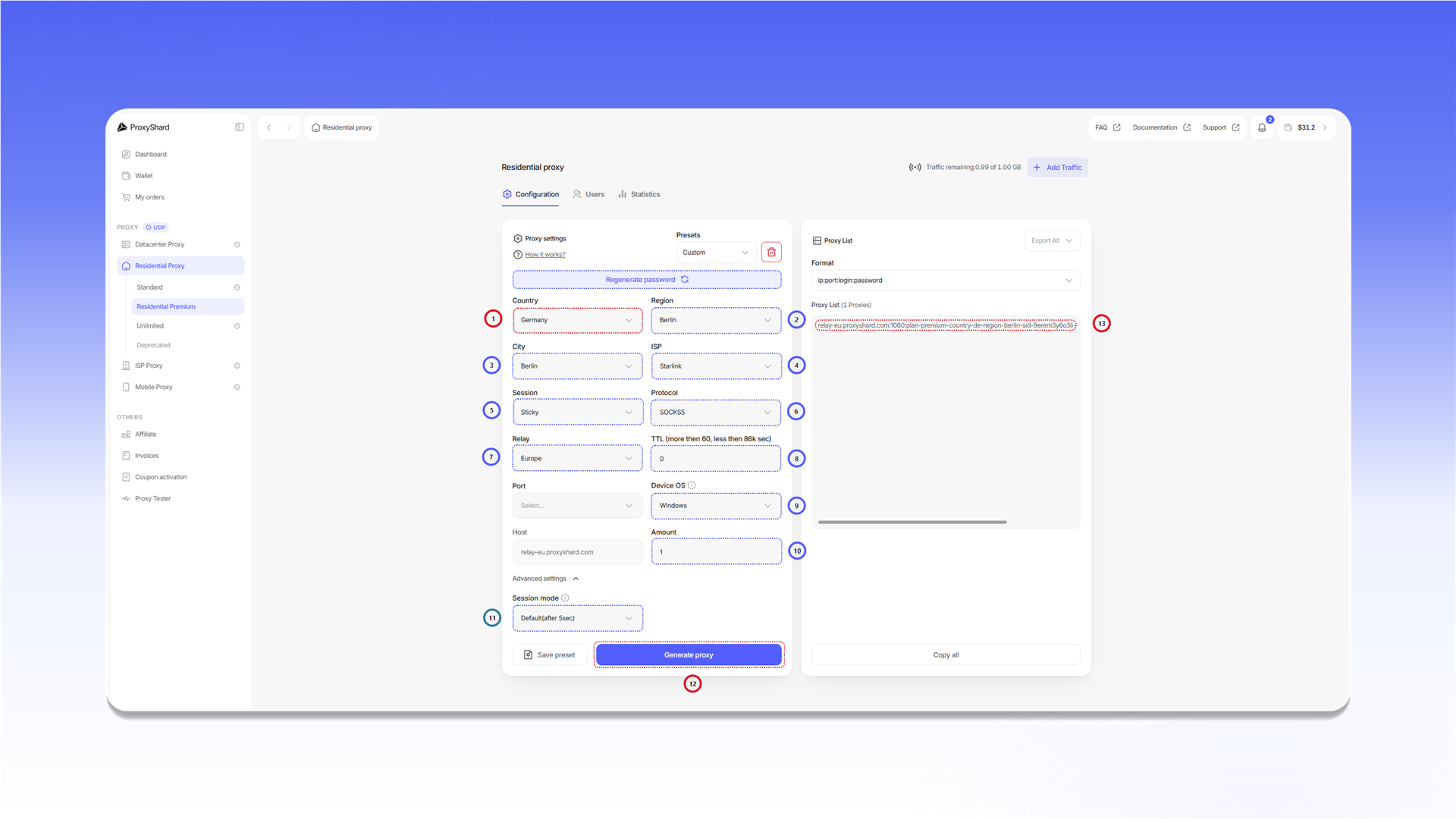
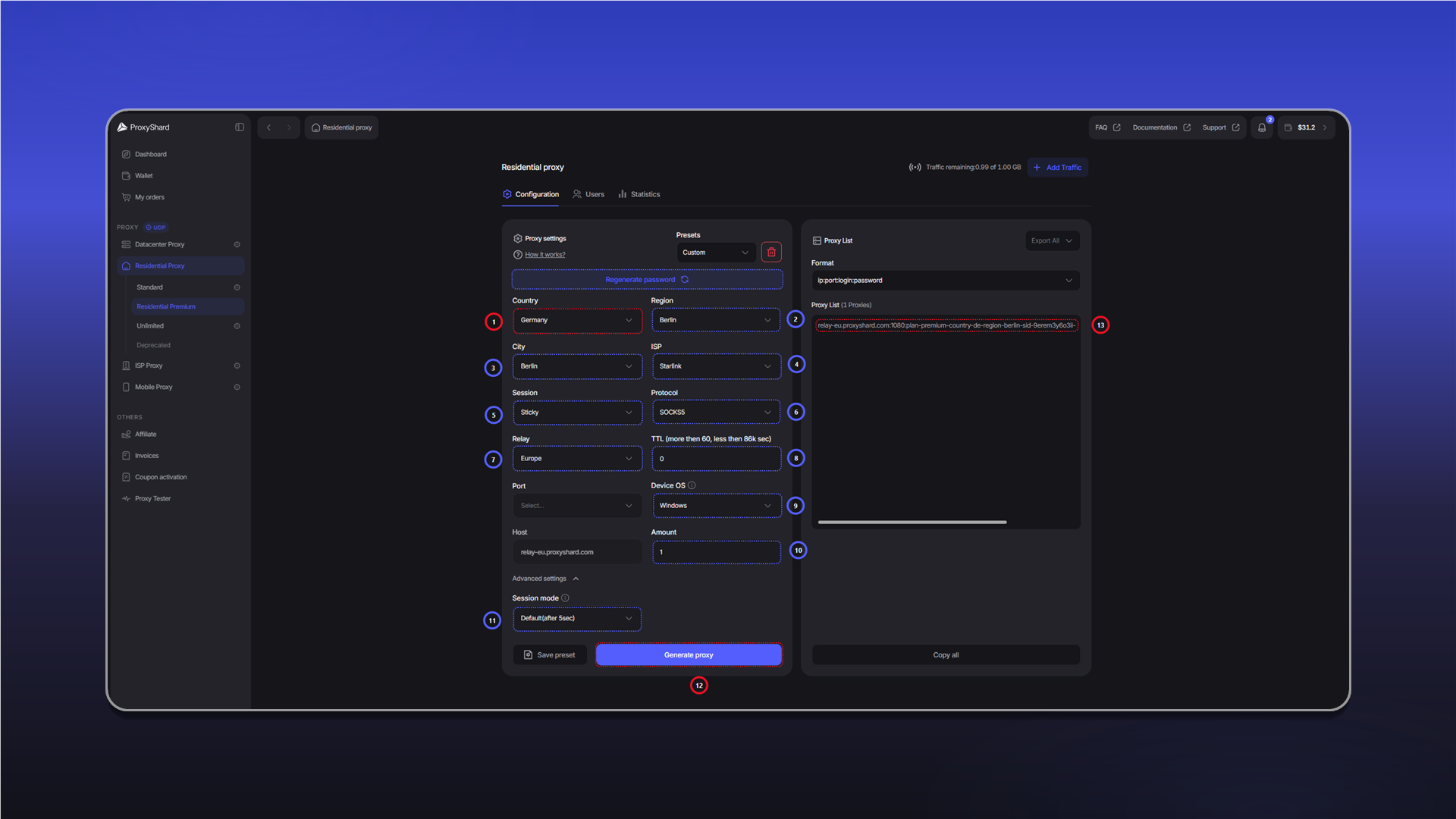
Countryselects the country.Regionselects a region within the country.Cityselects the city.ISPfilters addresses by provider. This field is available only for Premium Residential.Sessioncontrols rotation.Stickykeeps one IP for the configuredTTL, whileRotatechanges the IP on every request.ProtocolselectsHTTPorSOCKS5.Relaychanges the connection server. Use it only if you have connection issues.TTLsets the IP lifetime for aStickysession. The minimum value is 60 seconds.Device OSfilters the Premium Residential pool by the operating system of the device.Amountsets the number of connection strings generated at once.Session modecontrols Premium Residential sessions.Default(after 5sec)switches sessions if a device does not respond for more than five seconds.Staticwaits for the same device to return for the configuredTTL.Generate proxycreates connection strings with the selected settings.Proxy Listdisplays the generated strings. UseFormatto change their format andCopy allto copy the complete list.
Presets stores reusable sets of settings. Configure the fields, click Save preset, and select the saved preset the next time you generate proxies.
Combining Device OS with city and provider targeting can reduce the available pool considerably. Suitable macOS or iOS devices may not be available in Tier 2 and Tier 3 countries.
With a non-default Session mode, a connection string may stop responding when the selected device leaves the network. Generate a new string with Generate proxy if this happens.
Regenerate password changes the order password and immediately invalidates every previously generated string. Use it only if the credentials may have been exposed. To track traffic by user, use the Users tab.
Proxy List is a dynamic field, not storage. Previously generated strings remain valid because the selected parameters are encoded in Username. Use Presets to save the settings themselves.
Connection string format
The standard format is:
host:port:username:passwordhostspecifies the connection server, for examplerelay-eu.shardx.com.portconnects to that server and does not determine the final IP by itself.usernamecontains the targeting parameters and thesidsession identifier.passwordis used for authentication.
You can add the complete string to a browser, application, or another client. Step-by-step examples are available in the setup guides.
Statistics
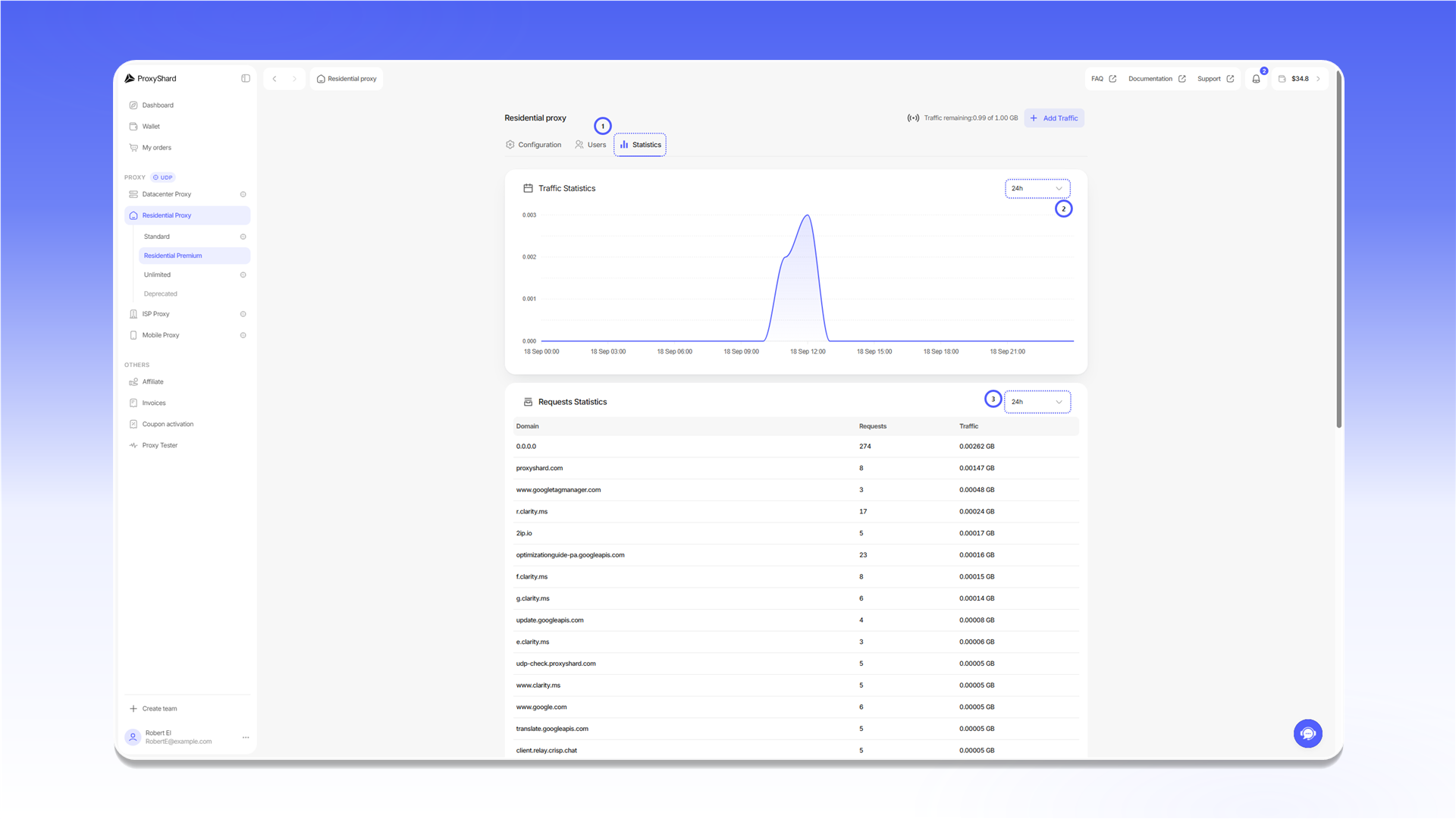
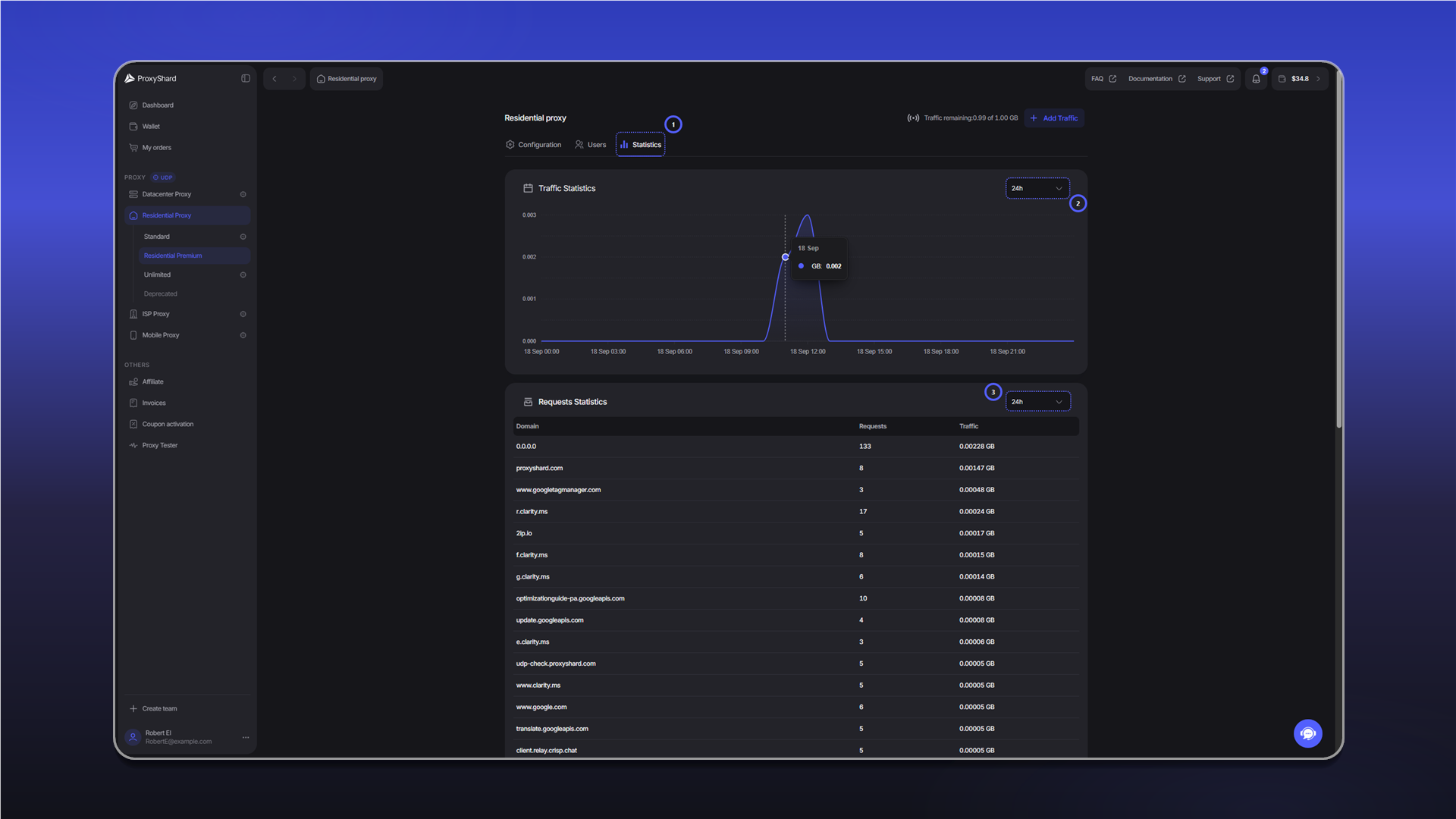
- Open the
Statisticstab. - Select the period for
Traffic Statistics. - Select the period for
Requests Statisticsseparately.
New data may take 10-20 minutes to appear. Statistics are retained for one month.
Suitable use cases
Social media and multi-accounting, crypto exchanges (Binance, Bybit and others), Polymarket, web scraping, SEO monitoring, ad verification, e-commerce analytics, price monitoring, geo-targeted website testing.
Pros and cons of Residential proxies
Pros:
- Flexible billing - Pay as you go or an unlimited subscription (Unlimited)
- IP rotation - change addresses on demand or by timer (TTL)
- Wide geo-targeting - select country, region, city and operator
- Home-origin addresses - IPs are registered to home ISPs
- UDP support - available on Standard, Unlimited and Premium subject to product restrictions
Cons:
- Possible speed drops - performance depends on the end device's internet connection; this is inherent to this proxy type
- Dynamic IP - the address may change at any moment; if you need a static IP, see ISP or Datacenter
- p0f spoofing is unavailable - Premium Residential offers only Device OS filtering
- UDP restrictions - Standard and Unlimited do not support UDP in the USA; Premium has exceptions for certain cities and macOS/iOS devices. General port restrictions also apply
Need a static address with UDP? Choose ISP proxies.
See the setup guides for proxy configuration instructions.
Last updated on