MikroTik proxy
Proxy setup on MikroTik
System requirements
To use proxies on MikroTik routers, consider the following hardware requirements:
1) RouterOS version 7 or higher, because containerization support is required
2) Router models with more than 128 MB RAM
3) The router must have a arm64, arm, or x86 CPU architecture, because virtualization is supported only on these architectures. Learn more at the link:
https://help.mikrotik.com/docs/spaces/ROS/pages/84901929/Container
Examples of suitable routers currently available on the market: hAP ax2, hAP ax3, Chateau PRO ax, RB5009,L009UiGS
Warning:
You need physical access to your RouterOS device to enable support for the container feature, it is disabled by default;
- once the container feature is enabled, containers can be added/configured/started/stopped/removed remotely!
- if your RouterOS device is compromised, containers can be used to easily install malicious software in your RouterOS device and over network;
- your RouterOS device is as secure as anything you run in container;
- if you run container, there is no security guarantee of any kind;
- running a 3rd party container image on your RouterOS device could open a security hole/attack vector/attack surface;
- an expert with knowledge how to build exploits will be able to jailbreak/elevate to root;
https://help.mikrotik.com/docs/spaces/ROS/pages/84901929/Container#Container-Disclaimer
Preparing the router
- Installing the required package
Open the console and enter the following commands to set the update channel.
/system package update set channel=stableThen print the package list.
/system package update check-for-updatesEnable the "container" package and reboot the router.
/system/package enable container
Or manually install the 'Container' package through Winbox, after downloading "Extra packages" for your ROS version and architecture from the MikroTik website (https://mikrotik.com/download).
.png?sha=79ea6c0eee34581e86820227a7538d084a74d366)
Open the downloaded archive, copy the package to File List, and reboot the device.
.png?sha=8e4563e12804b497f7787660bb2f8d96ff42f4ff)
After rebooting, the "Container" package should appear.
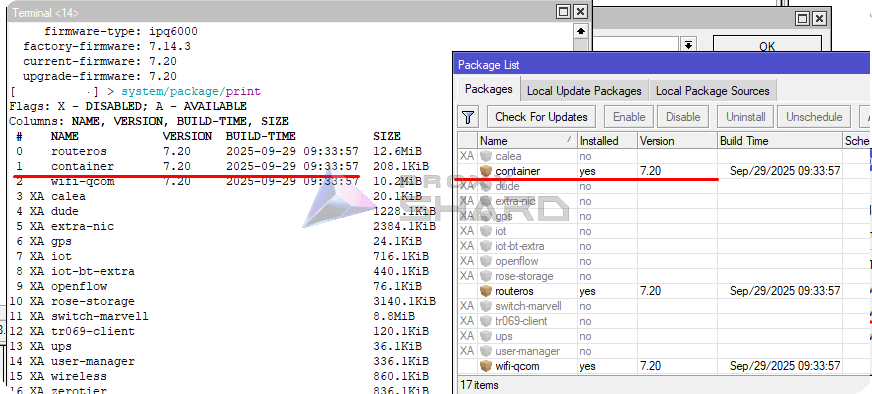
- Enabling containerization support
To activate containerization on the router, enter the following command in the terminal:
/system/device-mode/update container=yesThen reboot the router within 5 minutes. After rebooting, container creation will become available .png?sha=d91e08773a704f66853188ccd0fd44a68b7a3ef9)
You can also check this through the console:
/system/device-mode/print"Container" should be "yes"
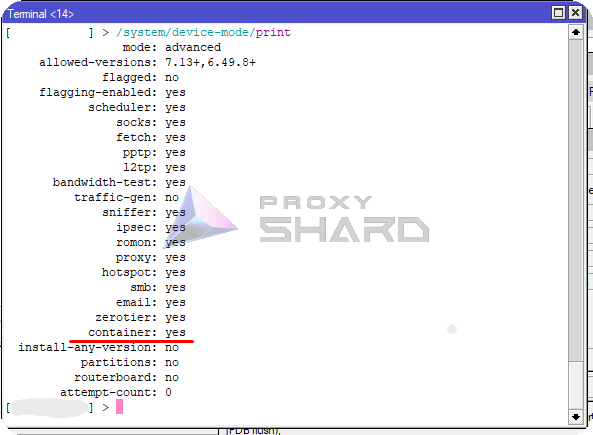
Installing and configuring the container
Creating a VETH interface
Create a virtual interface for the future container:
/interface veth add address=10.0.201.2/24 dhcp=no gateway=10.0.201.1 gateway6="" mac-address=6D:F3:B2:85:44:45 name=veth1Where:
address - the address you want to assign to the container
gateway - the address of your bridge (main network gateway)
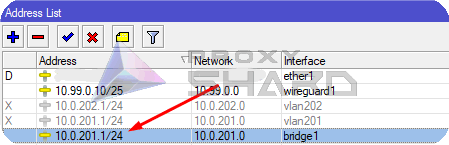
Viewing the bridge address
For clarity, we will perform all actions inside the internal network, without separating the container network from the home network.
- Adding the interface to the active bridge
Add the created interface to the bridge.
/interface bridge port
 add bridge=bridge1 interface=veth1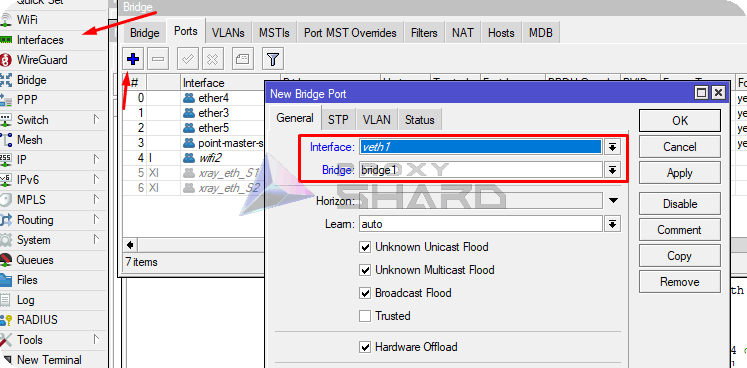
- Configuring virtualization and adding the container
In this example, we will use a Docker image from wiktorbgu based on hev-socks5-tunnel.
Link to the Docker image
Create variables for the container
For the container, you need to create variables that include the proxy connection parameters. To do this, add the following variables in the MikroTik console:
/container envs
add key=SOCKS5_ADDR list=proxy1 value=ip/domain_proxy
add key=SOCKS5_INTERFACE list=proxy1 value=xray_eth
add key=SOCKS5_PASSWORD list=proxy1 value=password_proxy
add key=SOCKS5_PORT list=proxy1 value=port_proxy
add key=SOCKS5_UDP_MODE list=proxy1 value=udp
add key=SOCKS5_USERNAME list=proxy1 value=username_proxy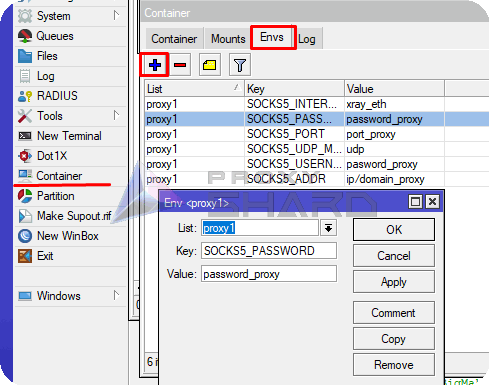
These fields must be filled in according to the data from the purchased order.
You can find a proxy setup example in the Setup guide section.
Please note that the test connection is made through SOCKS5! To find the SOCKS connection port, click Show socks5 inside the order.
Adding the container
Add registry-url and a temporary folder for downloading images.
/container config
set registry-url=https://registry-1.docker.io tmpdir=/tmp
Then create the container, specifying "work dir", "interface", and other parameters.
/container
add check-certificate=no envlists=proxy1 interface=veth1 name=hev-socks5-tunnel-mikrotikS1 remote-image=wiktorbgu/hev-socks5-tunnel-mikrotik root-dir=hev-datas1 workdir=/ start-on-boot=yes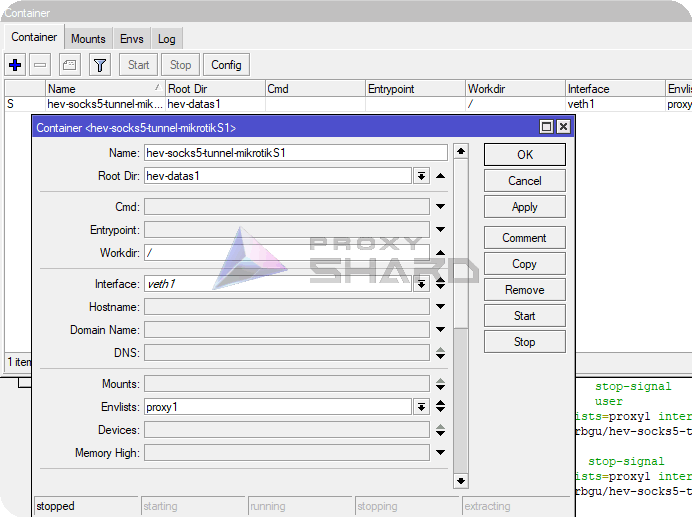
Start the container.
/container/start hev-socks5-tunnel-mikrotikS1.png?sha=e14351169b376b6d1017c3fa855ae1e63b2a48b2)
At this stage, it is also worth checking connectivity with the container.
ping 10.0.201.2Custom routing setup
- Adding routes
To configure precise routing for individual network devices or traffic to specific resources, you need to create a separate FIB.
/routing/table/add name=proxy_s1 fib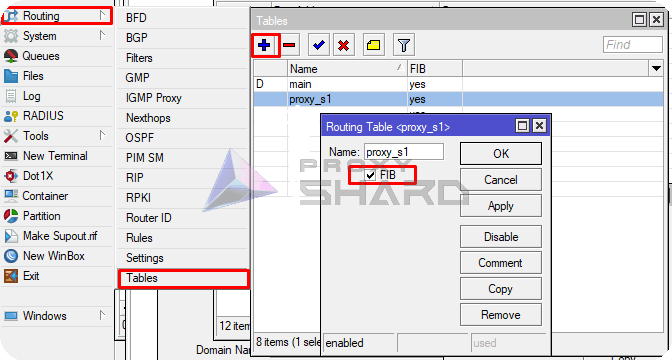
Add a default route to the container for future rules.
/ip route
add disabled=no dst-address=0.0.0.0/0 gateway=10.0.201.2 routing-table=
proxy_s1 suppress-hw-offload=yes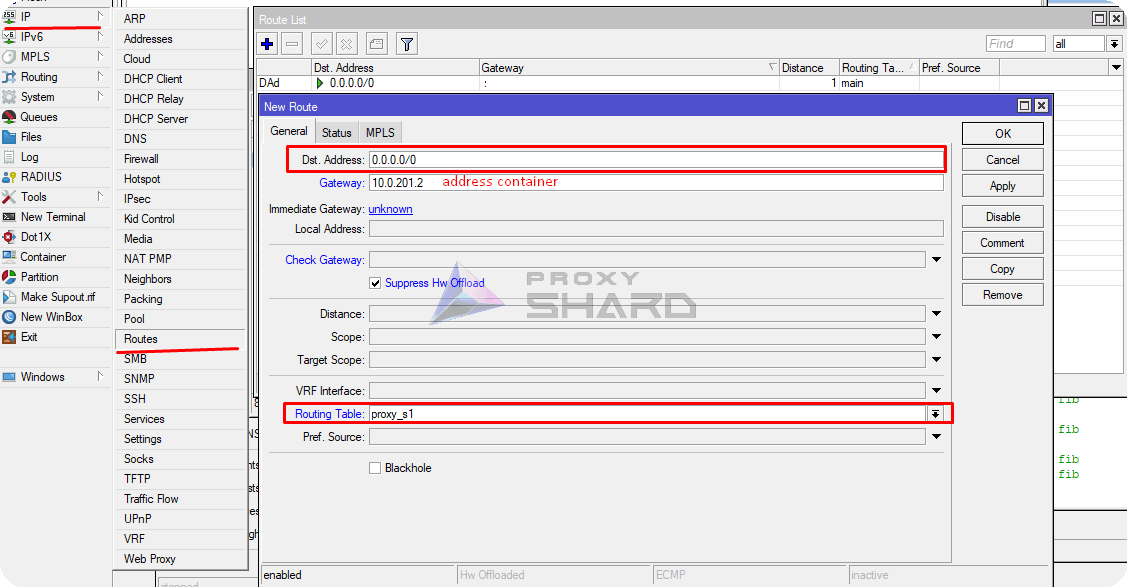
- Adding rules to redirect traffic to specific resources
To add traffic redirection to the required resource through a proxy, create a static address list in "ip/firewall/address list".
Suppose we want to open example.com through a proxy. Create a list with any name and specify the resource IP address or domain.
/ip firewall address-list
add address=example.com list=proxy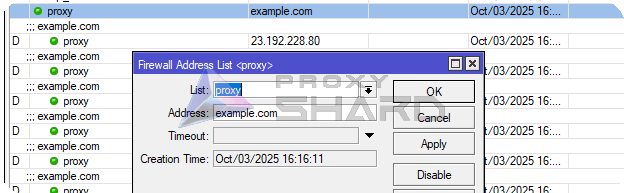
Next, create a Mangle rule that marks all traffic to the specified resource, and in "Action" specify the new route path created in the previous step.
/ip firewall mangle
add action=mark-routing chain=prerouting dst-address-list=proxy new-routing-mark=proxy_s1 passthrough=no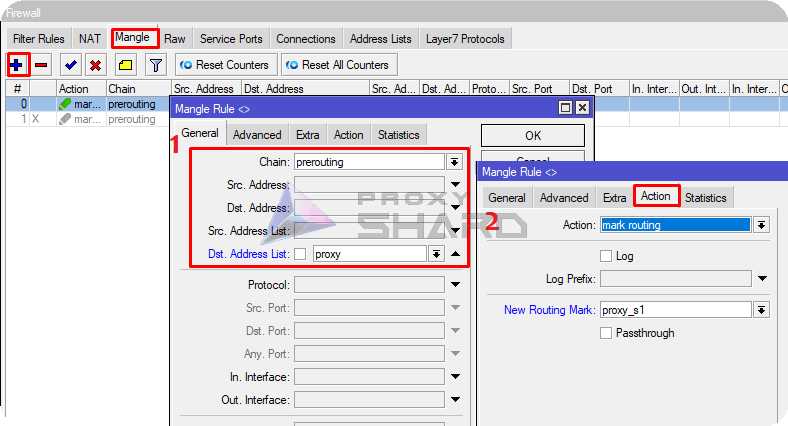
Using the same logic, you can add other resources, for example YouTube:
Note that not all resources can fully resolve all addresses through the domain, as in the example with example.com. Therefore, you need to specify the full list of static IPv4 addresses, as in the YouTube example. Otherwise, part of the website/resource traffic will not pass through the proxy or may work incorrectly. For other resources, you can search for a list of static addresses online.
- Adding rules to redirect all traffic from devices or a network
To redirect specific devices or an entire network, create a Mangle rule with the source clearly specified.
Suppose there is a device in the network with the address 10.0.201.244, and we want its traffic to pass through the proxy. Create the following rule:
/ip firewall mangle
add action=mark-routing chain=prerouting src-address=10.0.201.244 new-routing-mark=proxy_s1 passthrough=no
As src-address, you can specify either an entire subnet or individual hosts, for example src-address=192.168.0.0/24. This way, all traffic from the specified addresses/networks will pass only through the proxy.
Done! You can now use the proxy on the router while flexibly managing traffic from devices on your network.
Last updated on