ShardX Dashboard
Your ShardX account in the ShardBrowser app
The ShardX section connects your ShardX account to the app: balance, traffic, orders and proxy purchases are available right in ShardBrowser.
To connect your account, copy the API key from your ShardX dashboard settings and paste it into the field in the Connect your ShardX account block.
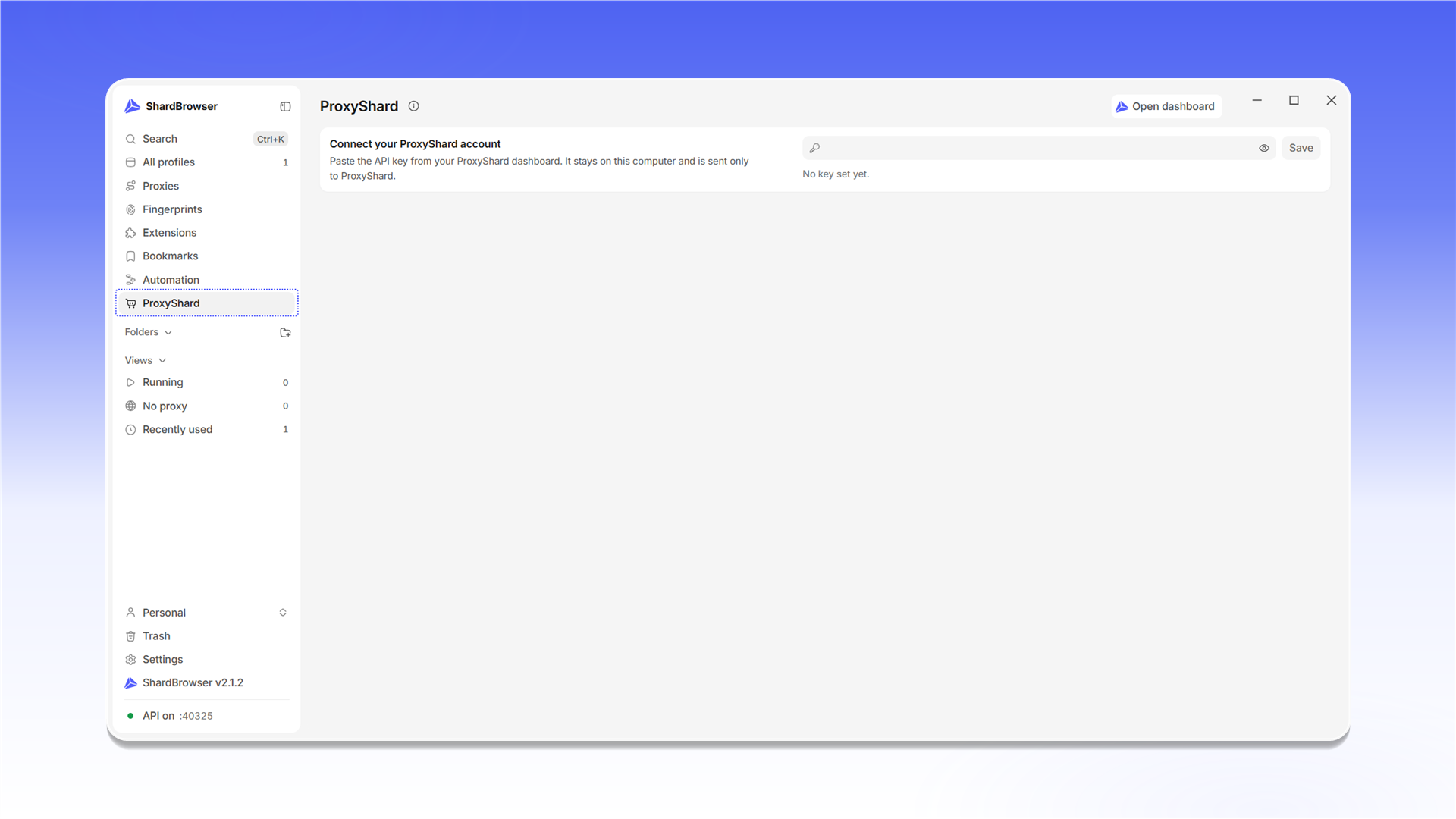
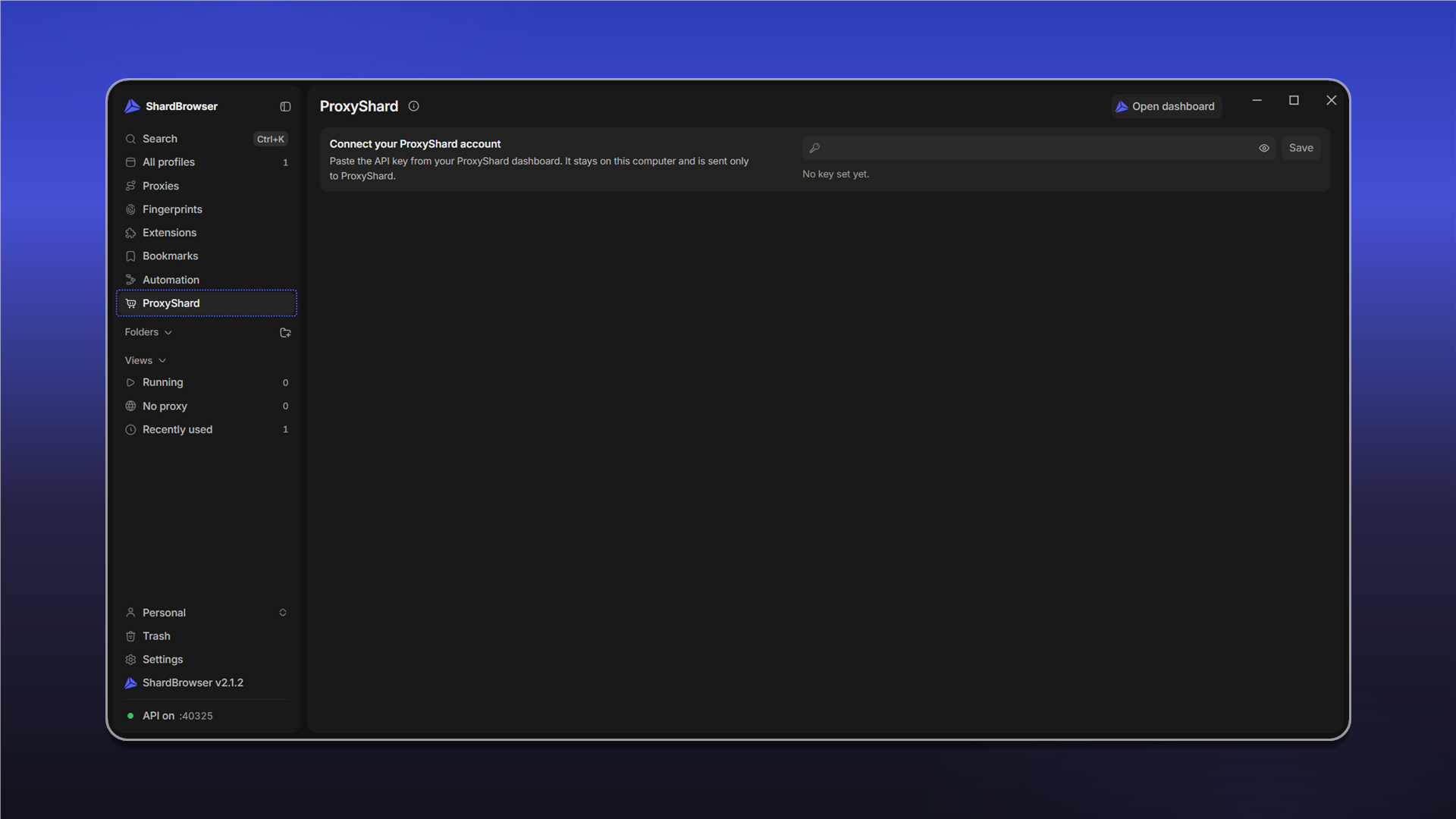
Click Save.
The API key is stored on your computer and sent only to ShardX. Do not share it with anyone.
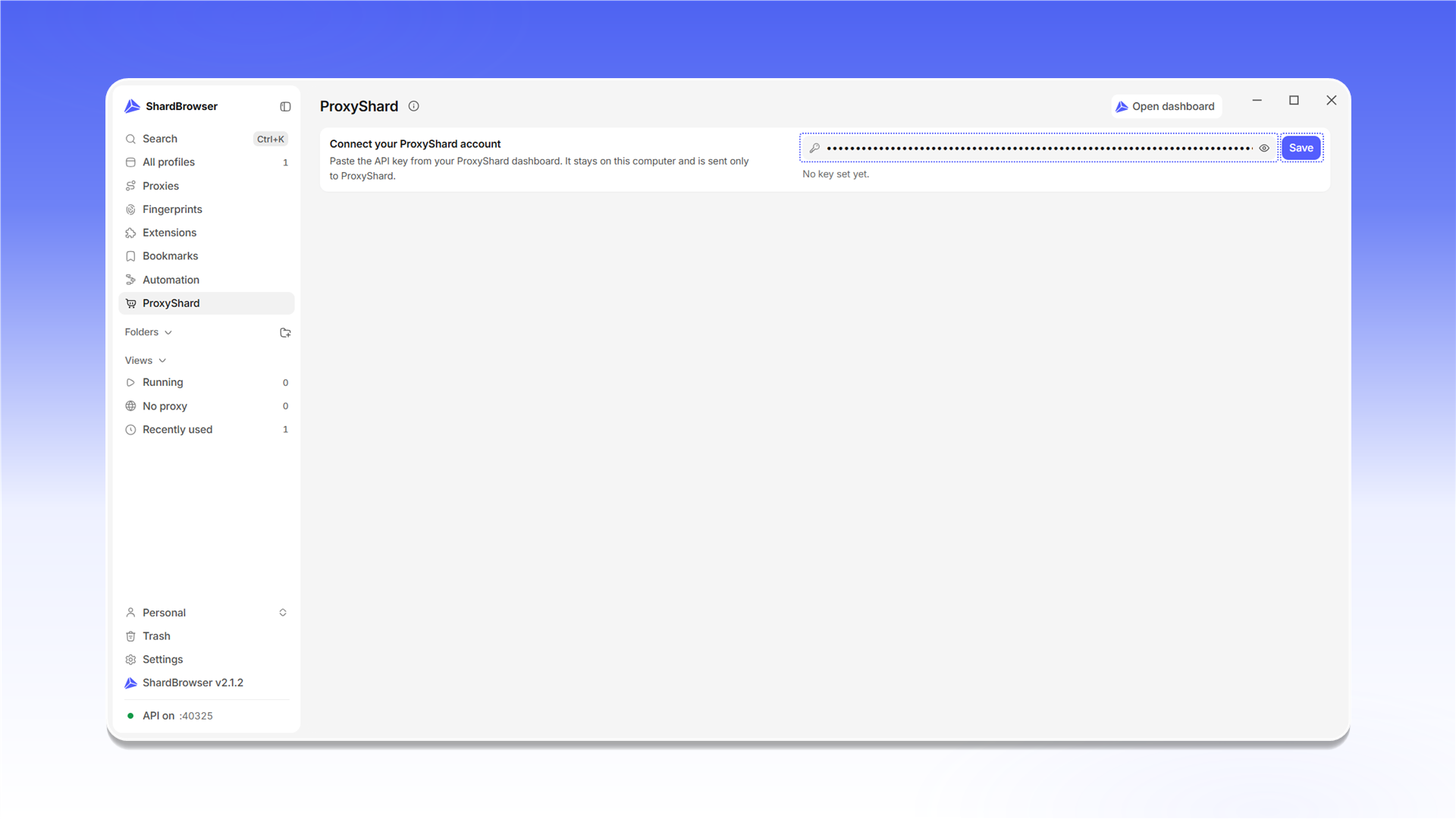
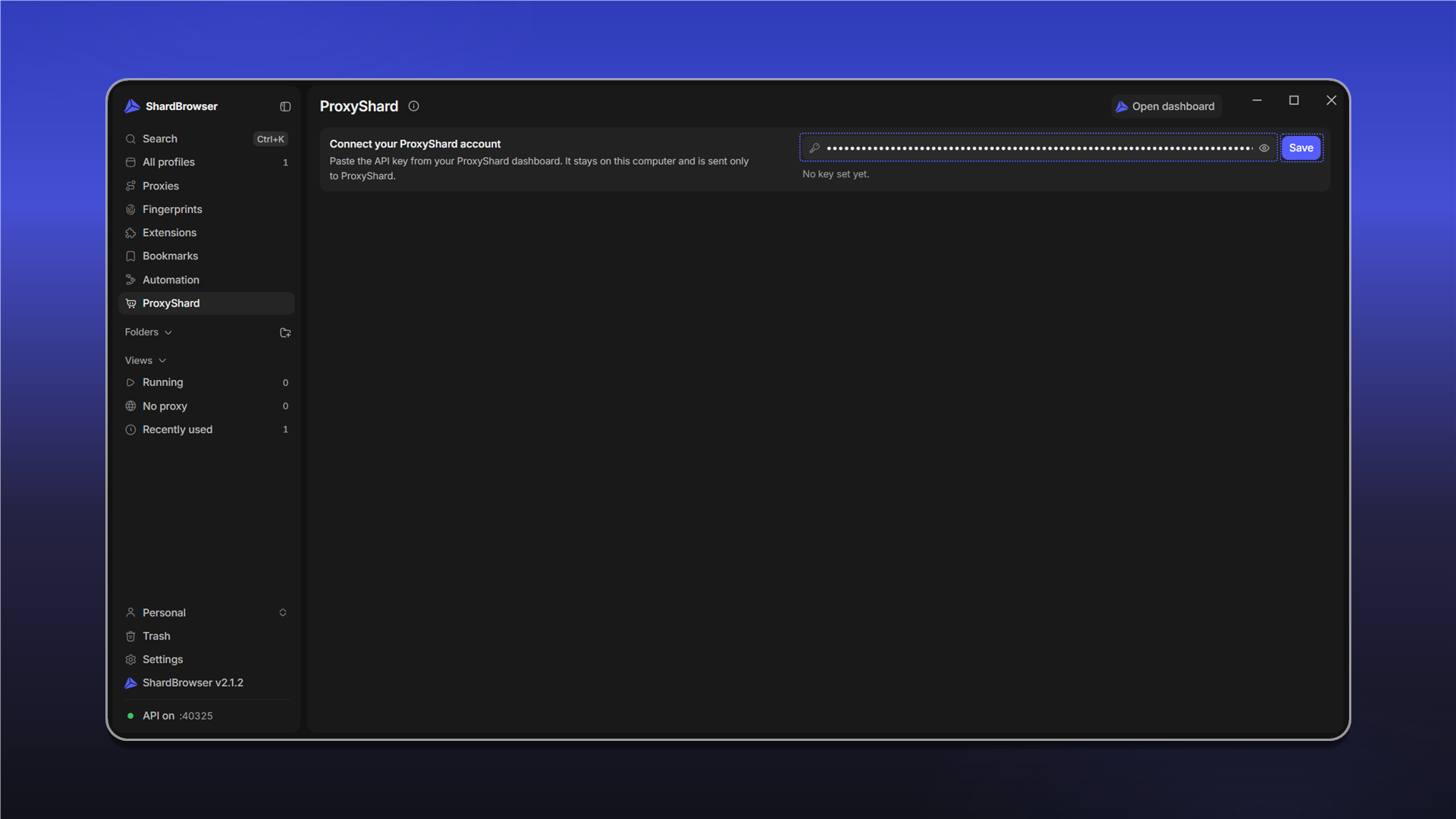
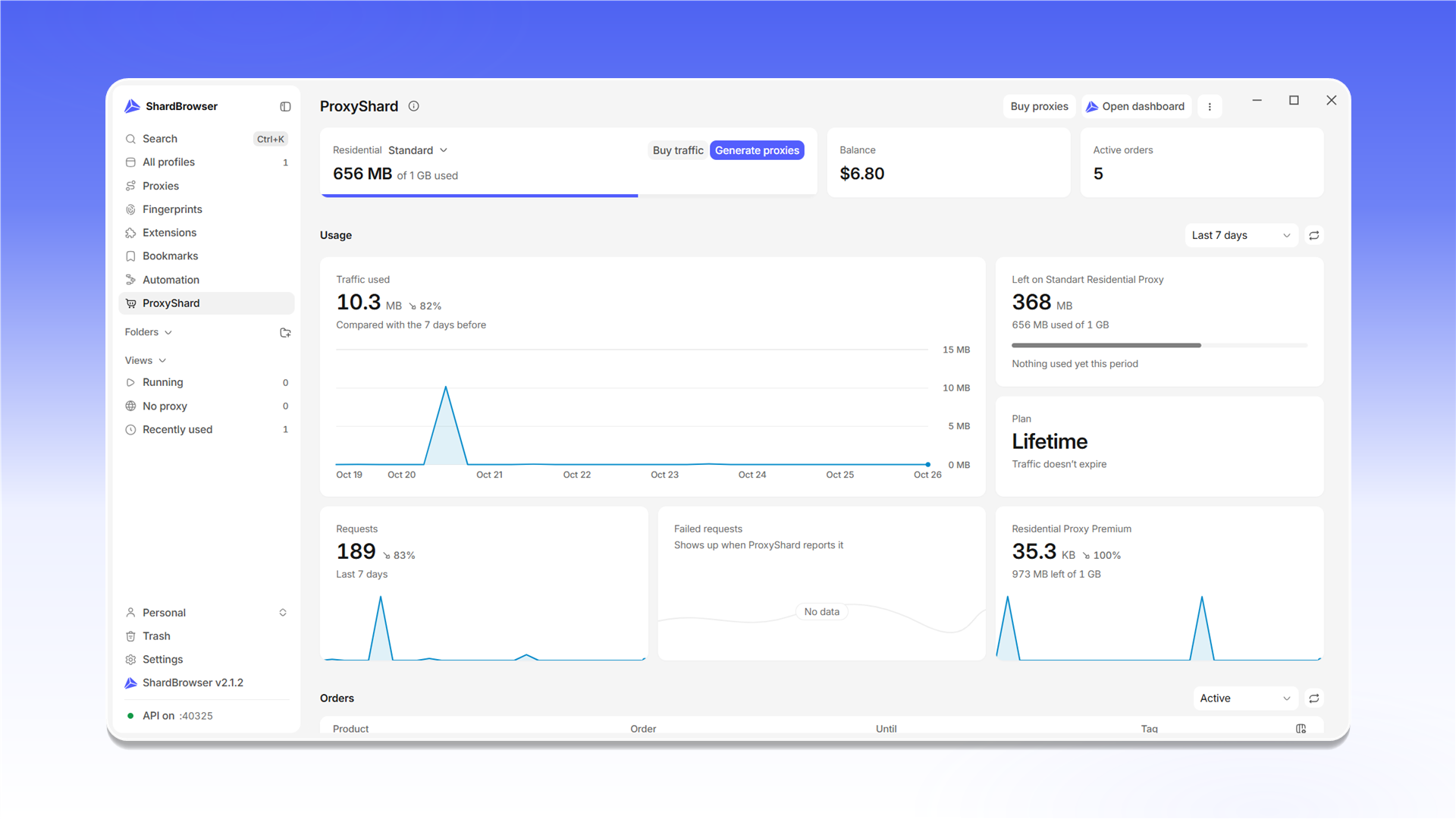
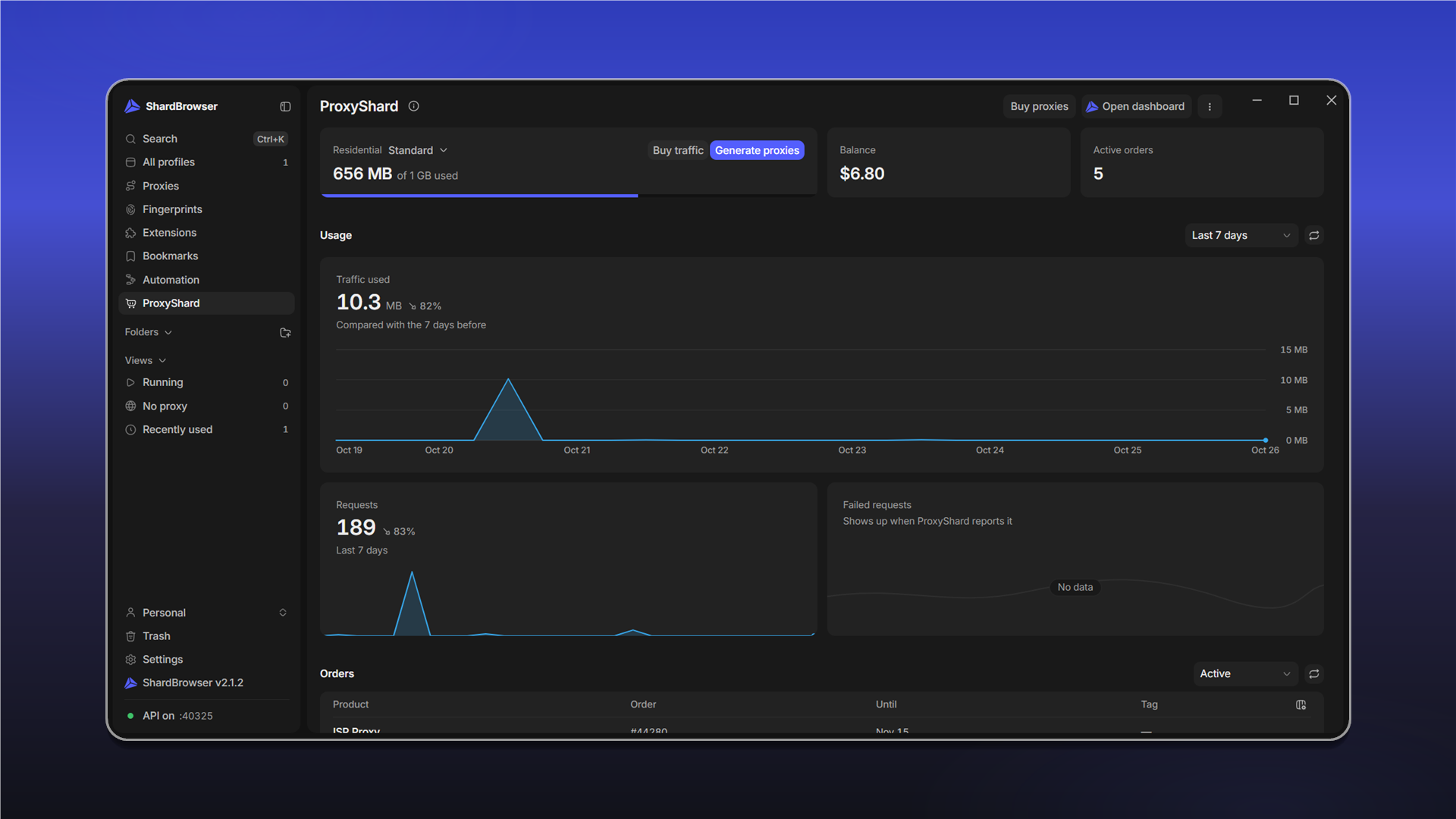
Once connected, the account panel opens:
- Residential - remaining residential proxy traffic, with the Buy traffic and Generate proxies buttons
- Balance - your account balance
- Active orders - the number of active orders
- Usage - a chart of the traffic used and the number of requests for the chosen period, plus failed requests (Failed requests)
- Orders - the list of orders with product, order number, expiry date and tag
Buy proxies opens the proxy purchase, Open dashboard opens your dashboard on the website.
Last updated on