Extensions
Adding Chrome extensions to ShardBrowser profiles
Extensions stores the extensions you can attach to profiles. You add an extension once and then turn it on in the profiles that need it.
Click + Add an extension. You can add an extension by a Chrome Web Store link, a .crx / .zip file or a folder.
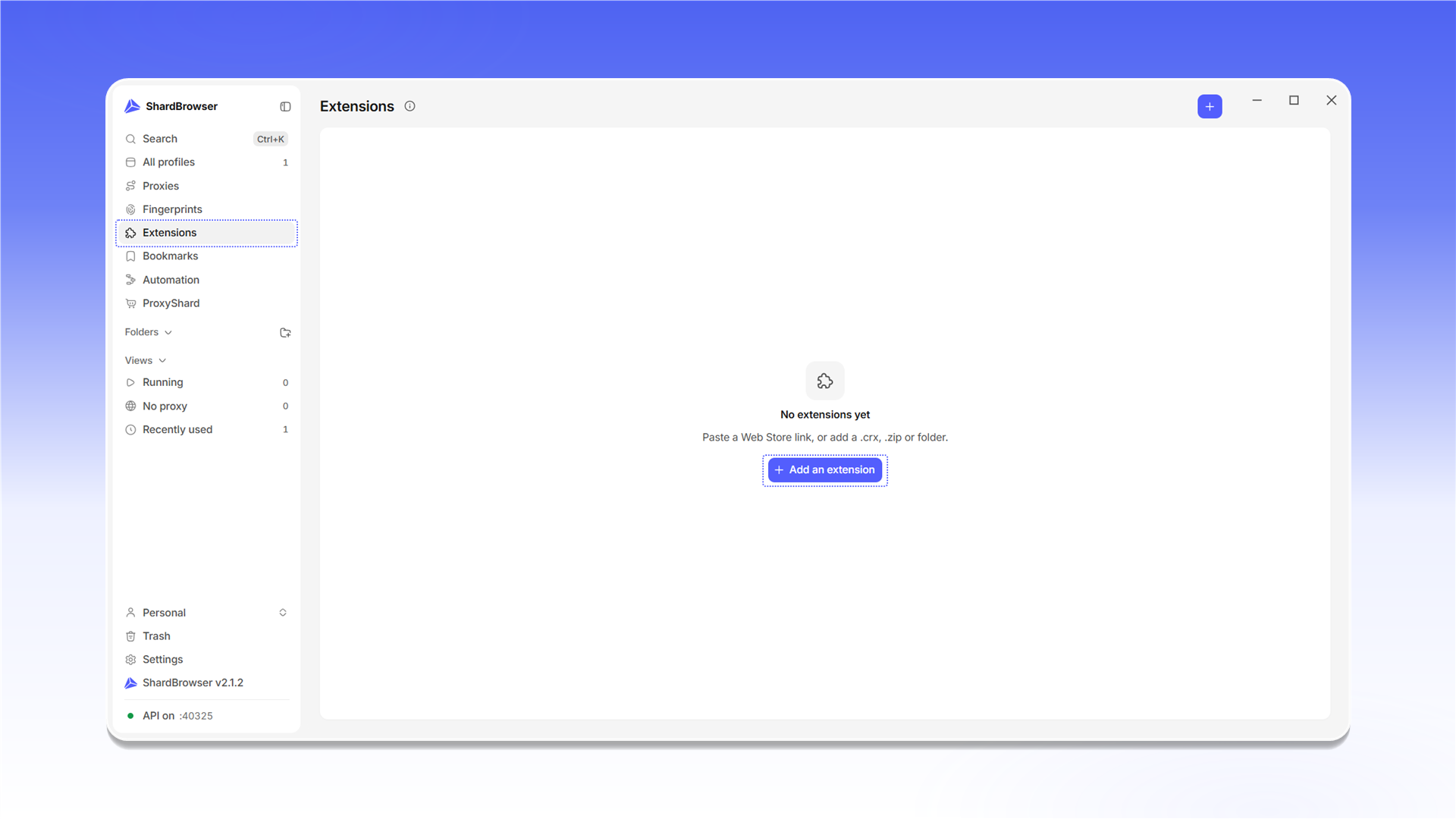
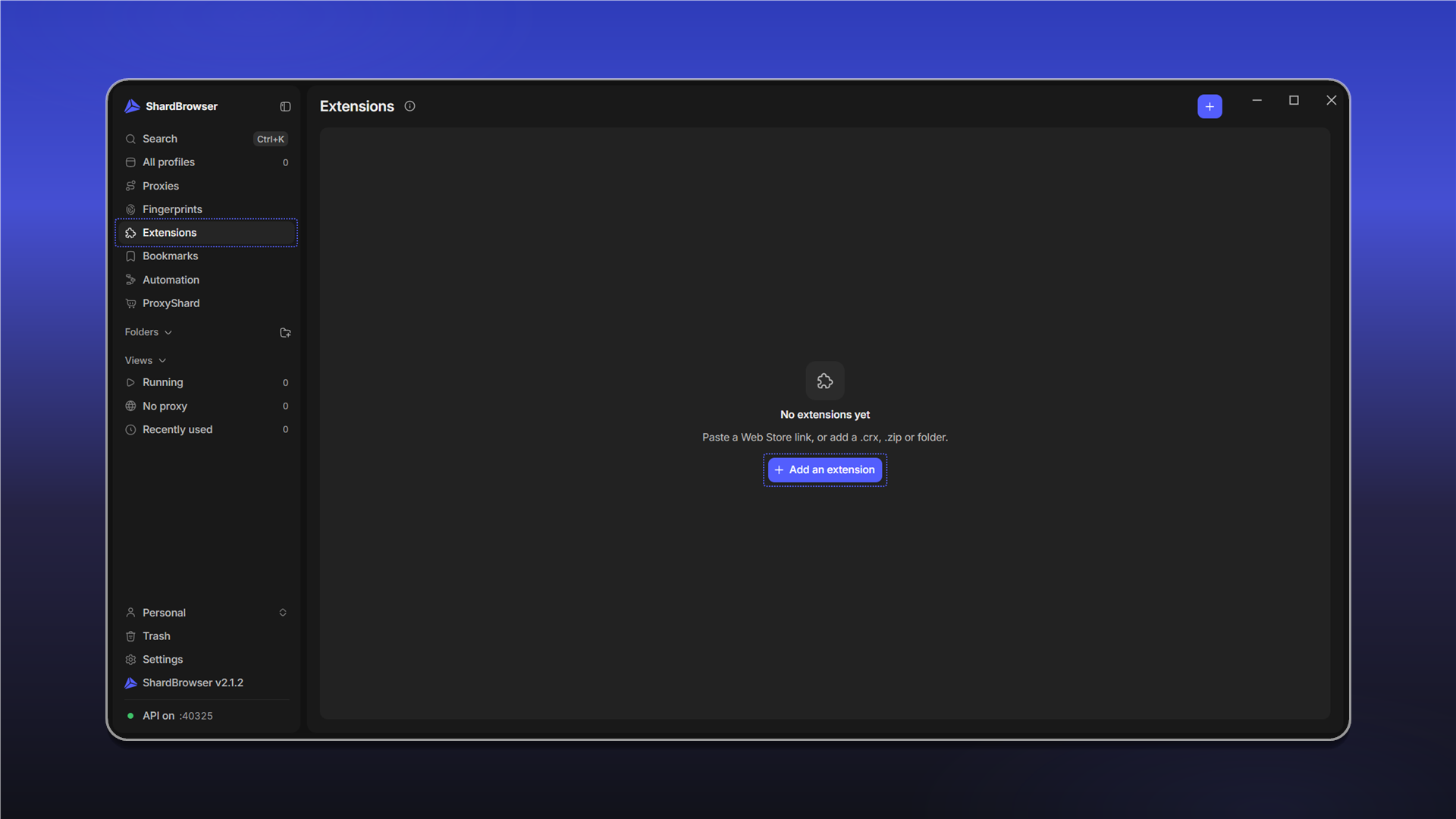
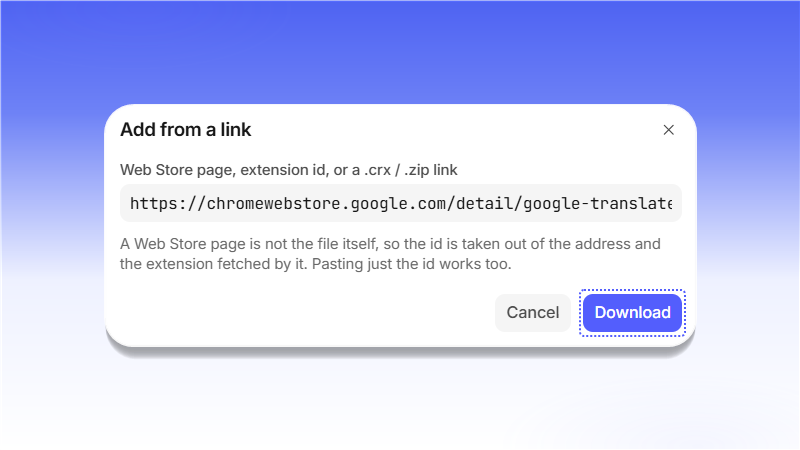
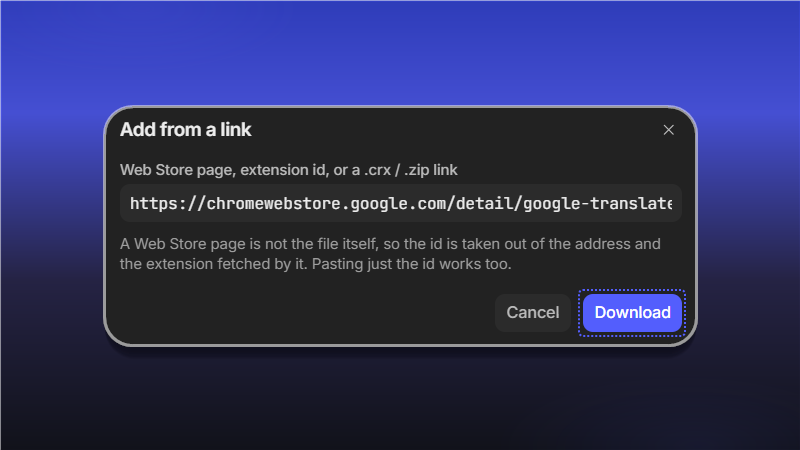
In the Add from a link window, paste the extension's Web Store page, its id or a direct link to a .crx / .zip. From a Web Store link ShardBrowser takes the id and downloads the extension by itself. Click Download.
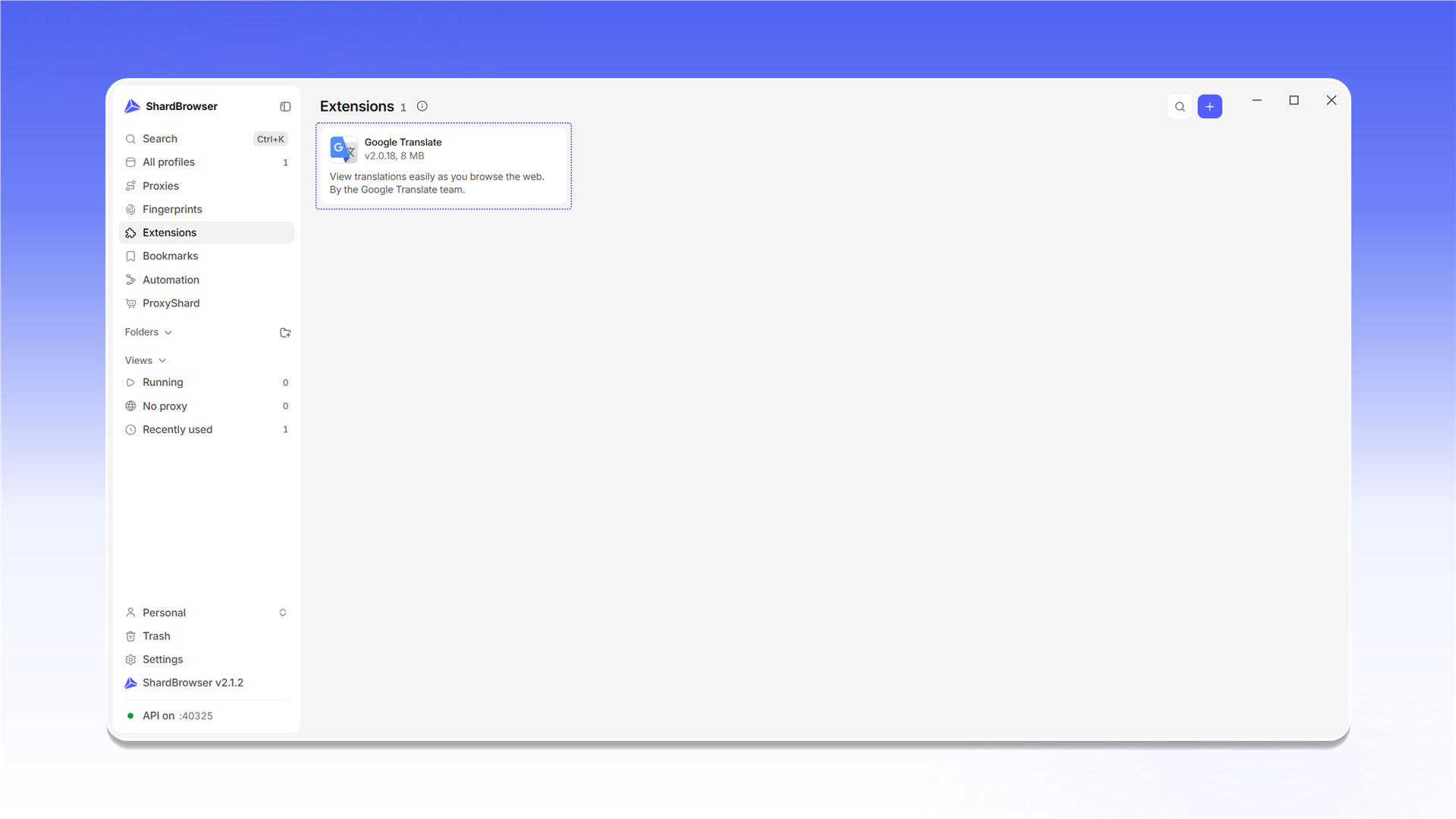
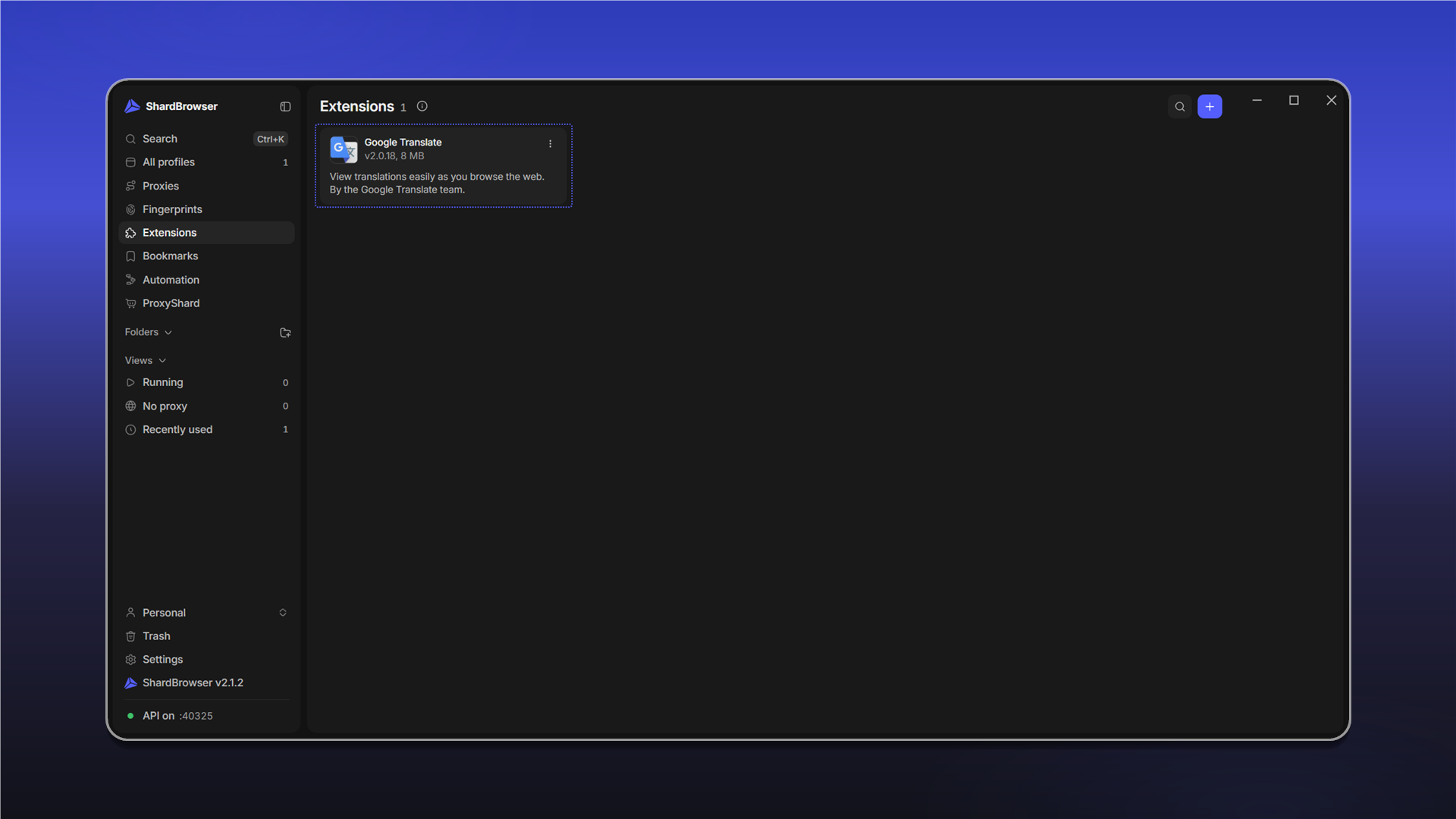
The extension appears in the list with its version and size.
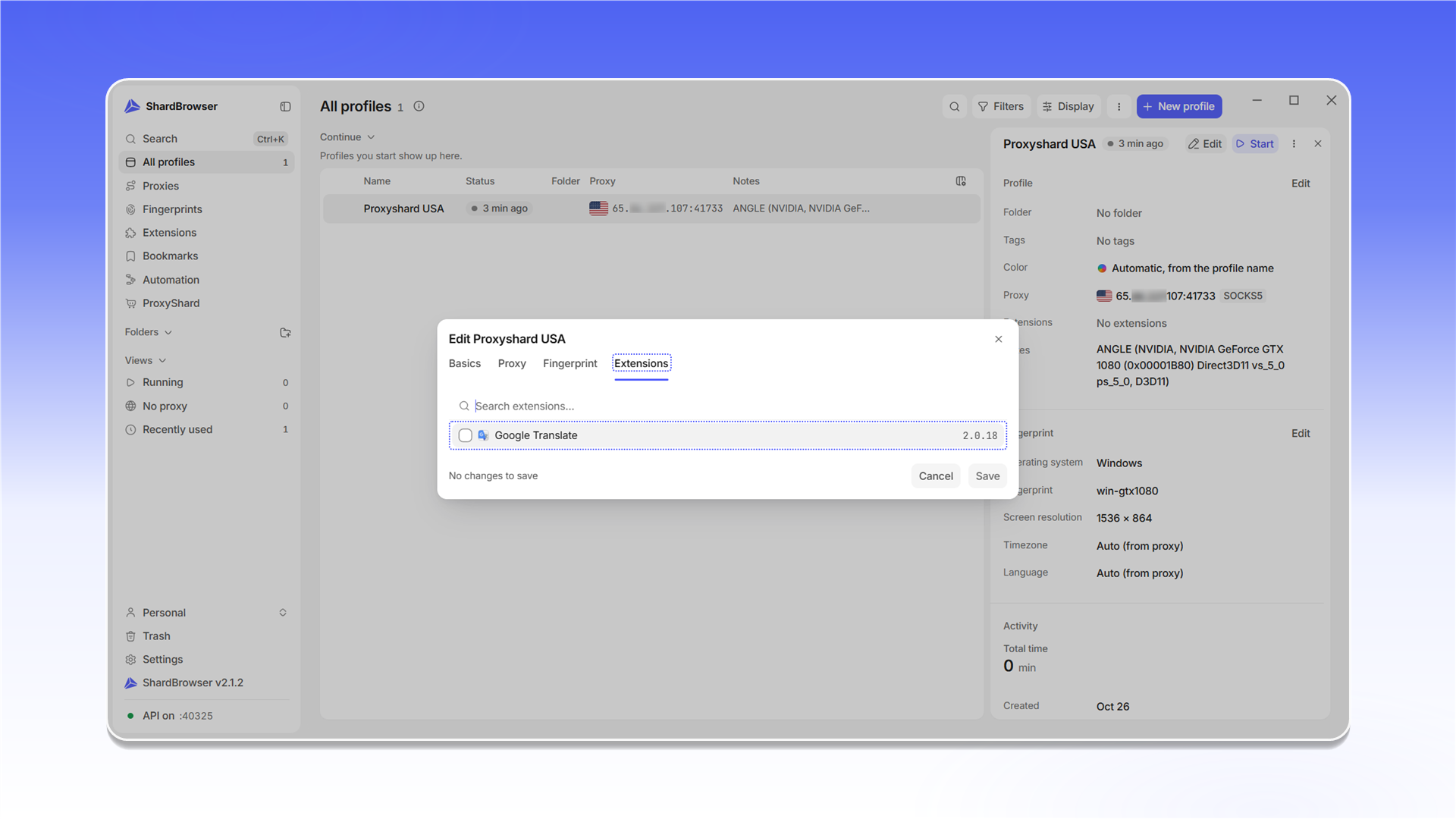
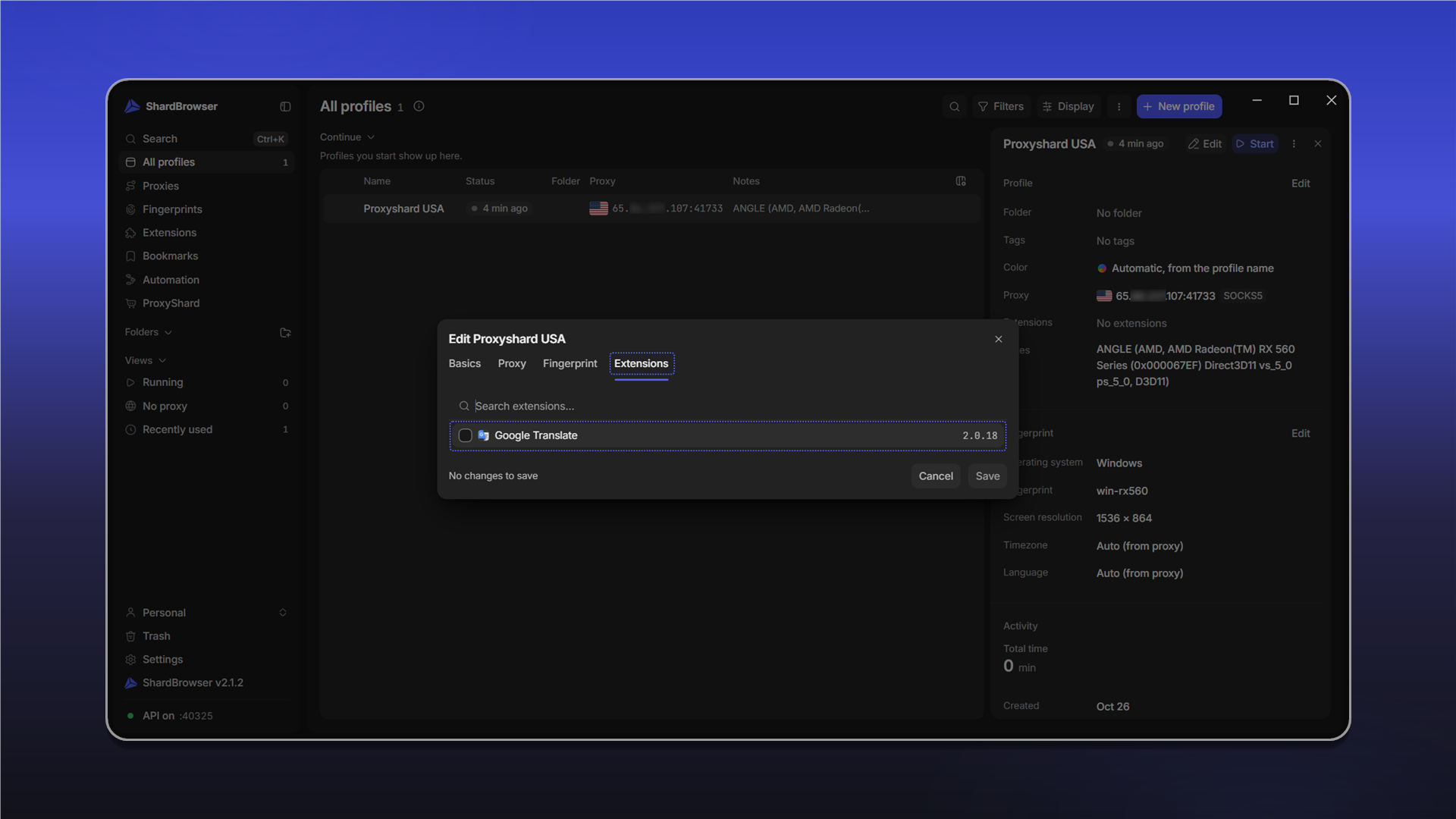
To turn an extension on in a profile, open the profile editor (Edit), go to the Extensions tab, check the extensions you need and click Save. You can also pick extensions when creating a profile, on the Extensions tab of the New profile window.
Last updated on