ZeroOmega
Proxy setup for Chrome
Installing ZeroOmega
ZeroOmega handles TCP traffic only. Use Vision Browser when you need UDP support.
Install ZeroOmega from the Chrome Web Store.
chromewebstore.google.comhttps://chromewebstore.google.com/detail/pfnededegaaopdmhkdmcofjmoldfipedAfter installation, open the extensions menu and pin ZeroOmega to the browser toolbar.
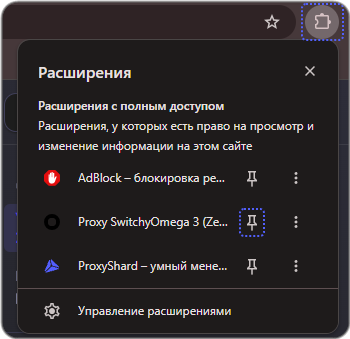
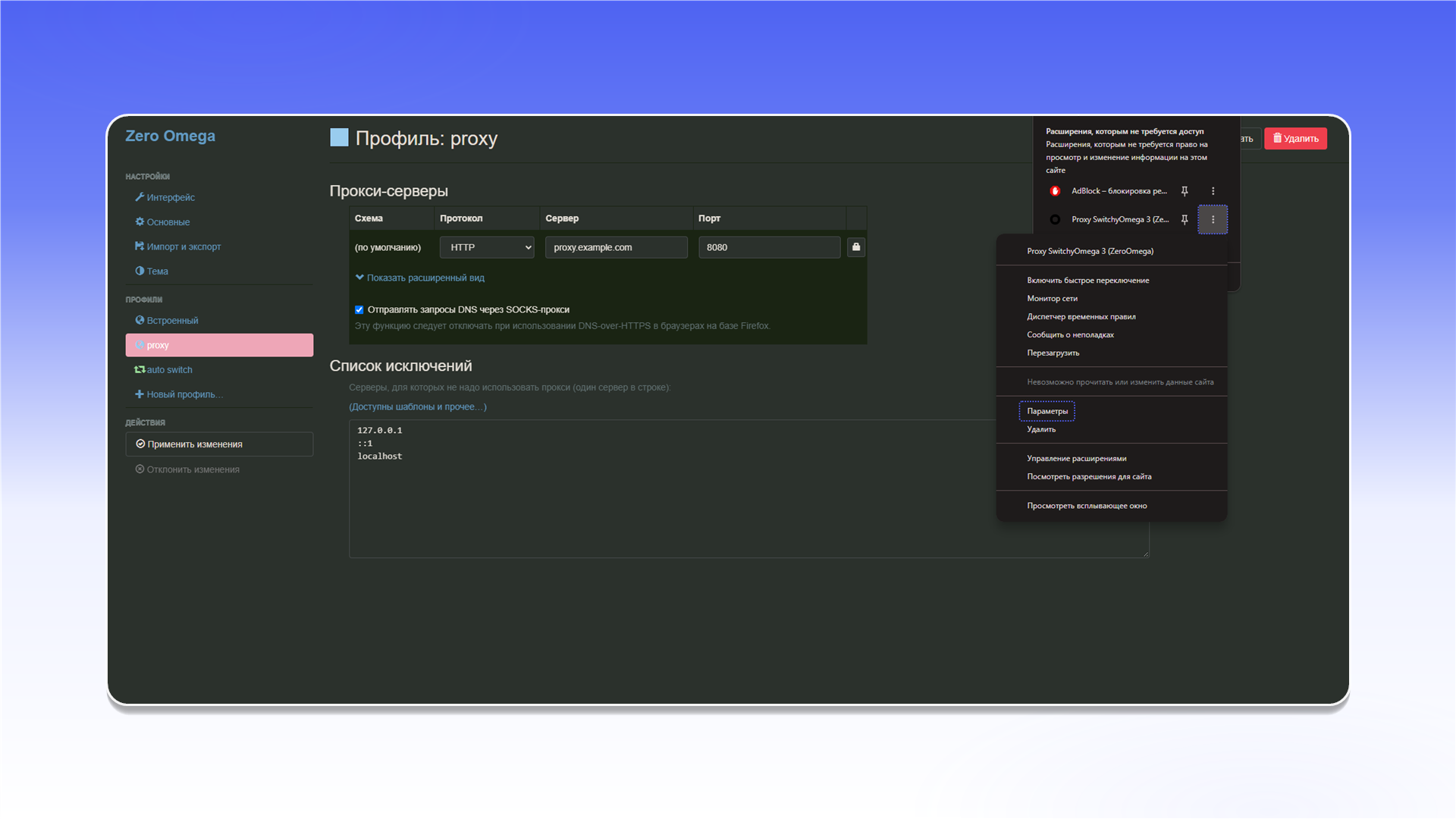
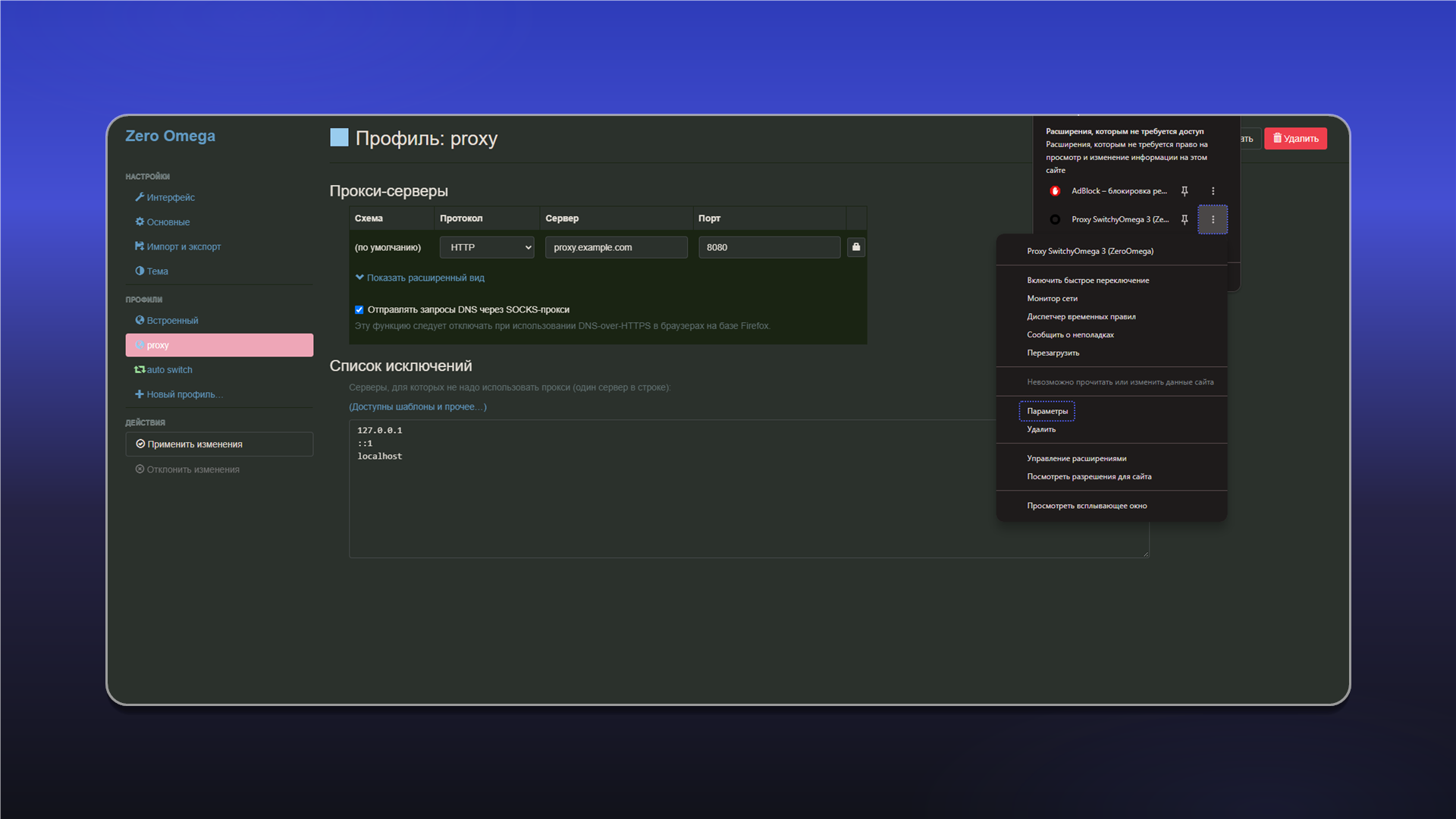
Open ZeroOmega and select Параметры.
Configuring the proxy
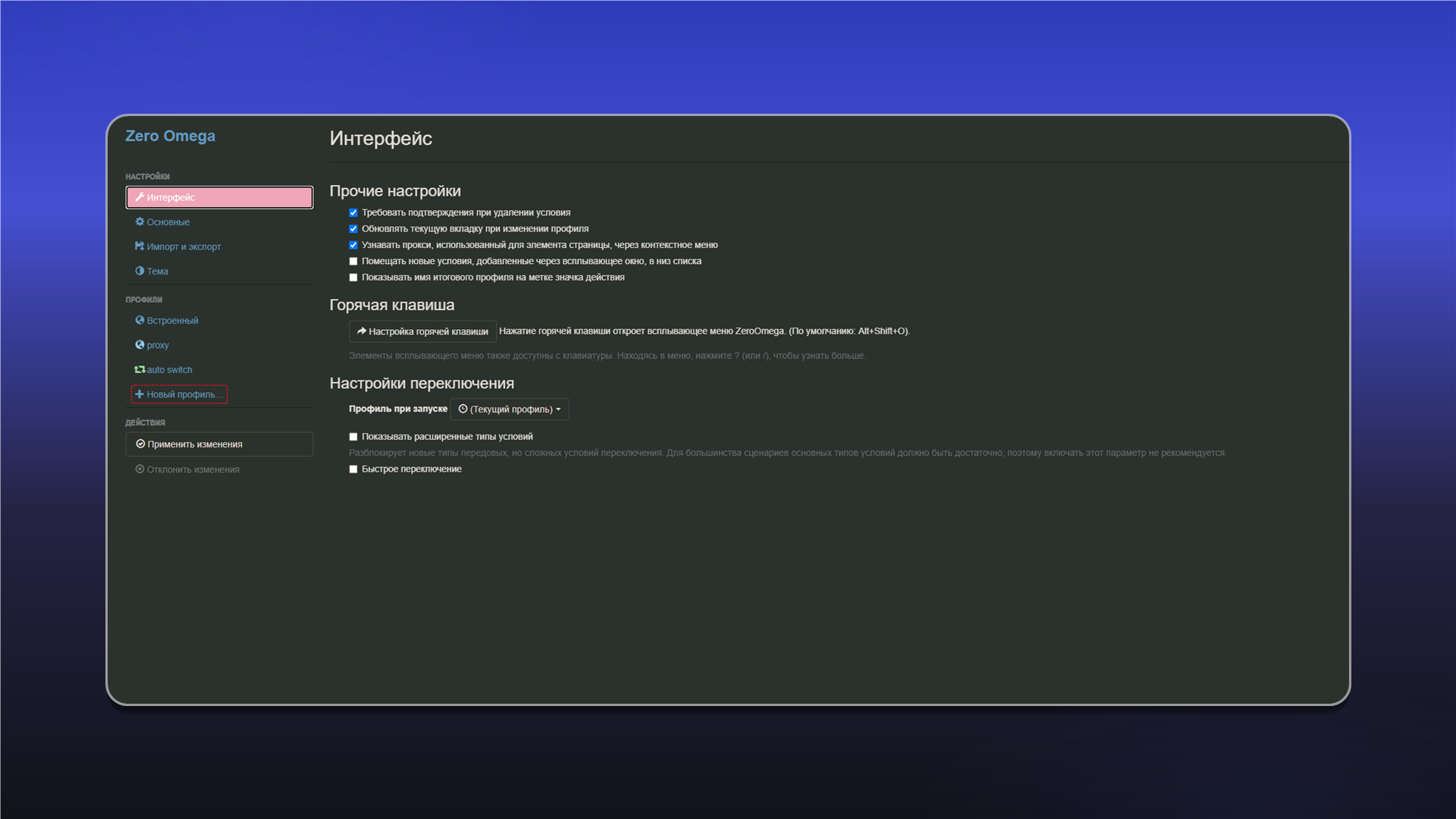
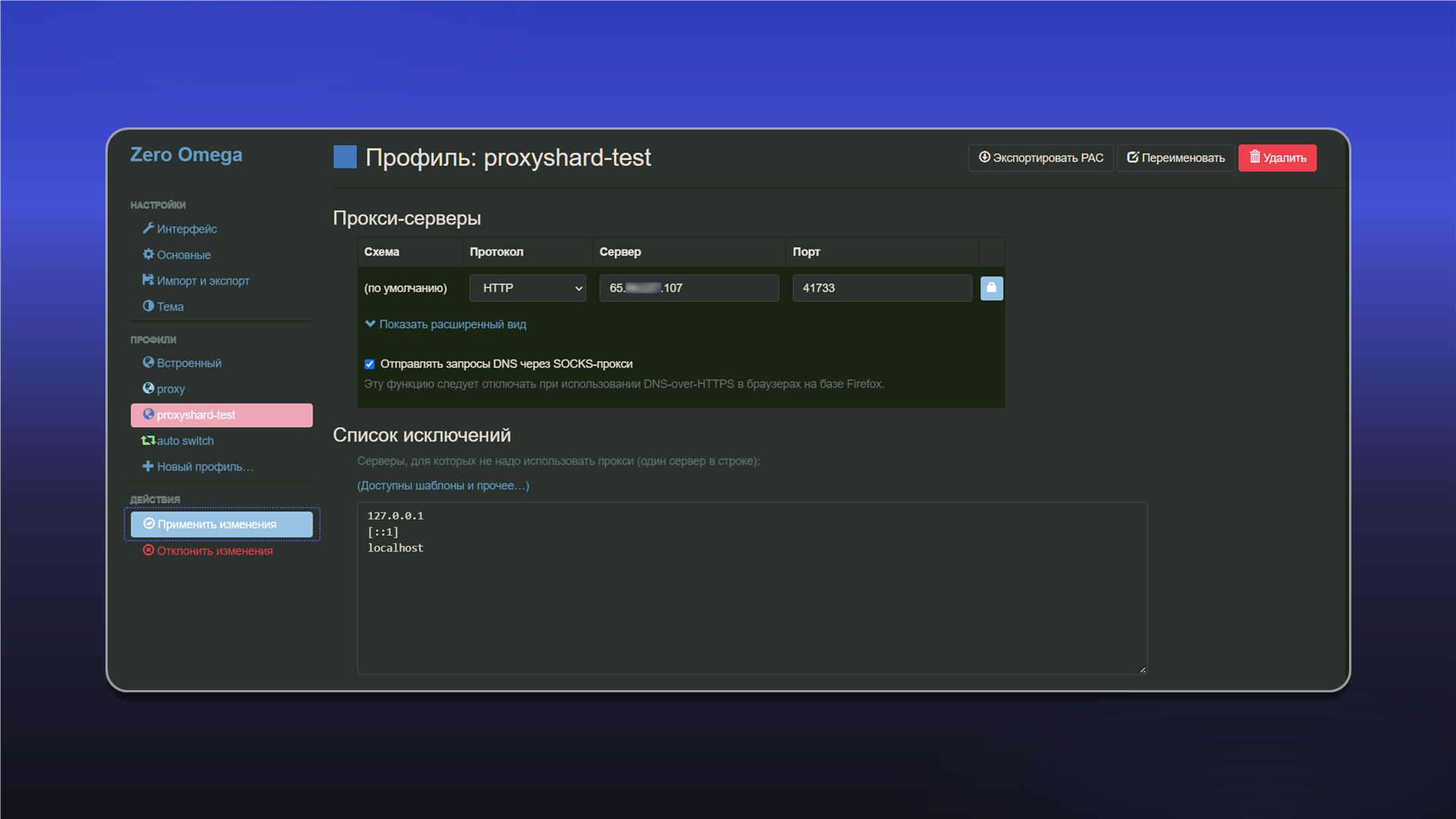
In the profiles section, click Новый профиль....
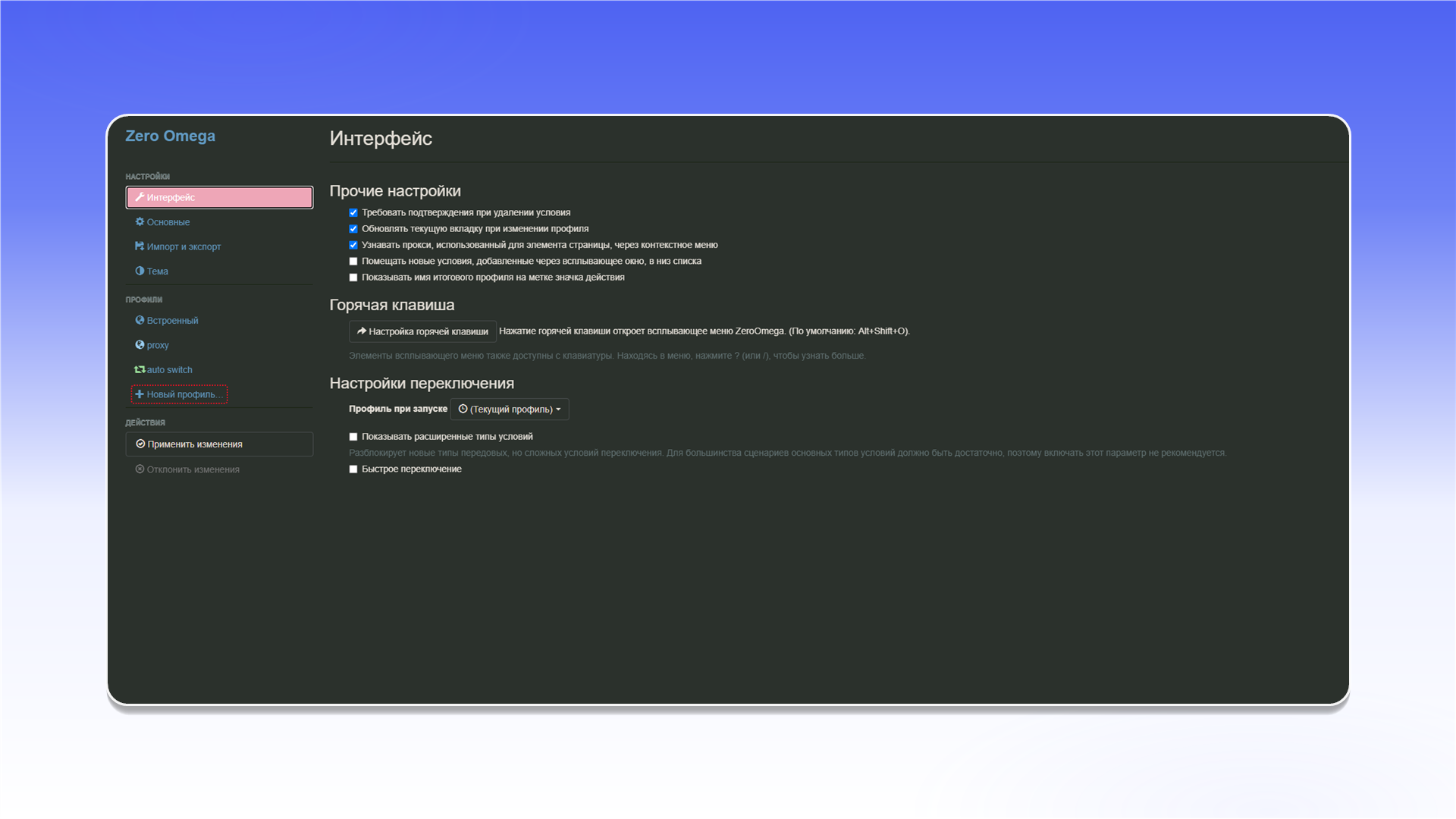
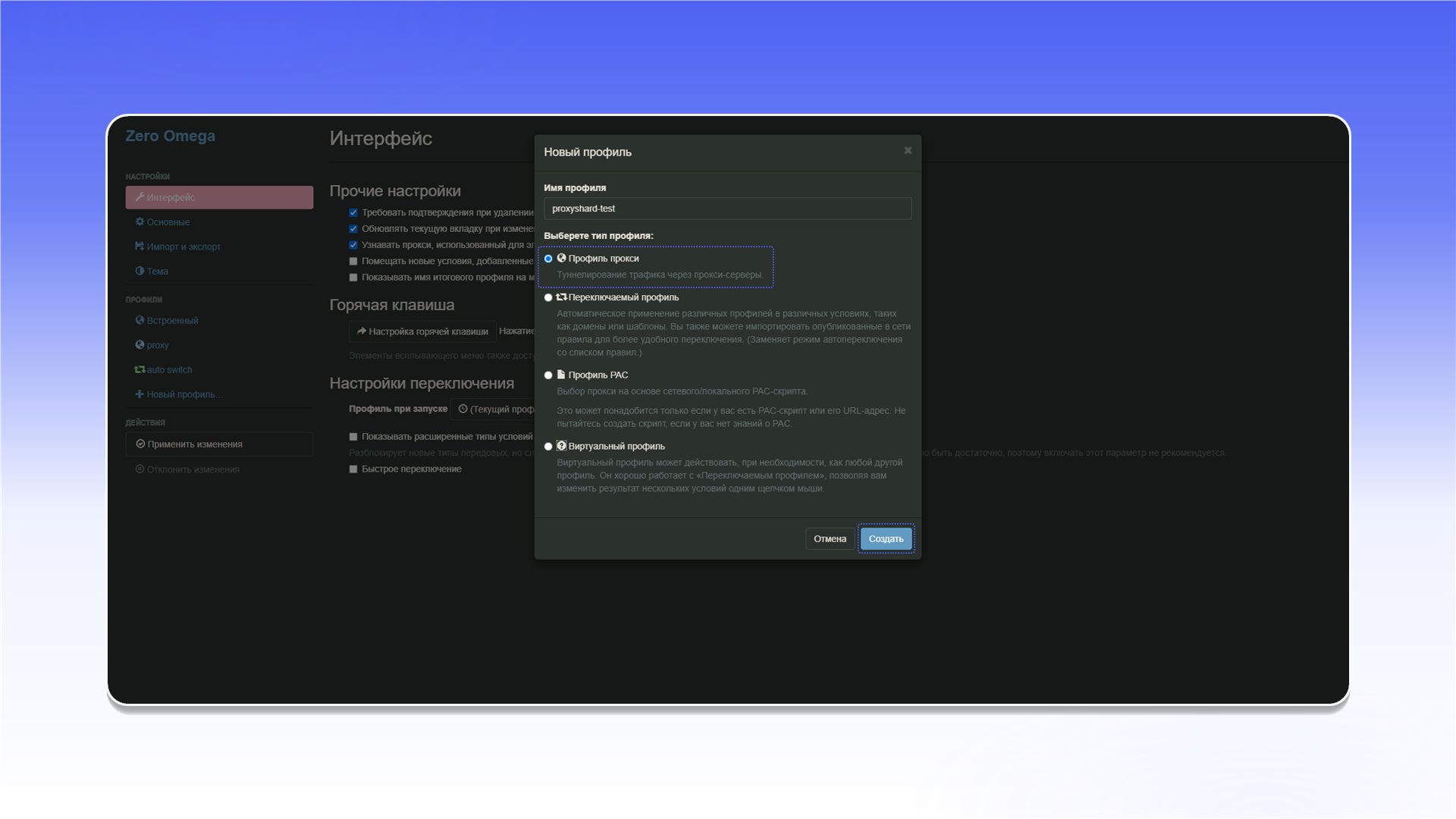
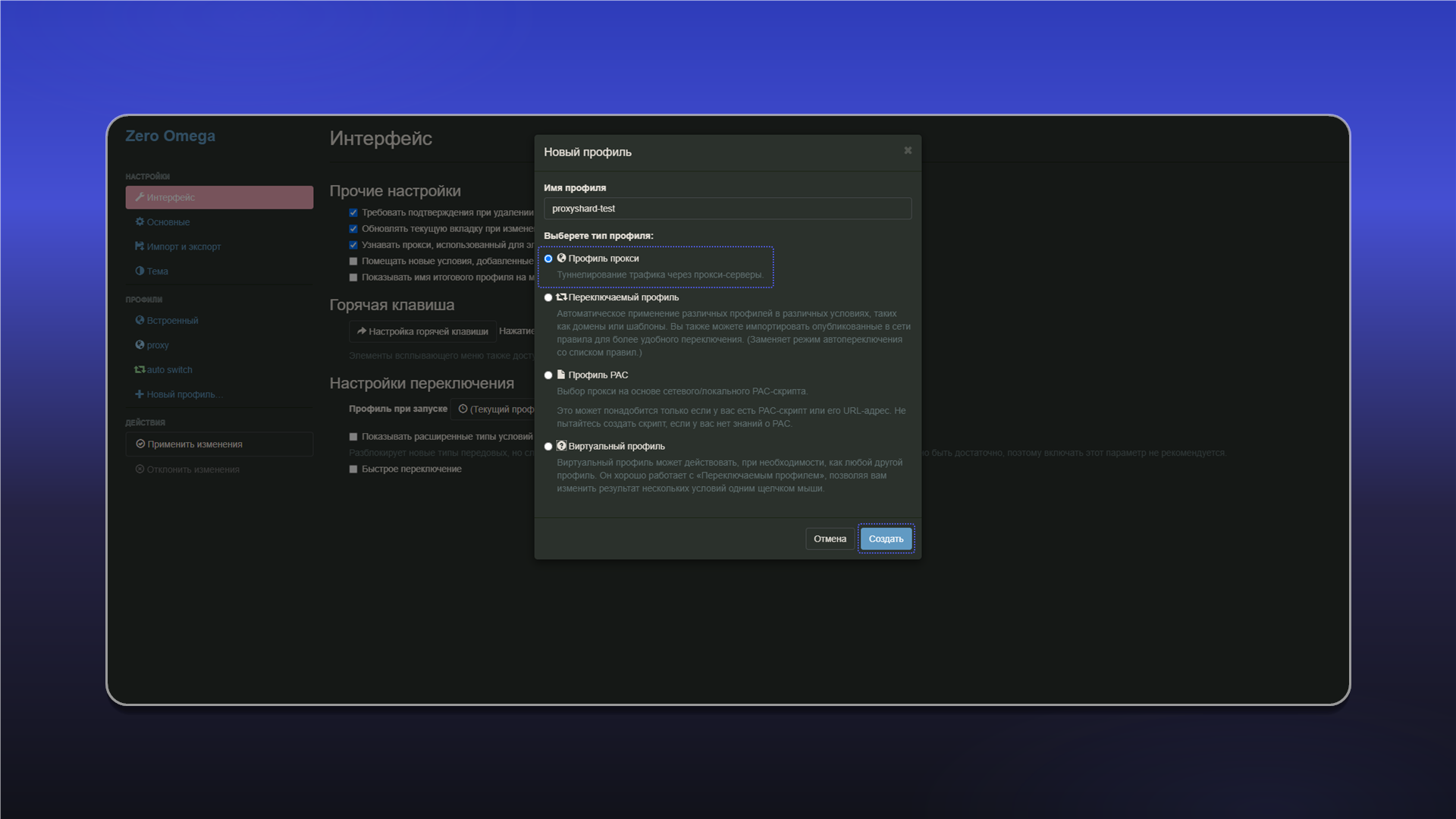
Enter a profile name, select Профиль прокси, and click Создать.
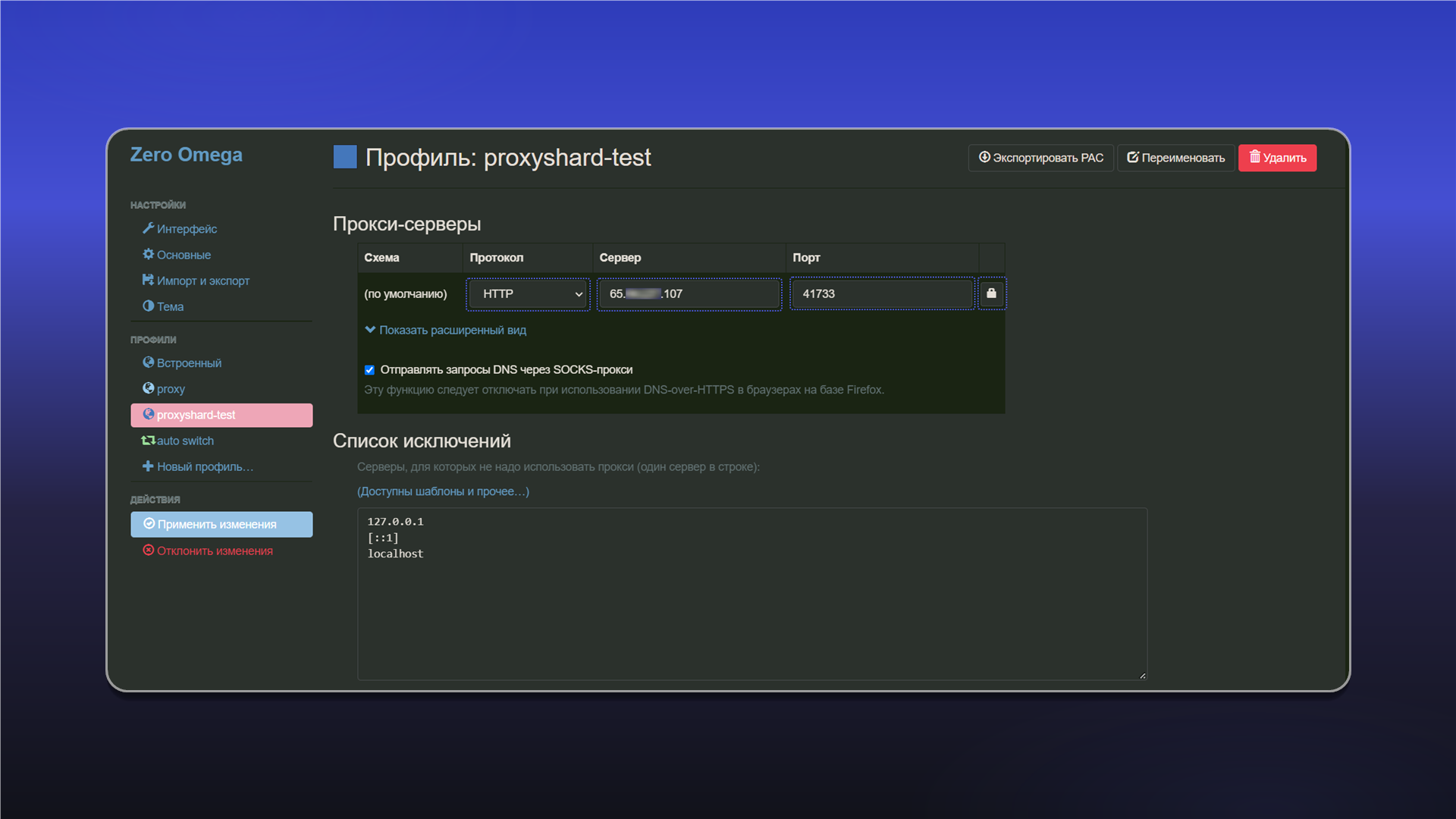
In the profile settings, select the protocol and enter the server address and port from your order's Proxy List. Click the lock icon to add the username and password.
The data format and an example order are described in Getting Started.
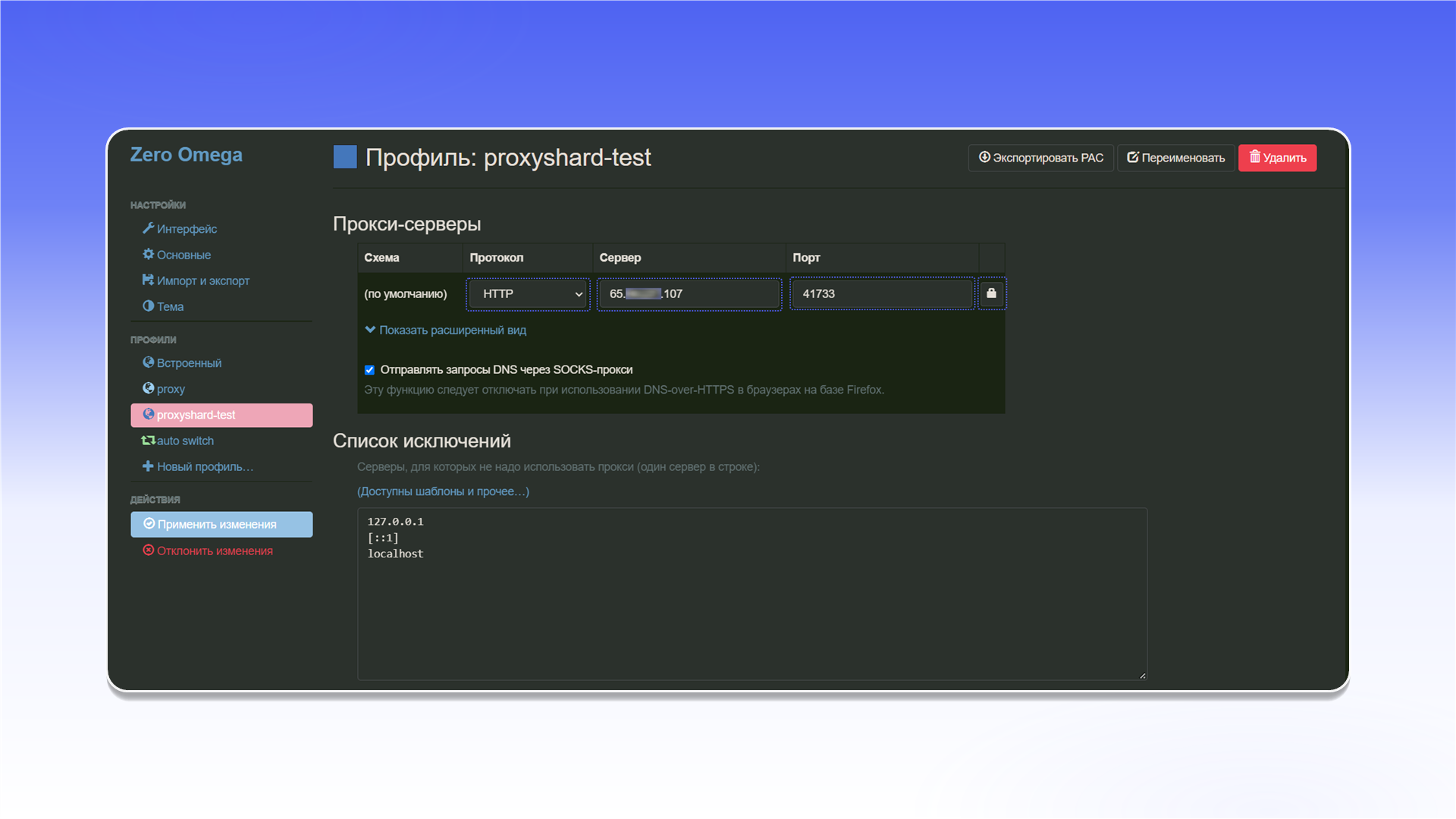
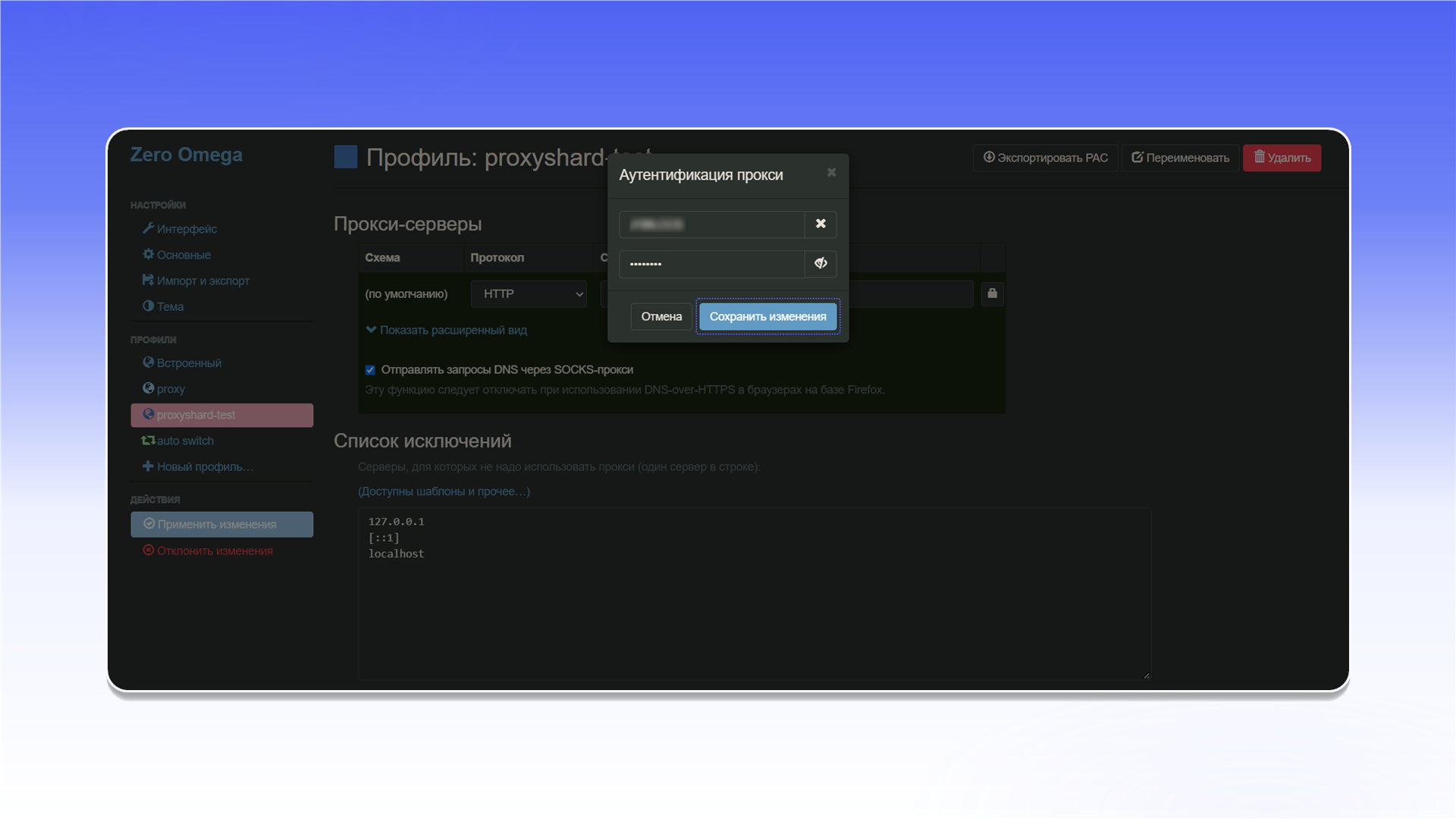
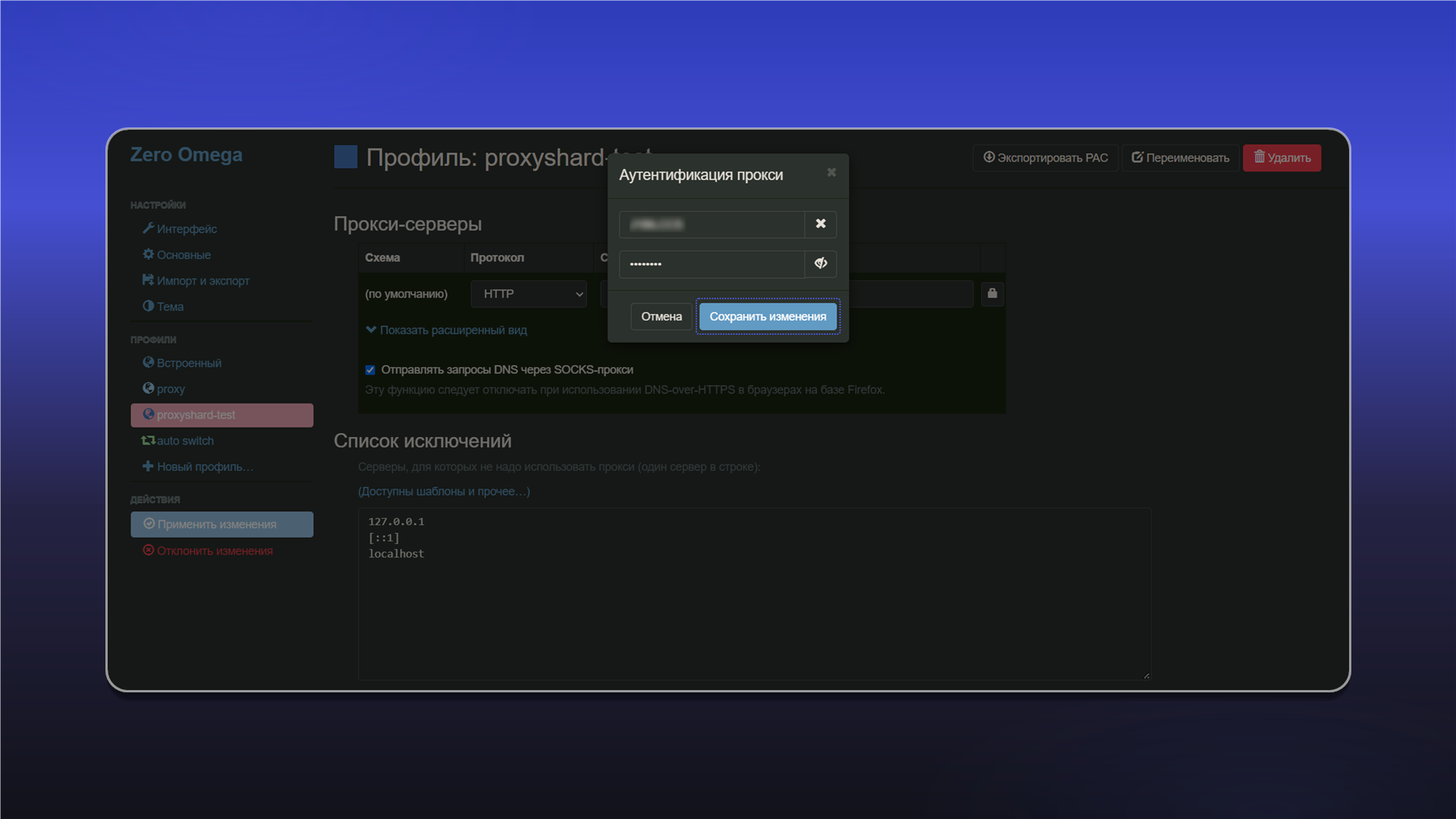
Enter the proxy username and password, then click Сохранить изменения.
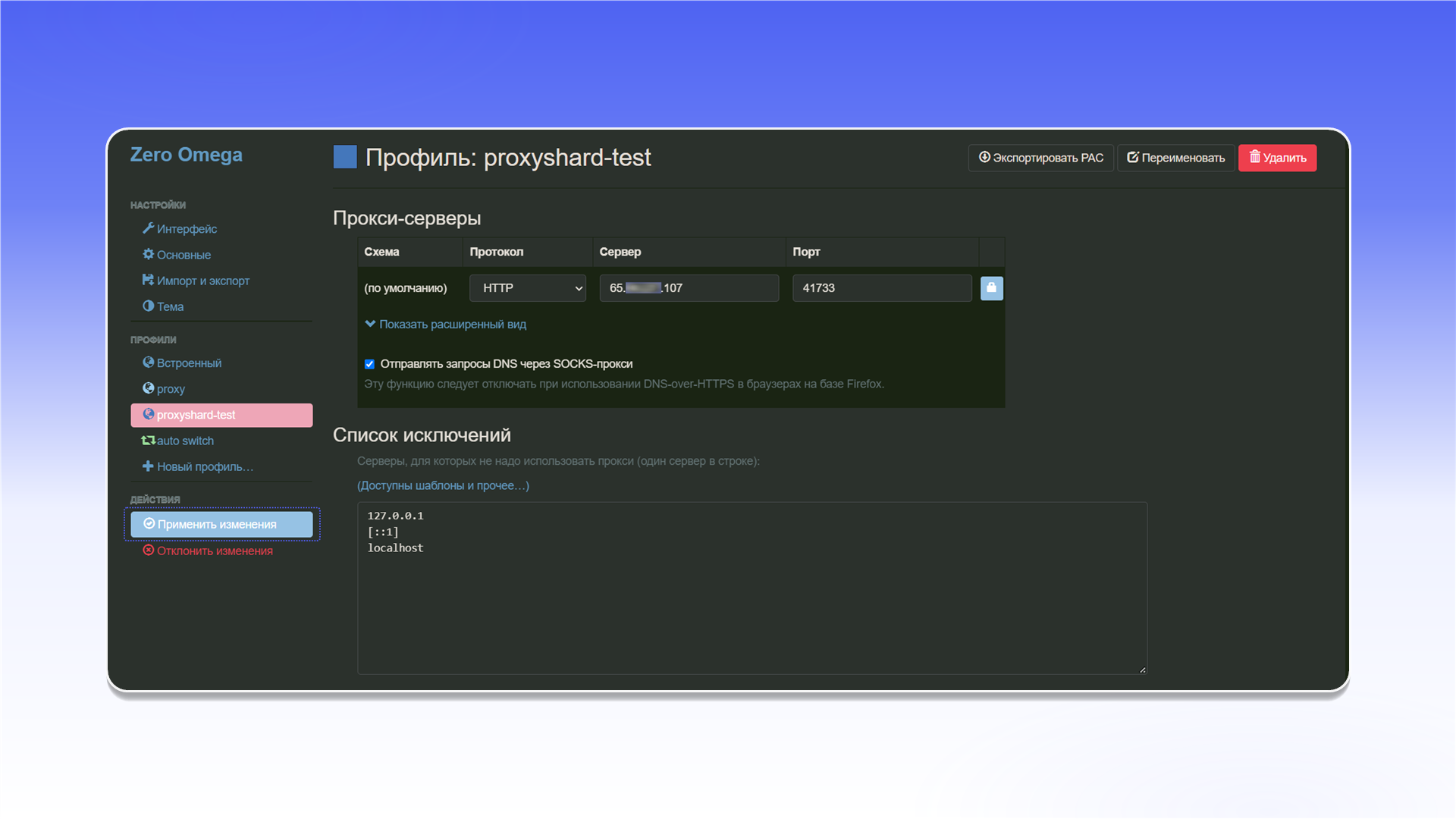
Click Применить изменения to save the profile.
Open ZeroOmega from the browser toolbar and select the profile you created.
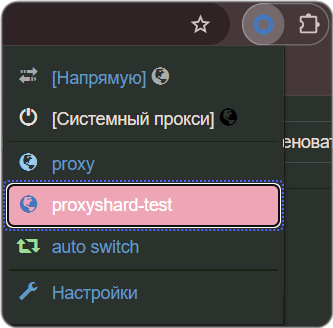
The proxy is connected and ready to use in Chrome.
Last updated on