Vision browser
An antidetect browser with UDP proxy support
Vision Browser supports TCP and UDP traffic through SOCKS5 proxies.
Installation and registration
Open the Vision Browser website, download the application, and install it.
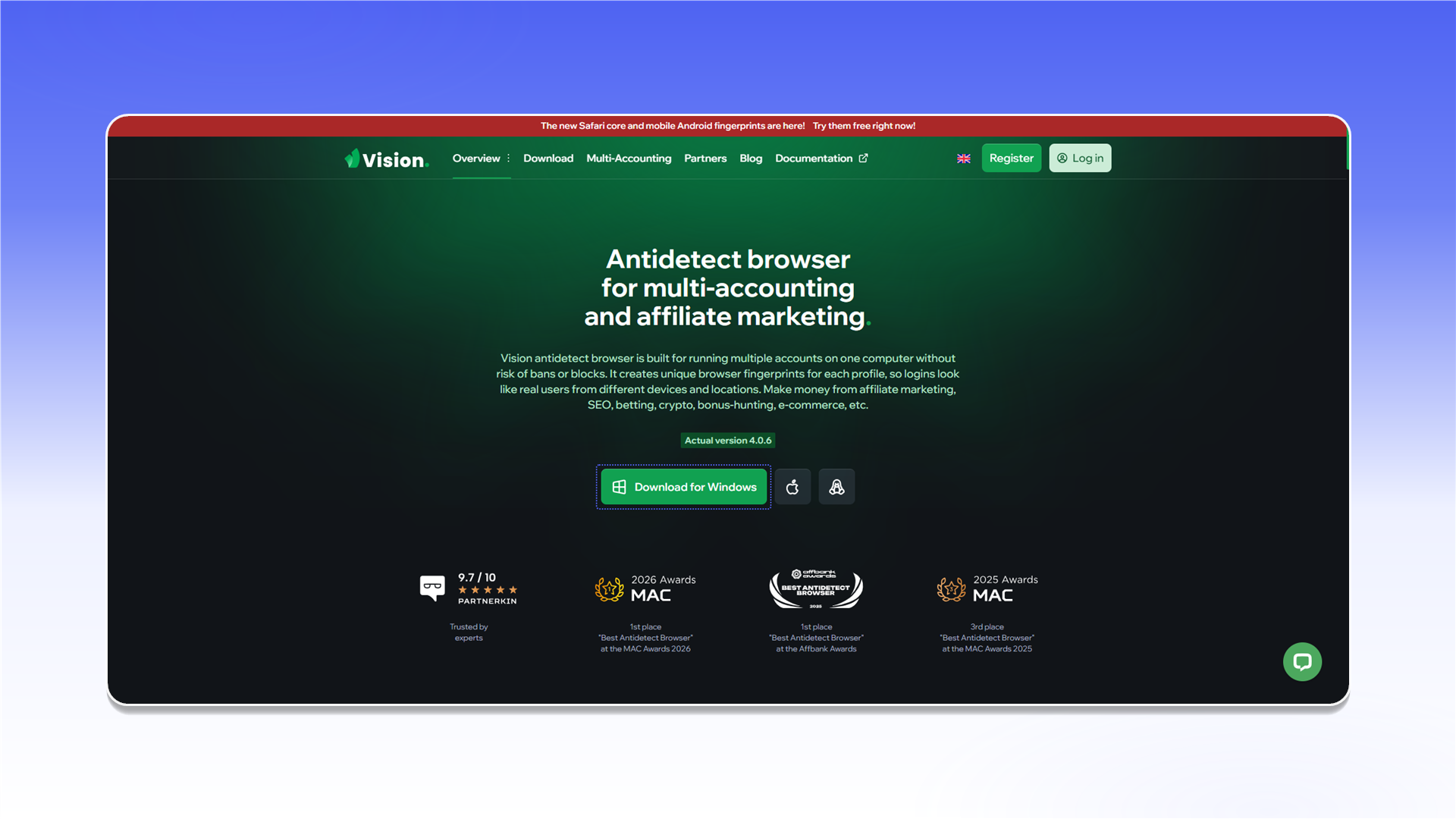
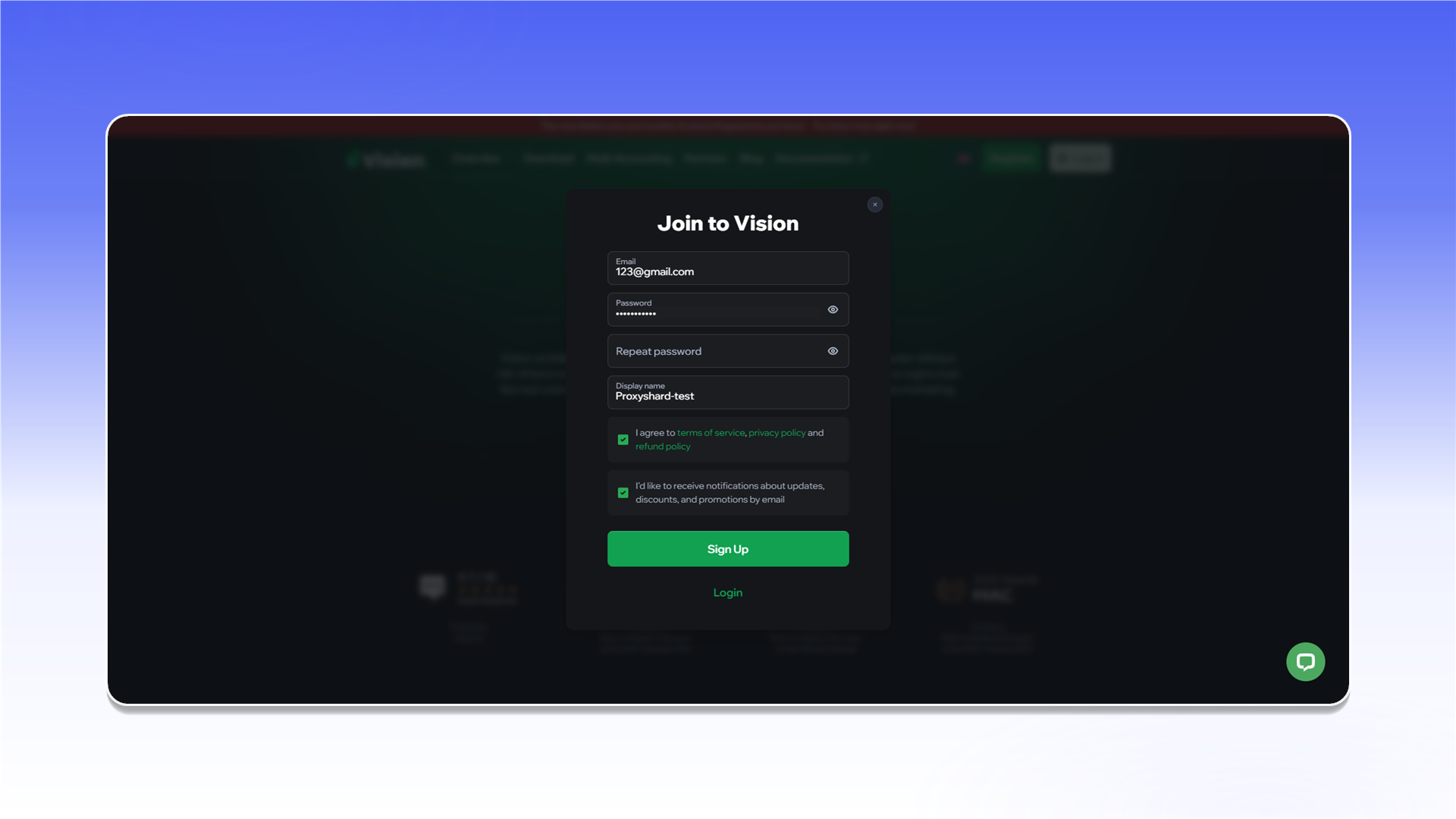
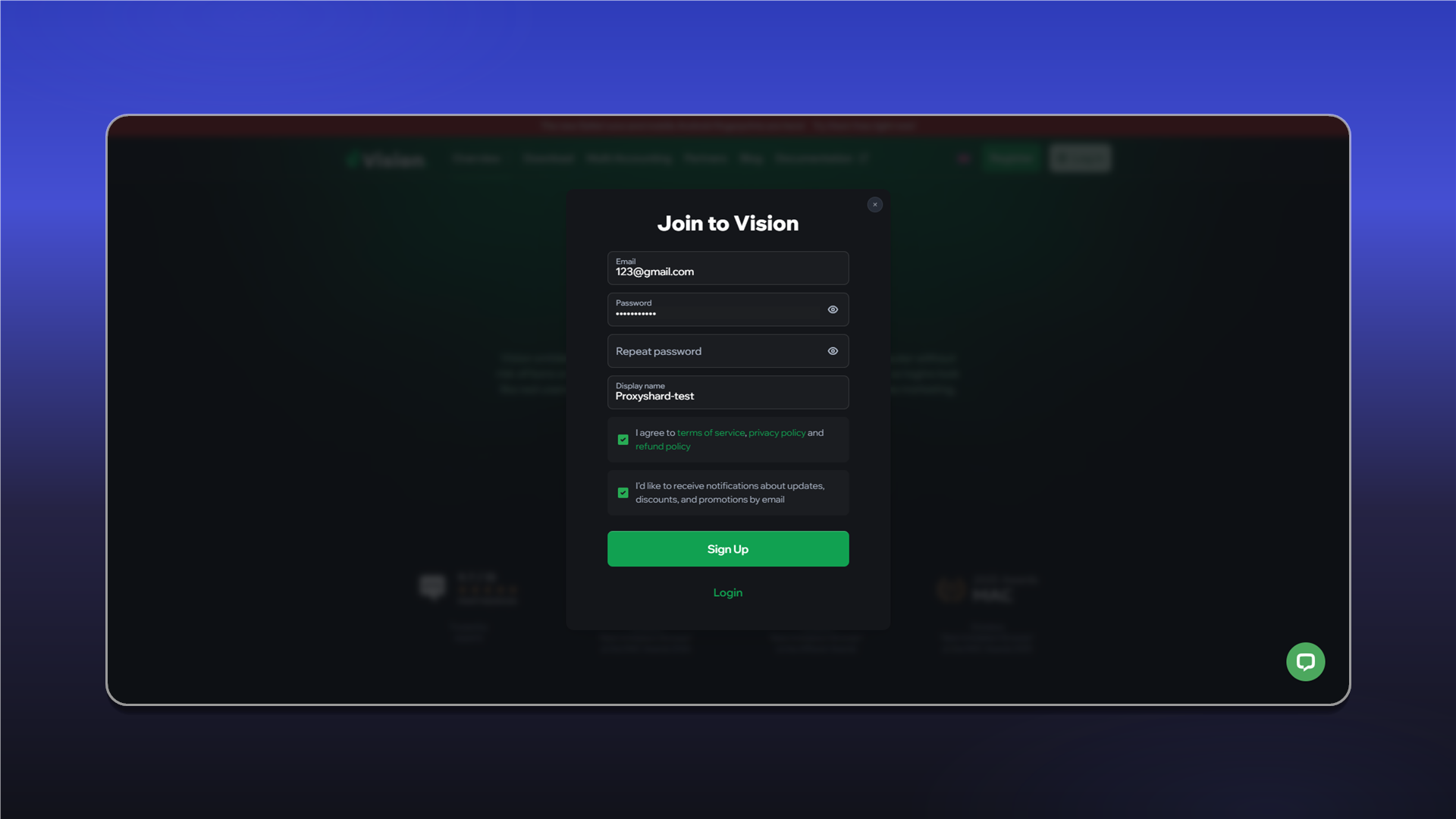
Create an account. You will use these credentials to sign in to the application.
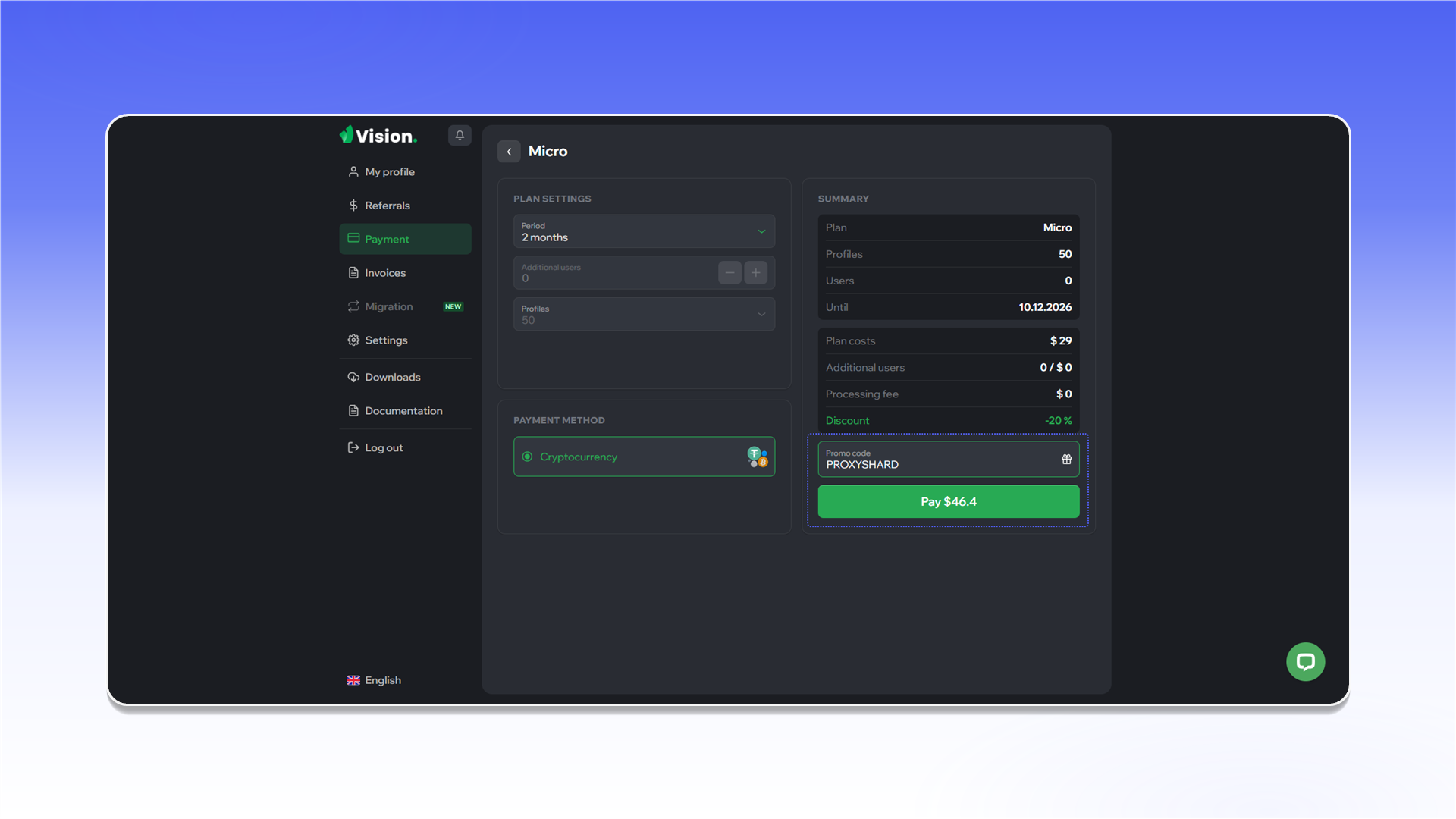
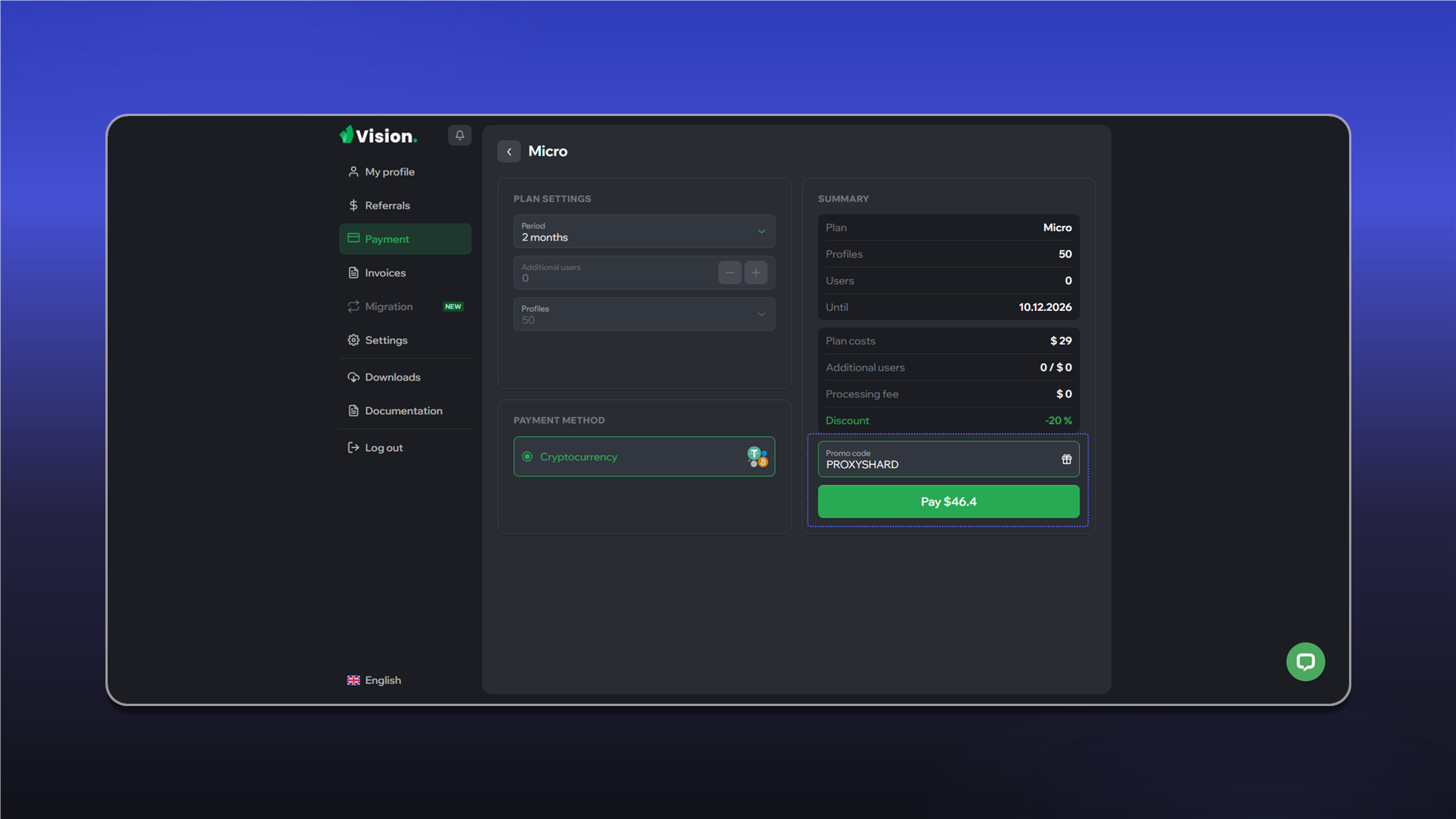
When purchasing a plan, you can use the PROXYSHARD promo code for a 20% discount.
Create the first profile
- Open
Profiles. - Go to
Foldersand clickCreate folder.
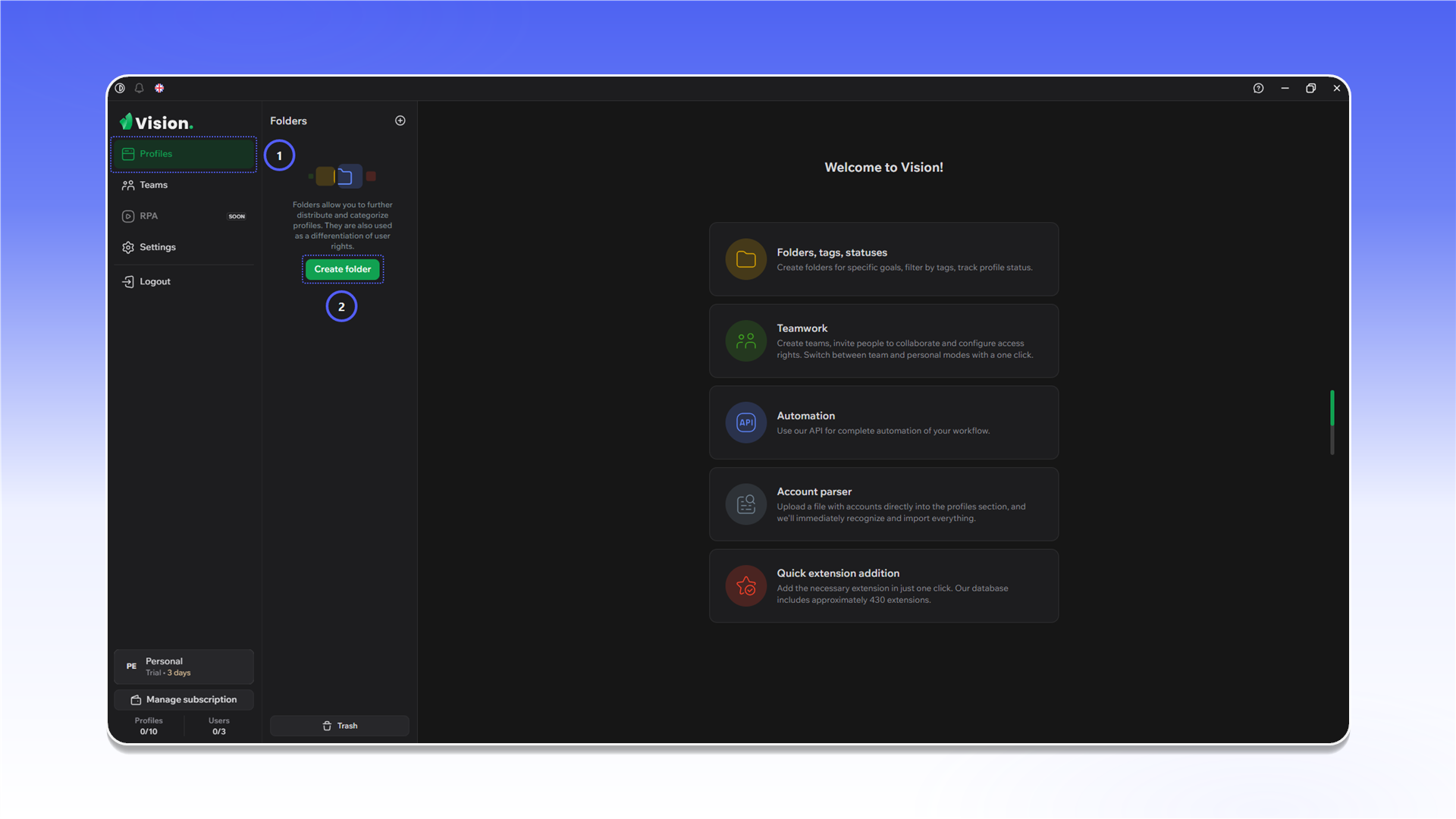
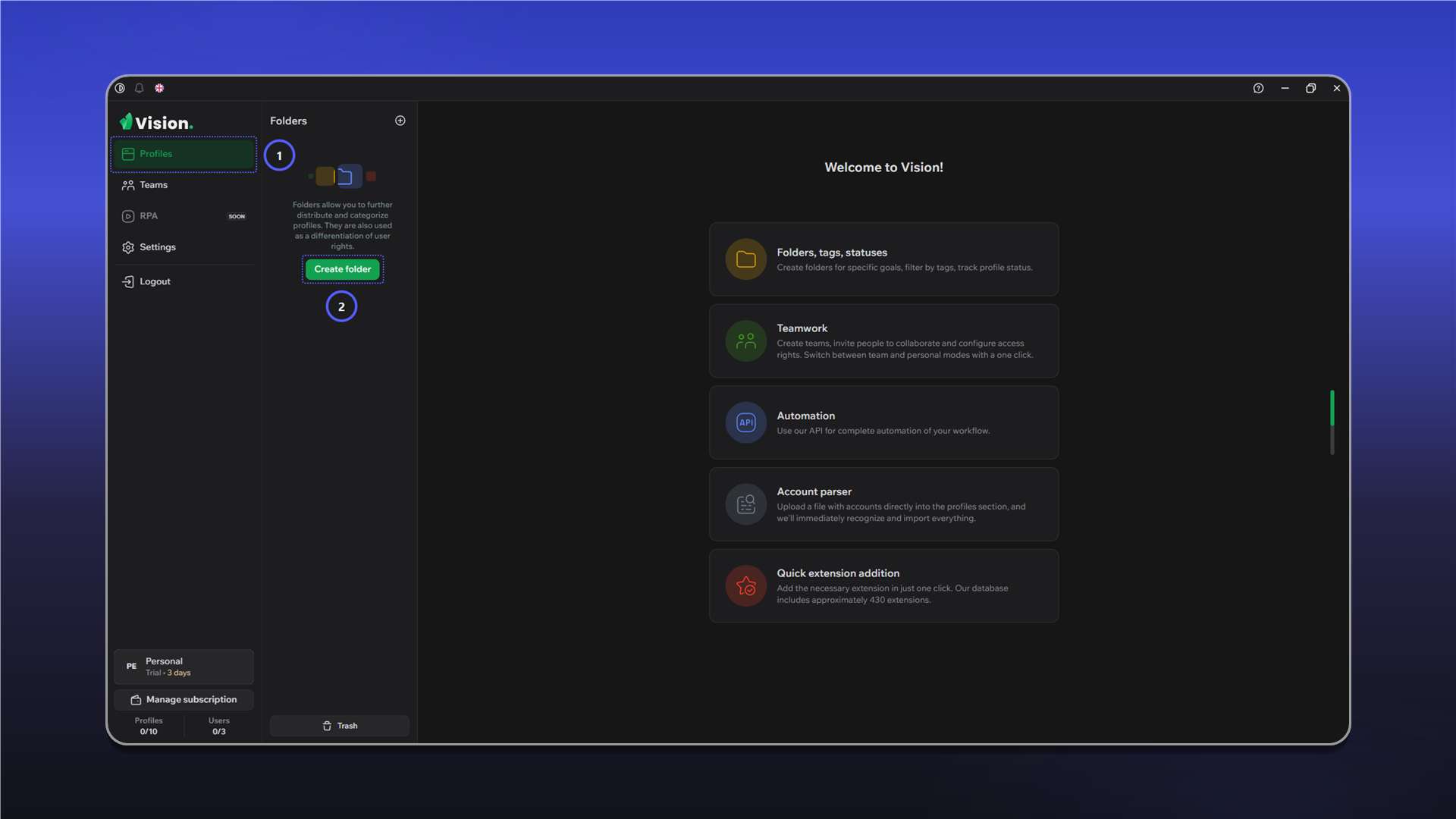
Enter a folder name and save it.
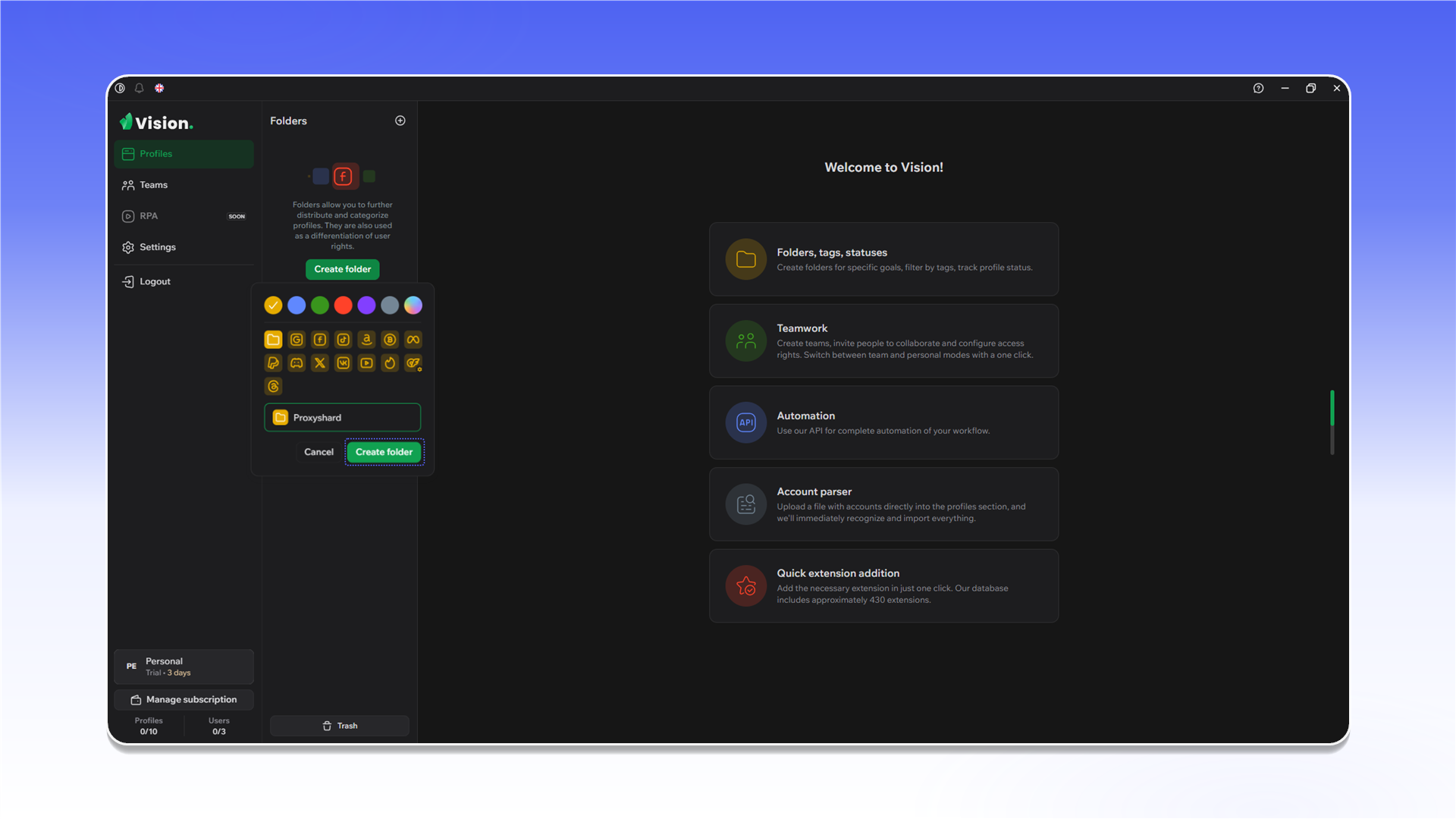
Click Create profile inside the folder.
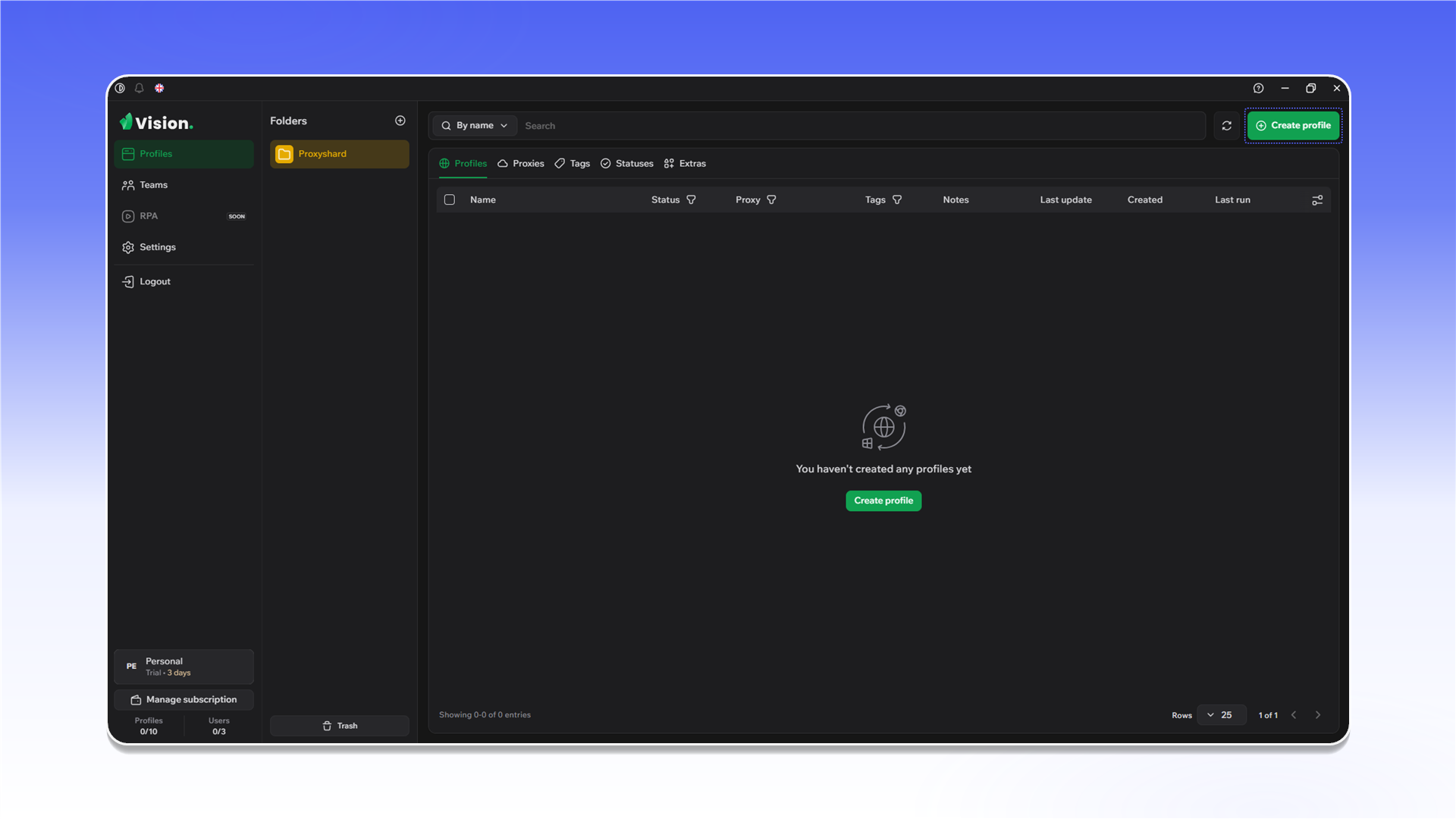
Generate one SOCKS5 proxy in the ShardX dashboard and copy its connection details.
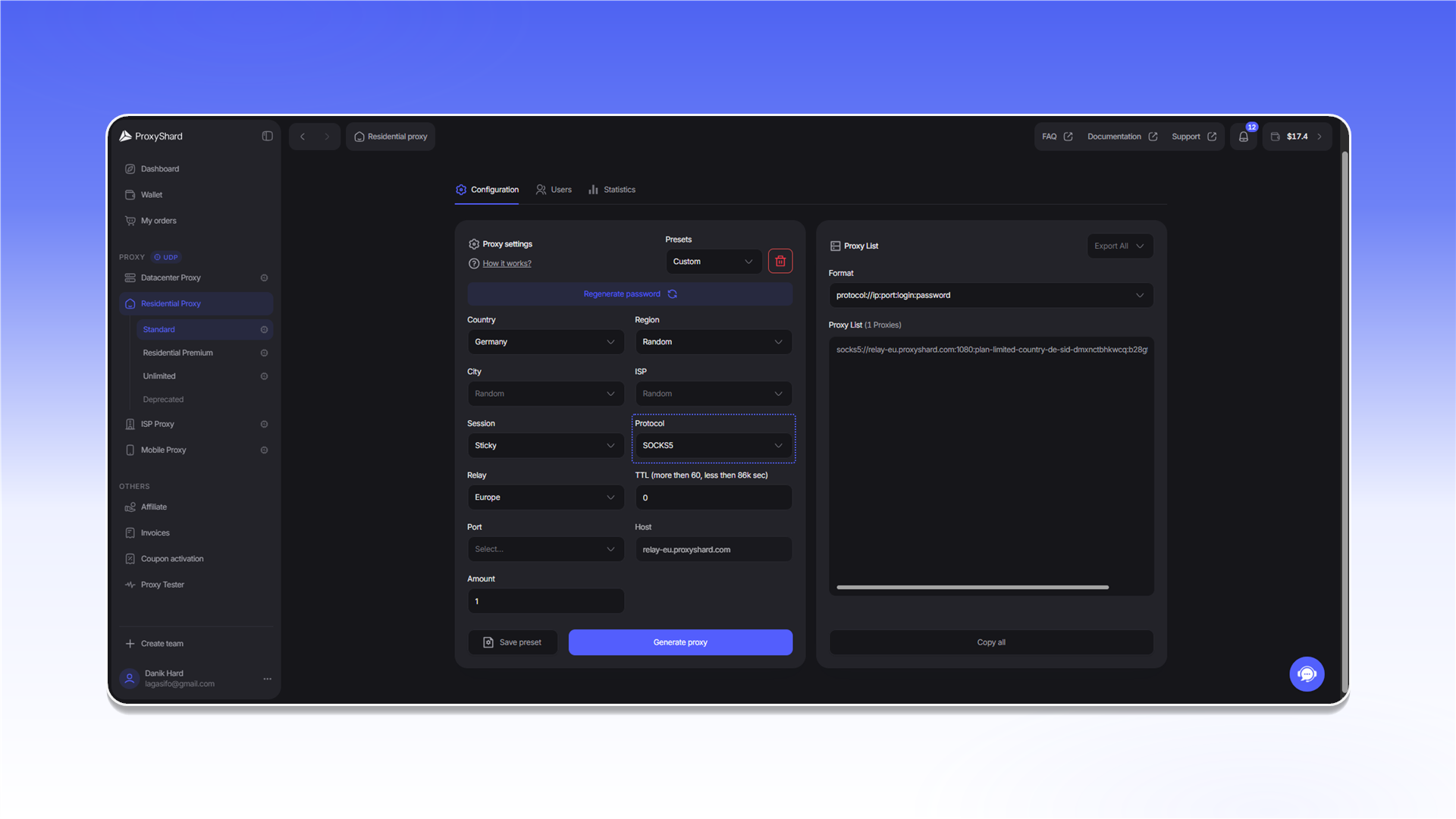
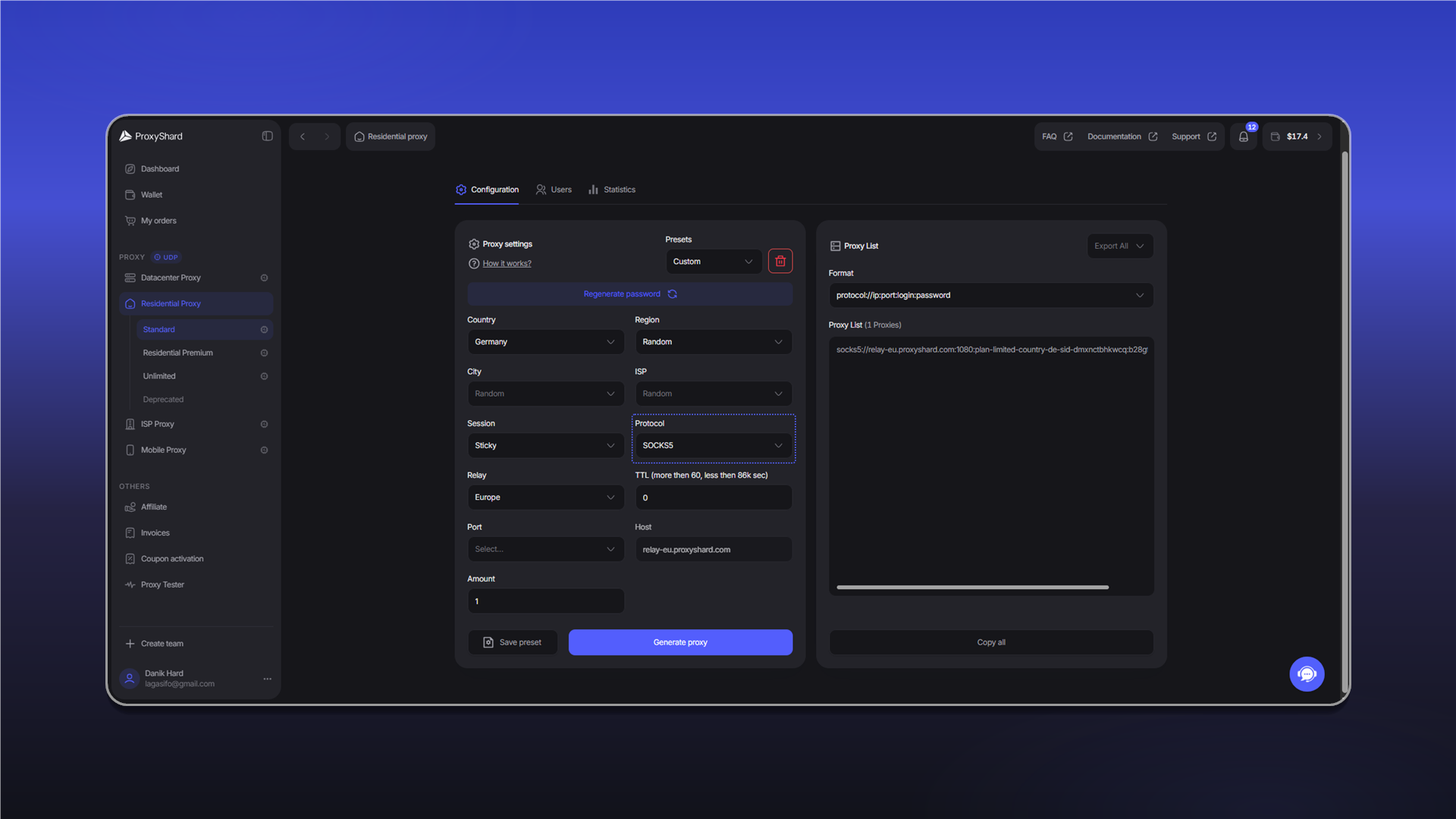
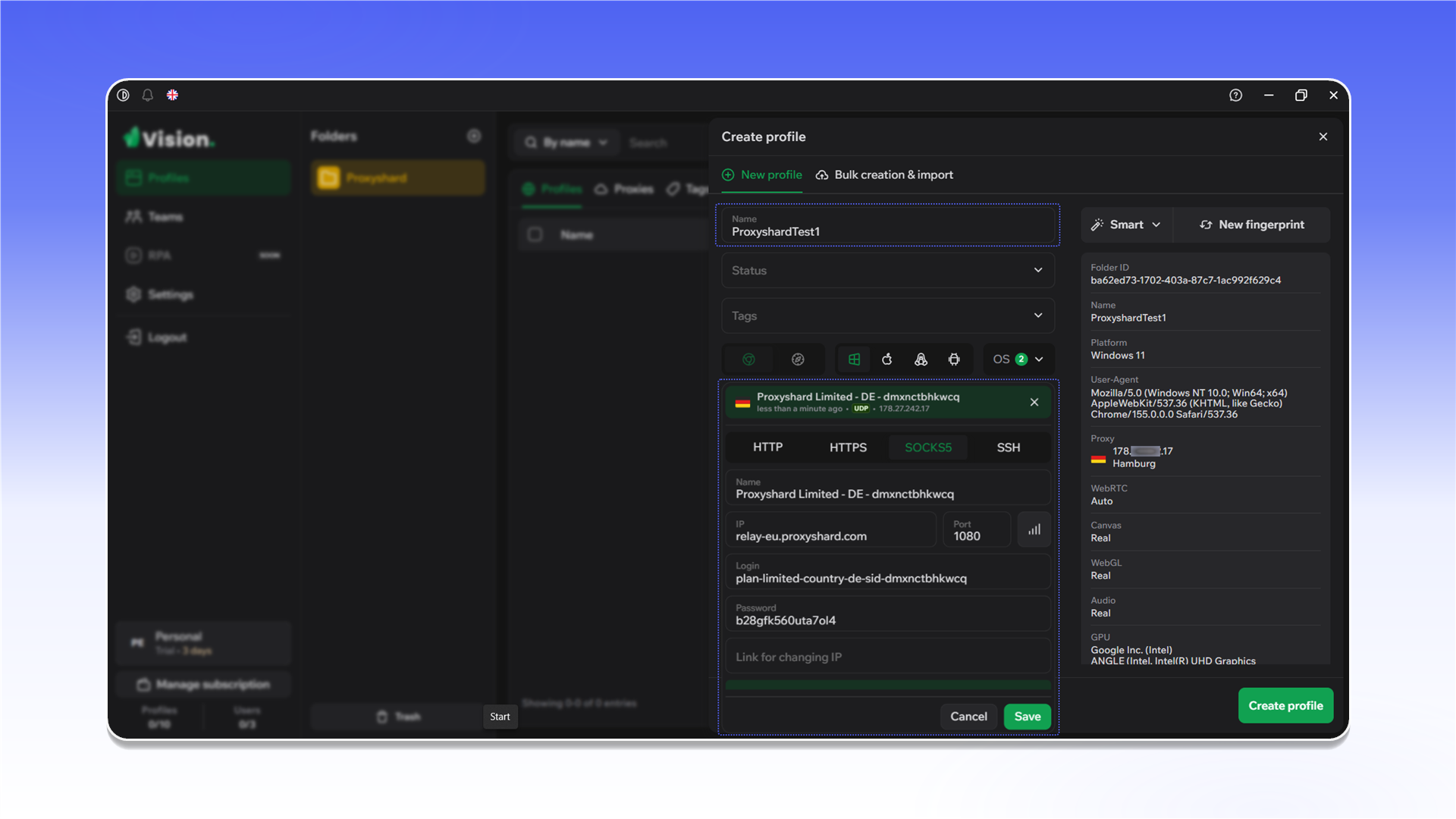
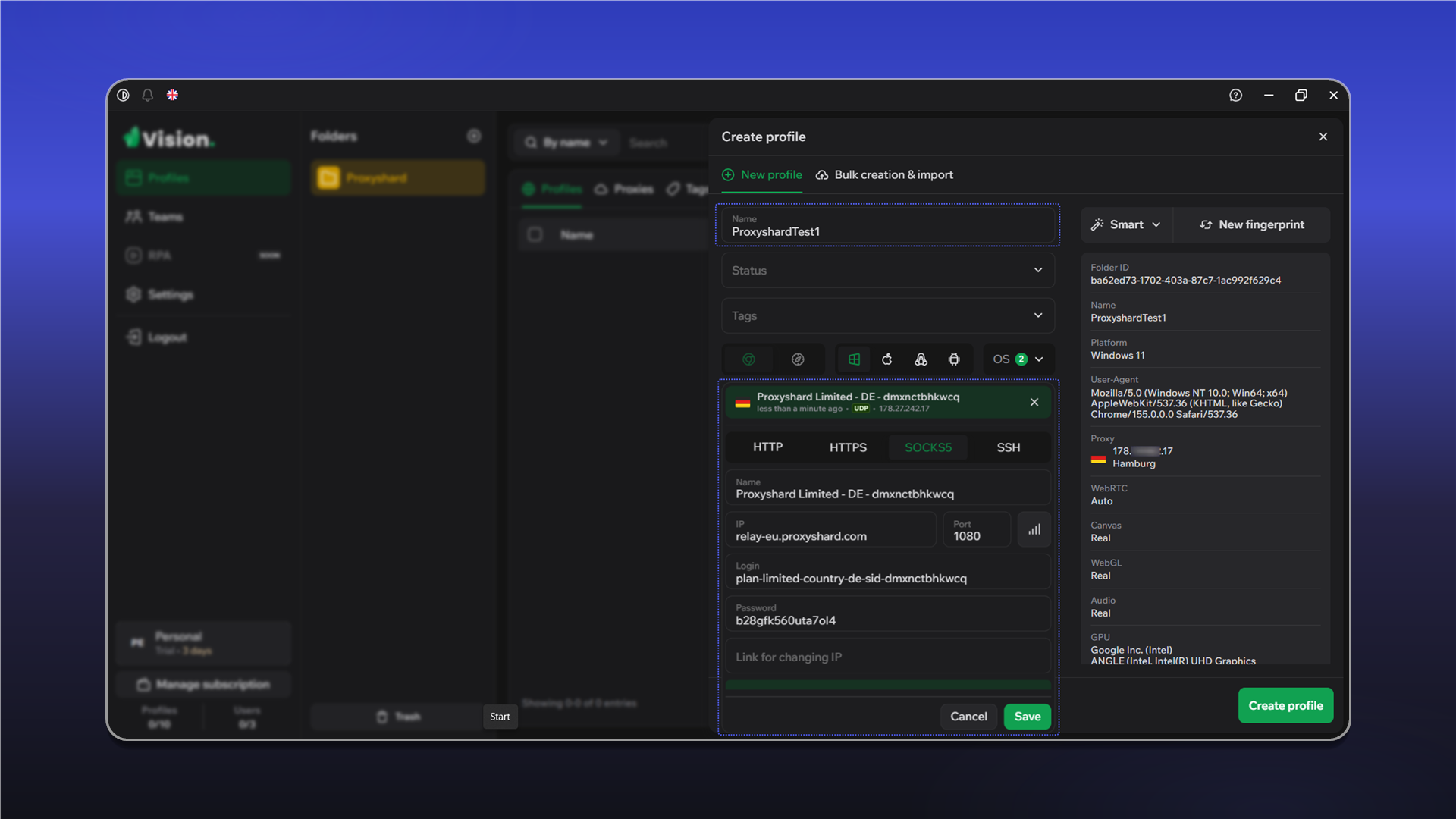
In the Vision profile settings, open the SOCKS tab, enter the proxy details, test the connection, and click Save.

Add a proxy list
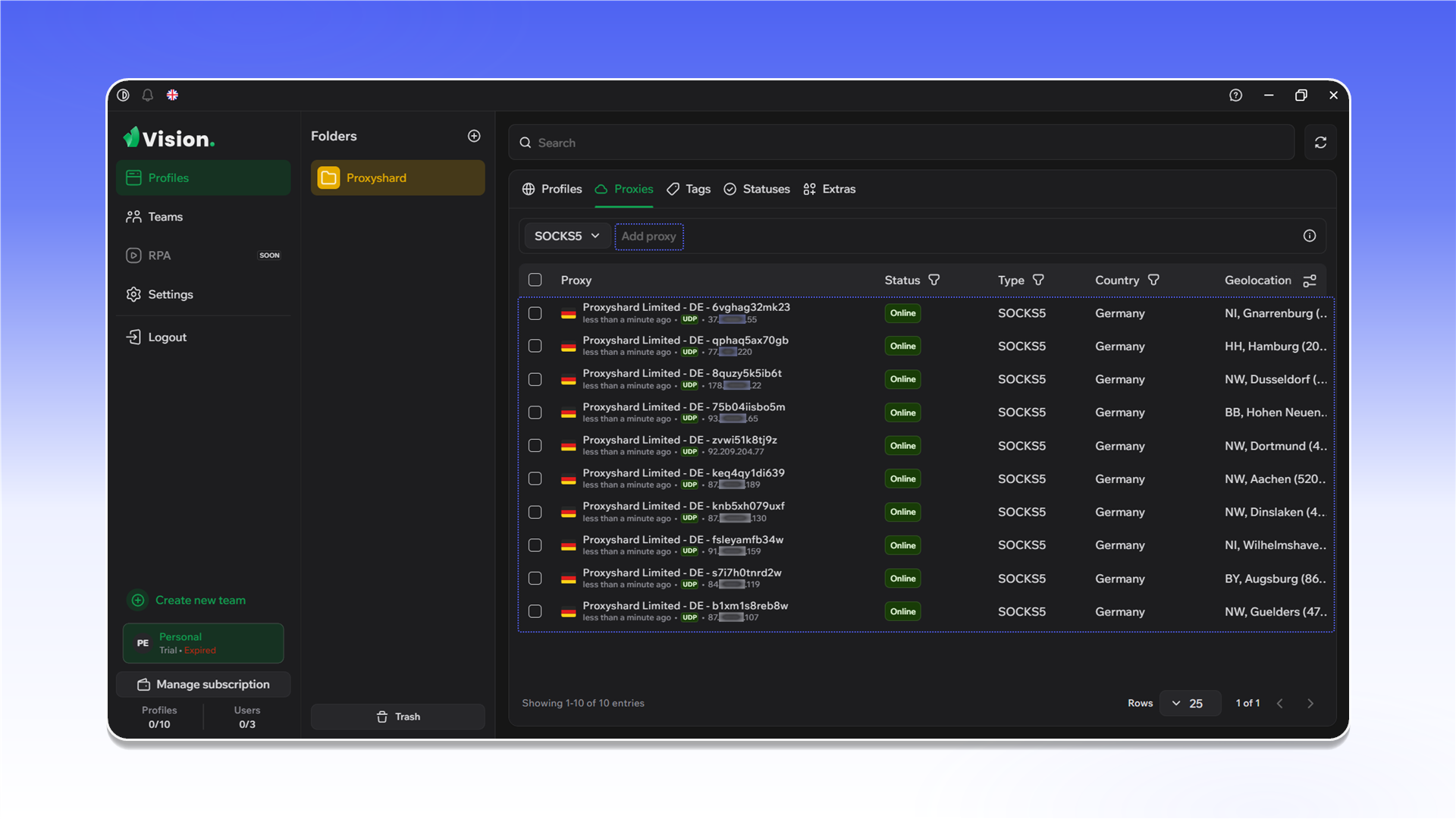
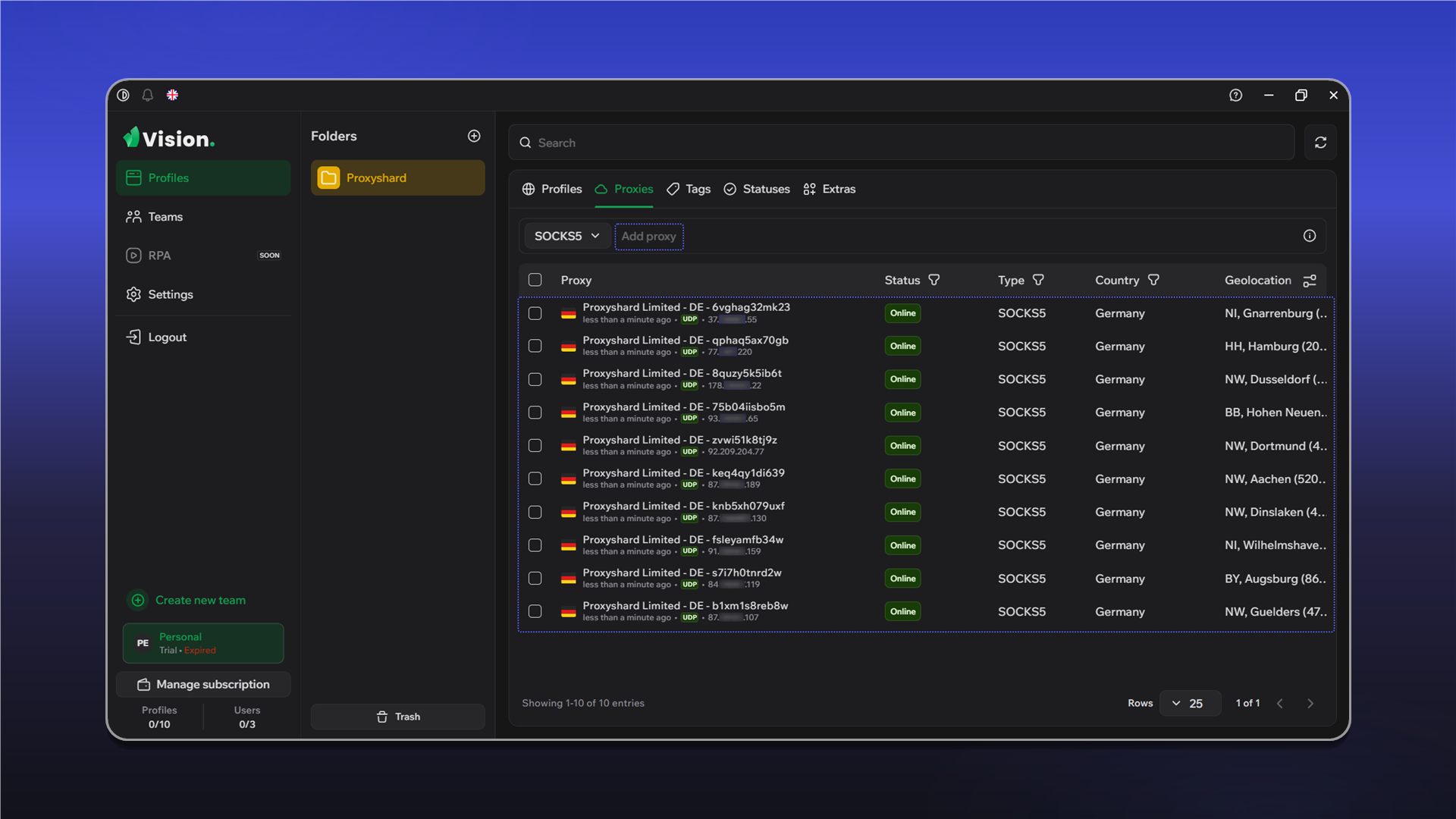
Open the Proxies tab and click Add proxy.
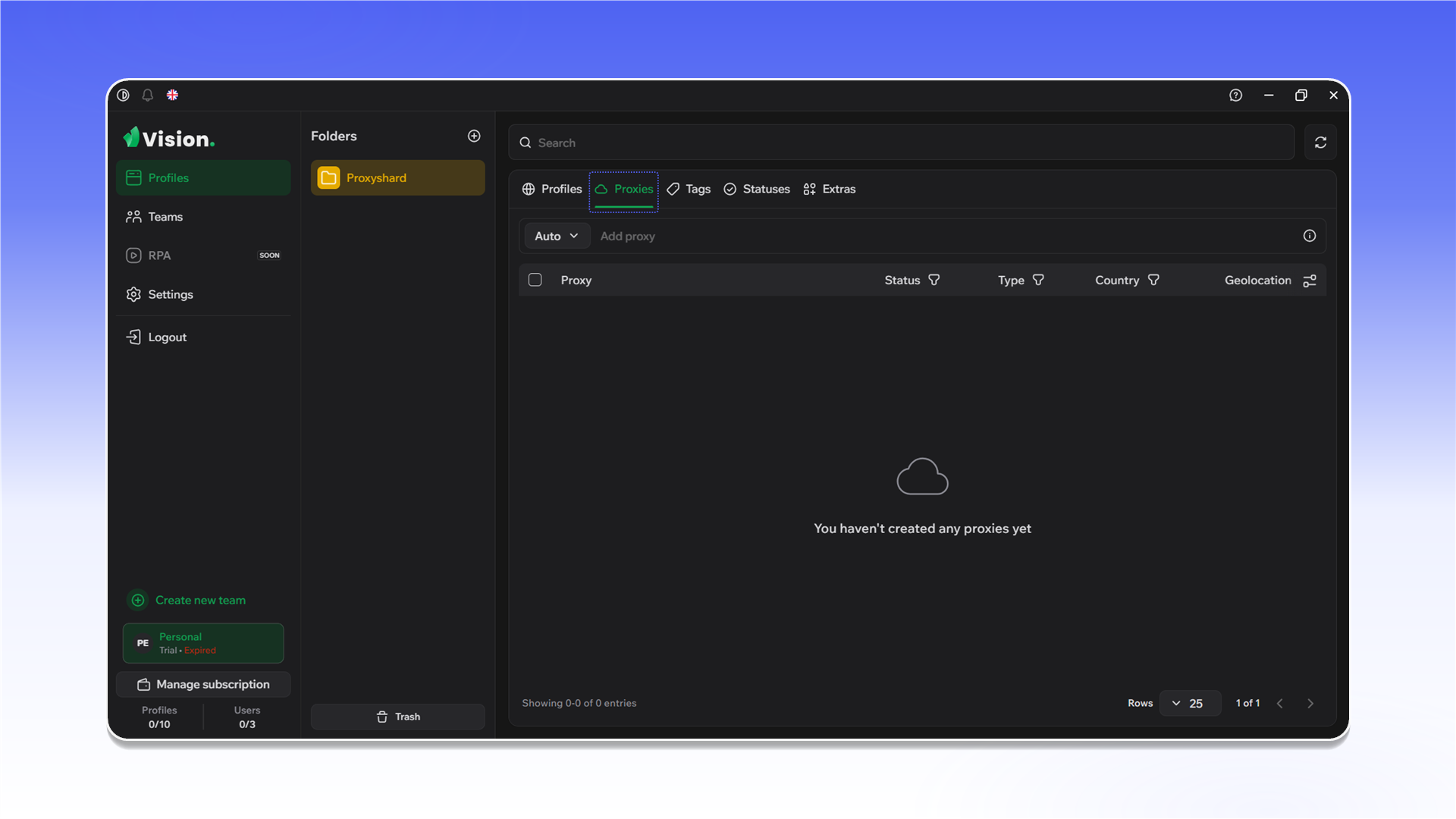
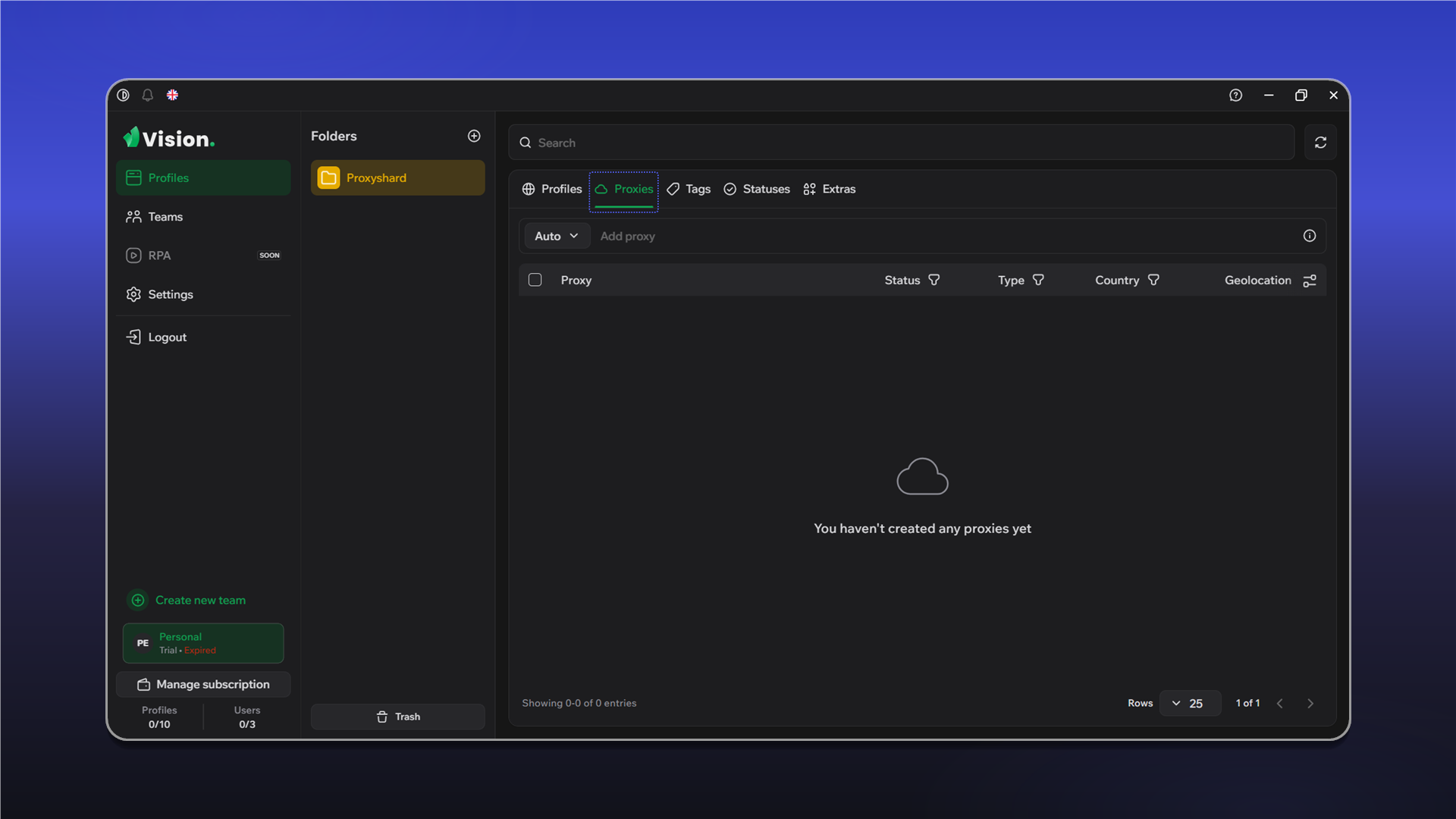
Generate a SOCKS5 proxy list in the ShardX dashboard and copy it.
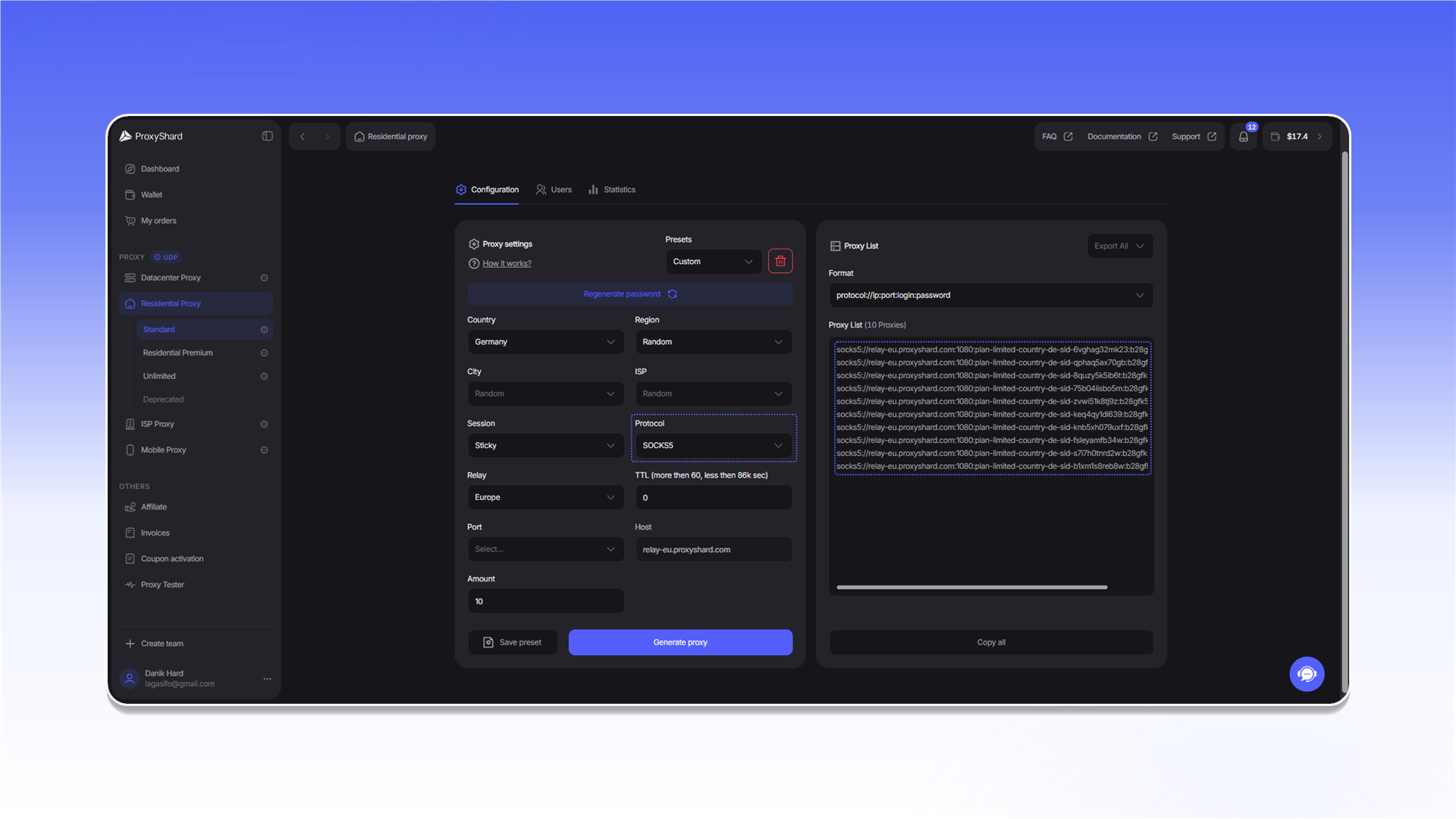
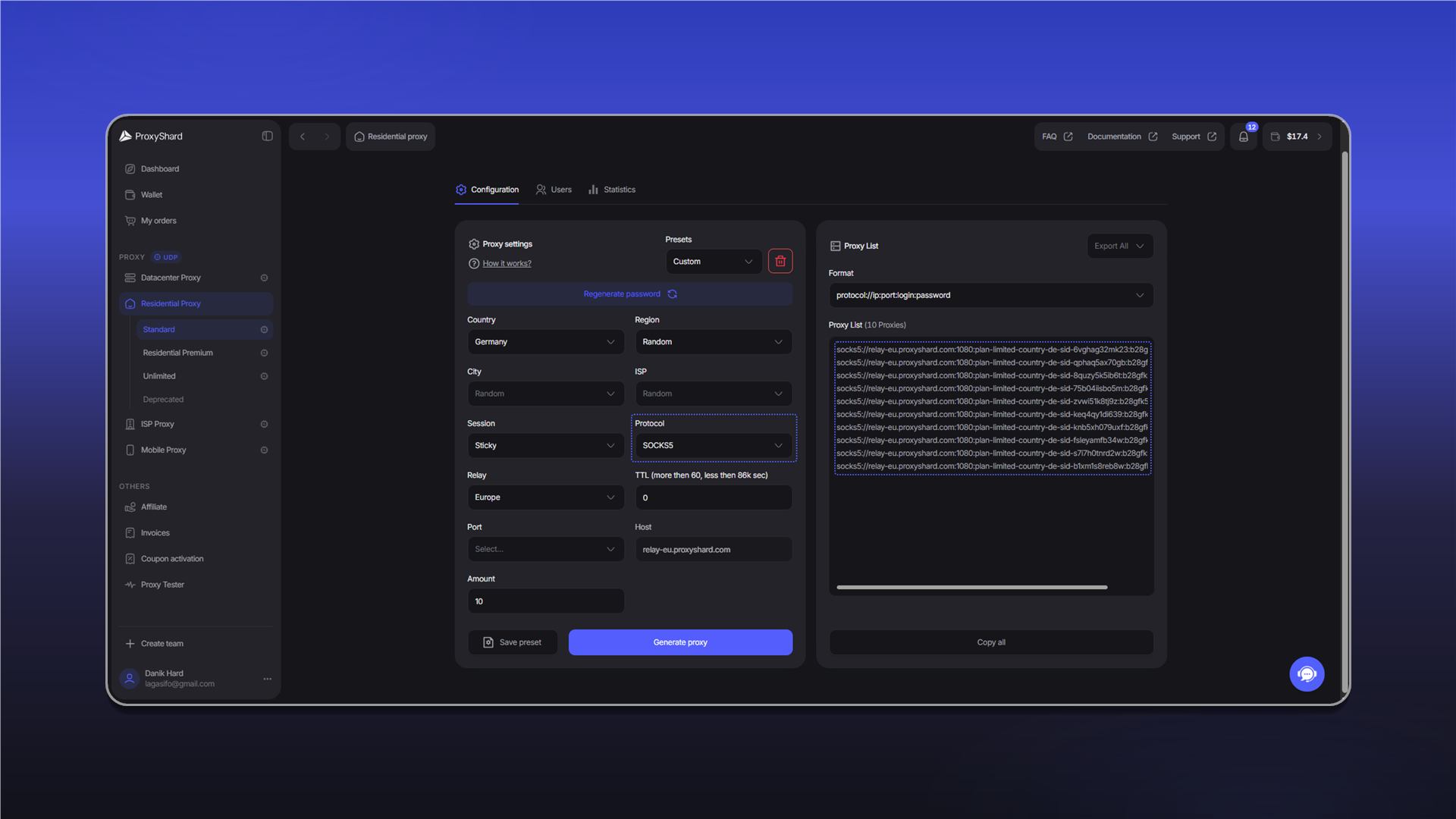
Paste the list into the add field. After import, confirm that the connections show Online.
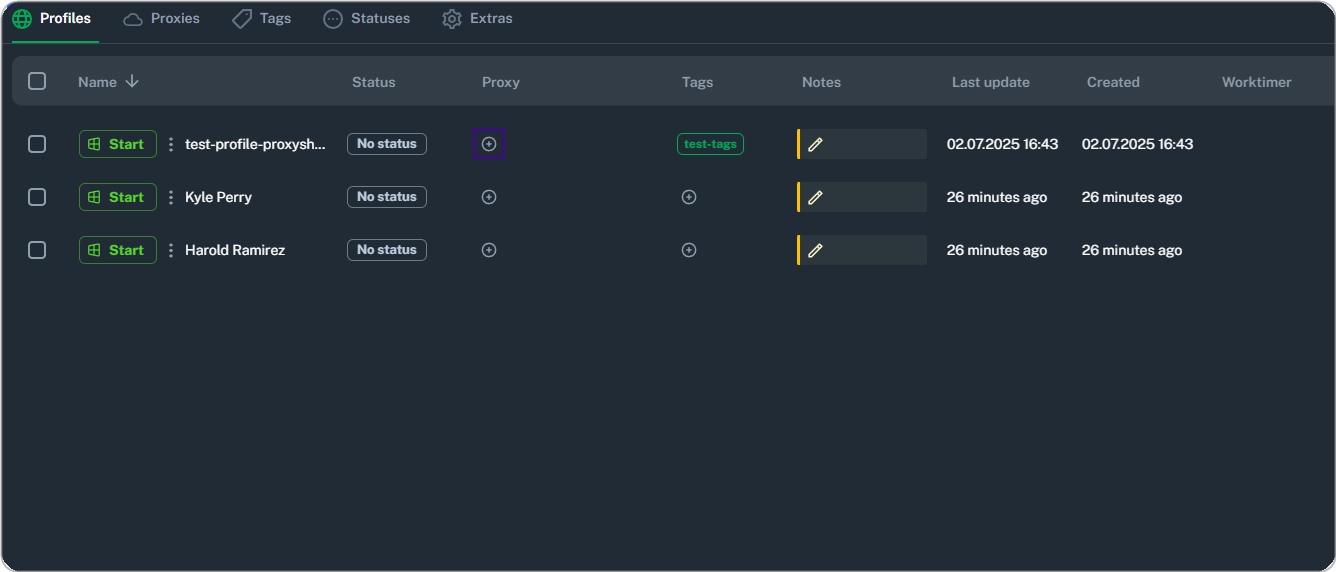
To assign a proxy to an existing profile, click the icon in the Proxy column.
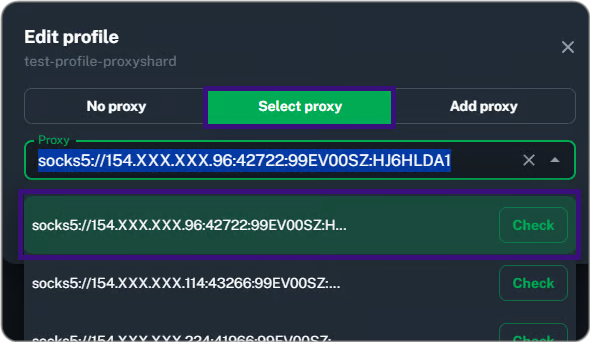
Choose Select proxy, select the required connection, and test it.
After saving, the assigned proxy appears in the profile row.

Check WebRTC
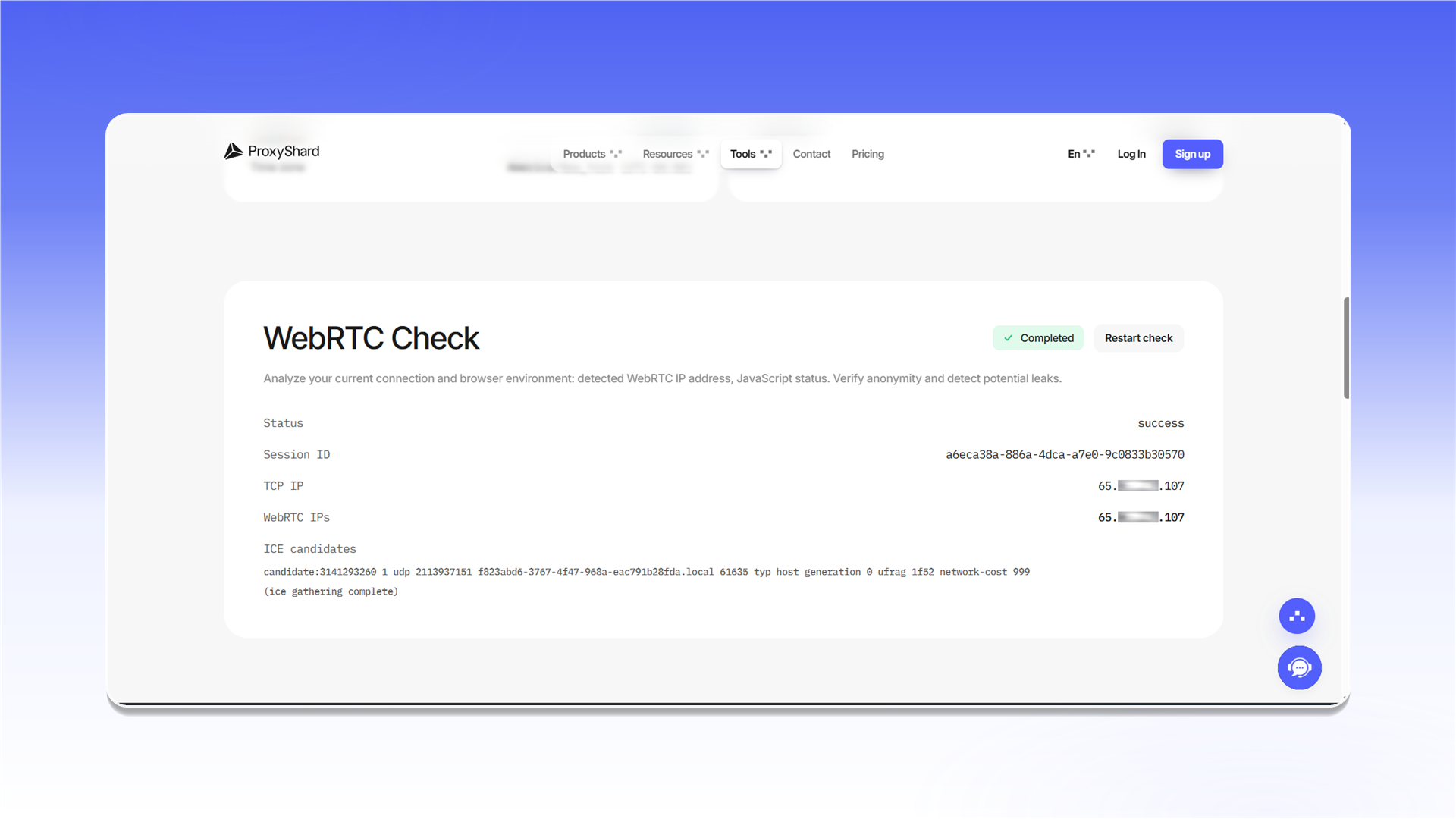
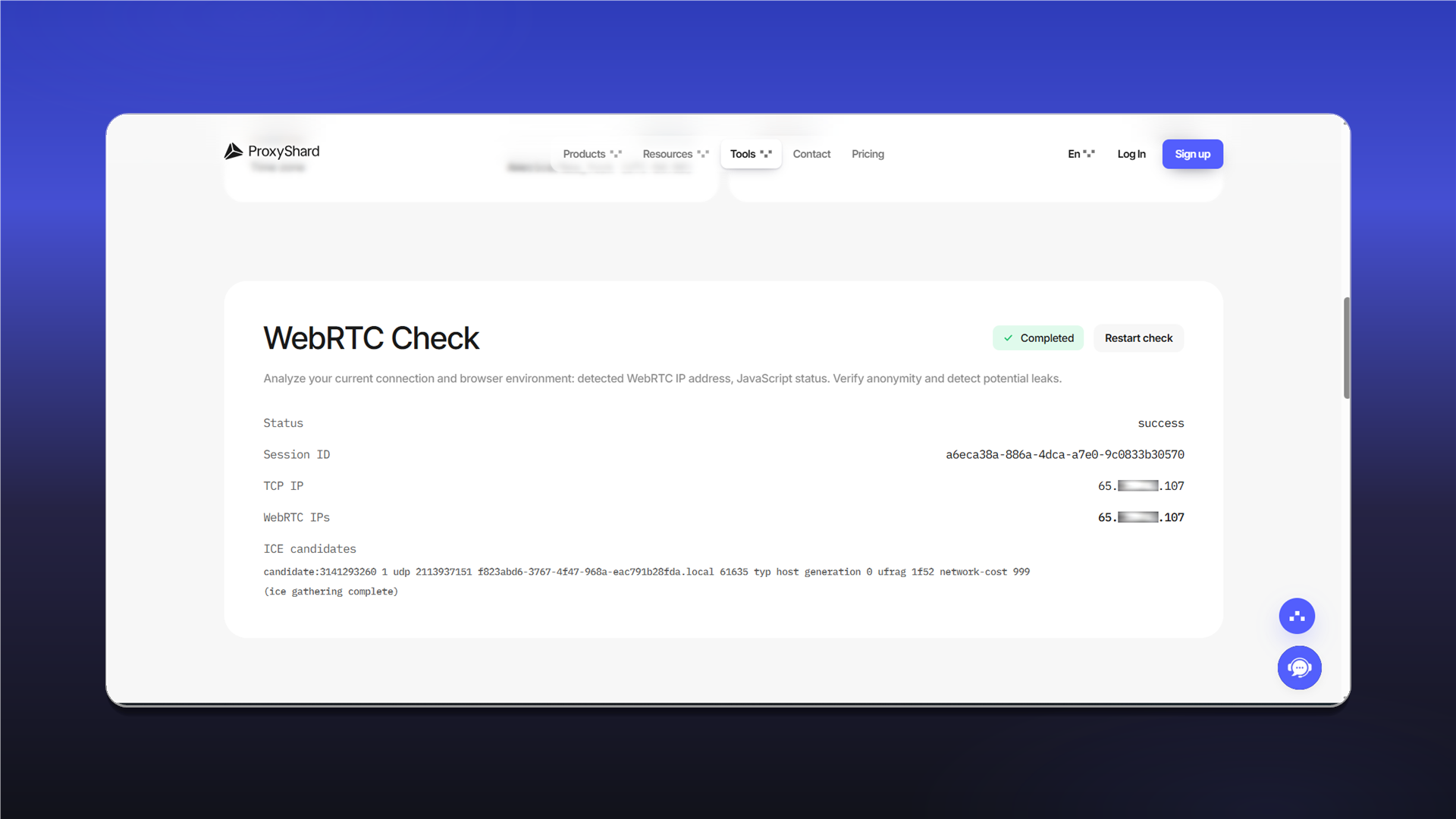
Start the profile and open ShardX IP Checker. The TCP and WebRTC addresses should match.
Last updated on