ShardX Extension
Extension for Chrome, Firefox, and other browsers
ShardX – Smart Proxy Manager is the official ShardX extension for Chrome, Mozilla Firefox, and Chromium-based browsers such as Edge, Opera, Brave, and Yandex. It lets you add, test, and switch proxies directly in your browser.
Extension features
- Unlimited proxy profiles
- HTTP / HTTPS support in every supported browser
- SOCKS5 support in Mozilla Firefox
- Connection, IP address, country, and latency checks
- Mobile proxy IP rotation by interval or keyboard shortcut
- Domain routing rules and automatic profile switching
- WebRTC leak protection and TCP fingerprint checks with p0f
- Profile import and export
- English, Russian, Ukrainian, and Chinese interface languages
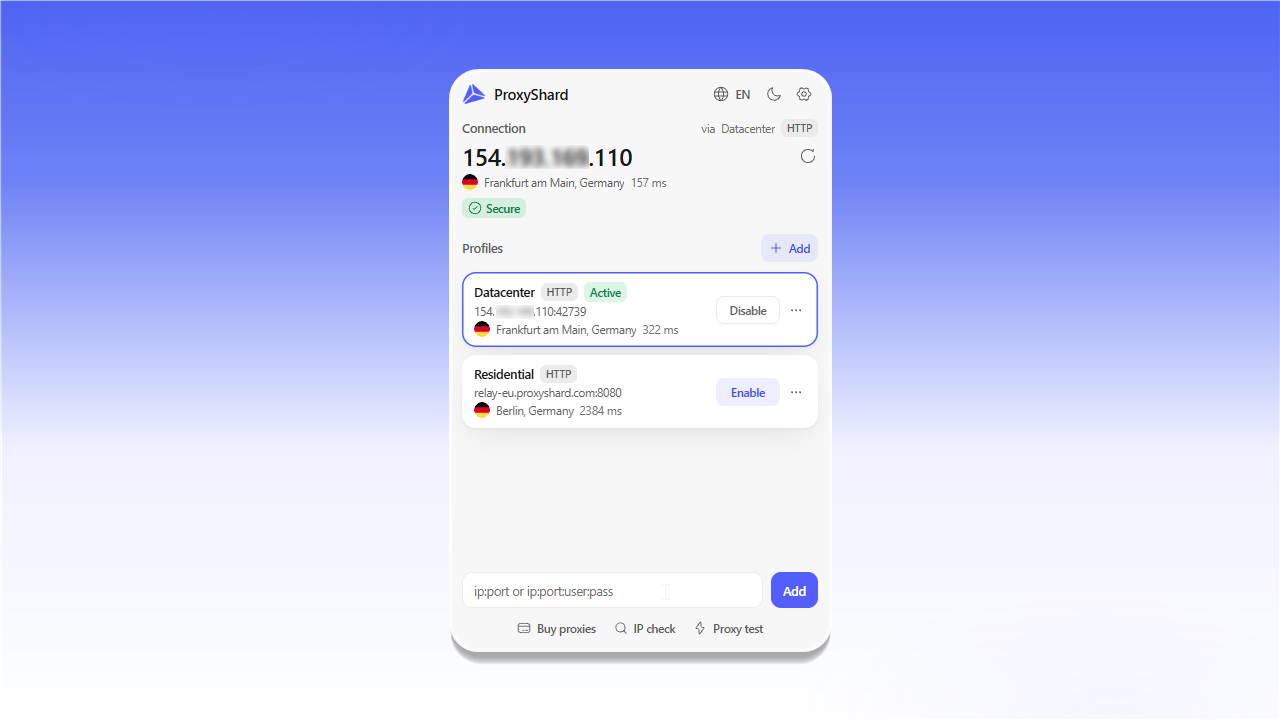
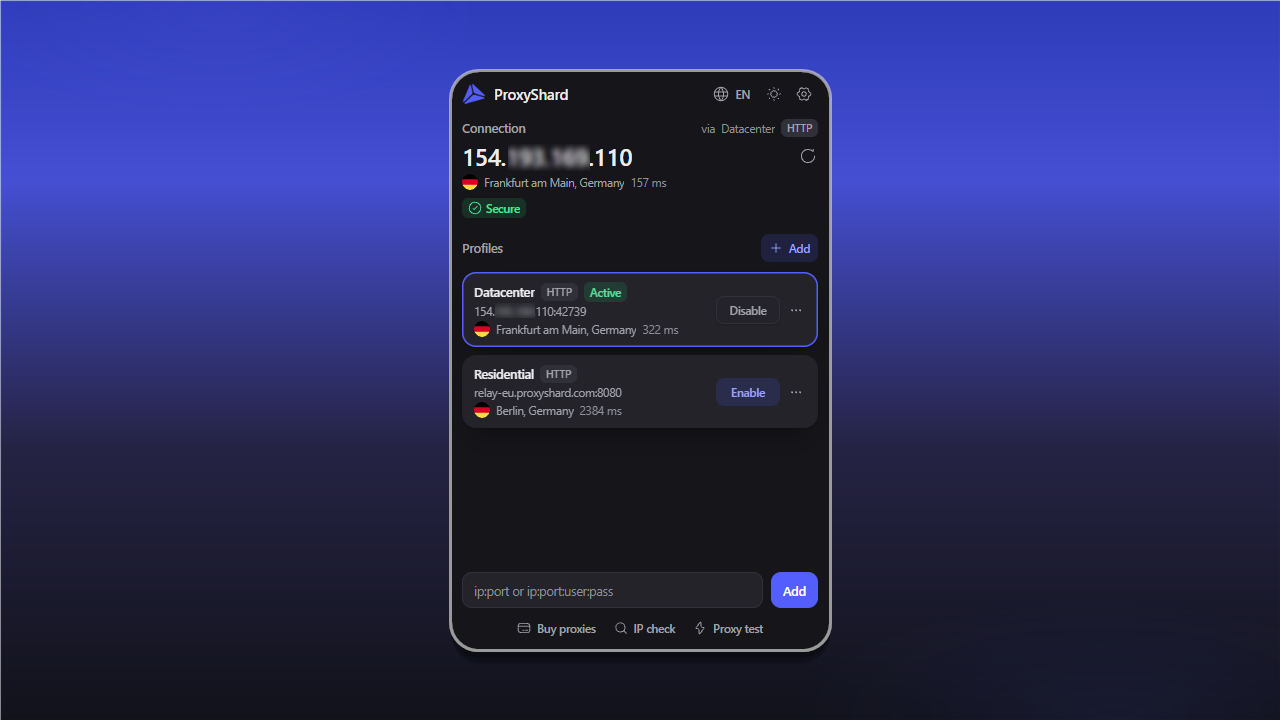
The main window with saved proxy profiles
Install the extension
The extension is available from the official Chrome Web Store and Firefox Add-ons. The Chrome Web Store version also works in Edge, Opera, Brave, and other Chromium-based browsers.
Chrome, Edge, Opera, Brave, Yandex, and other Chromium-based browsers
chromewebstore.google.comhttps://chromewebstore.google.com/detail/ohlcikccaeapbfpmejhckfjjddkcflbeMozilla Firefox
addons.mozilla.orghttps://addons.mozilla.org/en-US/firefox/addon/proxyshard-smart-proxy-manager/After installation, open the Extensions menu to the right of the address bar and pin ShardX – Smart Proxy Manager by clicking the pin icon.
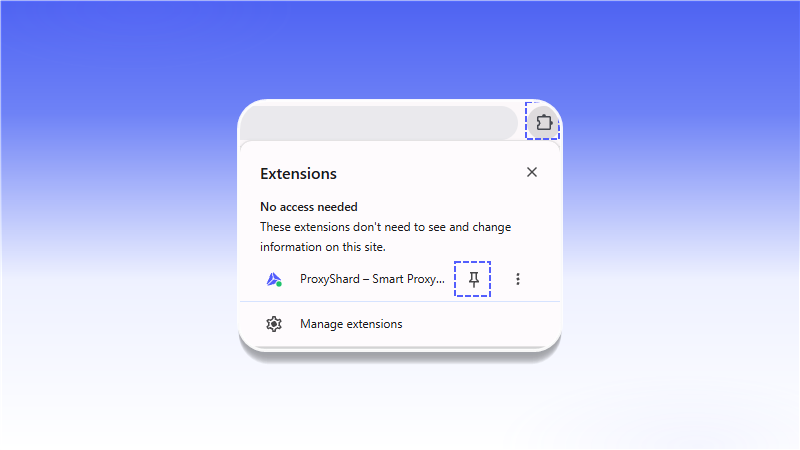
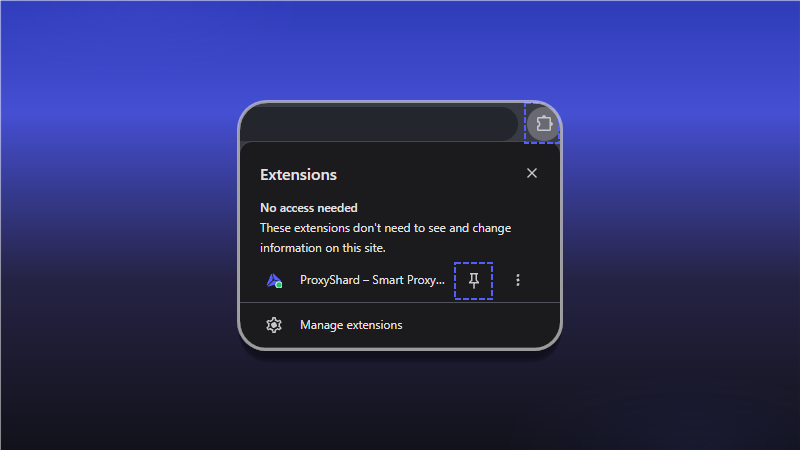
Open the Extensions menu and pin the extension
SOCKS5 limitation in Chromium-based browsers
Chrome and other Chromium-based browsers do not support username and password authentication for SOCKS5 proxies through Manifest V3 extensions.
You can use SOCKS5 only without credentials or with IP allowlist authentication. Select HTTP / HTTPS for proxies that require a username and password.
SOCKS5 in Mozilla Firefox
The Mozilla Firefox version of ShardX Extension supports authenticated SOCKS5, so you can use these profiles directly.
Set up a Residential proxy
- Open your order on the Residential proxy page.
- Select the country, region, session type, protocol, and other settings, then click
Generate proxy. - Select the required format in
Proxy List, then clickCopy all.
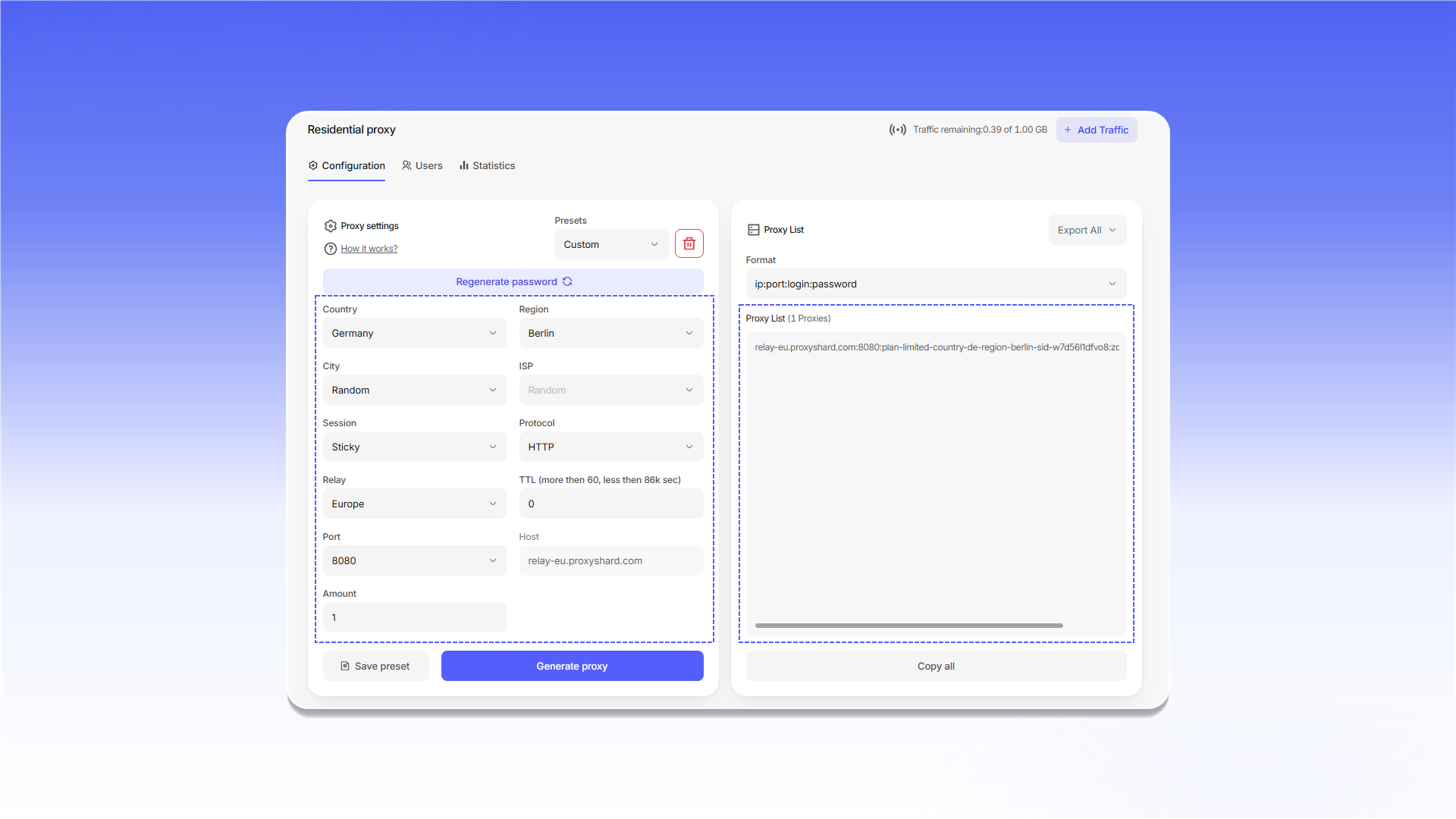
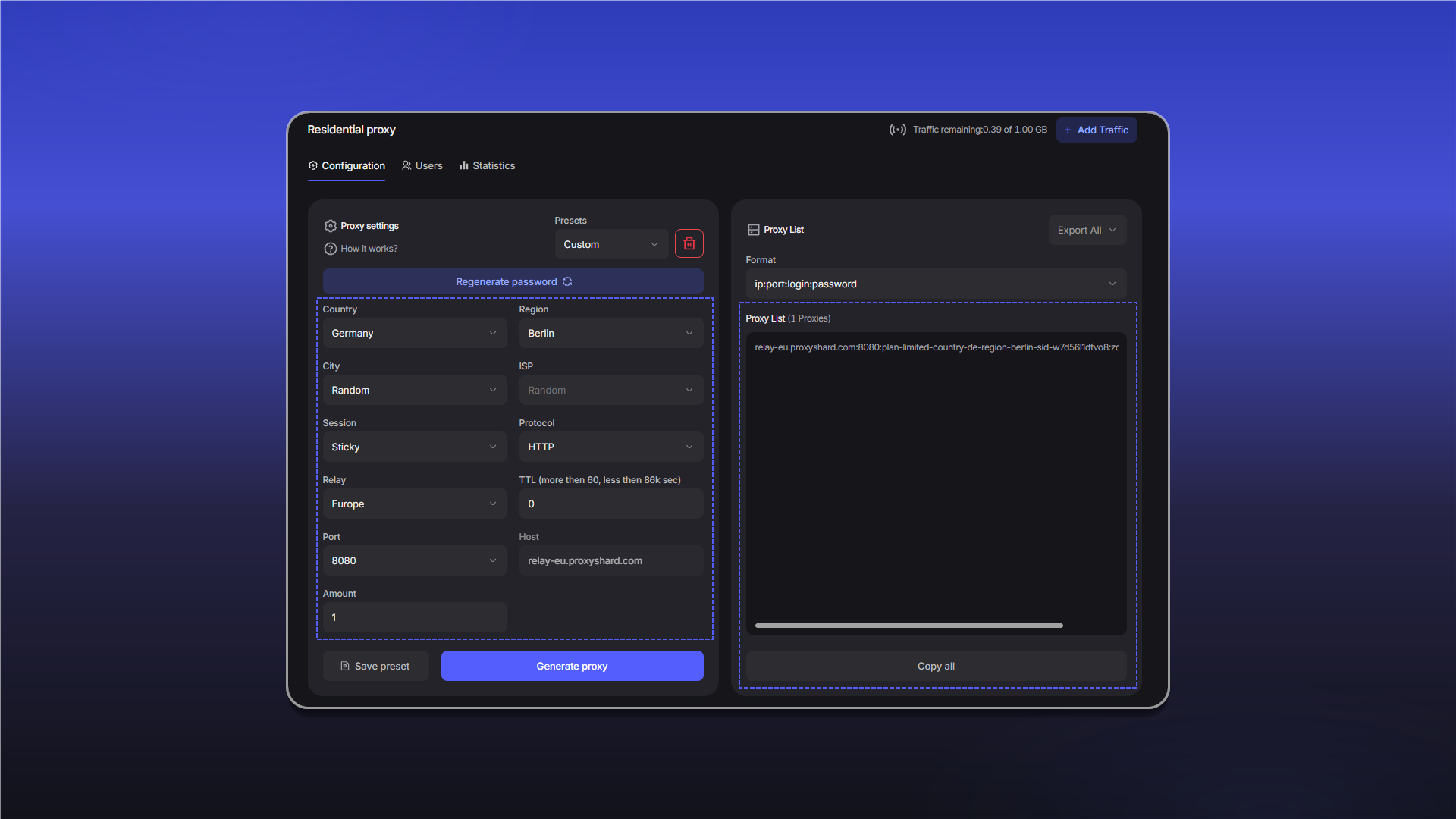
Residential proxy settings and the Proxy List section
- Open the pinned ShardX extension.
- Paste the proxy string in
ip:port:login:passwordformat into the field at the bottom, then clickAdd.
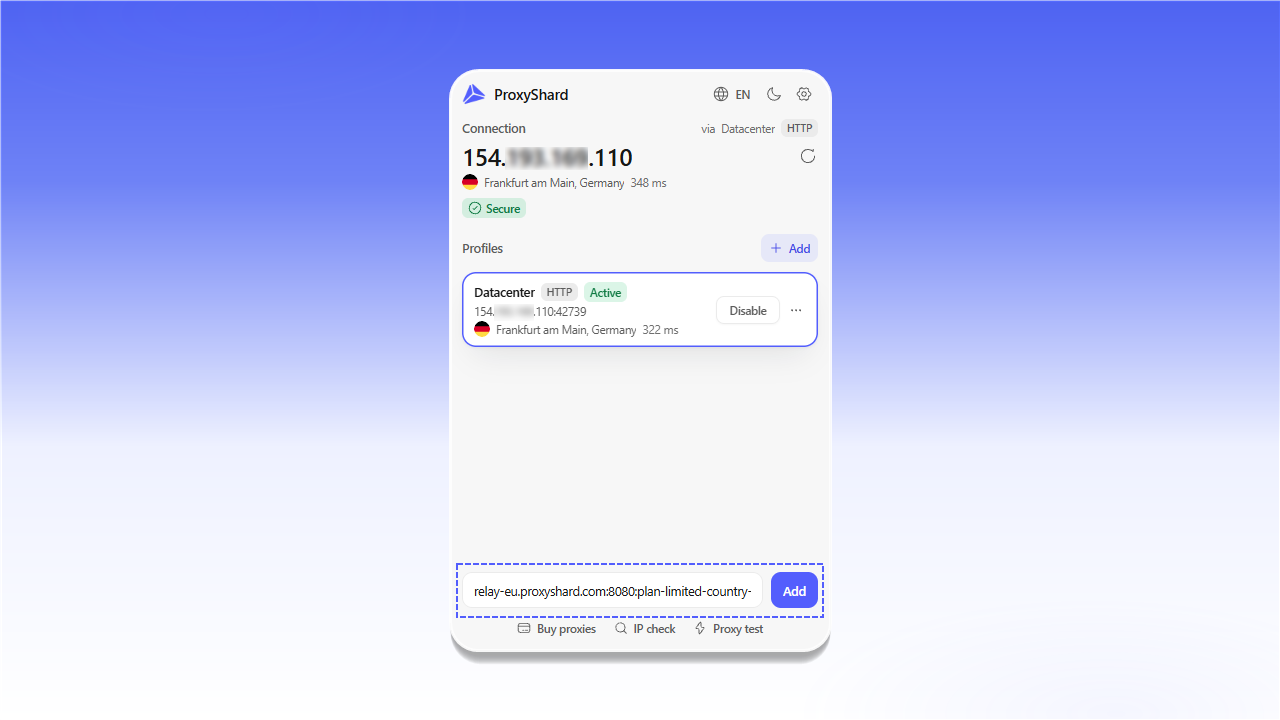
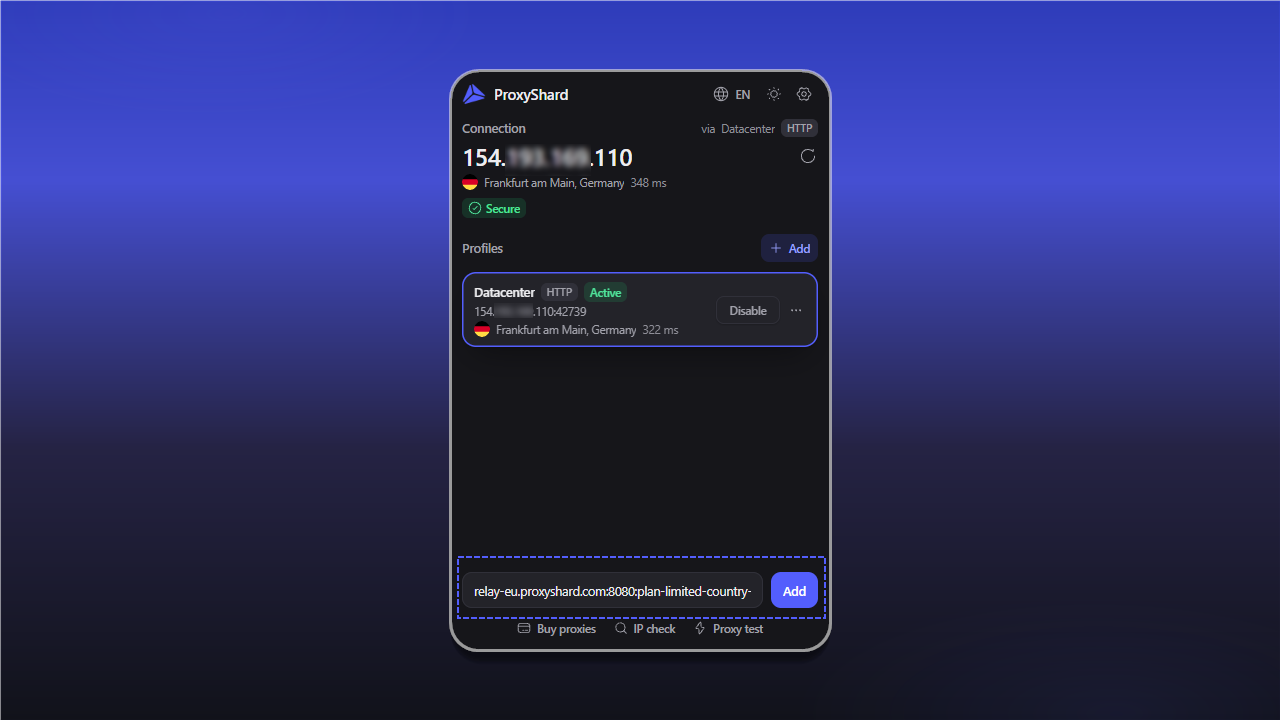
Paste the connection string and click Add
- The new profile appears in the list. Open its
...menu, selectTest connection, and clickEnableafter the test succeeds.
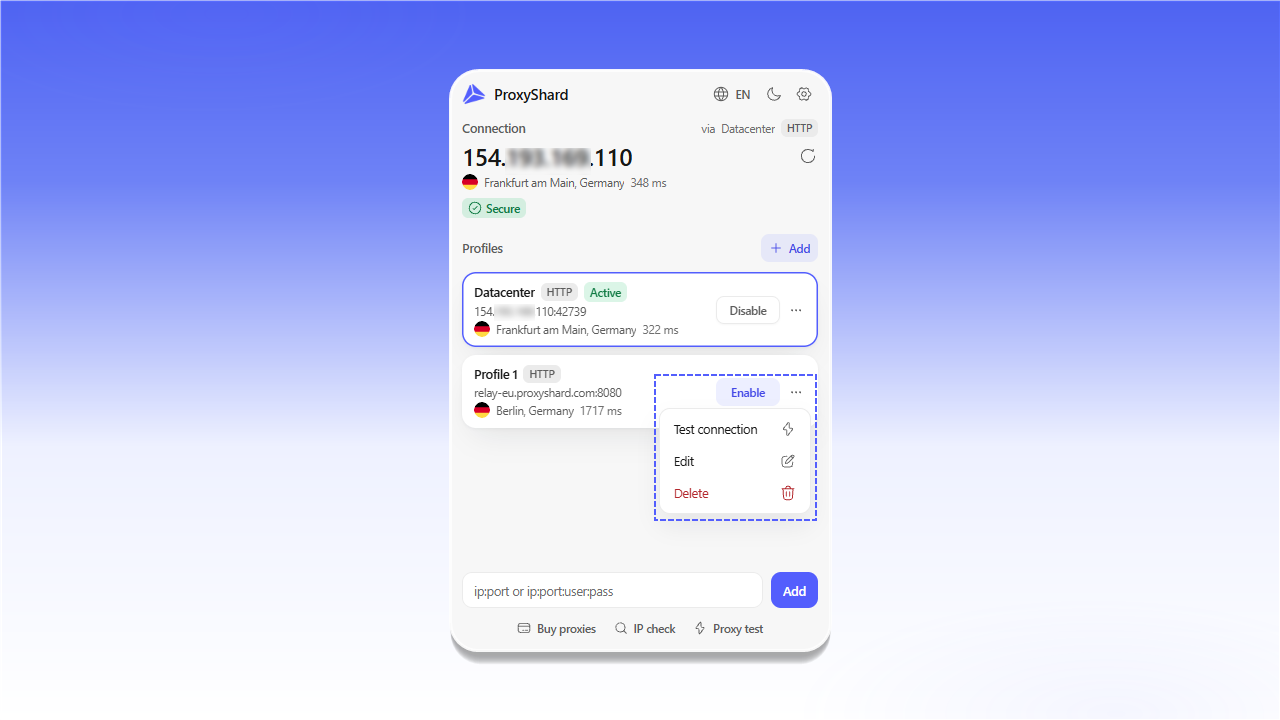
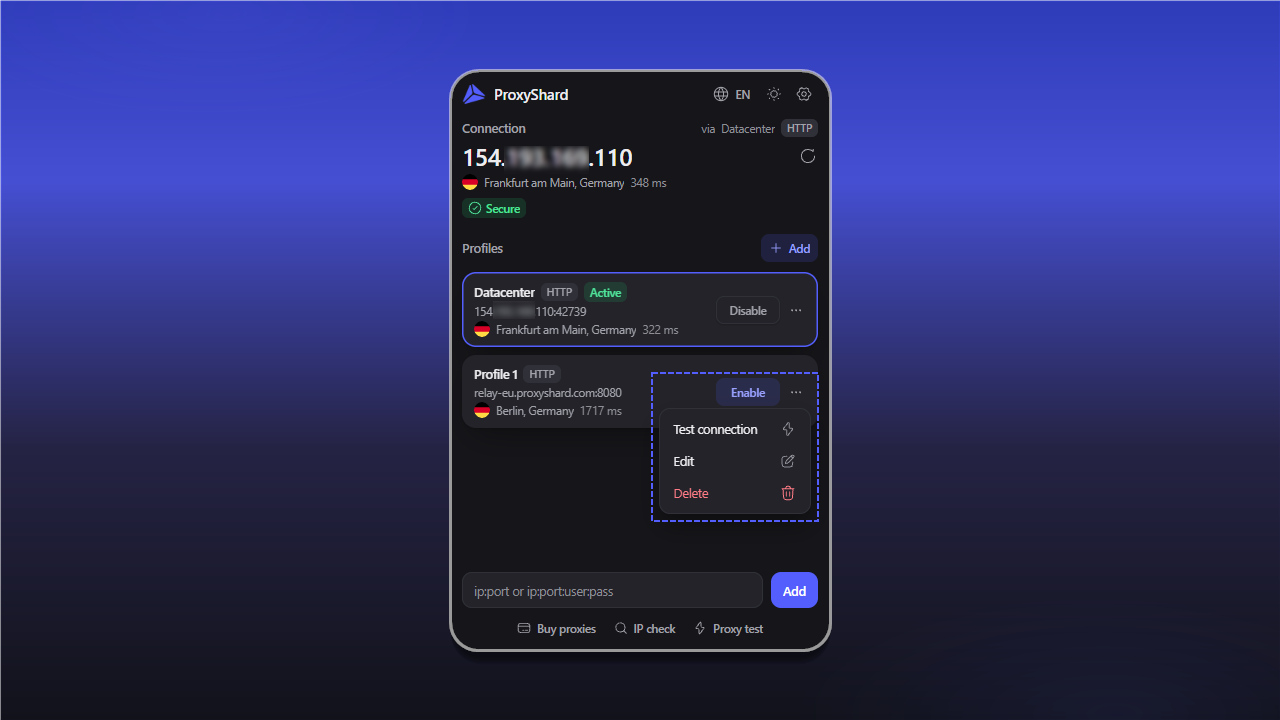
Profile test, edit, and delete actions
Set up a Datacenter or ISP proxy
- Open the Datacenter or ISP proxy order in your dashboard.
- Select the protocol and format in
Proxy List, then clickCopy all.
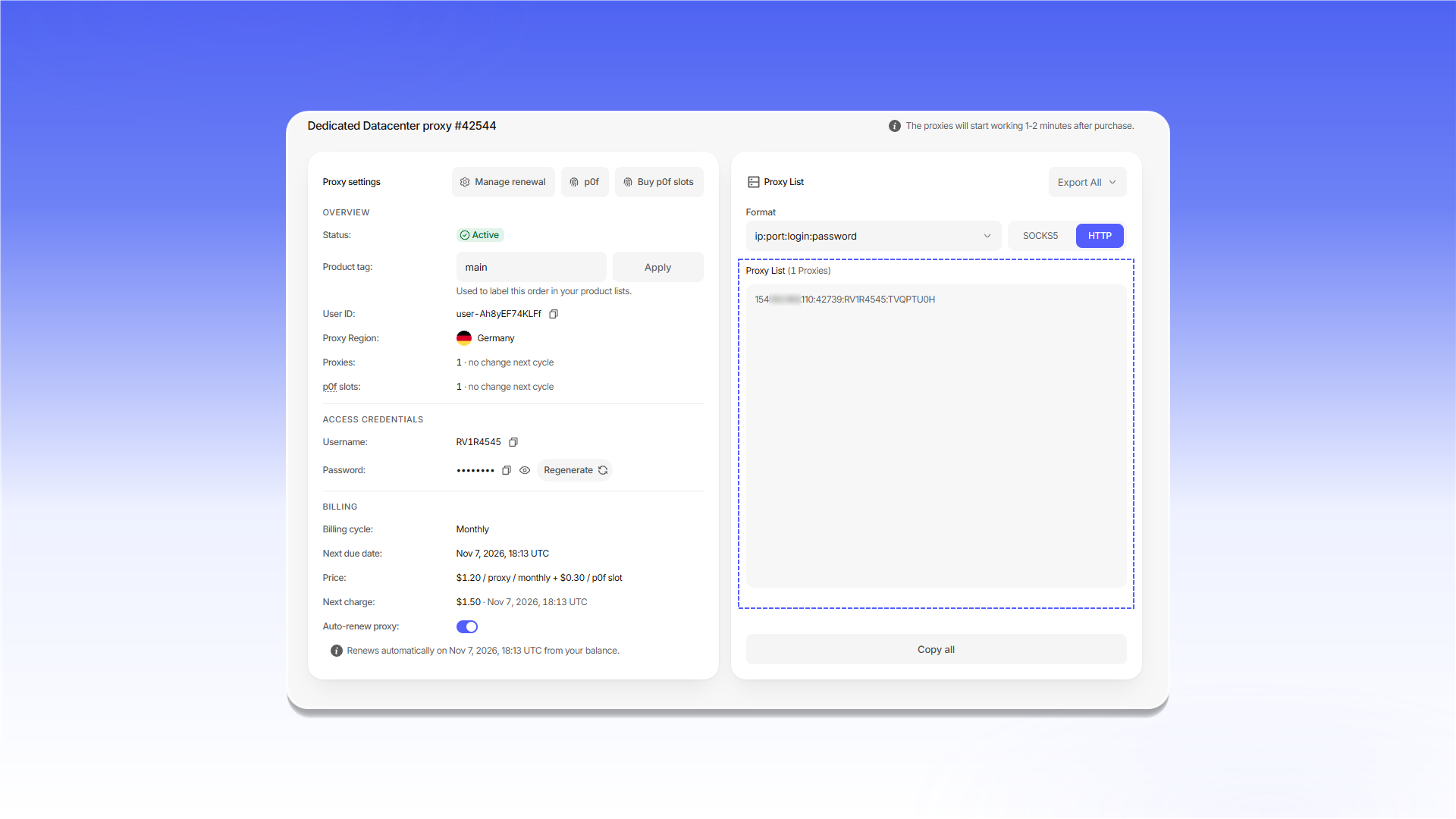
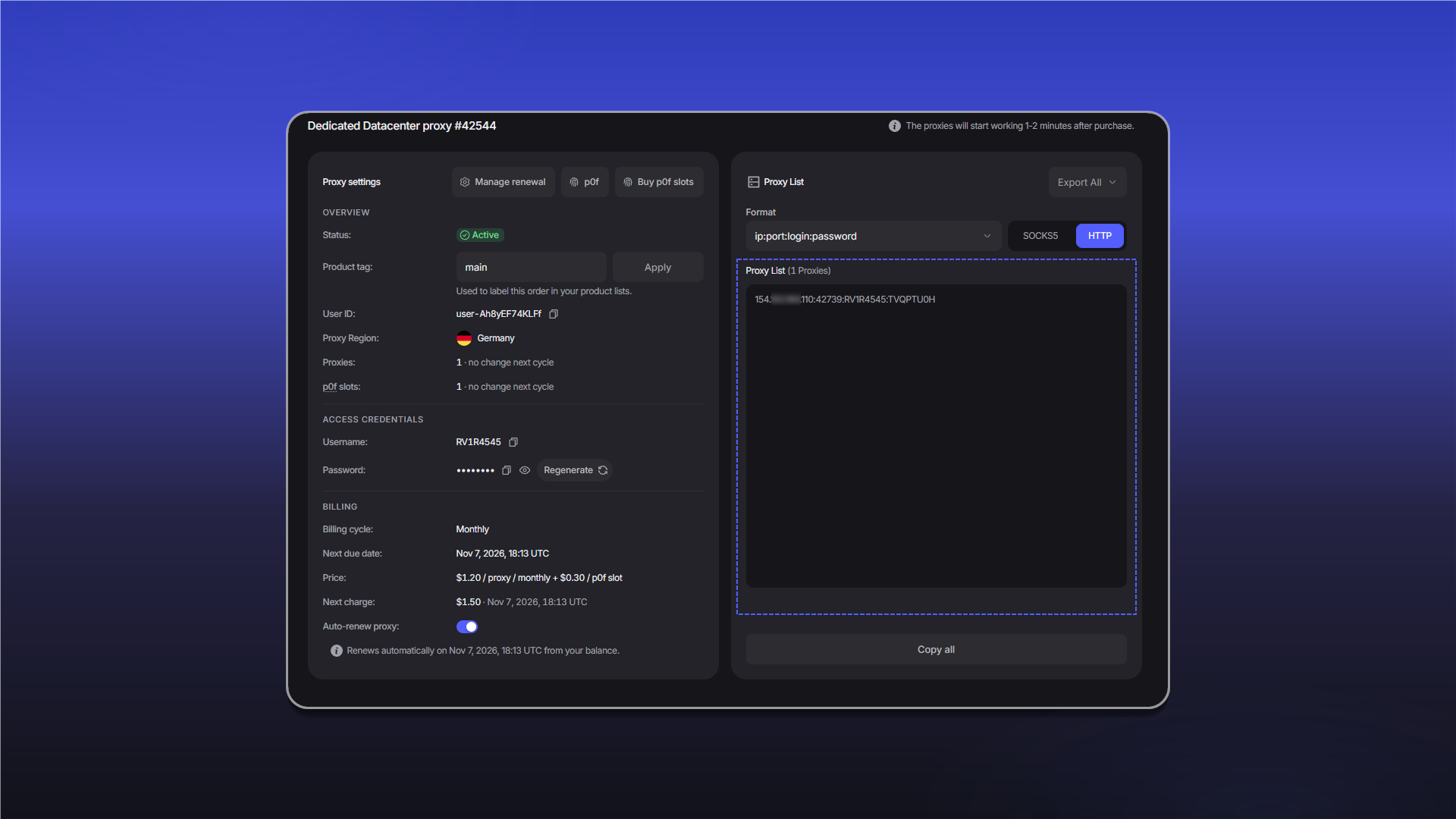
Copy the connection string from Proxy List
- Open the extension, paste the string into the field at the bottom, and click
Add.
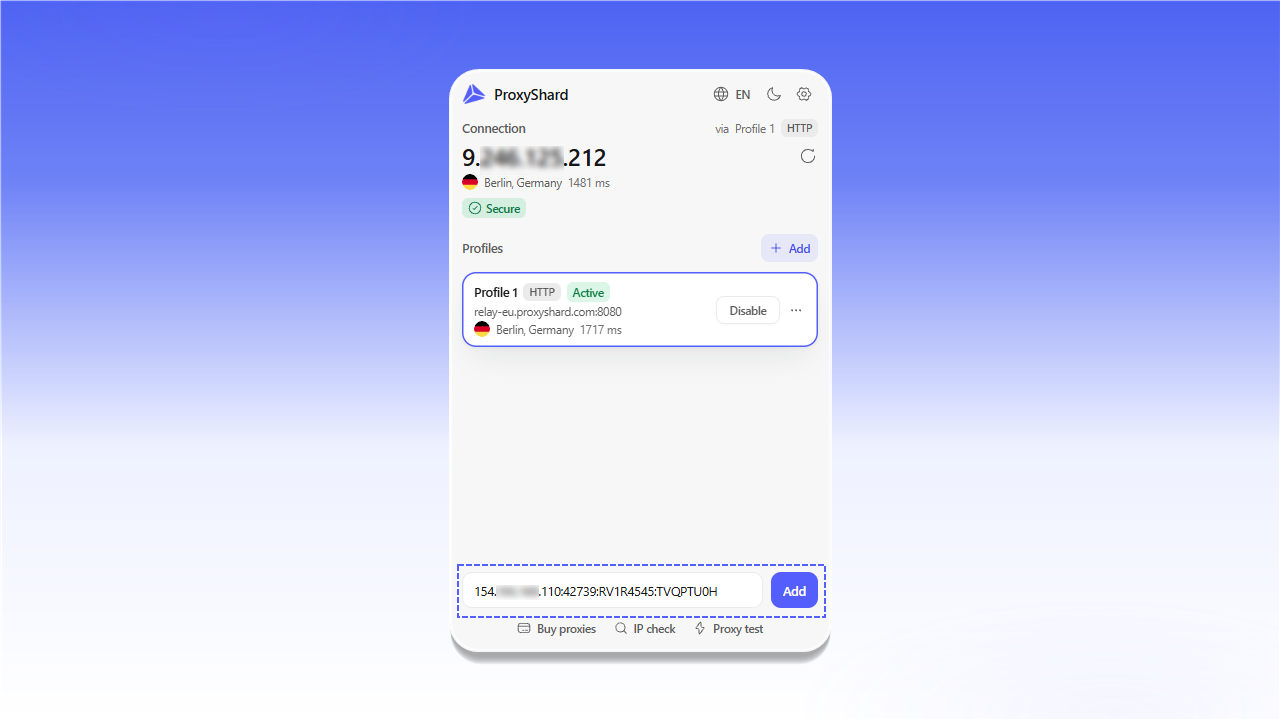
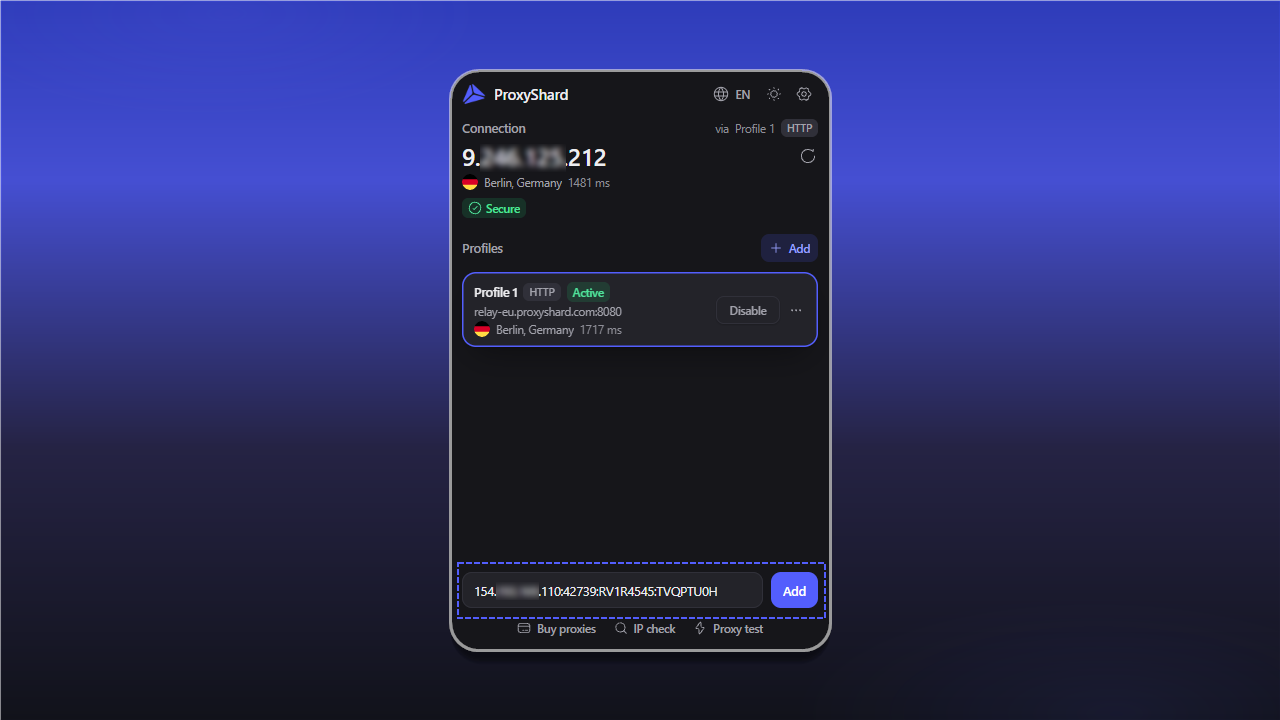
Add a Datacenter or ISP proxy
- Open the new profile's
...menu and selectTest connection. - If the test succeeds, click
Enable. Enabling another profile automatically switches the current connection.
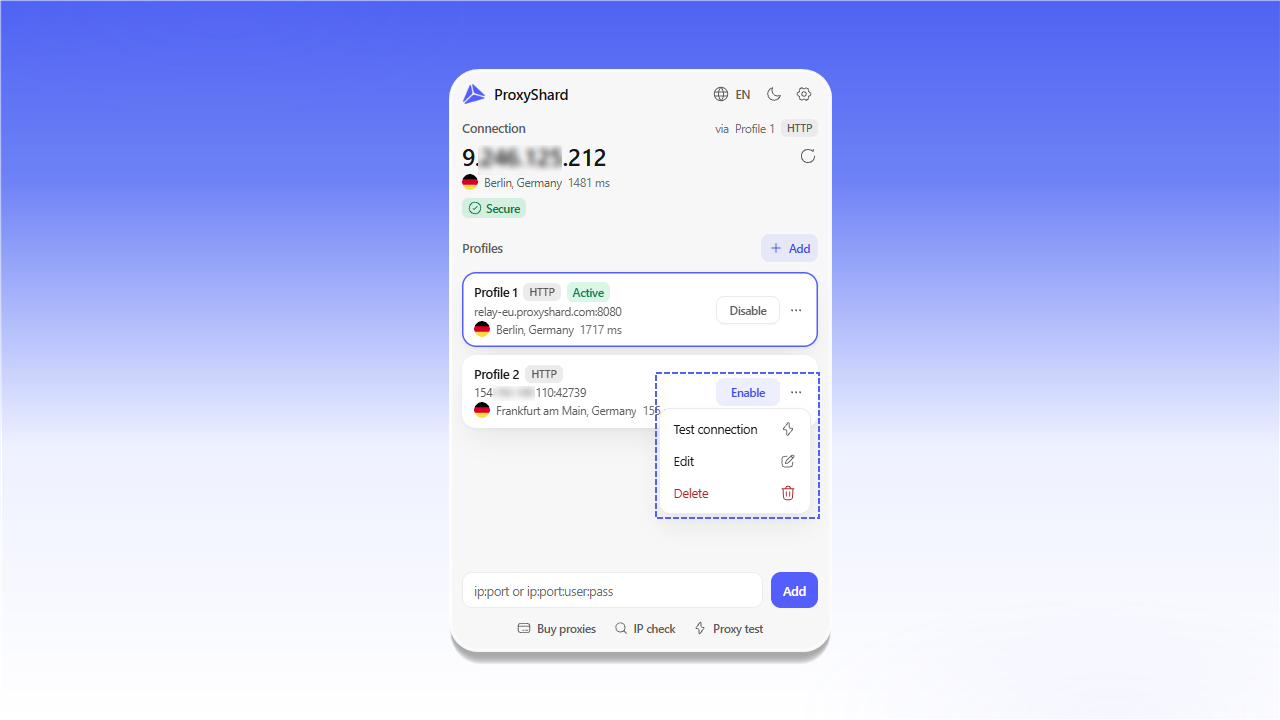
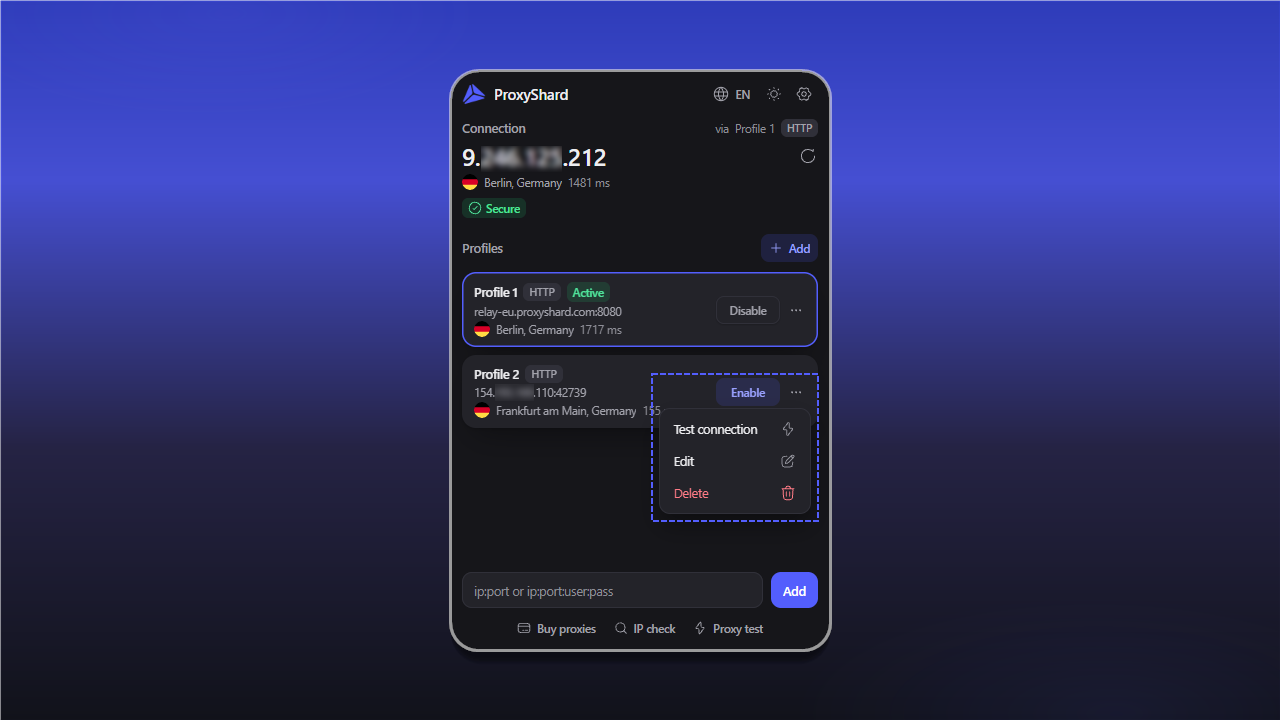
Test and enable the new profile
Mobile proxy IP rotation
Open the profile's ... menu, click Edit, and expand IP rotation.
Enable IP rotationturns on automatic IP rotation.- Paste the IP rotation link from your mobile proxy order into
Rotation URL. - Under
Trigger, selectHotkeyorInterval. - For
Hotkey, enter a keyboard shortcut such asShift+F2. To use it on internalchrome://pages, assign it separately atchrome://extensions/shortcuts. - For
Interval, set the time between IP rotation requests. Track IP history (detects duplicate IPs)detects when the same IP address is assigned again.
Click Save profile to save the settings.
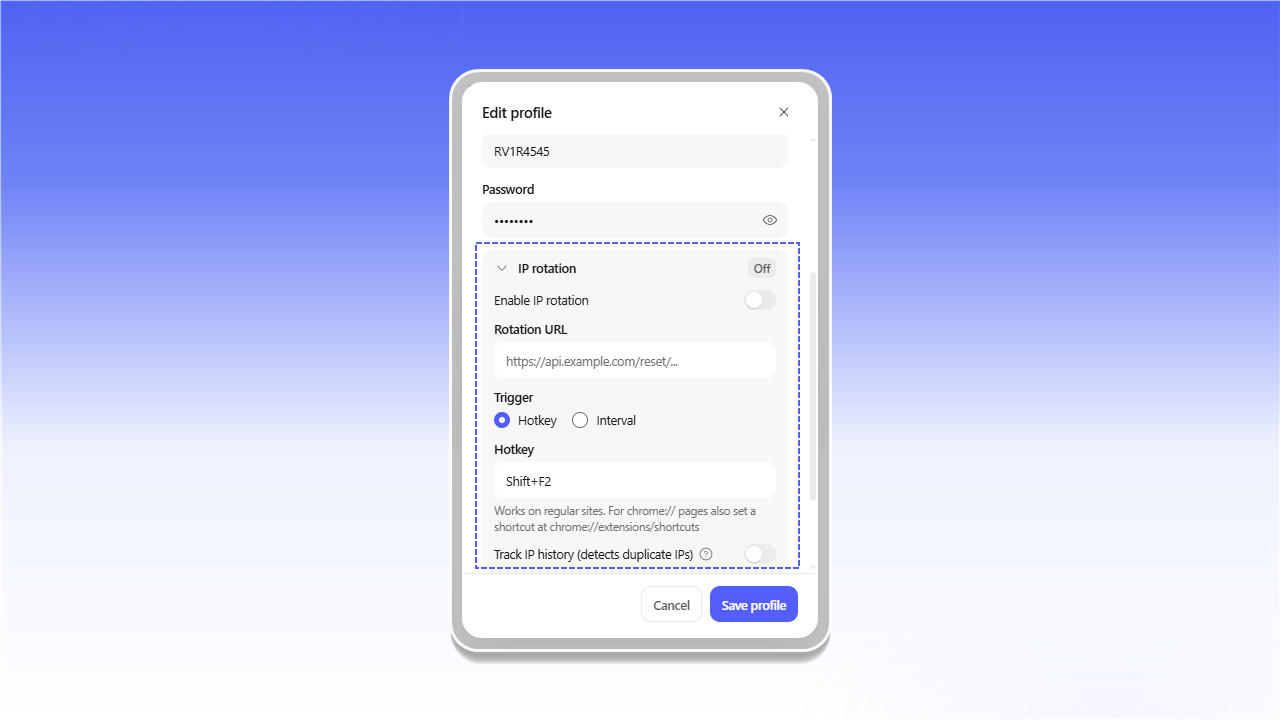
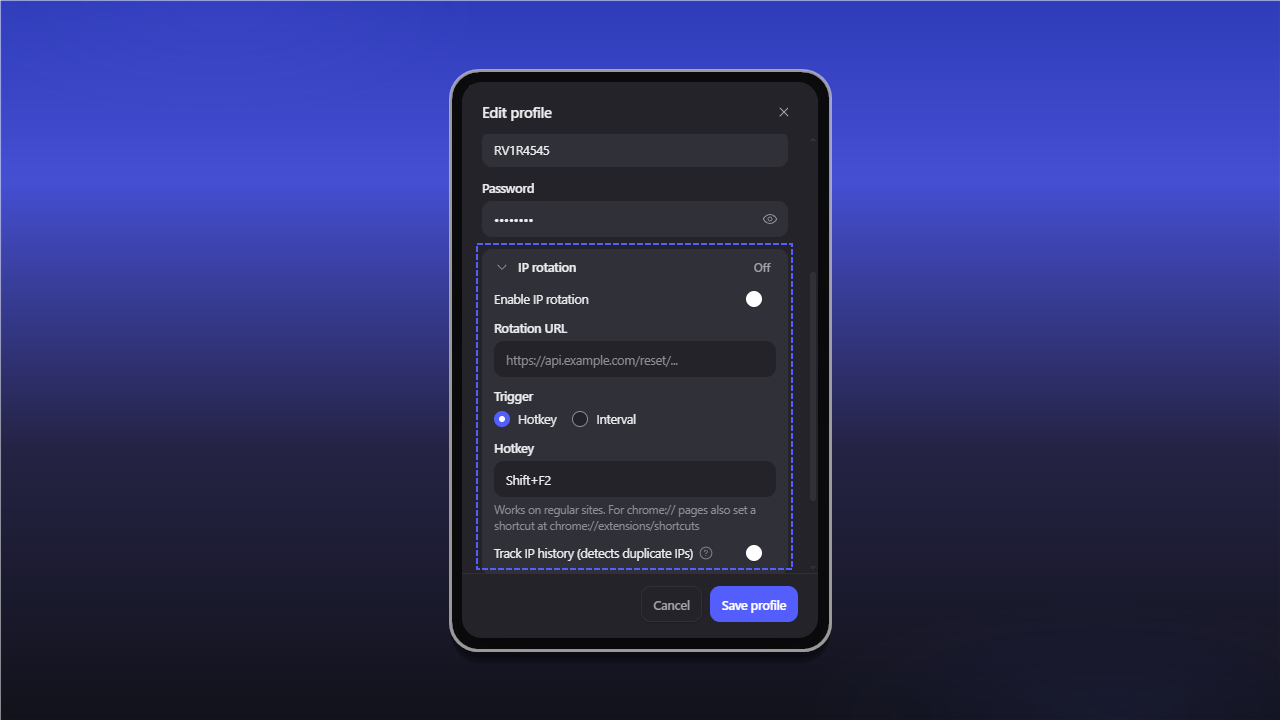
Rotate the IP by keyboard shortcut or interval
Domain routing and automatic switching
The profile editor includes Domain routing and Auto-switch sections.
Domain routing
This section controls how proxy traffic is routed for specific domains.
Enable routing rulesturns on domain routing rules.Whitelistsends only the specified domains through the proxy.Blacklistexcludes the specified domains from proxy routing.- Under
Domains, enter one domain per line. To include subdomains, add the*.wildcard before the domain, for example*.google.com.
Auto-switch
This feature automatically enables the selected profile when you open configured websites.
Enable auto-switchturns on automatic profile switching.- Under
Activate on these domains, enter one domain per line, for exampleexample.comor*.work-site.com.
Click Save profile to save the changes or Cancel to close the window without saving.
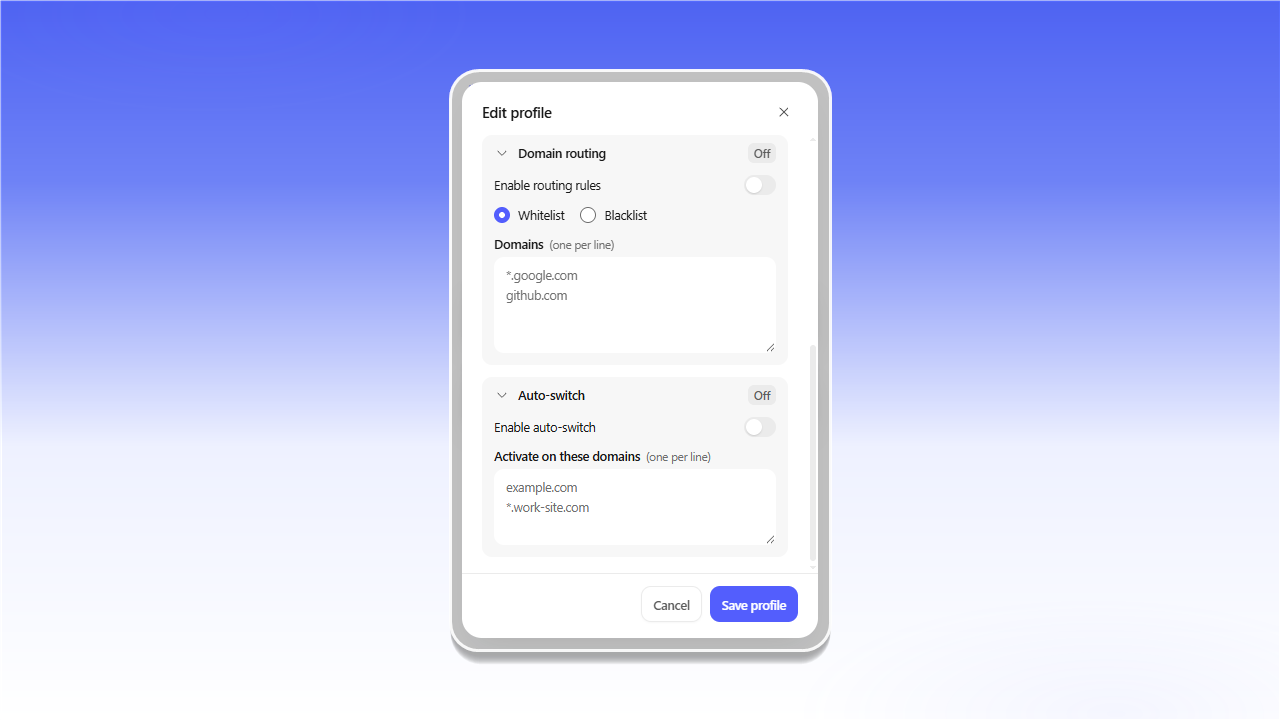
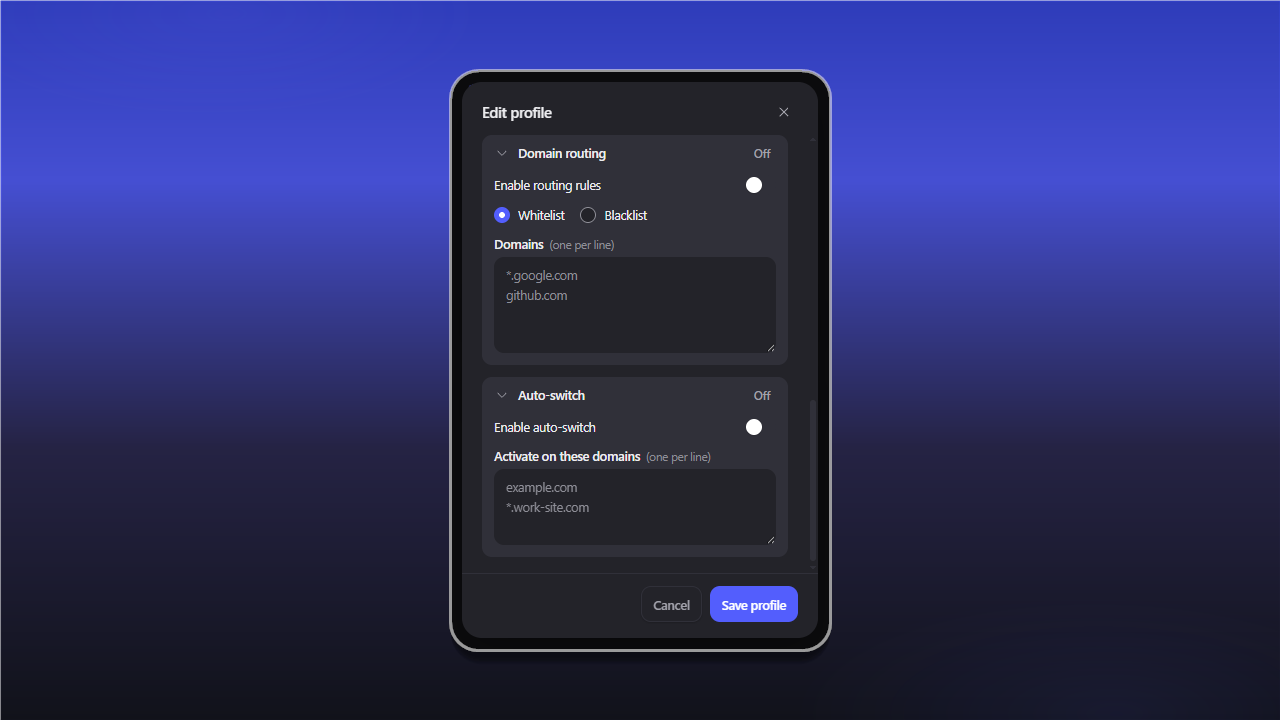
Domain routing and automatic profile switching
Add a profile manually
- Click the gear icon in the main extension window and open
Profiles. - Click
+ Add profile, then select theManualtab. - Complete the fields:
Name- profile name;Type- connection type;HostandPort- proxy server address and port;Bypass list- addresses that should connect directly, one per line;UsernameandPassword- authentication credentials.
- If required, configure
IP rotation,Domain routing, andAuto-switch domains. - Click
Save profile.
To add a complete proxy string quickly, use the Quick paste tab.
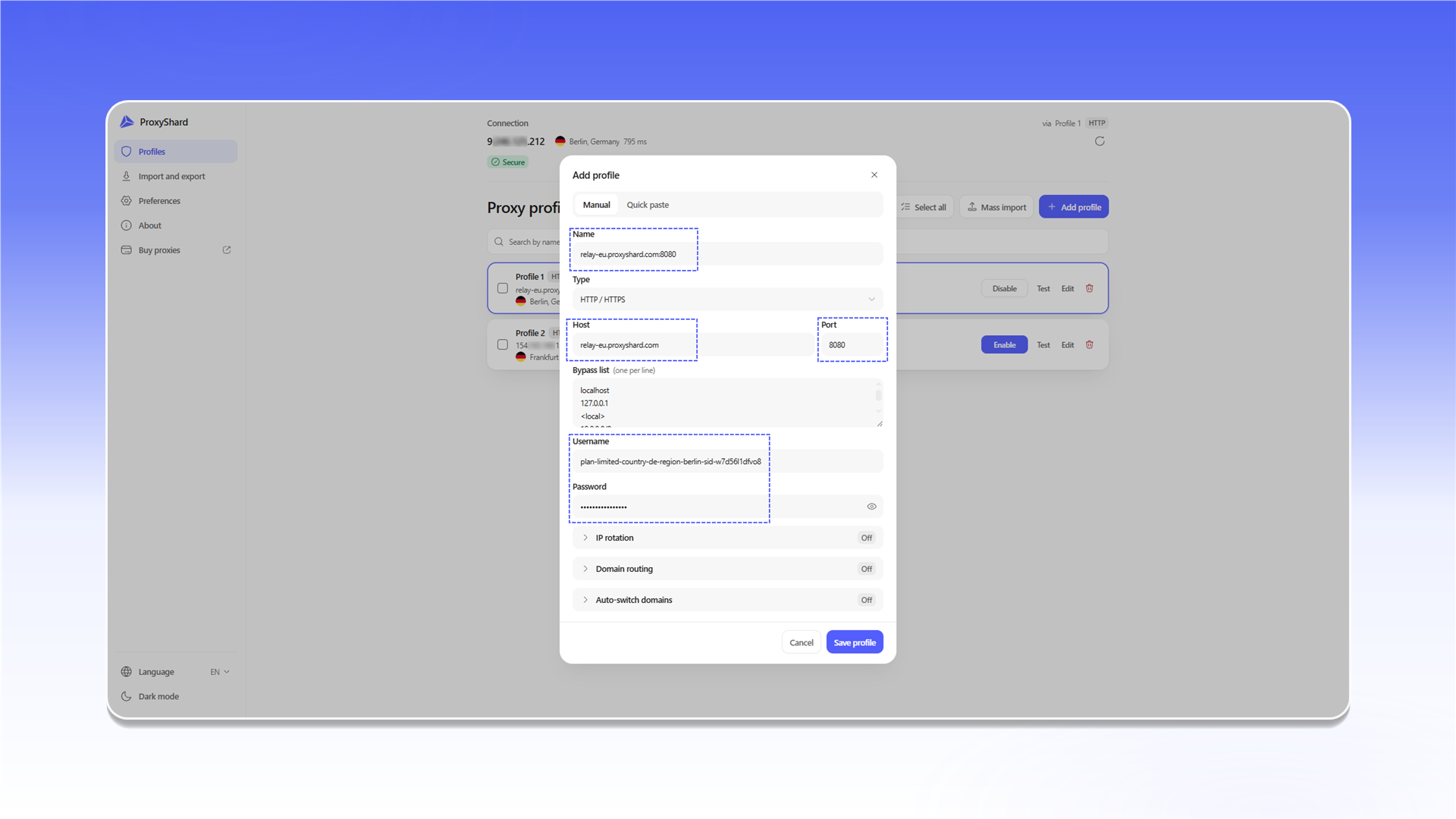
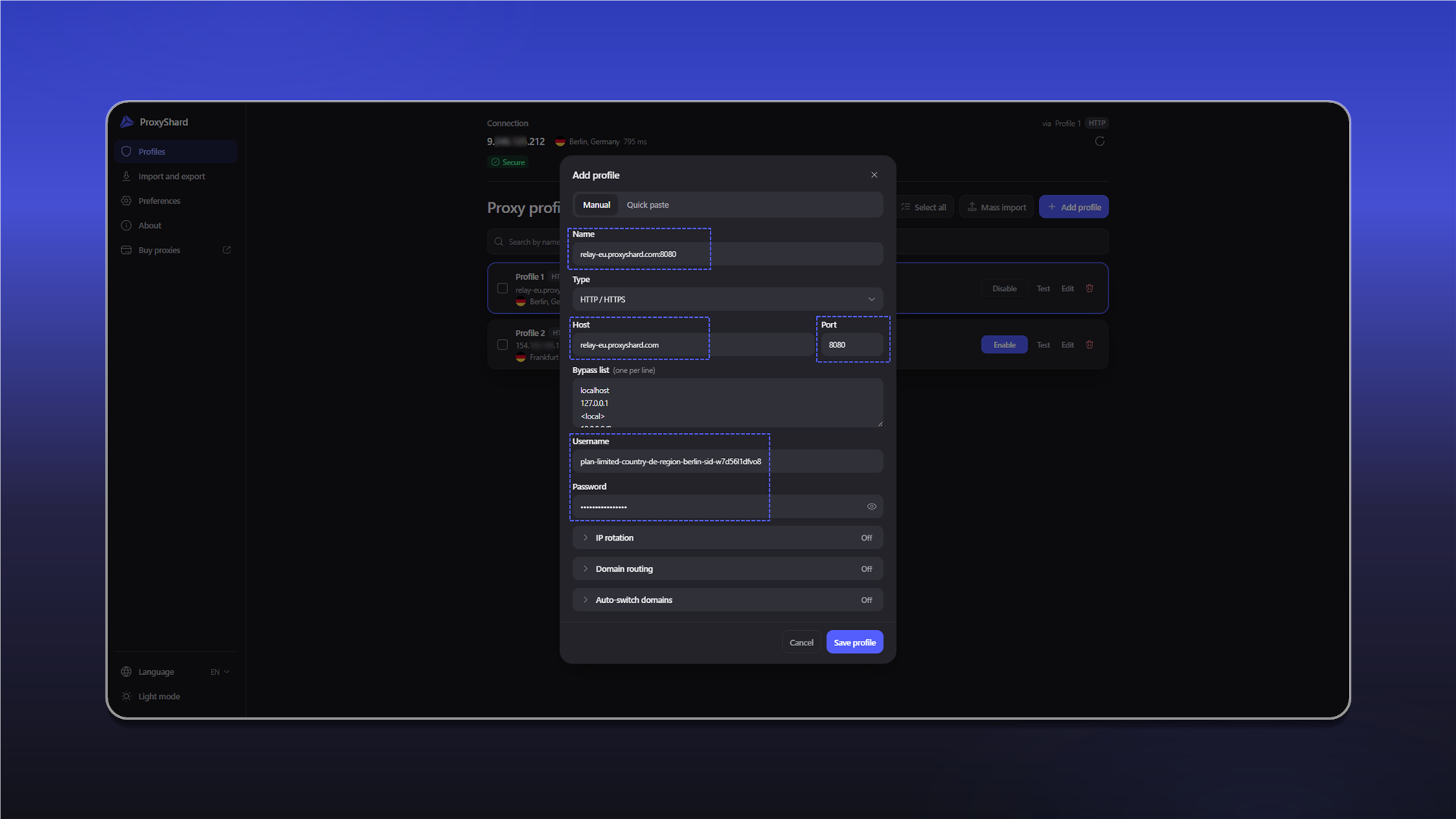
The Add profile form on the Manual tab
Import and export profiles
The Import and export section lets you back up your profiles and restore them when needed.
Export profilessaves every profile to a JSON file. ClickExport JSONand store the file in a secure location.Import from JSONrestores profiles from a previously exported file. ClickImport JSONand select the backup.
The backup may contain proxy addresses and authentication credentials. Do not share it with anyone you do not trust.
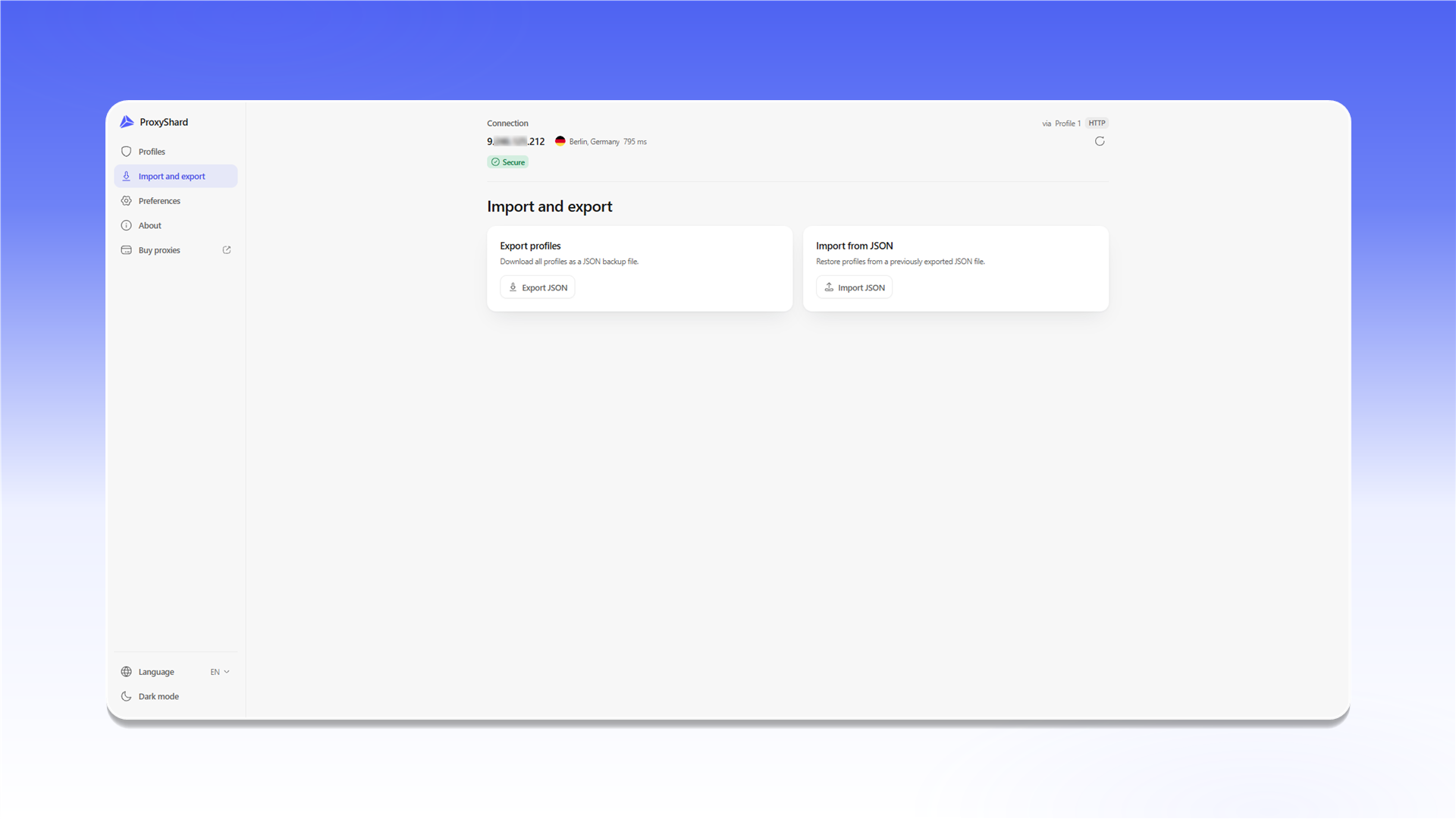
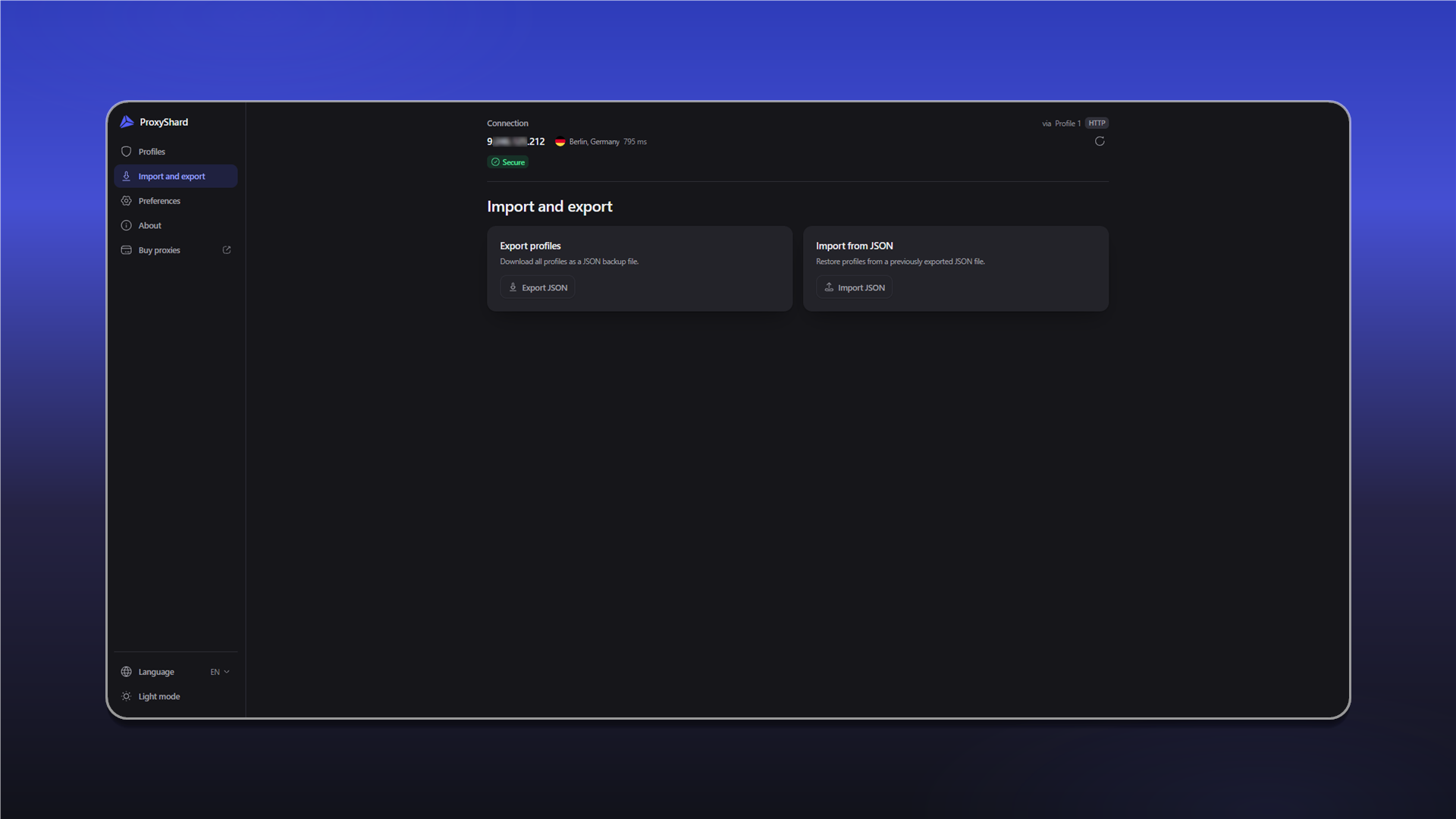
Back up and restore proxy profiles
Preferences
The Preferences section contains the following settings:
Show IP widget in popupdisplays your current IP address and location at the top of the extension popup.Show badge on the toolbar icondisplays a connection status indicator on the extension icon.Context menuadds profile switching to the browser's right-click menu.Auto-switch by domainallows profiles to activate automatically for configured domains.WebRTC leak protectionhelps prevent your real IP address from being exposed through WebRTC. Some WebRTC-based services may not work correctly while it is enabled. Learn more in UDP and WebRTC.Proxy fingerprint check (p0f)compares the operating system in the User-Agent with the TCP fingerprint. A mismatch may indicate proxy use. Learn more in OS fingerprint spoofing with p0f.IP checkerlets you select the service used to detect your IP address and location. InAuto (fallback)mode, the extension tries the available services in sequence until one responds.
Click Save preferences after changing the settings.
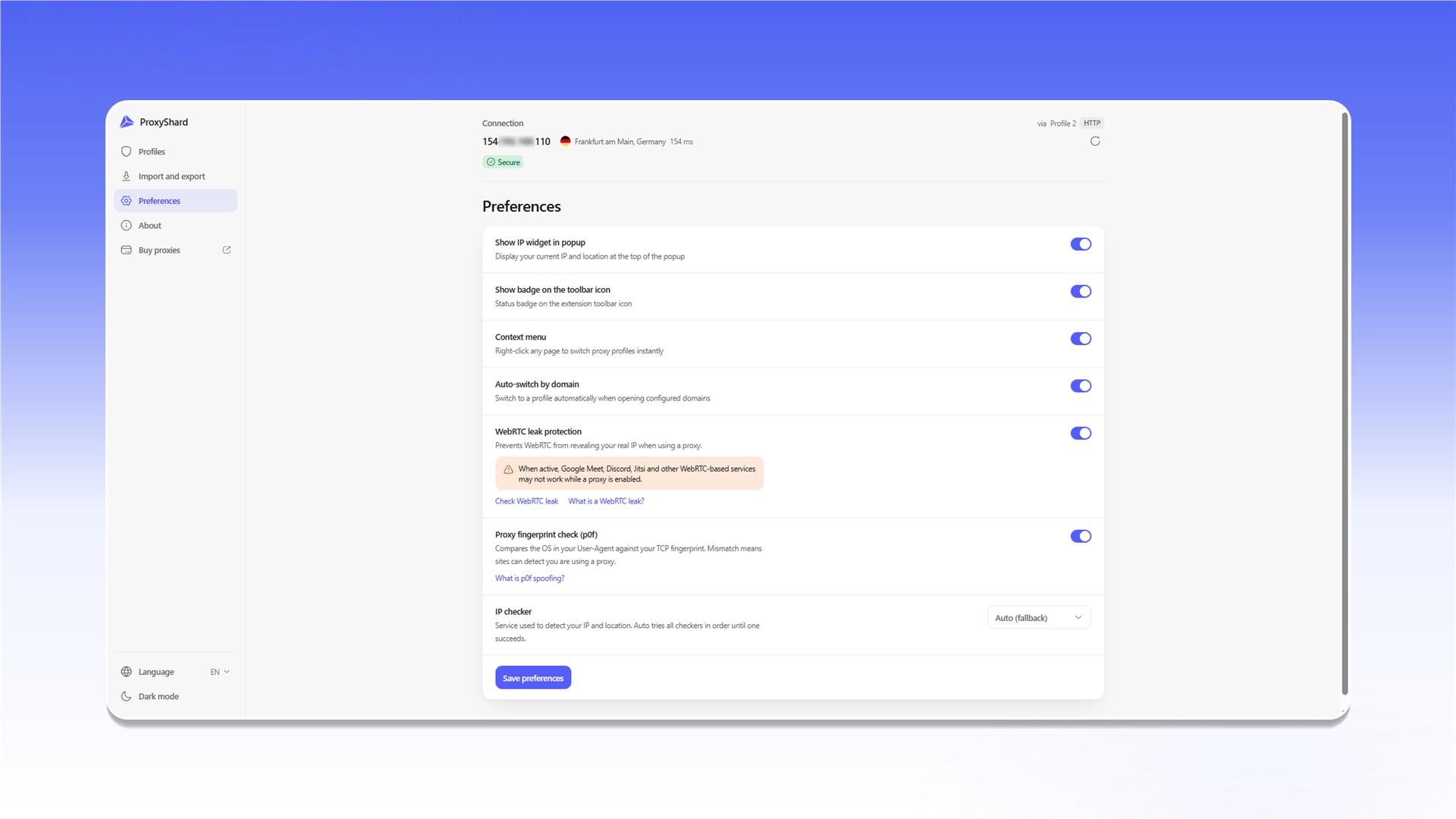
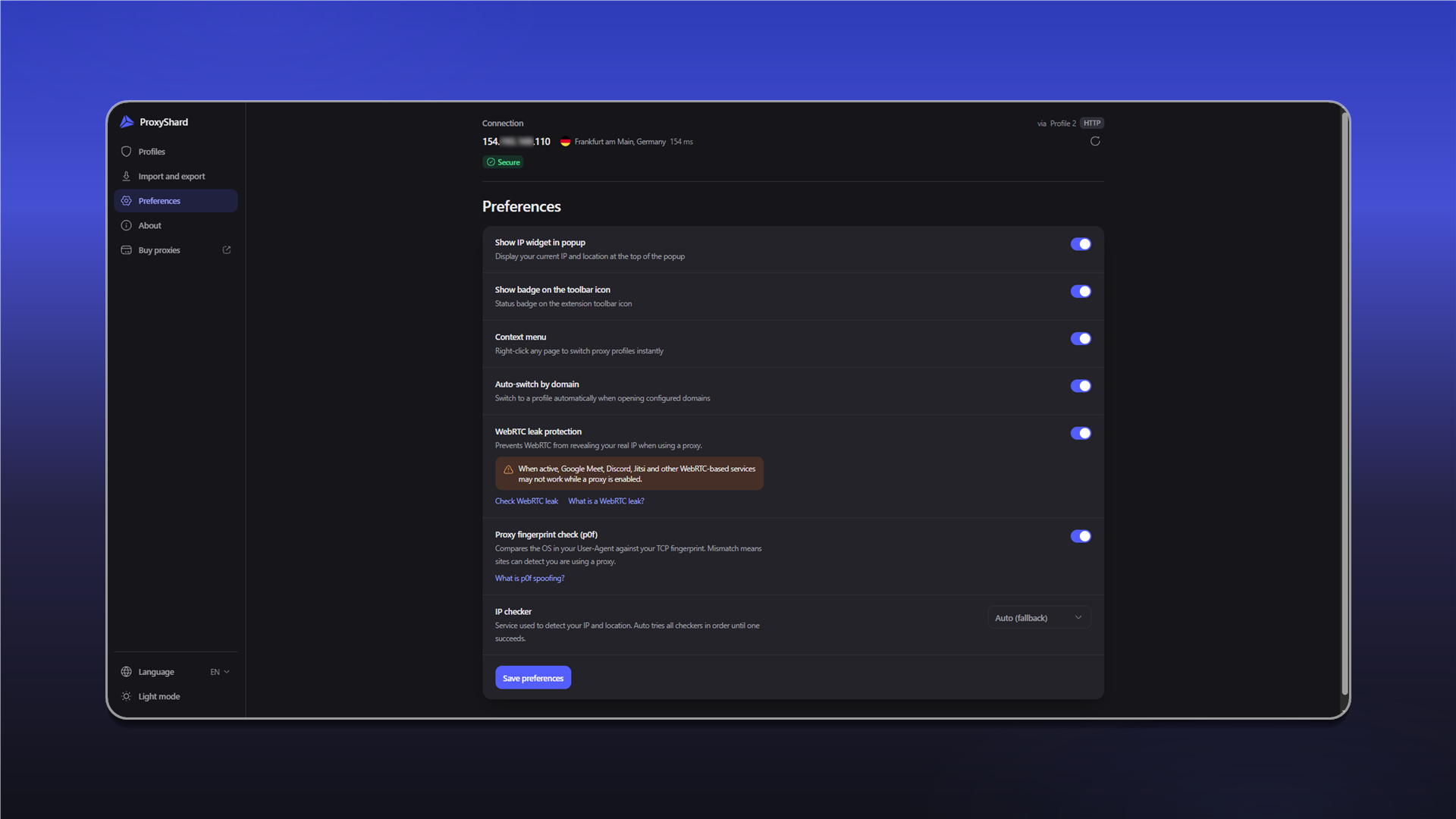
Additional extension settings
ShardX Extension is ready to use. You can enable and switch saved profiles from the main extension window.
Last updated on